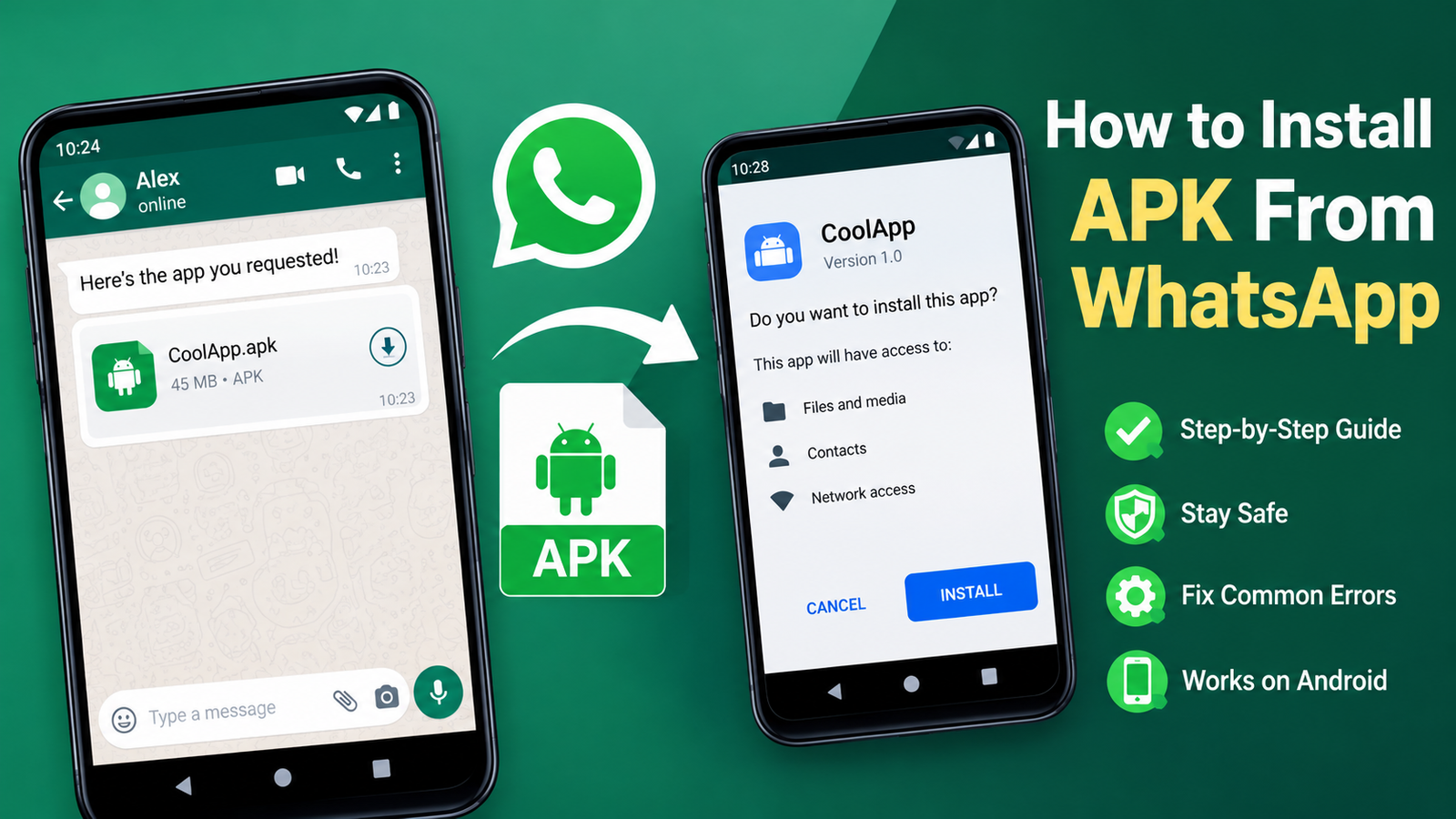
How to Install APK From WhatsApp on Android: A Safe Step-by-Step Guide
Installing an APK from WhatsApp can be useful when someone sends you an Android application that is not available through your usual app store. Instead of downloading the APK through a browser, you can receive the file directly in a WhatsApp chat and install it on your device.
However, Android treats APK files differently from apps installed through Google Play. Depending on your Android version and device manufacturer, you may need to allow installations from the app or file manager handling the APK.
If you are wondering how to install APK from WhatsApp, this guide explains the entire process in simple steps. You will also learn what to do when Android blocks the installation, why some APK files fail to install, and how to stay safer when installing apps received through WhatsApp.
What Is an APK File?
APK stands for Android Package Kit. It is the file format Android uses to distribute and install applications outside the standard app-store installation process.
When you download an app from Google Play, Android normally handles the installation in the background. With an APK, you are manually opening an installation package.
An APK can be shared through several methods, including:
- Bluetooth
- Quick Share
- Cloud storage
- A web browser
- USB or computer transfer
WhatsApp can therefore act as a convenient way to send an APK from one Android device to another.
It is important to remember that receiving an APK through WhatsApp does not automatically mean that the application is safe. The file could have been modified, outdated, or potentially harmful.
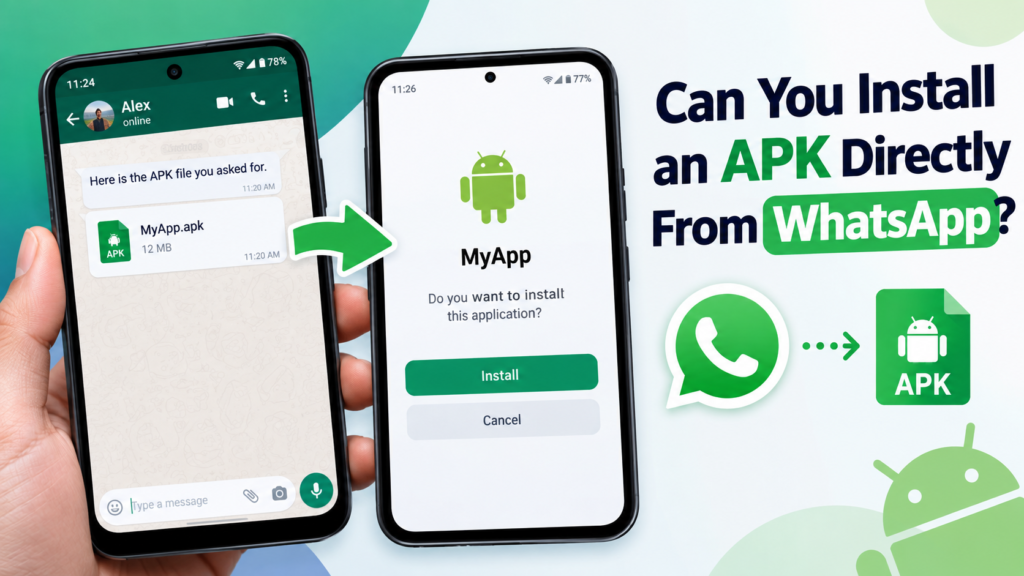
Can You Install an APK Directly From WhatsApp?
Yes, in many cases you can install an APK received through WhatsApp.
The exact process depends on your Android version, phone manufacturer, WhatsApp version, and the permissions configured on your device.
Usually, the process looks like this:
Receive APK → Download the file → Open it → Allow the required installation permission → Install → Disable the permission afterward if you do not need it
Some Android phones may open the APK directly from WhatsApp. On others, you may need to locate the downloaded file using a file manager.
How to Install APK From WhatsApp Step by Step
Before starting, make sure the APK came from someone or a source you trust. If you do not recognize the file or sender, it is better not to install it.
Step 1: Receive the APK on WhatsApp
Open WhatsApp and go to the conversation where the APK was sent.
You may see the APK as a document or file attachment. Tap the download button to save it to your phone.
Depending on your WhatsApp settings and available storage, the file may take a few seconds or longer to download.
Do not open or install it simply because someone sent it. First, consider whether you actually need the application and whether you trust its source.
Step 2: Open the Downloaded APK
After the APK finishes downloading, tap the file in WhatsApp if your device gives you the option to open it.
Your phone may display a warning that installation from this source is not currently allowed.
This is a normal Android security feature. Modern versions of Android restrict installations from unknown sources unless you specifically give an app permission to do so.
If WhatsApp cannot open the APK, don’t worry. You can find the file through your phone’s file manager instead.
Step 3: Allow Installation From the Required Source
If Android shows a message such as “For your security, your phone currently isn’t allowed to install unknown apps from this source,” you need to change a permission.
The wording and menu location can vary between devices.
On many Android phones, you can:
- Open Settings.
- Search for Install unknown apps.
- Select the app you are using to open the APK, such as WhatsApp or your file manager.
- Enable Allow from this source.
- Return to the APK.
- Try opening the file again.
Only enable this permission for a source you trust.
Once the APK has been installed, you can turn the permission off again if you do not regularly install APK files.
Step 4: Start the Installation
After opening the APK, Android should display an installation screen.
You may see the application’s name and an option such as Install.
Tap Install and wait while Android processes the package.
The installation can take anywhere from a few seconds to longer, depending on the application size and your phone’s performance.
Avoid repeatedly tapping the Install button if nothing appears to happen. Give your device a moment to complete the process.
Step 5: Open the App
Once installation is complete, Android should provide an Open option.
Tap it to launch the application.
You can also find the newly installed app in your regular app drawer or home screen.
If the application asks for permissions, review them carefully. Only grant access that makes sense for the app’s purpose.
For example, a messaging application may reasonably require contacts or microphone access, while a simple calculator should not normally need access to your messages.
Where Does WhatsApp Save APK Files?
The exact location can vary depending on your Android phone, WhatsApp version, and storage configuration.
If you cannot find the APK after downloading it, open your phone’s Files, File Manager, or similar application.
Look for folders associated with WhatsApp, downloads, or documents.
You can also use the file manager’s search function and search for the APK’s filename or the .apk extension.
This is especially useful if tapping the APK inside WhatsApp does not launch the installer.
WhatsApp APK Installation: Quick Overview
| Step | What to Do | Important Point |
|---|---|---|
| 1 | Receive the APK | Verify the sender and source |
| 2 | Download the file | Make sure the download finishes |
| 3 | Open the APK | Use WhatsApp or a file manager |
| 4 | Allow installation | Enable permission for the appropriate source |
| 5 | Install the app | Review the installation prompt |
| 6 | Open the app | Check permissions carefully |
| 7 | Disable permission | Turn off unknown-source access if no longer needed |
What If WhatsApp Won’t Install the APK?
Sometimes an APK received through WhatsApp will not install even after you enable the necessary permission.
There are several possible reasons.
The APK Download Is Incomplete
If the file was not downloaded correctly, Android may be unable to read it.
Try downloading the APK again. If the problem continues, ask the sender to resend the file.
The APK Is Not Compatible With Your Phone
An application may require a newer Android version, a particular processor architecture, or other hardware capabilities.
In this situation, Android may display an error during installation or the app may install but fail to work correctly.
You Already Have an Incompatible Version Installed
If you already have the same application installed, the new APK may conflict with the existing version.
This can happen when the APK was signed differently or when the version comes from a different source.
Be careful before uninstalling the existing application, especially if it contains important local data.
There Isn’t Enough Storage
APK installation requires available storage space.
If your phone is nearly full, delete unnecessary files or apps and try again.
Remember that the APK itself is not the only space required. Android may need additional temporary storage while installing the application.
The APK Is Damaged
A corrupted APK can cause installation errors.
If the file was transferred through WhatsApp and appears unusually small or behaves strangely, request another copy rather than repeatedly attempting the installation.
Common Android Errors When Installing APKs
You may encounter different messages depending on your phone.
Common problems include:
- App not installed
- Parse error
- Installation blocked
- There was a problem parsing the package
- This app isn’t compatible with your device
- For your security, your phone currently isn’t allowed to install unknown apps
The solution depends on the specific error.
For example, an unknown-source warning usually involves an installation permission, while a parse error may indicate an incompatible or damaged APK.
Is It Safe to Install APKs Received on WhatsApp?
Not necessarily.
WhatsApp provides a convenient way to transfer files, but the fact that an APK arrives through a private message does not prove that it is safe.
An APK can potentially contain malicious code, particularly when it comes from an unknown person, suspicious website, or unofficial modified-app source.
Before installing an APK, consider these precautions:
- Verify who sent the file.
- Ask where the APK came from.
- Avoid suspicious modified applications.
- Check the APK with reputable security tools when appropriate.
- Keep Android and your security software updated.
- Review requested app permissions.
- Do not install an APK simply because someone tells you that you must.
- Be particularly cautious with APKs claiming to provide paid features for free.
If the APK is supposedly an official application, compare its name, developer, version, and other details with information from the developer’s legitimate distribution channel.
How to Turn Off “Install Unknown Apps” After Installation
Allowing an application to install APK files does not mean you should leave that permission enabled permanently.
Once you finish installing the application, you can return to your Android settings and disable the permission.
Generally:
- Open Settings.
- Search for Install unknown apps.
- Select the source you previously allowed.
- Turn off Allow from this source.
The exact menu names can differ between Android devices.
Keeping unnecessary installation permissions disabled reduces the chance of accidentally installing an unwanted APK later.
What About XAPK, APKM, and APKS Files?
One important point is that not every Android app package you receive is a standard APK.
You may encounter files such as:
- APK — A standard Android application package.
- XAPK — A package that can contain an APK together with additional app data.
- APKM — A format commonly associated with split APK distribution.
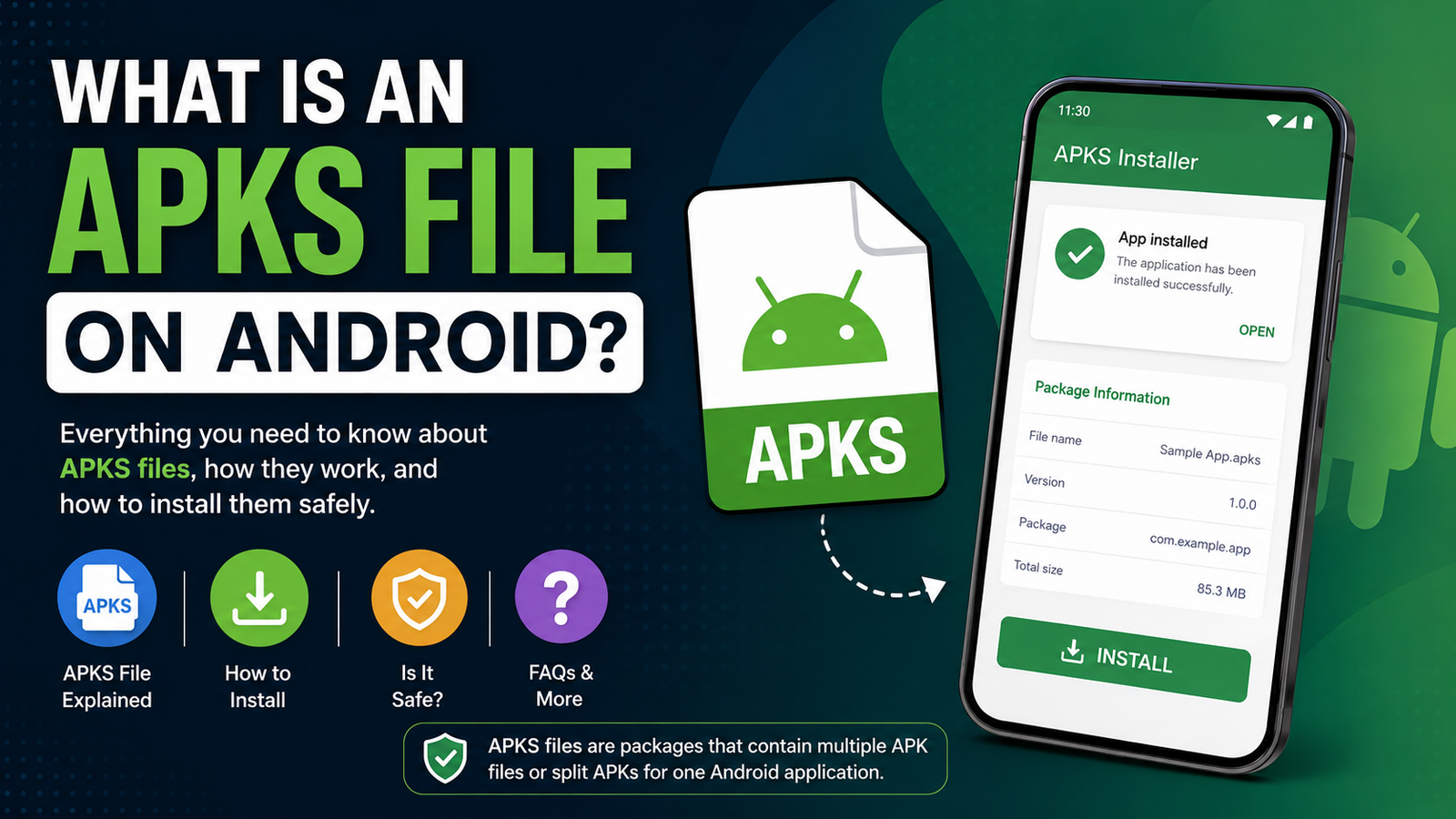
- APKS — A package containing multiple APK components.
A regular APK can often be opened directly through Android’s package installer.
Other formats may require a compatible installer or package-management application. Simply renaming an XAPK, APKM, or APKS file to .apk generally does not convert it into a normal APK.
If someone sends you one of these formats through WhatsApp, identify the file type before attempting installation.
Tips for Sharing APK Files Through WhatsApp
If you are the person sending the APK rather than receiving it, a few practices can make the process easier.
First, make sure you are sending the correct application version. Older APKs may not work properly on newer Android releases, while newer versions may require a more recent Android version.
It is also helpful to tell the recipient:
- The application’s name
- The APK version
- Where the file came from
- Which Android versions it supports
- Whether it requires additional files
- Whether an existing version should remain installed
Avoid sending APKs without context, especially when the recipient may not know what the file does.
Should You Install Every APK Someone Sends You?
No.
Treat an APK attachment similarly to an executable file received by email: the source matters.
If you receive an unexpected APK, even from someone you know, consider confirming that they intentionally sent it. Accounts can sometimes be compromised, and malicious files can be distributed through trusted contacts.
You should also be cautious with messages claiming things like:
- “Install this to verify your account.”
- “This is a special WhatsApp update.”
- “Install this to receive free rewards.”
- “This app gives you unlimited premium features.”
- “Your phone will stop working unless you install this.”
Urgent messages and unrealistic promises are common warning signs.
Frequently Asked Questions
Can I install an APK directly from WhatsApp?
Yes. If your Android device supports the package and the necessary installation permission is enabled, you can usually open an APK received through WhatsApp and install it. On some phones, you may need to locate the downloaded APK through a file manager.
Why does Android block an APK from WhatsApp?
Android commonly blocks installations from sources that have not been granted permission to install unknown apps. You may need to enable Allow from this source for WhatsApp or the file manager you are using.
Do I need to keep “Install unknown apps” enabled?
No. You can disable the permission after installing the APK. In fact, turning it off when you do not need it is a sensible security practice.
Why does my APK say “App not installed”?
There are several possible causes, including an incompatible Android version, insufficient storage, a corrupted APK, conflicting versions, or an APK built for a different device architecture.
Is an APK received from a WhatsApp contact automatically safe?
No. WhatsApp is simply the delivery method. The APK itself still needs to be treated carefully. Confirm its source and avoid installing files from unknown or suspicious sources.
Can I install XAPK or APKS files from WhatsApp?
These formats are different from ordinary APK files and may contain multiple components. They usually require a compatible installation method rather than Android’s standard APK installer.
Final Thoughts
Learning how to install APK from WhatsApp is relatively straightforward once you understand Android’s security restrictions. In most cases, you simply download the APK, open it, allow the appropriate source to install unknown apps, and complete the installation.
The more important part is deciding whether the APK should be installed in the first place.
Also Read: How to Install APK From Telegram: A Safe Step-by-Step Guide







Post Comment