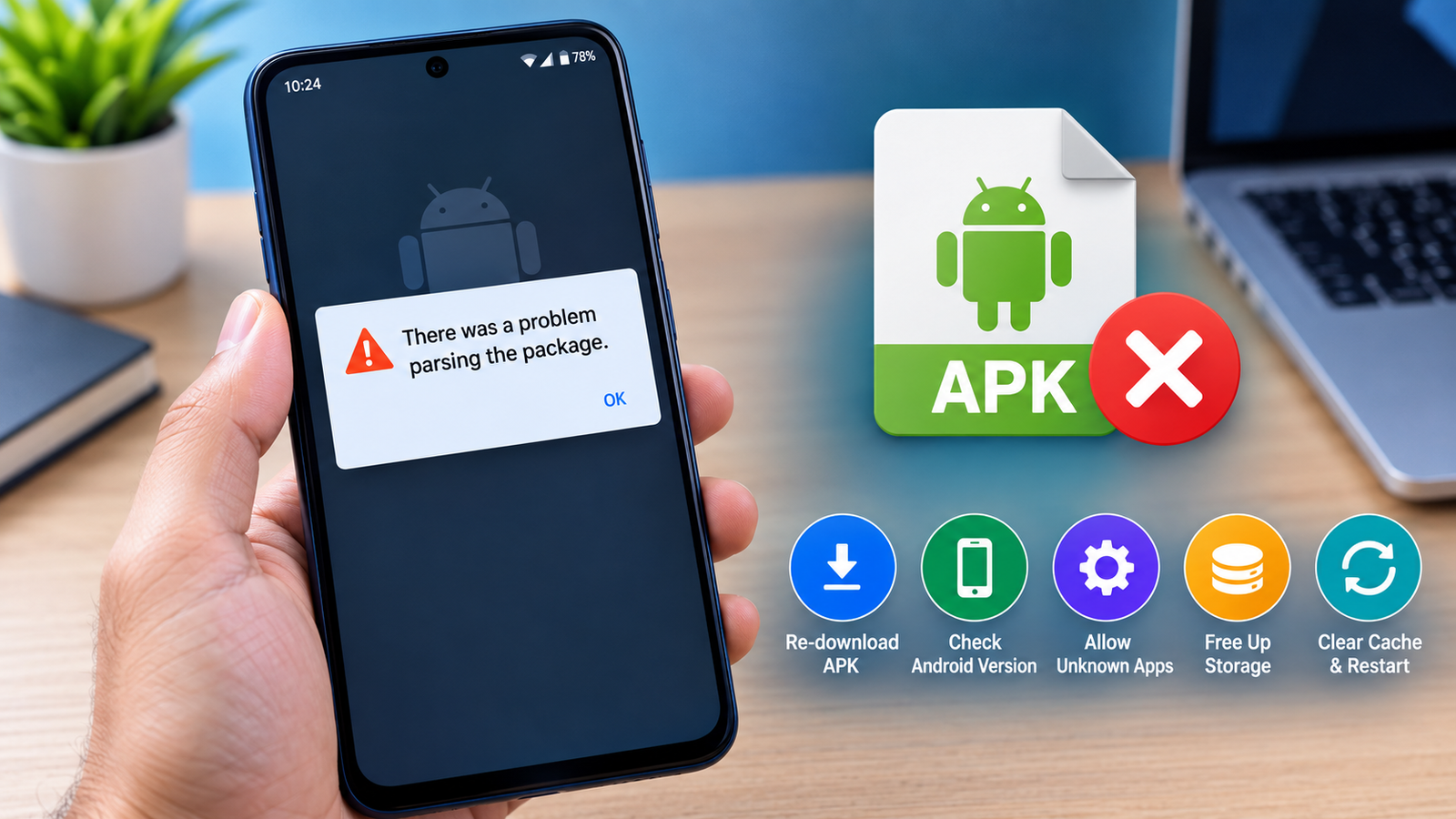
How to Fix APK Package Parsing Error: 10 Easy Solutions That Work
Installing an APK on Android can be useful when an app is unavailable on Google Play or when you need to install a specific version manually. However, the process does not always go smoothly. One common problem users encounter is the APK package parsing error, which can stop an application from installing.
The error may appear as “There was a problem parsing the package” or a similar message. It usually means Android could not properly read, verify, or process the APK file. The cause can range from a damaged download to an incompatible Android version or incorrect installation settings.
Fortunately, you do not necessarily need advanced technical knowledge to solve it. In this guide, we will explain how to fix APK package parsing error using practical methods, starting with the simplest solutions and moving toward more advanced checks.
What Is an APK Package Parsing Error?
An APK package parsing error occurs when Android cannot correctly interpret the information contained inside an APK file during installation.
An APK is an Android application package that contains the files and information required to install an app. If the package is incomplete, incompatible, damaged, or incorrectly formatted, Android may fail to read it.
You might see messages such as:
- “There was a problem parsing the package.”
- “Parse error.”
- “There was a problem parsing the package Android.”
- “App not installed.”
- “Error parsing the package.”
Although these messages can look complicated, the underlying issue is often relatively simple.
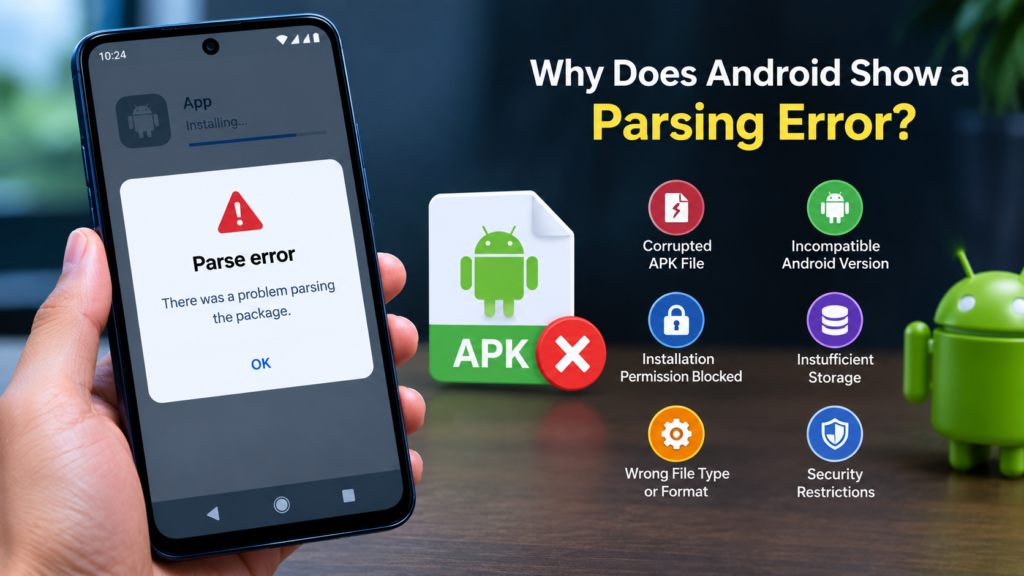
Why Does Android Show a Parsing Error?
There is no single cause behind every parsing error. Android checks several aspects of an APK before installation, and a problem with any of them can prevent the installation from completing.
Common causes include:
| Possible Cause | What It Means | Possible Solution |
|---|---|---|
| Corrupted APK | The file was damaged or downloaded incompletely | Download the APK again |
| Android incompatibility | The app requires a different Android version | Find a compatible version |
| Unknown-source restriction | Android blocks installation from the current source | Allow installation from that source |
| Incorrect APK type | The file may be a split package rather than a standard APK | Use a compatible installer |
| Old APK | The app may not support your device properly | Find a newer compatible release |
| Modified package | Changes to the APK may have affected installation | Use a trusted original package |
| Insufficient storage | The device does not have enough free space | Free up storage |
| File extension problem | The downloaded file may not actually be a standard APK | Verify the file type |
| Security restrictions | Android or a security service may block the installation | Review security settings |
| Download interruption | The APK did not download completely | Download it again over a stable connection |
Understanding the cause makes troubleshooting much easier.
1. Download the APK Again
One of the first things to try is downloading the APK again.
An interrupted or incomplete download can leave you with a package that Android cannot read. This can happen when your internet connection drops, the browser stops the download, or the hosting server provides an incomplete file.
Delete the existing APK and download a fresh copy.
For better results:
- Use a stable Wi-Fi or mobile data connection.
- Avoid interrupting the download.
- Check that the download reaches 100%.
- Make sure you have enough storage space.
- Avoid downloading the same file from unknown sources.
After downloading the file again, try installing it.
If the new copy installs successfully, the original file was probably incomplete or corrupted.
2. Check Your Android Version
Another common reason for a parsing error is compatibility.
Apps are built for specific Android versions and device architectures. An APK designed for a newer Android release may not work correctly on an older device.
To check your Android version:
- Open Settings.
- Go to About phone or About device.
- Find Android version.
- Note the version installed on your phone.
Then check the APK’s requirements before installing it.
For example, if an app requires a newer Android version than your phone supports, downloading the same APK repeatedly will not solve the problem. You need a version compatible with your device.
3. Allow Installation From the Source
Modern Android versions generally restrict applications installed outside Google Play until you give the relevant source permission.
Depending on your Android version and device manufacturer, the setting may be located under a menu such as:
Settings → Apps → Special app access → Install unknown apps
Select the application you are using to open the APK, such as your browser or file manager, and enable permission to install unknown apps if appropriate.
The exact menu names can vary between Samsung, Xiaomi, Google Pixel, OnePlus, Oppo, Vivo, and other Android devices.
After changing the permission, return to the APK and try the installation again.
4. Check Whether the File Is Actually an APK
Sometimes a file may appear to be an APK but is actually another package format.
For example, you may encounter:
.apk.xapk.apks.apkm
A standard APK can generally be installed directly through Android’s package installer. Other formats may contain multiple APK files or additional data and may require a compatible installation method.
Before troubleshooting further, check the file extension.
If the file is not a standard .apk, simply renaming it may not solve the problem. Instead, use an installation method designed for that particular package format.
5. Make Sure You Have Enough Storage
Low storage is another issue worth checking.
Even when an APK file itself is relatively small, the installed application can require significantly more space. Android also needs working space while installing and extracting application files.
Check your available storage by opening:
Settings → Storage
If your storage is nearly full, remove unnecessary files, unused applications, large videos, or duplicate downloads.
Then restart the installation process.
Keeping some free storage available can also help prevent other installation problems.
6. Restart Your Android Device
It sounds simple, but restarting your phone can resolve temporary installation problems.
Android’s package installer and background services can occasionally encounter temporary issues. A restart clears many temporary processes and gives the system a fresh start.
To troubleshoot:
- Save anything important.
- Restart your phone.
- Wait until Android fully loads.
- Locate the APK again.
- Try installing it.
If the error was caused by a temporary system problem, the installation may work afterward.
7. Clear the Package Installer or Related App Cache
A damaged cache can sometimes interfere with Android’s installation process.
Depending on your device, the package installer may appear under system apps, and its exact name can differ.
You can generally check:
Settings → Apps → Show system apps
Look for an entry related to the package installer or installation service.
If available, open its storage settings and clear the cache. Avoid clearing app data unless you understand what it will remove and the option is appropriate for your device.
You can also clear the cache of the browser or file manager that downloaded or opened the APK.
Afterward, restart the device and try the installation again.
8. Check the APK Architecture
Android applications may be built for different processor architectures.
You may encounter APKs intended for architectures such as:
- ARM64
- ARM
- x86
- x86_64
If you install an APK that does not match your device, installation or app compatibility problems can occur.
This is particularly important when downloading APKs manually because some websites provide several variants of the same application.
Before downloading, check whether the APK is intended for your device’s architecture.
If you are unsure, look for a universal version or an APK specifically listed as compatible with your device.
9. Try a Different Compatible APK Version
If the current APK still produces a parsing error, the specific version may not be suitable for your phone.
This can happen when:
- The app has dropped support for your Android version.
- The APK was built for a different architecture.
- The package has installation requirements your device does not meet.
- The file itself is damaged.
- The release was modified or repackaged.
Instead of repeatedly installing the same file, look for another version that matches your Android version and device architecture.
Older devices may need an earlier app release, while newer devices may require a more recent version.
10. Avoid Modified or Untrusted APK Files
Modified APKs can sometimes create installation problems because their package structure may have been changed.
More importantly, an APK from an unknown source can present security and privacy risks.
Before installing an APK, consider:
- Who published the application?
- Is the download source trustworthy?
- Does the APK match the expected file type?
- Does the application request unusually broad permissions?
- Is the file being offered as a modified version?
- Can you obtain the application through an official source instead?
Whenever possible, use the developer’s official distribution channel or Google Play.
If you downloaded the APK from an unfamiliar website and it repeatedly fails to install, finding a legitimate version from a trustworthy source is safer than trying to force the installation.
What to Do If None of These Solutions Work
If you have tried the common solutions and still cannot install the APK, go through the basics one more time.
First, confirm that your device meets the application’s requirements. Then verify the APK file type, Android version, architecture, storage space, and installation permissions.
You can also try downloading the file using another browser or network connection. This helps rule out a corrupted download.
If the application is available through Google Play, compare the Play Store version with the APK version you are attempting to install. A mismatch can provide a useful clue.
For persistent problems, searching for the exact error message together with your phone model and Android version may reveal device-specific compatibility information.
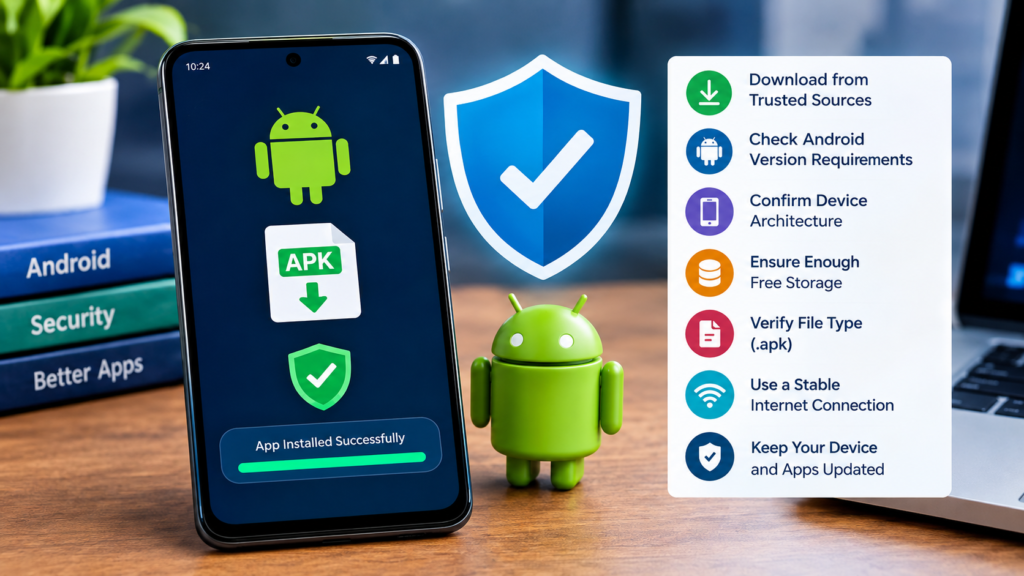
How to Prevent APK Parsing Errors in the Future
Preventing the problem is often easier than fixing it repeatedly.
Before installing an APK:
- Download files from reputable sources.
- Check the Android version requirement.
- Confirm that your device architecture is supported.
- Make sure you have enough free storage.
- Verify that the file ends with the expected extension.
- Avoid incomplete downloads.
- Keep Android updated when your device supports updates.
- Be cautious with modified or unknown APK files.
- Scan suspicious files with appropriate security tools.
- Prefer official app distribution channels whenever possible.
These steps can reduce both installation failures and security risks.
Frequently Asked Questions
Why does my Android phone say there was a problem parsing the package?
Android usually displays this message when it cannot properly read or process the APK. A corrupted download, incompatible Android version, unsupported architecture, incorrect package format, or modified APK can cause the problem.
How do I fix APK package parsing error without downloading another file?
Start by checking your Android version, available storage, installation permissions, and APK file extension. Restarting the device and clearing relevant caches may also help. However, if the APK itself is corrupted, downloading a fresh copy may be necessary.
Can an old Android version cause a parsing error?
Yes. If an APK requires an Android version newer than the one installed on your device, the package may not install correctly. Check the application’s minimum Android requirement before choosing an APK version.
Does allowing unknown apps fix a parsing error?
It can fix an installation block caused by Android’s security restrictions, but it does not repair a damaged or incompatible APK. If permission is already enabled and the parsing error remains, investigate compatibility and file integrity.
Can a corrupted APK cause a parsing error?
Yes. If an APK download is incomplete or damaged, Android may be unable to read its package information. Downloading the file again from a reliable source is one of the simplest troubleshooting steps.
Is it safe to install APK files from the internet?
Not every APK is safe. Files from unknown sources can potentially contain unwanted or malicious software. Before installing an APK, verify its source, publisher, permissions, and compatibility, and prefer official distribution channels whenever available.
Final Thoughts
An APK package parsing error can be frustrating, but it is often possible to identify the cause with a few basic checks. Start by downloading the APK again, checking your Android version, confirming the file type, and making sure your device has enough storage.
Also Read: How to Fix APK Parsing Problem on Android: 10 Easy Solutions














1 comment