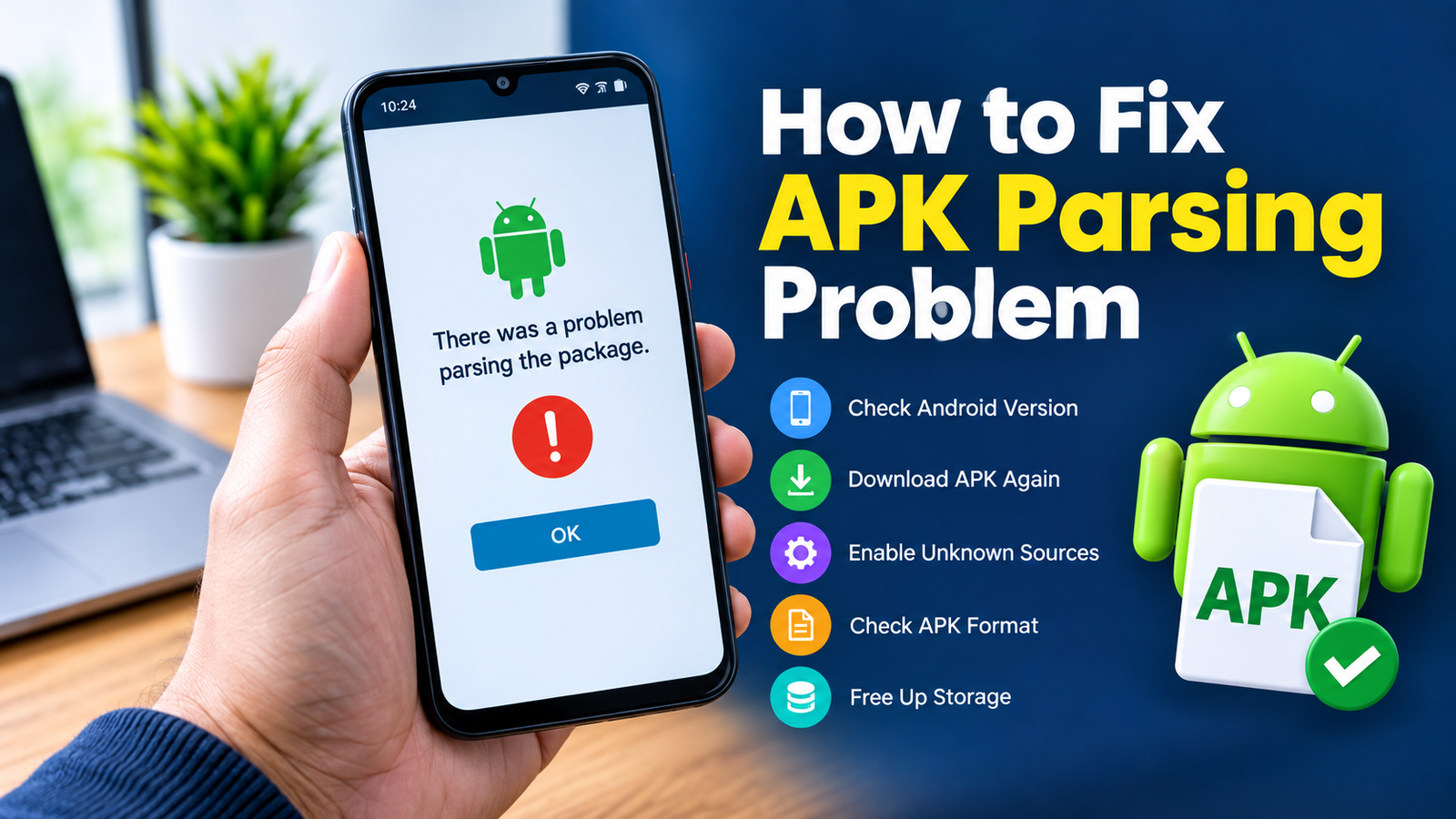
How to Fix APK Parsing Problem on Android: 10 Easy Solutions
Trying to install an APK on your Android phone only to see a message saying “There was a problem parsing the package” can be frustrating. The APK may appear to download normally, but Android refuses to install it.
This error is usually related to an incompatible Android version, a damaged APK file, incorrect installation settings, or an APK that was not built for your device. Fortunately, most parsing problems can be fixed without resetting your phone or making complicated changes.
In this guide, you’ll learn how to fix APK parsing problem step by step. We’ll cover the most common causes, practical solutions, and a few checks you can perform before trying to install the APK again.
What Is an APK Parsing Problem?
An APK parsing problem occurs when Android cannot properly read or process an APK package during installation.
APK stands for Android Package Kit. It is the package format Android uses to distribute and install applications outside the Google Play Store.
When Android encounters something it cannot understand in the APK, it may display messages such as:
- “There was a problem parsing the package.”
- “Parse error.”
- “Problem parsing the package.”
- “Application not installed.”
The exact cause can vary, so trying the appropriate troubleshooting method is important.
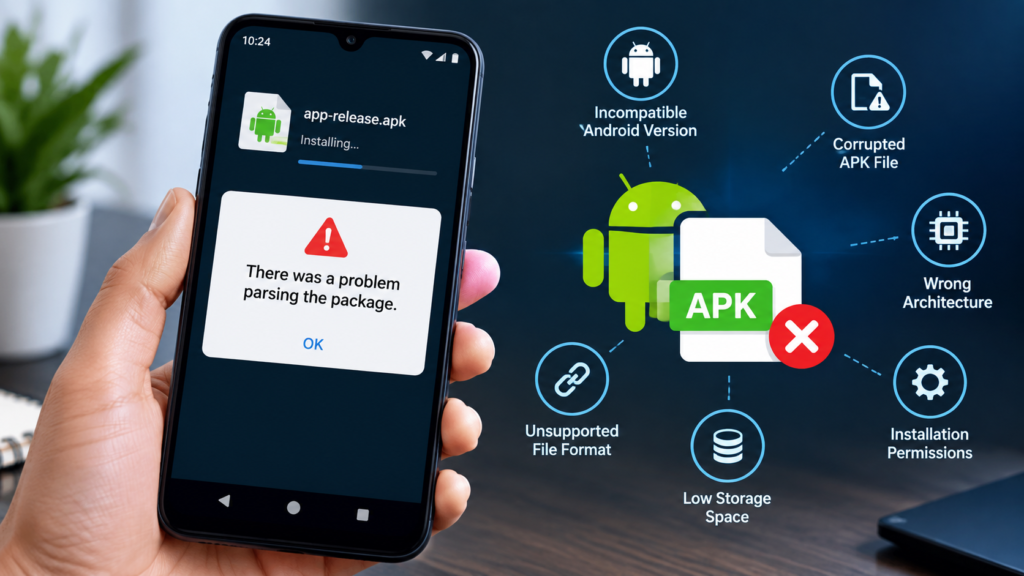
Why Does the APK Parsing Error Happen?
There isn’t always one single reason behind a parsing error. Several things can cause Android to reject an APK.
Common causes include:
| Possible Cause | What It Means | Possible Solution |
|---|---|---|
| Incompatible Android version | The APK requires a different Android version | Check compatibility |
| Corrupted APK | The downloaded file is incomplete or damaged | Download it again |
| Unknown sources blocked | Android doesn’t allow installation from that source | Enable the appropriate permission |
| Wrong APK architecture | The APK isn’t designed for your device’s CPU architecture | Find a compatible APK |
| Modified APK issue | Changes to the package may have damaged it | Try the original APK |
| Outdated Android | The app requires a newer system | Update Android if possible |
| Incorrect APK variant | You downloaded an unsuitable version | Choose the correct variant |
| Insufficient storage | There isn’t enough room for installation | Free up storage |
| Browser/download problem | The file may not have downloaded correctly | Download using another method |
Understanding the cause makes troubleshooting much easier.
1. Check Your Android Version
One of the first things to check is whether the APK supports your Android version.
For example, an APK designed for a newer Android release may not install correctly on an older device. The opposite can also happen with applications that depend on older system components.
To check your Android version:
- Open Settings.
- Scroll down and select About phone or About device.
- Look for Android version.
- Note the version installed on your phone.
- Compare it with the APK’s stated requirements.
If the APK requires a newer Android version than your device supports, installing it may not be possible without upgrading the operating system.
2. Download the APK Again
A damaged or incomplete download is another common reason for a parsing problem.
If the download was interrupted, the APK may have missing data even though the file appears on your phone.
Delete the problematic APK and download it again from a reputable source.
Before downloading:
- Make sure you have a stable internet connection.
- Avoid interrupting the download.
- Check that the file size looks reasonable.
- Avoid suspicious websites offering modified or repackaged files.
- Keep enough free storage available.
If the second download works, the original file was likely incomplete or corrupted.
3. Check the APK File Format
Not every Android application download is a standard .apk file.
You may encounter formats such as:
- APK
- XAPK
- APKS
- APKM
- Split APK packages
A regular Android installer may not know how to install these packages directly.
For example, an XAPK package can contain an APK along with additional application data. Similarly, split APK packages may contain multiple APK components that need to be installed together.
If you’re trying to install a package that isn’t a standard APK, make sure you’re using a compatible installation method rather than treating it like a normal APK.
4. Allow Installation From the Source
Modern Android versions restrict applications installed outside the Google Play Store.
If your phone blocks the installation, check whether the application you’re using to open the APK has permission to install unknown apps.
The setting can usually be found under:
Settings → Apps → Special app access → Install unknown apps
Depending on your Android manufacturer, the exact menu names may differ.
You may need to allow the specific browser or file manager you’re using to open the APK.
Only enable this permission for sources you trust. After installing the APK, you can disable the permission again if you don’t need it.
5. Make Sure the APK Matches Your Device Architecture
Android devices use different processor architectures. An APK designed for one architecture may not work correctly on another device.
Common architectures include:
- ARM64
- ARM32
- x86
- x86_64
Many modern smartphones use ARM-based processors, but compatibility depends on the particular application and device.
If an APK offers multiple variants, check the download information carefully before choosing one.
Installing the wrong architecture can lead to installation failures, crashes, or compatibility problems.
6. Check Whether the APK Is Designed for Your Device
Even when your Android version looks compatible, an application may still have device-specific requirements.
Some applications depend on:
- Specific hardware features
- Certain Android APIs
- Google Play services
- Screen or chipset requirements
- Manufacturer-specific components
- Particular Android system libraries
If the APK was built specifically for another device or Android environment, it may not install properly on your phone.
Look for a compatibility section on the application’s official documentation or trusted download source.
7. Free Up Storage Space
Low storage is another problem worth checking.
Android needs enough free space to save and process the application during installation. An APK may be relatively small, but the installed application can require considerably more storage.
Check your available space under:
Settings → Storage
If storage is nearly full, consider removing:
- Unused applications
- Large videos
- Duplicate photos
- Old downloads
- Unnecessary cached files
- Files you have already backed up
After freeing some space, restart the installation process.
8. Restart Your Android Phone
A simple restart can sometimes resolve temporary system issues affecting APK installation.
Android may have background processes, temporary files, or installation services that aren’t behaving correctly.
Restarting your device gives the system a fresh start.
After the restart:
- Locate the APK again.
- Open it with the appropriate installer.
- Follow the installation prompts.
- Check whether the parsing error appears again.
This takes only a minute and is worth trying before moving to more complicated troubleshooting.
9. Update Android
If your phone is running an outdated version of Android, an APK may require system components that aren’t available on your device.
Check for available system updates by opening:
Settings → System → Software update
The exact location varies by manufacturer.
If an official update is available, installing it may improve compatibility with newer applications.
However, don’t attempt to install an APK that requires a system version your phone cannot support simply by changing version information. Compatibility depends on more than the version number displayed in Settings.
10. Try a Different Version of the APK
Sometimes the latest APK isn’t the right version for your particular device.
Developers may release different builds for different Android versions, processor architectures, screen configurations, or device types.
If the source provides several legitimate versions, check their compatibility information carefully.
You may need:
- An older compatible release
- A different architecture
- A universal version
- A version designed for your Android release
Avoid downloading random APK versions simply because they have similar names. Make sure the source and package are trustworthy.
How to Fix APK Parsing Problem Quickly
If you want a simple troubleshooting sequence, try these steps in order:
- Check your Android version.
- Confirm that the APK supports your device.
- Delete the APK and download it again.
- Check whether the file is a standard APK.
- Verify the APK’s architecture.
- Check the installation permission for your browser or file manager.
- Free up storage space.
- Restart your phone.
- Install available Android updates.
- Try a compatible version of the application.
This approach can help identify whether the problem is caused by the file, your Android system, or compatibility requirements.
Is It Safe to Install an APK That Causes a Parsing Error?
A parsing error doesn’t automatically mean an APK is malicious. However, you shouldn’t ignore security considerations just because you’re trying to solve an installation problem.
Before installing an APK, consider:
- Where the file came from.
- Whether the developer is identifiable.
- Whether the file has been modified.
- Whether the APK’s permissions make sense for the application.
- Whether your security software flags it.
- Whether the download source has a trustworthy reputation.
Avoid disabling Android security features simply to force an APK to install.
If Android or your security software warns you about a potentially harmful application, investigate the warning instead of automatically bypassing it.
What If None of These Solutions Work?
If you’ve tried the common fixes and the APK still produces a parsing error, the package itself may be incompatible with your device.
At that point, check the application’s official requirements and look for another supported version.
You can also compare the APK with your phone’s:
- Android version
- CPU architecture
- Available storage
- Device model
- Required system components
If the APK is intended for a different Android environment, there may not be a reliable way to make it work on your particular device.
In some situations, installing the application through the Google Play Store or another official distribution method may be the better option.
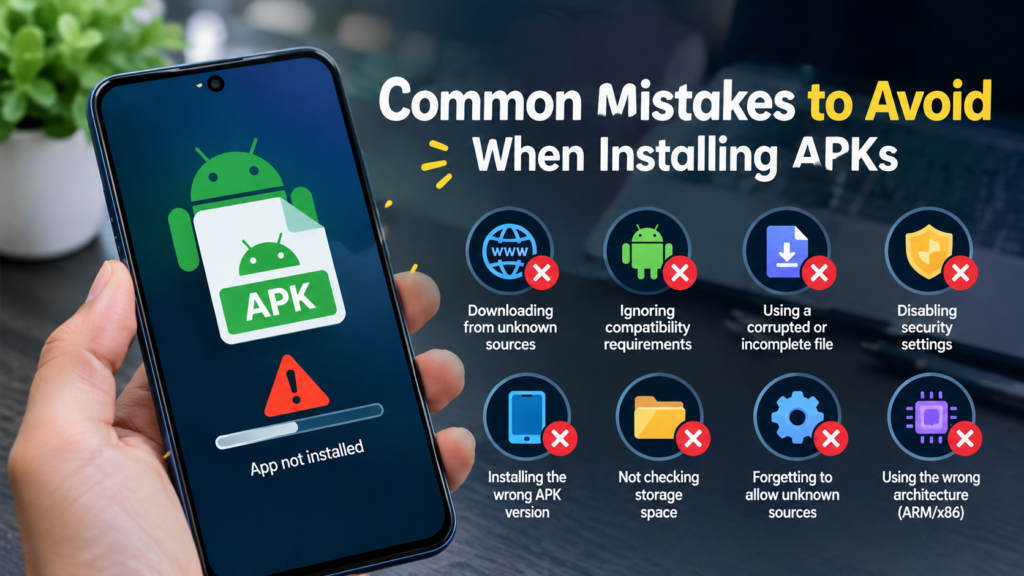
Common Mistakes to Avoid When Installing APKs
Trying random fixes can sometimes create additional problems. Avoid these common mistakes:
- Installing APKs from unknown websites.
- Downloading files with misleading names.
- Installing an APK without checking compatibility.
- Using an APK designed for a different architecture.
- Ignoring security warnings.
- Repeatedly installing a corrupted file.
- Modifying APK files without understanding the consequences.
- Disabling security protections permanently.
A little preparation can prevent many installation errors.
Frequently Asked Questions
What does “problem parsing the package” mean?
It means Android couldn’t properly process the APK package during installation. The cause may be incompatibility, a corrupted download, an unsupported package format, or another installation issue.
Can an old Android version cause a parsing error?
Yes. If an APK requires a newer Android version or system component than your device provides, Android may reject the installation.
Why does an APK work on another phone but not mine?
Different phones can have different Android versions, processor architectures, hardware features, and system components. An APK that works on one device isn’t necessarily compatible with another.
Does downloading the APK again fix the parsing error?
It can. If the original download was incomplete or corrupted, downloading a fresh copy may resolve the problem.
Can I install an XAPK like a normal APK?
Usually not. XAPK files can contain additional components and may require a compatible installation method rather than the standard Android APK installer.
Should I disable Android security to install an APK?
It’s generally better not to disable security protections simply to force an installation. First verify the APK’s source, compatibility, file integrity, and required permissions.
Final Thoughts
A parsing error doesn’t necessarily mean there’s something seriously wrong with your Android phone. In many cases, the issue comes down to an incompatible APK, an incomplete download, an unsupported package format, or a mismatch between the application and your device.
If you’re wondering how to fix APK parsing problem, start with the simplest checks: verify your Android version, download the APK again, confirm the package format, check compatibility, and make sure your device has enough storage.
Also Read: How to Fix APK App Not Installed Error on Android: 10 Easy Solutions














1 comment