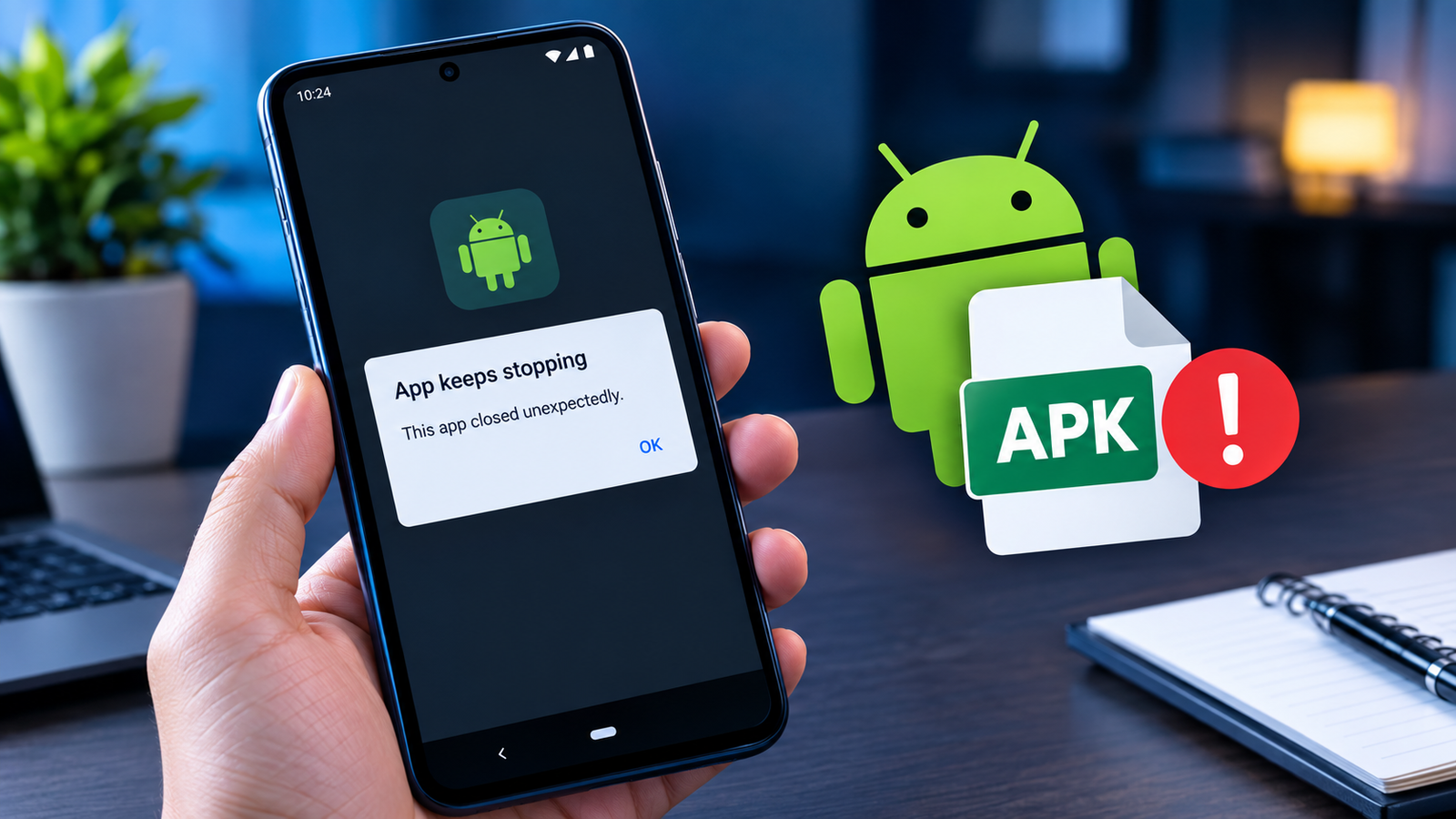
Why APK Closes Immediately After Opening: 9 Common Causes and Easy Fixes
Have you ever installed an APK successfully, only to tap the app icon and watch it close immediately? This can be frustrating, especially when there is no clear error message explaining what went wrong. If you are wondering why APK closes immediately after opening, the problem is usually related to app compatibility, missing files, permissions, corrupted installation data, or an issue with the APK itself.
An APK can install correctly and still fail when Android tries to launch it. Installation mainly checks whether the package can be installed, while opening the app requires Android to load its code, resources, permissions, libraries, and other components.
The good news is that an app that closes immediately does not always mean your phone has a serious problem. In many cases, you can identify the cause with a few simple checks. This guide explains the most common reasons an APK crashes after opening and what you can do to fix the problem.
Why Does an APK Close Immediately After Opening?
When an APK opens and then disappears within a few seconds, Android is usually experiencing a problem while starting the application. The app may crash before its main screen can load.
Some causes are easy to fix, while others mean that the APK is simply incompatible with your device.
Here are some of the most common reasons:
- The APK is not compatible with your Android version.
- The APK was downloaded incorrectly or became corrupted.
- Required files are missing.
- The app needs permissions that have not been granted.
- The APK uses an unsupported processor architecture.
- Android’s WebView or another system component is outdated.
- The app has a compatibility issue with your device.
- Previous app data is causing a startup crash.
- The APK itself contains bugs or was poorly modified.
Understanding which of these applies to your situation can save you from repeatedly reinstalling the same problematic file.
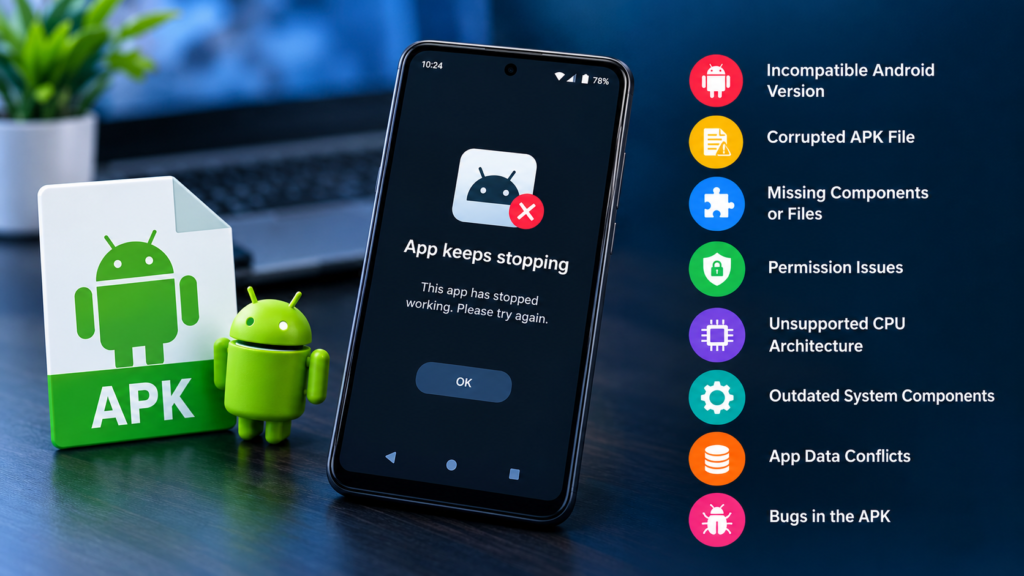
Common Reasons an APK Crashes After Opening
1. The APK Is Not Compatible With Your Android Version
One of the first things to check is Android compatibility.
An APK may have been designed for a particular Android version and behave incorrectly on an older or newer system. Developers can also set minimum Android requirements that prevent certain versions of an app from working properly.
For example, an application built around newer Android APIs may fail during startup on an older device. In other situations, an older application may have problems with newer Android security or system changes.
Check the APK’s stated Android requirements before trying another installation.
2. The APK File Is Corrupted
A damaged download is another common explanation for an app that installs but crashes immediately.
This can happen if the download was interrupted, the file was incomplete, or the source provided a damaged package. Even if Android accepts the installation, individual application resources may not work correctly.
Try downloading the APK again from a trustworthy source. Avoid repeatedly installing the exact same file if it has already shown signs of being damaged.
3. The APK Requires Additional Files
Not every Android application is distributed as a simple standalone APK.
Some apps require additional resources, split packages, configuration files, or other components. Installing only one part of such an application can result in an app that appears to install normally but fails when launched.
If the download is described as a bundle, XAPK, APKS, or split APK package, check whether additional installation steps are required.
4. The App Does Not Have the Required Permissions
Some applications need specific permissions to function properly.
Depending on the app, these could include access to:
- Storage or photos
- Camera
- Microphone
- Location
- Notifications
- Phone-related features
A permission problem does not always cause an immediate crash, but it can happen with applications that expect access to a particular feature during startup.
Go to Settings > Apps > [App Name] > Permissions and review the available permissions. Only grant permissions that make sense for the application’s purpose.
5. The APK Uses an Unsupported CPU Architecture
Android devices use different processor architectures, and APKs can contain native libraries designed for specific architectures.
Common architectures include ARM-based variants and x86-based configurations. If the APK does not contain compatible native libraries for your device, it may crash when Android attempts to load them.
This is particularly important with older applications, games, emulators, and modified APKs.
If the developer offers multiple versions, choose the one that matches your device architecture.
APK Crash Causes at a Glance
| Possible Cause | What You May Notice | What to Try |
|---|---|---|
| Android incompatibility | App closes immediately | Check Android requirements |
| Corrupted APK | Installation or startup problems | Download the file again |
| Missing components | App crashes during startup | Install the complete package |
| Permission issue | Crash after requesting access | Review app permissions |
| Wrong architecture | App refuses to launch | Use a compatible APK version |
| Outdated system component | Multiple apps may crash | Update relevant Android components |
| Bad app data | App crashes after previous use | Clear app data and cache |
| Buggy APK | Same crash after reinstall | Try another version |
| Modified APK problem | Unstable or unexpected behavior | Use a reputable, unmodified release |
How to Fix an APK That Closes Immediately
Once you know the possible causes, work through the fixes one at a time. There is no need to reset your phone or delete everything immediately.
Restart Your Android Device
Start with the simplest solution: restart your phone or tablet.
A temporary system process, memory issue, or background service can occasionally interfere with an application’s startup.
After restarting, open the APK again.
If it still closes immediately, continue with the next steps.
Clear the App Cache and Data
If the application has already been launched before, its stored data may be damaged.
Open:
Settings > Apps > [App Name] > Storage
Then look for options such as:
- Clear cache
- Clear storage
- Clear data
Start with clearing the cache. If that does not work, clearing the app’s stored data may help.
Keep in mind that clearing data can remove locally stored settings, accounts, or other app information.
Check Available Storage
Very limited storage can cause unexpected application behavior.
Android needs free space not only for installing applications but also for temporary files and normal system operations.
Check your available storage and remove unnecessary files if the device is nearly full. Then restart the application.
Update Android and Relevant System Components
If several applications are crashing, the problem may not be limited to one APK.
Check whether your device has pending system updates. Also make sure important Android components are current.
This is especially useful when an app depends on system services or components that have changed between Android versions.
Reinstall the APK
If the APK was installed incorrectly, removing it and installing a fresh copy may resolve the issue.
Before reinstalling:
- Uninstall the problematic application.
- Restart the device if necessary.
- Obtain a fresh copy of the APK.
- Make sure it matches your Android version and device architecture.
- Install it again.
- Launch the app without immediately changing advanced settings.
If the same version crashes again, the problem may be with the APK rather than your installation.
What If Only One APK Keeps Crashing?
If other applications work normally and only one APK closes immediately, focus your troubleshooting on that particular application.
This can indicate:
- An incompatible APK build
- A developer bug
- Missing application components
- An incorrect architecture
- A modified or damaged package
- An unsupported Android version
Try another legitimate version of the same application if one is available.
Avoid downloading many random APK versions from unknown websites simply to find one that works. Besides wasting time, unknown packages can introduce security and privacy risks.
What If Every APK Closes Immediately?
The situation is different if multiple newly installed APKs crash as soon as you open them.
In that case, investigate the device itself.
Check:
- Android version
- Available storage
- System updates
- App permissions
- Google Play system updates
- Recently installed system-modifying apps
- Whether other applications are also crashing
If normal apps from trusted sources are also failing, the issue may involve the operating system or another system component rather than the individual APK.
Avoid These Common Troubleshooting Mistakes
When trying to fix an APK crash, some actions can make the situation more complicated.
Avoid:
- Installing dozens of unknown APK versions.
- Disabling important Android security features permanently.
- Granting every permission requested by an unfamiliar app.
- Using modified APKs from questionable sources.
- Deleting system files without knowing what they do.
- Assuming that reinstalling always fixes compatibility problems.
A safer approach is to identify the likely cause first and then make one change at a time.
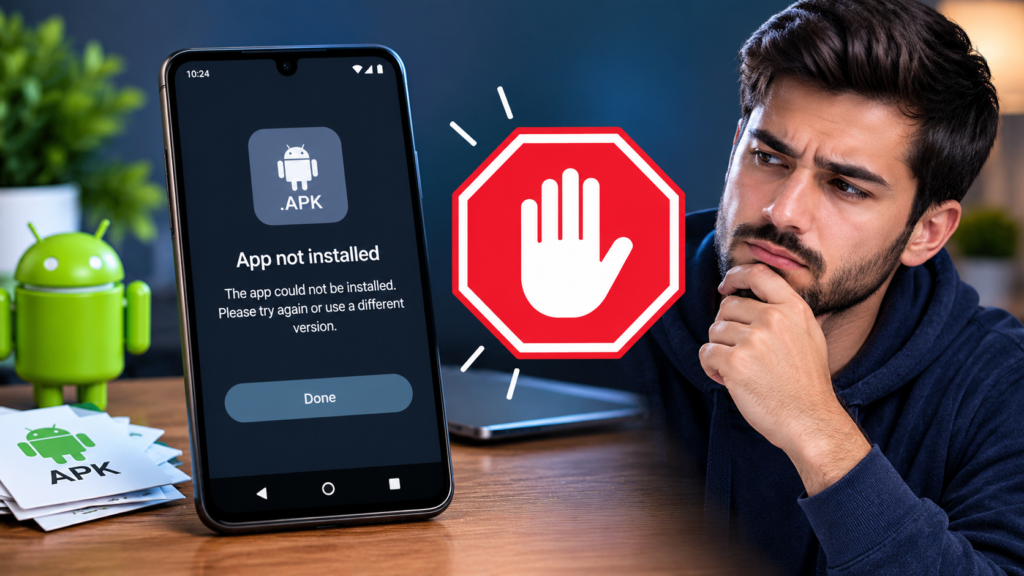
When Should You Stop Trying to Install the APK?
Sometimes the best solution is to stop troubleshooting that particular APK.
If you have confirmed that the file is incompatible with your Android version, requires unavailable components, or repeatedly crashes after a clean installation, continuing to reinstall it is unlikely to solve the underlying problem.
Consider using:
- An official version of the application
- A compatible older or newer release
- A version available through a trusted app store
- An alternative application with similar features
If an APK requests unusual permissions, behaves suspiciously, or causes other unexpected problems, remove it rather than continuing to troubleshoot it.
Frequently Asked Questions
Why does an APK close immediately after opening?
An APK can close immediately because of Android incompatibility, corrupted files, missing components, unsupported CPU architecture, permission problems, or bugs within the application. Checking the Android version and trying a fresh, compatible APK are useful first steps.
Can a corrupted APK install successfully?
Yes. Installation does not necessarily mean every file or resource inside an APK will work correctly. A damaged or incomplete package can sometimes install but crash when Android attempts to load specific components.
Can clearing app data fix an APK that keeps crashing?
It can. If damaged or conflicting app data is causing the startup crash, clearing the cache or app data may allow the application to launch normally. Clearing data may also remove locally stored settings and information.
Why does one APK crash while other apps work?
If only one APK crashes, the problem is more likely to be specific to that application. Compatibility issues, missing components, architecture mismatches, bugs, or a damaged APK can all cause this behavior.
Should I download another APK if the first one crashes?
If you have reason to believe the original file is damaged or incompatible, obtaining a compatible version from a trustworthy source can help. Avoid repeatedly installing APKs from unknown sources simply because they are different versions.
Can an old Android phone run a newer APK?
Not necessarily. Newer applications may require Android features or APIs that older devices do not support. Always check the application’s minimum Android requirement before installing it.
Final Thoughts
If you were searching for why APK closes immediately after opening, the most important point is that a successful installation does not guarantee that an application is compatible with your device.
Start with the basics: check your Android version, verify that the APK is complete and undamaged, review permissions, make sure you have enough storage, and confirm that the APK supports your device’s architecture.
Also Read: Why APK Gets Stuck During Installation: Causes and Fixes














1 comment