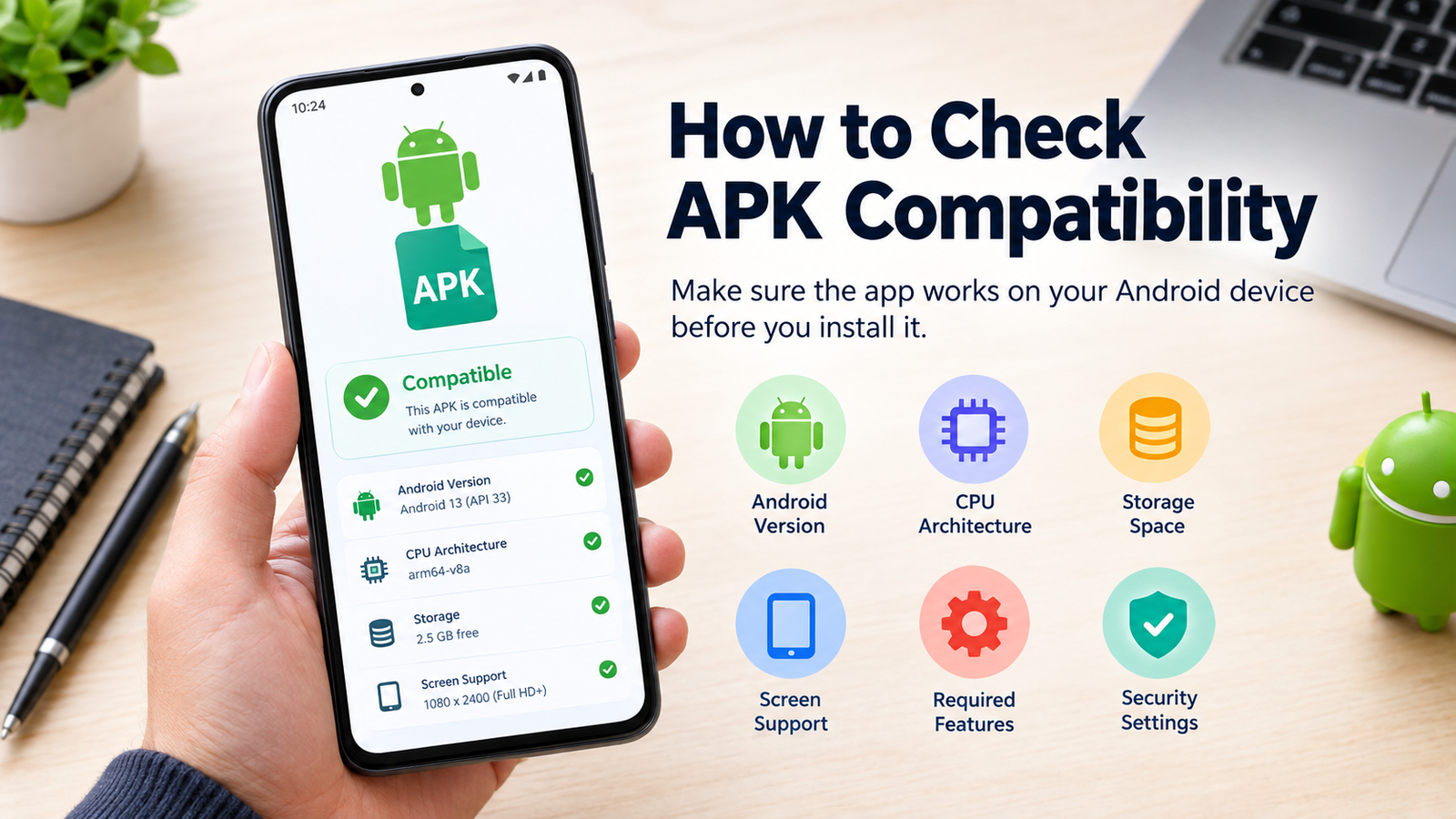
How to Check APK Compatibility: Before Installing an App on Android
Installing an APK can be a convenient way to get an Android app when it is not available through your usual app store. However, downloading an APK does not always mean it will work correctly on your phone. An app may fail to install, crash after opening, display incorrectly, or refuse to work because it was designed for a different Android version, processor architecture, screen configuration, or device.
That is why learning how to check APK compatibility before installation can save you time and prevent unnecessary troubleshooting. A few checks can tell you whether an APK is suitable for your device and whether you should look for another version.
In this guide, you will learn the most important compatibility checks, including Android version, CPU architecture, app requirements, APK variants, screen support, permissions, and common installation problems.
What Does APK Compatibility Mean?
APK compatibility refers to whether an Android application package can properly install and run on a particular device.
Android devices are not all configured the same way. Two phones can run the same Android version but use different processors, hardware features, screen resolutions, or system configurations.
An APK may therefore be compatible with one phone while causing problems on another.
Compatibility generally depends on factors such as:
- Android version
- CPU architecture
- Minimum Android SDK requirement
- Device hardware
- Screen and display configuration
- Required system features
- APK variant
- App dependencies
- Available storage
- Security and installation restrictions
Checking these factors before installation gives you a much better idea of whether the APK is suitable for your device.
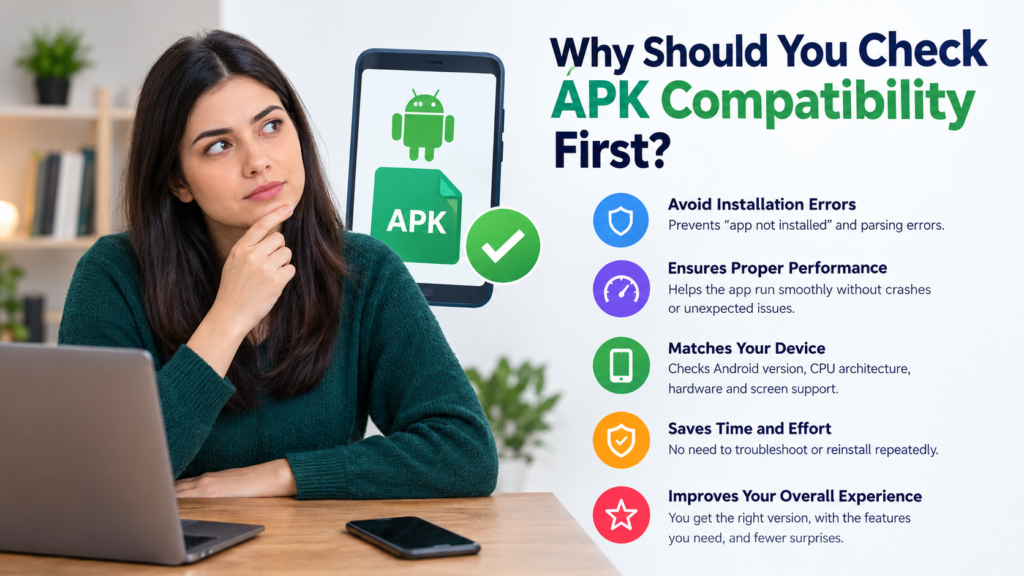
Why Should You Check APK Compatibility First?
Trying an incompatible APK can lead to several different problems. In some cases, Android simply refuses to install it. In others, the app installs but does not work properly.
Common problems include:
- “App not installed” errors
- Parsing errors
- Installation failures
- Immediate crashes
- Missing features
- Poor display or layout
- App freezes
- Excessive battery usage
- Unsupported hardware messages
The problem can be especially confusing when an APK works perfectly on someone else’s phone.
For example, an APK built for a newer Android release may not support an older device. Similarly, an APK compiled for one CPU architecture may not work properly on a device using another architecture.
Check Your Android Version
The first step in learning how to check APK compatibility is to find your Android version.
You can usually find it by opening:
Settings → About Phone → Android Version
The exact menu name can vary between manufacturers.
Once you know your Android version, compare it with the APK’s minimum Android requirement.
For example, if an app requires Android 10 or newer and your phone runs Android 9, the APK may not install or operate correctly.
Why Android Version Matters
Developers sometimes build apps using features available only in newer versions of Android. An older operating system may not contain the APIs or system components that the application needs.
Always check the minimum supported Android version before installing an APK.
Check the APK’s Minimum Android Requirement
The APK’s information may specify a minimum Android version, sometimes described as:
- Minimum Android version
- Minimum SDK
- Min SDK
- Android requirement
- Requires Android X or later
Do not confuse the minimum Android version with the recommended version.
If your device meets the minimum requirement, installation may be possible, but that does not guarantee that every feature will work perfectly.
It is also useful to check whether the APK has been updated recently. Older APK versions may have different requirements from newer releases.
Check Your Phone’s CPU Architecture
Another important part of APK compatibility is your device’s processor architecture.
Common Android architectures include:
| Architecture | Common Description | Compatibility Consideration |
|---|---|---|
| ARM64 / arm64-v8a | Modern 64-bit ARM devices | Common on newer smartphones |
| ARM / armeabi-v7a | Older 32-bit ARM devices | Used by many older phones |
| x86 | Intel-based Android devices | Less common on modern phones |
| x86_64 | 64-bit Intel architecture | Mainly found on certain devices and emulators |
If an APK is specifically designed for an architecture that your device does not support, installation or app operation may fail.
Many APK downloads provide different versions for different architectures. Choosing the correct one can make a significant difference.
How to Find Your Device Architecture
Android does not always show CPU architecture directly in the standard Settings menu.
You can use a reputable device-information application to identify details such as:
- CPU architecture
- Processor model
- Supported ABIs
- CPU cores
- Android version
- RAM
- Hardware information
Look for information about ABI or supported ABIs.
For example, your device might report support for arm64-v8a and armeabi-v7a.
If an APK offers multiple architecture-specific downloads, select the version that matches your device.
Check the APK Variant
Some applications are distributed in several variants rather than one universal APK.
You may encounter versions labeled with terms such as:
- Universal
- arm64-v8a
- armeabi-v7a
- x86
- x86_64
- nodpi
- Different Android versions
- Different screen configurations
A universal APK is generally designed to support a broader range of devices, although it may be larger.
Architecture-specific versions can be smaller and more optimized but require you to select the correct variant.
Before downloading, carefully read the information provided for each version.
Check Whether Your Device Supports Required Hardware
Some apps depend on specific hardware features.
For example, an application might require:
- GPS
- Bluetooth
- NFC
- Camera
- Microphone
- Gyroscope
- Accelerometer
- Fingerprint hardware
- Specific graphics capabilities
If your phone does not have required hardware, installing the APK may not provide full functionality.
This is particularly important for games, camera applications, augmented-reality tools, navigation apps, and other hardware-dependent software.
Check Screen and Display Compatibility
Most modern Android applications adapt automatically to different screen sizes. However, older apps or poorly maintained APKs may have display problems.
You could encounter:
- Buttons positioned incorrectly
- Text appearing too large or small
- Cropped interface elements
- Incorrect orientation
- Black bars
- Layout problems
Screen density can also matter. APK information may sometimes include configurations such as nodpi or density-specific resources.
If several versions are available, check whether the developer recommends a particular variant for your device.
Check Available Storage
Compatibility is not only about software and hardware requirements.
Your phone also needs enough free storage to download and install the APK.
Remember that the APK file itself may not represent the total storage required by the application. After installation, an app can create additional files, cache, databases, and downloaded resources.
Before installing, make sure your device has sufficient free space.
A lack of storage can cause installation failures that may look like compatibility problems.
Check Android Security and Installation Restrictions
Even when an APK is compatible, Android may prevent it from being installed because it came from outside an approved app store.
Depending on your Android version and device manufacturer, you may need to allow installation from the particular source you are using.
However, you should not disable security protections unnecessarily.
Before installing an APK, consider:
- Whether you trust the source
- Whether the file is from the correct developer
- Whether the APK has been modified
- Whether the requested permissions make sense
- Whether your security software reports a problem
Compatibility and safety are two different things. An APK can be technically compatible while still being unsafe or untrustworthy.
Compare APK Requirements Before Installation
A simple comparison can help you decide whether an APK is suitable.
| Compatibility Factor | Your Device | APK Requirement | Result |
|---|---|---|---|
| Android version | Android 14 | Android 8+ | Compatible |
| CPU architecture | arm64-v8a | arm64-v8a | Compatible |
| Storage | 3 GB free | 500 MB+ | Enough space |
| Required camera | Available | Required | Compatible |
| Required NFC | Not available | Required | Not fully compatible |
| Minimum SDK | Supported | Within device range | Compatible |
The important thing is to compare your actual device information with the APK’s stated requirements rather than relying only on the APK’s name.
Check If the APK Is 32-Bit or 64-Bit
Modern Android phones commonly use 64-bit processors, but compatibility with 32-bit applications can vary depending on the device and Android release.
An APK can contain native libraries compiled for particular architectures.
If the APK only contains incompatible native libraries, the app may fail to install or crash when launched.
If you see separate 32-bit and 64-bit versions, check your device’s supported ABIs before choosing one.
Look for Recent Compatibility Information
An APK may technically install but still be unsuitable because it has not been maintained for newer Android releases.
Before installing an older APK, check:
- Release date
- Android versions supported
- Recent user reports
- Known bugs
- Developer information
- Required permissions
- Whether the app still receives updates
Older applications can sometimes behave unpredictably on newer Android versions because Android changes its security and compatibility behavior over time.
What If the APK Is Not Compatible?
If your checks indicate that the APK is incompatible, do not repeatedly attempt installation.
Instead, consider these options:
Find Another APK Version
The developer or distributor may provide an older or newer version that supports your Android release.
Look for a Universal Version
If several architecture-specific files are available and you are unsure which one to choose, a legitimate universal version may be easier to use.
Update Android
If your device supports a newer Android version, updating the operating system may improve compatibility with newer applications.
Use the Official App Store Version
If the application is available through the official Android app marketplace, that version may automatically provide the appropriate package for your device.
Consider Your Device’s Limitations
If an application requires hardware that your phone does not have, changing the APK version will not necessarily solve the problem.
Common Mistakes When Checking APK Compatibility
People often focus only on Android version and overlook other important factors.
Avoid these mistakes:
- Checking only the APK file size
- Assuming every APK works on every Android phone
- Ignoring CPU architecture
- Installing an APK without checking its minimum Android requirement
- Choosing the wrong architecture variant
- Ignoring required hardware
- Repeatedly installing incompatible versions
- Assuming successful installation means complete compatibility
- Ignoring available storage
- Treating compatibility and security as the same thing
A proper compatibility check should consider multiple factors.

How to Check APK Compatibility Step by Step
If you want a simple process to follow, use this checklist:
- Open your phone’s Settings.
- Find your Android version.
- Check your device’s processor and supported architecture.
- Review the APK’s minimum Android requirement.
- Check whether the APK supports your CPU architecture.
- Look for required hardware features.
- Check available storage.
- Review the APK variant and version.
- Consider whether the APK is current enough for your Android release.
- Verify that the source and file are trustworthy.
- Install only when the requirements match.
This process takes only a few minutes and can prevent many common installation problems.
Frequently Asked Questions
Can an APK work on one Android phone but not another?
Yes. Different phones can have different Android versions, processors, hardware features, and system configurations. An APK can therefore work on one device while failing on another.
How do I know if an APK is compatible with my Android version?
Check your Android version in Settings and compare it with the APK’s minimum Android requirement. If your Android version is below the required version, the APK may not be compatible.
Does CPU architecture affect APK compatibility?
Yes. Some APKs contain native components designed for specific architectures such as arm64-v8a, armeabi-v7a, x86, or x86_64. Selecting the wrong variant can cause installation or runtime problems.
Can an APK install but still be incompatible?
Yes. Installation does not guarantee that an app will work correctly. An application can install successfully and then crash, display errors, or fail to support certain features because of hardware, software, or dependency issues.
Is a universal APK compatible with every Android phone?
Not necessarily. Universal APKs are designed to support a broad range of devices, but they can still have minimum Android, hardware, or software requirements.
What should I do if my APK is incompatible?
Look for a compatible APK version, check whether your device can be updated, or use an official version of the application when available. If the app requires hardware your device lacks, another APK version may not solve the problem.
Final Thoughts
Knowing how to check APK compatibility before installation can help you avoid many common Android problems. Instead of downloading an APK and hoping it works, take a few minutes to compare your device’s Android version, CPU architecture, hardware, storage, and other requirements.
The most important point is that compatibility involves more than one factor. An APK that works perfectly on one Android device may not behave the same way on another.
Also Read: Snapchat APK: Features, Installation Guide, Safety Tips, and More














1 comment