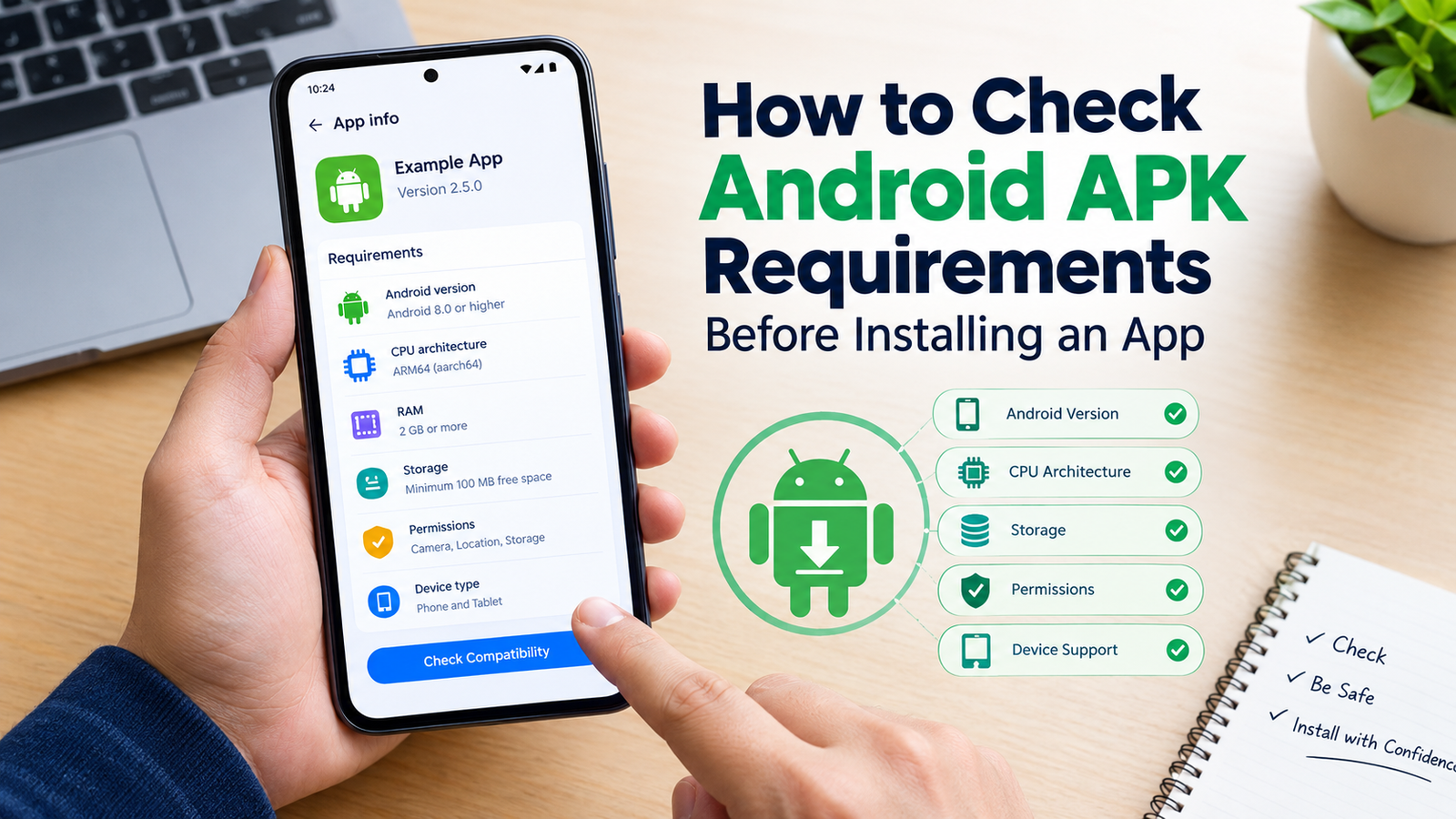
How to Check Android APK Requirements Before Installing an App
Installing an APK can be a convenient way to access an Android app, especially when the app is unavailable through your usual app store. However, downloading an APK does not always mean it will work correctly on your phone.
Before installing an APK, it is important to check whether your device meets the app’s requirements. Android version, processor architecture, required permissions, available storage, and app compatibility can all affect whether an APK installs and runs properly.
If you are searching for how to check Android APK requirements, this guide explains what to look for before installation and how to avoid common compatibility problems.
Why You Should Check APK Requirements First
An APK is designed for specific Android environments. Even when the file downloads successfully, your phone may not be able to install or run it.
For example, an APK may require Android 10 or newer while your device is running Android 8. Another APK might be built for a processor architecture that your phone does not support.
Checking the requirements beforehand can help you avoid:
- Installation errors
- Parsing errors
- App crashes
- Missing features
- Poor performance
- Compatibility warnings
- Wasted storage and download data
A few minutes of checking can save you from troubleshooting an APK that was never compatible with your device.
What Android APK Requirements Should You Check?
There are several important specifications to examine before installing an APK. The exact requirements vary between applications, but the following are the most common.
| Requirement | What to Check | Why It Matters |
|---|---|---|
| Android version | Minimum Android version | Determines basic OS compatibility |
| CPU architecture | ARM64, ARMv7, x86, etc. | Determines whether the APK can run on your processor |
| RAM | Recommended memory | Affects performance and multitasking |
| Storage | APK size and free space | Installation may require additional space |
| Screen/device support | Phone, tablet, TV, Chromebook | Some apps are designed for specific devices |
| Permissions | Camera, storage, location, etc. | Shows what access the app requests |
| App dependencies | Required services or libraries | Some apps need additional components |
| APK variant | Universal, split, or architecture-specific | The wrong variant may not install |
Not every APK listing provides all of this information. When details are missing, it is worth investigating further rather than assuming the file will work.
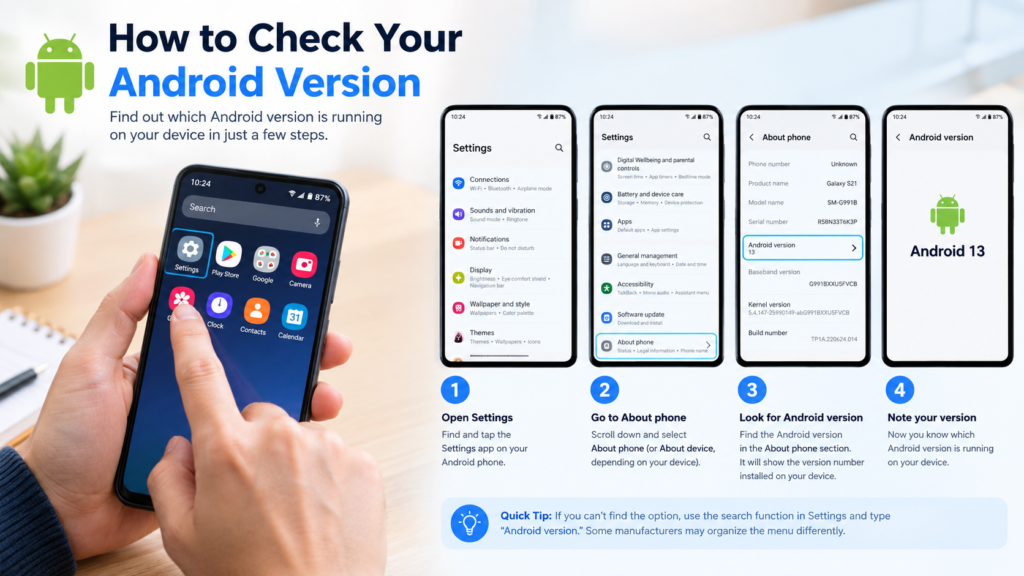
How to Check Your Android Version
The Android version is one of the first requirements you should compare.
To check it on most Android phones:
- Open Settings.
- Scroll down and select About phone or About device.
- Look for Android version.
- Note the version installed on your device.
Some manufacturers organize these settings differently. If you cannot find the option, use the search function inside Settings and search for Android version.
Once you know your Android version, compare it with the APK’s stated minimum Android requirement.
For example, if an application requires Android 11 or later and your phone runs Android 10, installing that APK may not work correctly.
How to Check Your Phone’s Processor Architecture
Processor architecture is another important part of APK compatibility.
You may see terms such as:
- ARM64
- armeabi-v7a
- x86
- x86_64
Modern Android smartphones commonly use ARM-based processors, but different APK versions can still target different architectures.
If a download page provides multiple APK variants, selecting the correct architecture is important. An ARM64 device, for example, may need an ARM64-compatible APK rather than an x86 version.
You can usually identify your device’s CPU architecture through reliable device-information tools or by checking your phone’s technical specifications.
If you are unsure, avoid randomly downloading different variants. The wrong package can produce installation or compatibility errors.
Check the Minimum Android Version
The minimum Android version is sometimes listed as the minimum SDK, minSdk, or simply the required Android version.
This tells you the oldest Android version that the application is intended to support.
For example:
| APK Requirement | Your Device | Compatibility |
|---|---|---|
| Android 9+ | Android 12 | Generally compatible |
| Android 11+ | Android 11 | Meets requirement |
| Android 13+ | Android 12 | May not be compatible |
| Android 8+ | Android 10 | Meets requirement |
Meeting the minimum Android version does not guarantee perfect performance, but failing to meet it is an important warning sign.
Check the APK’s CPU and Device Variant
Some applications are distributed in multiple versions instead of one universal APK.
You might encounter files labeled according to:
- CPU architecture
- Android version
- Screen configuration
- Device type
- Language
- Density
There can also be formats such as APK bundles or split packages.
If you download the wrong variant, Android may display an error during installation or the app may fail to launch afterward.
When multiple versions are available, check your device specifications before choosing one.
Check Available Storage Before Installation
Storage requirements are easy to overlook.
The APK itself might appear relatively small, but the installed application can require considerably more space. Some apps also need temporary storage while Android extracts and installs their files.
Before installing a large APK, check your available storage:
Settings → Storage
The exact menu may vary depending on your Android manufacturer.
It is better to have sufficient free space rather than installing an APK when your device is nearly full.
Low storage can contribute to installation failures and can also cause problems after the application has been installed.
Review APK Permissions
Permissions are not exactly hardware requirements, but they are an important part of checking an APK before installation.
Depending on the app’s purpose, it might request access to:
- Camera
- Microphone
- Location
- Contacts
- Notifications
- Photos and videos
- Files
- Bluetooth
- Phone-related functions
Consider whether each requested permission makes sense for the app.
For example, a simple calculator requesting extensive access to contacts or location may deserve additional scrutiny.
Permissions can change between app versions, so reviewing them before installation is a useful safety and compatibility step.
Check Whether Your Device Is Supported
Not every Android application is designed for every Android device.
Some apps are specifically built for:
- Smartphones
- Tablets
- Android TV
- Google TV devices
- Chromebooks
- Foldable phones
- Automotive systems
An APK designed for one type of Android device may not provide the same experience on another.
Before downloading, look for compatibility notes from the developer or trusted source. If the application has been specifically developed for Android TV, for example, installing it on a phone may not provide the expected interface or functionality.
How to Check Android APK Requirements From the APK File
Sometimes you already have the APK and want to inspect its technical information.
APK analysis tools can reveal information such as:
- Package name
- Version number
- Minimum SDK
- Target SDK
- Supported architectures
- Permissions
- Application components
This can be particularly useful when an APK does not provide clear requirements on its download page.
However, technical APK information should be interpreted carefully. A package can technically meet your Android version requirement while still having hardware, dependency, or device-specific limitations.
Check App Dependencies
Some APKs depend on additional Android components or services.
For example, an application may rely on:
- Google Play services
- Specific system libraries
- Hardware features
- WebView components
- A particular Android API
- Another application or service
If those dependencies are missing, the APK might install but fail when you try to use certain features.
This is one reason an APK can appear compatible during installation but still experience crashes afterward.
Be Careful With Modified APKs
Modified APKs can have requirements that differ from the original application.
A modified package may change:
- App permissions
- Included libraries
- Supported Android versions
- Installation structure
- Required services
- App behavior
For this reason, do not assume that a modified APK has exactly the same compatibility profile as the official version.
If compatibility information is unavailable, treat that as a reason to investigate further before installation.
Common APK Requirement Problems
Understanding common problems makes troubleshooting easier.
Android Version Is Too Old
If your Android version is below the APK’s minimum requirement, the package may refuse to install or may not function properly.
Updating Android, when an official update is available for your device, may resolve the compatibility issue.
Wrong CPU Architecture
An incompatible architecture can prevent an APK from installing.
If several variants are available, verify whether your phone uses ARM64, ARMv7, x86, or another architecture before selecting a file.
Insufficient Storage
A lack of free space can interrupt installation.
Delete unnecessary files or apps and try again after making enough storage available.
Unsupported Device
Some apps have restrictions based on device type or hardware.
An APK may work perfectly on one Android phone but fail on another because the devices have different hardware, software, or supported features.
Missing Dependencies
An APK may require a system component that is not available on your device.
In this situation, simply downloading the APK again may not solve the problem.
A Simple APK Compatibility Checklist
Before installing an APK, use this checklist:
- Check your Android version.
- Find the APK’s minimum Android requirement.
- Check the supported CPU architecture.
- Confirm your device type is supported.
- Make sure you have enough free storage.
- Review required permissions.
- Check whether additional services are required.
- Confirm that you downloaded the correct APK variant.
- Review the source and developer information.
- Avoid installing files that have unclear or suspicious requirements.
This process is especially useful when installing APKs outside the standard app distribution system.
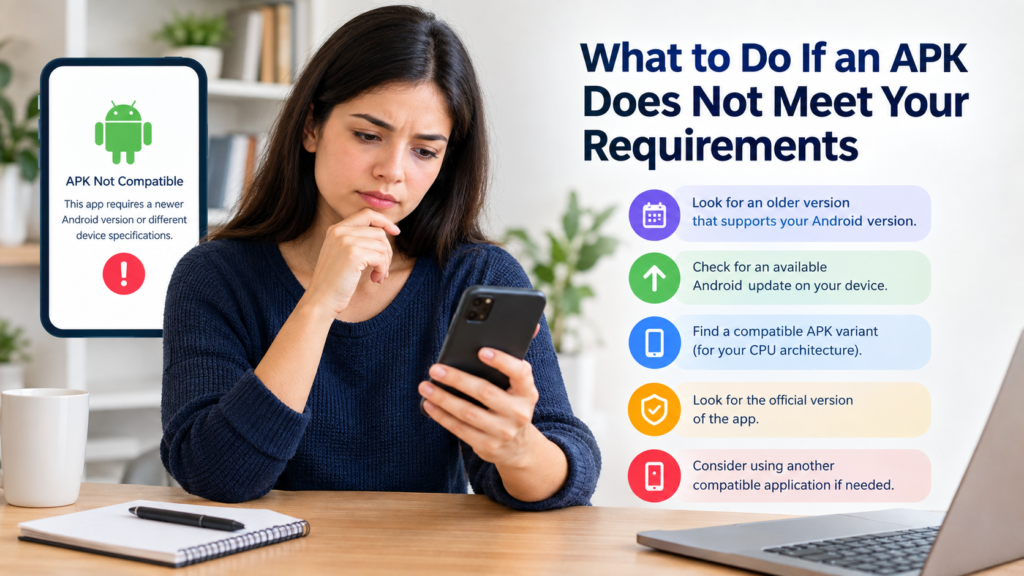
What to Do If an APK Does Not Meet Your Requirements
If you discover that your phone does not meet the APK requirements, do not immediately try to force the installation.
Instead, consider these options:
- Look for an older version that officially supports your Android version.
- Check whether your phone has an available Android update.
- Find a compatible APK variant.
- Look for the application’s official version.
- Check whether your device model is supported.
- Consider using another compatible application if the requirements cannot be met.
Trying random APK versions can create additional problems, especially when the source or package information is unclear.
Frequently Asked Questions
How do I check Android APK requirements before installing?
Start by checking your Android version, CPU architecture, available storage, and device type. Then compare those specifications with the APK’s minimum Android version and supported architecture. Also review permissions and any listed dependencies.
Can I install an APK if my Android version is too old?
Sometimes an older version of the application may support your Android version, but a newer APK that requires a more recent Android release may not install or function correctly. Check the application’s documented minimum Android version before proceeding.
How do I know which APK version is compatible with my phone?
Compare your phone’s Android version and processor architecture with the APK’s requirements. If several variants are available, select the package that specifically supports your device architecture and Android release.
Does APK size tell me whether an app is compatible?
No. File size does not determine compatibility. A small APK can still require a newer Android version or a specific processor architecture. Check the technical requirements separately.
Why does an APK install but not work?
Installation does not guarantee full compatibility. The app may depend on unsupported hardware, system services, libraries, or Android features. Device-specific restrictions can also cause an application to crash after installation.
Should I install an APK when its requirements are unknown?
It is safer to investigate the requirements first. If the source does not provide basic compatibility information, look for documentation from the developer or another trustworthy source before installing the file.
Final Thoughts
Knowing how to check Android APK requirements can prevent many common installation and compatibility problems. Instead of downloading an APK and hoping it works, take a few minutes to compare the file’s requirements with your device.
Pay particular attention to the Android version, processor architecture, available storage, device type, permissions, and dependencies. These details can tell you whether an APK is likely to work before you spend time troubleshooting it.
Also Read: How to Check APK Compatibility: Before Installing an App on Android














1 comment