How to Check APK CPU Architecture on Android: A Complete Guide
Installing an APK can sometimes be more complicated than simply downloading the file and tapping Install. One common reason an APK may fail to install, crash after installation, or behave incorrectly is a mismatch between the APK’s CPU architecture and the architecture supported by your Android device.
If you are wondering how to check APK CPU architecture, the good news is that you do not need advanced technical knowledge. With the right information, you can identify your phone’s CPU architecture, inspect an APK file, and determine whether the two are compatible.
This guide explains what APK CPU architecture means, why it matters, how to check your Android device architecture, and how to identify the architecture supported by an APK before installing it.
What Is APK CPU Architecture?
APK CPU architecture refers to the type of processor architecture an Android application is built to support. Android apps may contain native libraries compiled for specific processor architectures.
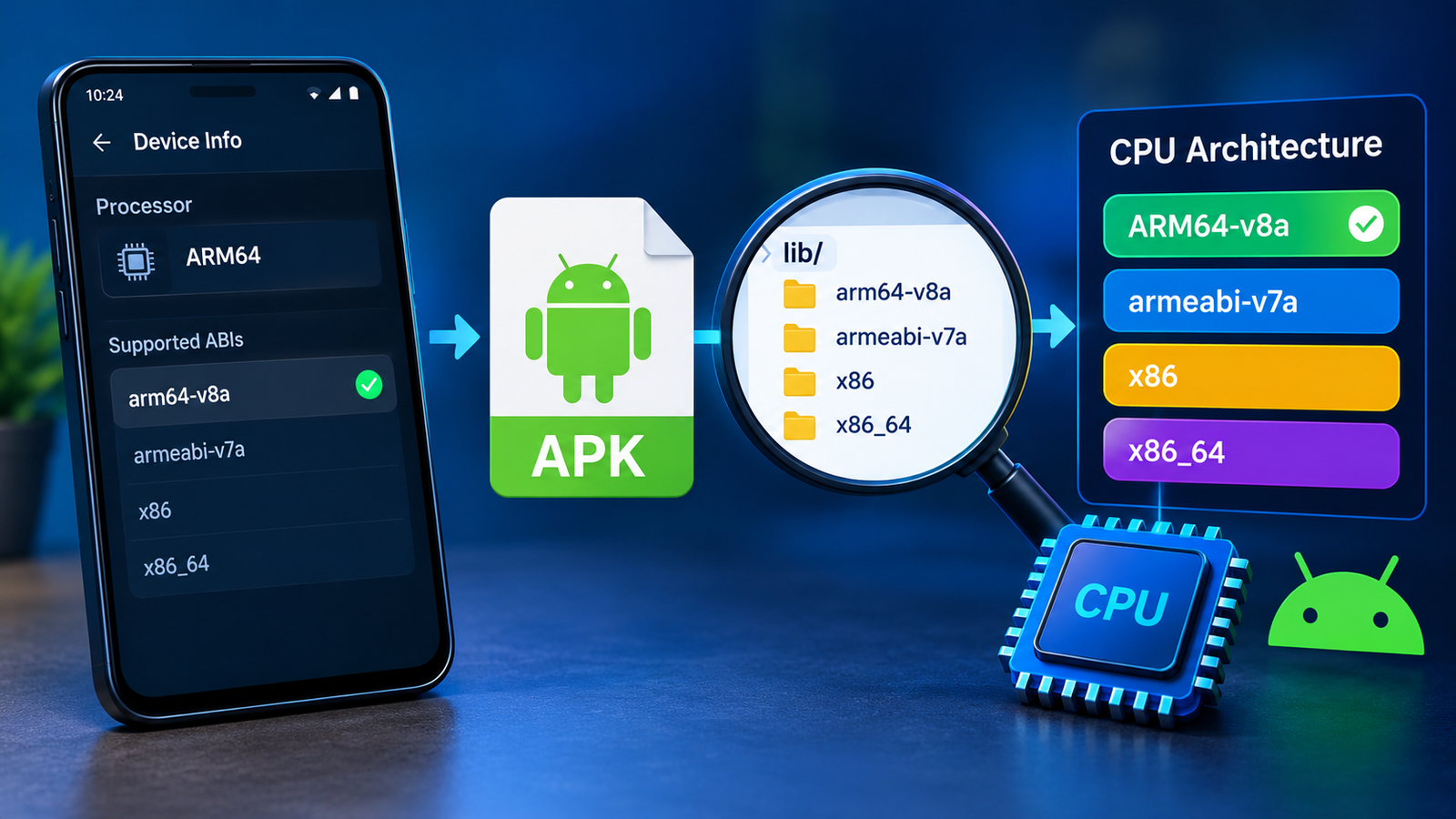
The most common architectures you will encounter are:
- ARM64-v8a – widely used on modern Android smartphones and tablets.
- armeabi-v7a – an older 32-bit ARM architecture still supported by some devices.
- x86 – primarily associated with certain older Intel-based Android devices.
- x86_64 – the 64-bit version of the x86 architecture.
When downloading an APK, you may see different versions listed for these architectures. Choosing the correct version can improve compatibility and prevent installation or performance problems.
Why APK CPU Architecture Matters
Android devices do not all use the same processor architecture. An APK designed for one architecture may not work properly on another device.
For example, an APK containing only ARM64 native libraries may not run correctly on a device that requires a different architecture.
CPU architecture can affect:
- APK installation compatibility
- App startup
- App stability
- Native library support
- Gaming performance
- Emulator compatibility
- App crashes
- Overall functionality
This is especially important when downloading APKs outside the Google Play Store, where you may have to select the correct APK variant yourself.
Common Android CPU Architectures
Before learning how to check APK CPU architecture, it helps to understand the main architecture types.
| Architecture | Type | Common Use | Compatibility |
|---|---|---|---|
| ARM64-v8a | 64-bit ARM | Modern smartphones | Very common |
| armeabi-v7a | 32-bit ARM | Older Android devices | Older hardware |
| x86 | 32-bit Intel | Some older devices/emulators | Less common |
| x86_64 | 64-bit Intel | Certain devices/emulators | Less common |
Most modern Android phones use ARM-based processors, particularly ARM64. However, checking the actual device and APK is still important because processor architecture should not be assumed based only on the phone’s brand or model.

How to Check Your Android Phone’s CPU Architecture
The first step is finding out which CPU architecture your Android device supports.
Android’s regular Settings app does not always display this information clearly. Depending on your device manufacturer and Android version, you may need a system-information or hardware-information app.
Use a Device Information App
A reputable hardware information app can display details about your phone’s processor and supported instruction sets.
After installing a suitable device information tool:
- Open the app.
- Look for the CPU, Processor, or Architecture section.
- Check the listed ABI or supported instruction sets.
- Note whether the device reports ARM64, ARM, x86, or x86_64.
- Keep this information available while checking the APK.
You may see information such as:
arm64-v8aarmeabi-v7ax86x86_64
The exact wording can vary between apps.
Check the Supported ABIs
Another useful term to understand is ABI, which stands for Application Binary Interface.
Android uses ABI information to determine which native application binaries are compatible with a particular device.
If your device lists:
arm64-v8a
it generally means your phone supports the 64-bit ARM architecture.
Some devices may also show support for 32-bit ARM applications, so checking the complete ABI list can give you a better picture of compatibility.
How to Check APK CPU Architecture
Once you know your device architecture, you can inspect the APK itself.
An APK is essentially an archive containing the files required to install an Android application. Native libraries are commonly stored inside the APK under a directory called lib.
The architecture-specific folders may include:
lib/arm64-v8a/lib/armeabi-v7a/lib/x86/lib/x86_64/
These folders provide a useful indication of which CPU architectures the APK supports.
Method 1: Inspect the APK as an Archive
One of the easiest ways to inspect an APK is to open it with an archive or file-extraction tool that can view its internal contents.
The general process is:
- Locate the APK on your device or computer.
- Open the APK using a compatible archive viewer.
- Look for the
libfolder. - Open the
libfolder. - Check which architecture folders are present.
- Compare those folders with your device’s supported architecture.
For example, if you find:
lib/arm64-v8a/
the APK includes native libraries for ARM64 devices.
If you find both:
lib/arm64-v8a/
and
lib/armeabi-v7a/
the APK contains native libraries for both common ARM architectures.
Method 2: Use an APK Analyzer
Another option is an APK analysis tool. These tools can inspect an APK and show information about its package structure, permissions, resources, native libraries, and other details.
An APK analyzer can be particularly useful when you regularly work with APK files because it provides more information than simply opening the archive.
Look for an ABI, Native Libraries, or CPU Architecture section.
The exact interface depends on the tool you use, but the underlying information is usually similar.
How to Match an APK With Your Android Device
After checking both sides, compare the APK’s supported architectures with your phone’s supported ABIs.
For example:
| Your Device | APK Architecture | Likely Result |
|---|---|---|
| ARM64 | ARM64 | Compatible |
| ARM64 | ARM64 + ARM32 | Compatible |
| ARM32 | ARM32 | Compatible |
| ARM32 | ARM64 only | May not work |
| x86 | x86 | Compatible |
| x86_64 | x86_64 | Compatible |
| ARM device | x86 only | Usually incompatible |
These are general compatibility guidelines rather than an absolute guarantee. An APK can still fail for other reasons, including Android version requirements, missing dependencies, incorrect signing, corrupted files, or unsupported hardware features.
What Does ARM64-v8a Mean?
ARM64-v8a is a 64-bit ARM architecture used by many modern Android devices.
If your phone supports ARM64 and an APK contains an arm64-v8a directory, that is generally a good sign that the APK includes the required native libraries for your processor architecture.
However, architecture is only one part of APK compatibility.
You should also check:
- Minimum Android version
- Target Android version
- Device RAM requirements
- Required hardware features
- Available storage
- App dependencies
- APK integrity
What Does armeabi-v7a Mean?
armeabi-v7a refers to a 32-bit ARM architecture.
It was widely used by older Android smartphones and tablets. Some newer devices can still run 32-bit applications, but support varies depending on the hardware and Android configuration.
If an APK provides only armeabi-v7a, it does not automatically mean that it is the best choice for every ARM-based phone.
If another version is specifically built for ARM64 and your device supports ARM64, the ARM64 version may be more appropriate.
Can an ARM64 Phone Run a 32-Bit APK?
In many cases, an ARM64 Android device can run 32-bit ARM applications if the operating system and device software provide the necessary compatibility support.
This is why an APK containing armeabi-v7a may still work on some ARM64 phones.
However, compatibility can depend on the Android version, manufacturer configuration, and the application’s requirements.
For this reason, it is better to check the supported ABIs rather than assuming that every 32-bit APK will work.
Why an APK May Install but Still Not Work
CPU architecture is not the only factor affecting APK compatibility.
An APK may successfully install but fail to launch because it requires a native library or hardware feature that your device does not support.
Common causes include:
- Wrong CPU architecture
- Unsupported Android version
- Missing native libraries
- Required hardware not available
- Incompatible app dependencies
- Corrupted APK
- Incorrect APK variant
- Problems with split APK packages
You may notice symptoms such as immediate crashes, a black screen, missing features, or an app that closes shortly after opening.
If this happens, checking the APK architecture is a useful first troubleshooting step.
How to Check APK Architecture Before Downloading
Sometimes you can identify the architecture from the APK download page itself.
Developers or APK distributors may label files using terms such as:
arm64-v8aarmeabi-v7ax86x86_64universal
A universal APK may contain native libraries for multiple architectures. This can make installation easier because the same package can support a wider range of devices.
However, universal packages may be larger because they contain files for multiple processor types.
Always verify the file information before downloading, especially when several APK variants are available.
What Is a Universal APK?
A universal APK is designed to support multiple CPU architectures rather than targeting only one.
For example, a universal package may contain:
- ARM64 libraries
- ARM32 libraries
- x86 libraries
- x86_64 libraries
The advantage is convenience. You do not have to determine the exact architecture before installing the APK.
The disadvantage is that universal APKs can be larger because they include libraries that your device may never use.
APK CPU Architecture vs Android Version
It is important not to confuse CPU architecture with Android version compatibility.
They are two different requirements.
For example, an APK could support arm64-v8a but require a newer Android version than the one installed on your phone.
In that situation, the processor architecture is compatible, but the operating system is not.
Before installing an APK, check both:
- CPU architecture
- Minimum Android version
You should also consider device-specific requirements when the application depends on features such as GPS, NFC, camera capabilities, or specific graphics APIs.
Quick Checklist for APK Architecture Compatibility
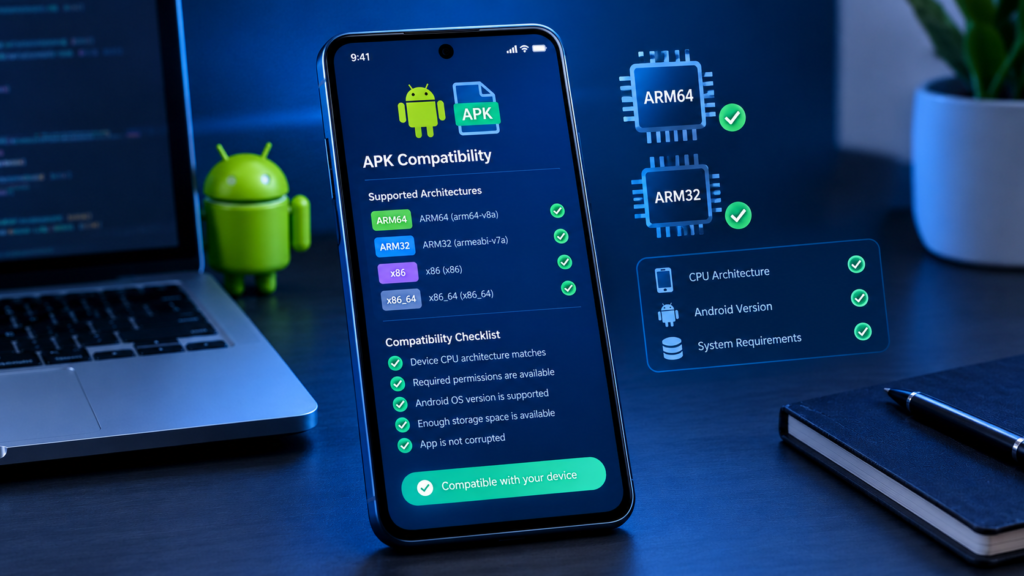
Before installing an APK, use this checklist:
- Check your phone’s supported CPU architecture.
- Identify the APK’s available ABIs.
- Look for
arm64-v8a,armeabi-v7a,x86, orx86_64. - Confirm that at least one APK architecture matches your device.
- Check the minimum Android version.
- Make sure the APK is complete and not corrupted.
- Be careful with split APK packages.
- Download APKs only from sources you trust.
- Scan unfamiliar files before opening them.
This simple process can prevent many avoidable installation problems.
Frequently Asked Questions
How do I check APK CPU architecture?
You can inspect an APK with an archive viewer or APK analysis tool and look inside its lib directory. Architecture folders such as arm64-v8a, armeabi-v7a, x86, and x86_64 indicate the native architectures supported by the APK.
How do I know if my phone is ARM64?
Use a reputable device-information tool and check the CPU or supported ABI section. If the device reports arm64-v8a, it supports the 64-bit ARM architecture.
Is ARM64 the same as armeabi-v7a?
No. ARM64-v8a is a 64-bit ARM architecture, while armeabi-v7a is a 32-bit ARM architecture. They are related but represent different CPU architectures.
Can I install an APK with the wrong architecture?
It depends on the device and APK. Some Android devices can support multiple architectures, while others cannot. An APK with incompatible native libraries may fail to install, crash, or refuse to run correctly.
Is a universal APK better?
Not necessarily. A universal APK can be convenient because it supports multiple architectures, but it may have a larger file size. If a correctly matched architecture-specific APK is available, it can be a more efficient option.
Why does an APK install but crash immediately?
A CPU architecture mismatch is one possible reason, but it is not the only one. An incompatible Android version, missing libraries, unsupported hardware, corrupted files, or application-specific problems can also cause immediate crashes.
Final Thoughts
Knowing how to check APK CPU architecture can save time when an APK refuses to install or does not work correctly. The key is to compare your Android device’s supported ABIs with the architectures included in the APK.
For most modern Android phones, arm64-v8a is an important architecture to look for, while older devices may rely on armeabi-v7a. Other architectures such as x86 and x86_64 are less common on typical Android smartphones but can still appear in certain devices and environments.
Also Read: How to Check APK Processor Compatibility: Before Installing on Android














1 comment