How to Check APK Processor Compatibility: Before Installing on Android
Installing an APK file on Android is usually a straightforward process, but sometimes an app refuses to install even when your phone has enough storage and runs a supported Android version. One possible reason is processor incompatibility.
Android devices use different processor architectures, and not every APK file is designed to work with every type of processor. If you download an APK without checking its compatibility, you might encounter installation errors, unexpected crashes, or an app that does not open properly.
Understanding how to check APK processor compatibility can help you avoid these problems and choose the correct version for your device. Whether you use an older Android phone, a modern smartphone, or an Android emulator, checking processor architecture before installation is a useful habit.
In this guide, you will learn how Android processor architectures work, how to identify your phone’s CPU type, and how to determine whether an APK is compatible with your device.
What Is APK Processor Compatibility?
APK processor compatibility refers to whether an Android application package supports the processor architecture used by your device.
An APK may contain application code designed for a particular CPU architecture. If your phone uses a different architecture and the APK does not include compatible native libraries, the application might not install or function correctly.
For example, some APK versions are designed specifically for 64-bit ARM processors, while others support 32-bit ARM devices.
This is why checking processor compatibility is important, particularly when downloading APK files from third-party websites.
Processor compatibility is not the only requirement for installing an app. You should also consider:
- Android operating system version.
- Available storage space.
- Required hardware features.
- App permissions.
- Screen and device requirements.
- APK signature and package compatibility.
Checking these details before installation can save time and reduce installation problems.
Common Android Processor Architectures
Before checking an APK, it helps to understand the processor architectures commonly used by Android devices.
Here are the main architectures you may encounter.
ARM64 (arm64-v8a)
ARM64, commonly identified as arm64-v8a, is a 64-bit processor architecture widely used in modern Android smartphones and tablets.
Most newer Android devices use 64-bit ARM processors. Apps designed for this architecture can take advantage of 64-bit native code when the device and application support it.
However, having a 64-bit processor does not automatically mean that every 64-bit APK will work. The Android system and the app’s other requirements must also be compatible.
ARMv7 (armeabi-v7a)
ARMv7, commonly identified as armeabi-v7a, is a 32-bit ARM architecture.
It is commonly associated with older Android devices, although some devices with 64-bit processors can also support 32-bit applications.
If your phone supports only 32-bit applications, an APK containing exclusively 64-bit native libraries may not work.
x86
The x86 architecture has been used in certain Android devices, tablets, and emulators.
Unlike ARM-based processors, x86 processors follow a different instruction set. An APK containing only ARM-specific native libraries may not run directly on an x86 environment.
x86_64
The x86_64 architecture is a 64-bit version of the x86 processor architecture.
It is mainly relevant to certain Android emulators and devices with Intel or AMD-based processors.
Understanding these architecture names makes it easier to select an APK that matches your device.
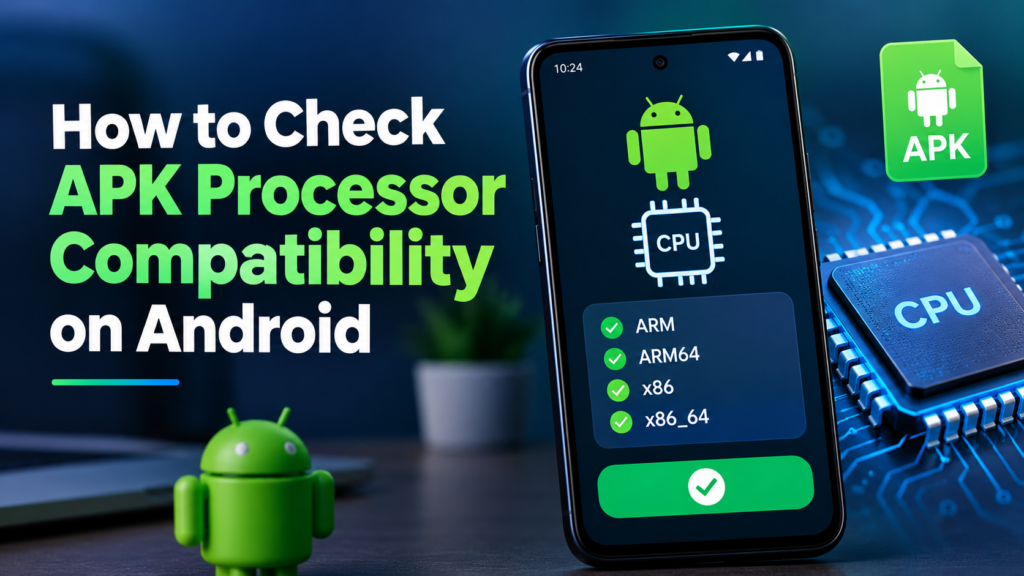
How to Check APK Processor Compatibility on Android
There are several ways to identify your device’s processor architecture and compare it with an APK file.
You do not need advanced technical knowledge to perform these checks.
Method 1: Use a CPU Information App
One of the easiest ways to check processor compatibility is by using an Android CPU information application.
These apps display important hardware details, including processor architecture, supported instruction sets, and CPU information.
Follow these steps:
- Open the Google Play Store on your Android device.
- Search for a trusted CPU information application.
- Install an app with good reviews and a reliable developer.
- Open the application.
- Find the CPU or processor information section.
- Look for the architecture details.
- Check whether your device supports ARM64, ARMv7, x86, or x86_64.
Some applications may display the processor model instead of the exact ABI name. In that case, check the supported instruction sets or ABI information.
Once you identify your architecture, you can compare it with the APK requirements.
Method 2: Check Processor Architecture Using Device Information
You can also use your phone’s built-in settings to find basic processor information.
The exact options depend on your Android manufacturer and software version.
Try the following:
- Open your phone’s Settings.
- Navigate to About Phone.
- Look for Processor, Hardware Information, or Device Specifications.
- Note the processor model.
- Search for its architecture using the manufacturer’s specifications.
Keep in mind that some Android devices do not display detailed CPU architecture information in their settings.
If this information is unavailable, a trusted hardware information application can provide additional details.
Method 3: Use ADB Commands
Advanced users can check processor architecture through Android Debug Bridge (ADB).
ADB is a command-line tool that allows a computer to communicate with an Android device.
First, enable Developer Options and USB Debugging on your phone. Then connect the device to a computer with ADB installed.
Open a terminal or command prompt and enter:
adb shell getprop ro.product.cpu.abi
This command displays the primary CPU ABI reported by Android.
You can also use:
adb shell getprop ro.product.cpu.abilist
This command displays the list of supported application binary interfaces.
For example, your device might return:
arm64-v8a,armeabi-v7a,armeabi
This indicates that the device reports support for both 64-bit and certain 32-bit ARM application architectures.
Remember that the primary ABI and supported ABI list provide different information. Checking the complete list is helpful when evaluating APK compatibility.
How to Check an APK File’s Supported Architecture
After identifying your phone’s processor architecture, the next step is checking the APK itself.
There are several ways to do this.
Check the APK Download Page
Many reliable APK download platforms provide technical information about application packages.
Before downloading, look for details such as:
- Architecture: ARM64, ARMv7, or universal.
- Android version requirement.
- APK file size.
- Application version.
- Package type.
For example, a download page may offer separate versions for ARM64 and ARMv7 devices.
If your phone supports ARM64 applications, you can generally choose the ARM64 version, provided the app’s other requirements are satisfied.
A universal APK may support multiple architectures, but always verify its actual contents and requirements.
Use an APK Analyzer Tool
An APK analyzer can help you inspect the contents of an application package before installing it.
Some analyzer tools display the native libraries included in an APK.
For example, an APK might contain folders such as:
lib/arm64-v8a/lib/armeabi-v7a/lib/x86/lib/x86_64/
These folders indicate which native processor architectures the package includes libraries for.
If an APK contains lib/arm64-v8a/, it includes native libraries for 64-bit ARM devices.
However, an APK without native libraries may still work across different processor architectures because some Android applications rely entirely on managed code.
Therefore, the absence of an architecture folder does not automatically mean that an APK is incompatible.
APK Processor Compatibility Comparison Table
The following table explains the common Android processor architectures and their compatibility considerations.
| Processor architecture | Common use | Compatibility considerations |
|---|---|---|
| ARM64 (arm64-v8a) | Modern Android phones | Requires a compatible 64-bit environment |
| ARMv7 (armeabi-v7a) | Older Android phones | Requires 32-bit ARM support |
| x86 | Some older emulators and devices | Needs compatible x86 libraries when native code is used |
| x86_64 | Certain modern emulators | Requires compatible 64-bit x86 support |
| Universal APK | Multiple device types | Check included architectures and other requirements |
This comparison gives you a quick overview of which APK versions might work on different devices.
What Is a Universal APK and Is It Better?
A universal APK is designed to support multiple device configurations.
Instead of downloading separate packages for different processor architectures, users can install one package containing support for multiple environments.
There are several advantages:
- Easier to download and install.
- Reduces confusion about processor architecture.
- Can support multiple Android devices.
- Useful for users who do not know their CPU architecture.
However, universal APKs are sometimes larger because they may contain libraries for several architectures.
A universal package is not automatically compatible with every Android device. Android version requirements, hardware dependencies, application restrictions, and other technical requirements still apply.
If you have a specific APK variant available for your device, it may be smaller than the universal version.
Common Signs of APK Processor Incompatibility
Sometimes, processor incompatibility becomes noticeable only when you try to install or open an application.
Here are some common warning signs:
1. App Not Installed Error
Android may display an installation error when the APK cannot be installed in your device’s environment. However, this error can also result from signature conflicts, package issues, or insufficient storage.
2. Application Crashes Immediately
An application may close unexpectedly if its native libraries are incompatible with the device.
3. App Cannot Open
Some applications fail to launch because they cannot load the required processor-specific components.
4. Unsupported Architecture Message
Certain installation tools or applications may explicitly report that the package does not support your device architecture.
5. Missing Native Libraries
An APK may not contain the native libraries required by your processor architecture.
If you experience any of these problems, check processor compatibility alongside the Android version and other app requirements.
How to Fix an APK Processor Compatibility Problem
If you discover that an APK is incompatible with your device, there are several things you can try.
Download the Correct APK Variant
The simplest solution is downloading a version designed for your processor architecture.
For example, if your device supports ARMv7 but the APK only contains ARM64 libraries, look for a compatible 32-bit release if the developer provides one.
Try a Universal Version
If available, a universal APK may solve architecture-related problems because it can include libraries for multiple processor types.
Make sure the download comes from a trustworthy source.
Check Android Version Requirements
Sometimes, users assume that an APK is incompatible because of the processor when the actual problem is an outdated Android version.
Check the minimum Android version required by the application.
Avoid Random APK Modifications
Do not download modified packages from unknown websites just to bypass compatibility restrictions.
Modified APKs can introduce security problems, unexpected behavior, and installation errors.
Always prefer official releases or trusted distribution sources.
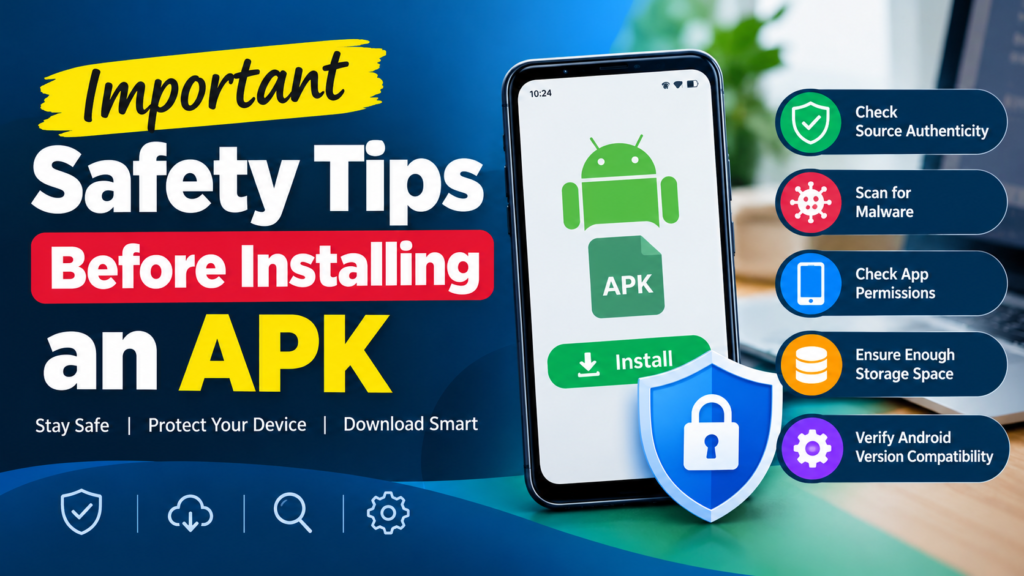
Important Safety Tips Before Installing an APK
Processor compatibility is important, but it should never be the only factor you consider before installing an application.
Follow these basic precautions:
- Download APK files from reputable sources.
- Verify the app developer whenever possible.
- Check the Android version requirement.
- Avoid suspicious modified APK files.
- Scan downloaded files with a reputable security tool.
- Review the permissions requested by the application.
- Keep Google Play Protect enabled.
- Do not disable Android security features simply to force an incompatible APK to install.
A compatible APK is not necessarily a safe APK. Always check its source and authenticity before installation.
Frequently Asked Questions (FAQs)
1. How do I know which processor architecture my Android phone uses?
You can use a trusted CPU information application to check your phone’s processor architecture. Alternatively, connect your phone to a computer and use the ADB command adb shell getprop ro.product.cpu.abi to identify its primary ABI.
2. Can a 64-bit APK run on a 32-bit Android phone?
Generally, no. A 32-bit Android environment cannot directly run applications that require 64-bit native libraries. You need an APK that supports your device’s available architecture.
3. Can an ARM64 APK work on an ARMv7 device?
An APK containing only ARM64 native libraries will not normally work on an ARMv7-only device. You need a version containing compatible 32-bit libraries or an appropriate universal package.
4. Is a universal APK compatible with every Android phone?
No. Universal APKs support multiple configurations, but they still have minimum Android version, hardware, and other application requirements. Compatibility depends on the package contents and device capabilities.
5. Does processor compatibility affect APK installation speed?
Processor architecture generally does not determine download speed, and it is not the main factor affecting installation time. However, incompatible native libraries can prevent successful installation or cause problems when launching an application.
6. What should I do if an APK is not compatible with my device?
First, check your processor architecture and the APK’s supported ABIs. Then verify the Android version requirement and download a compatible version from a reputable source. If no compatible version exists, contact the developer or look for an officially supported alternative.
Final Thoughts
Learning how to check APK processor compatibility is an important step toward installing Android applications without unnecessary errors. Different devices support different processor architectures, and choosing the wrong APK version can lead to installation failures or unexpected application crashes.
Start by identifying your phone’s CPU architecture using a trusted hardware information application or ADB commands. Then compare the supported architecture with the APK’s technical requirements before downloading and installing it.
Also Read: How to Check APK Android Version Requirement: Before Installing an App














1 comment