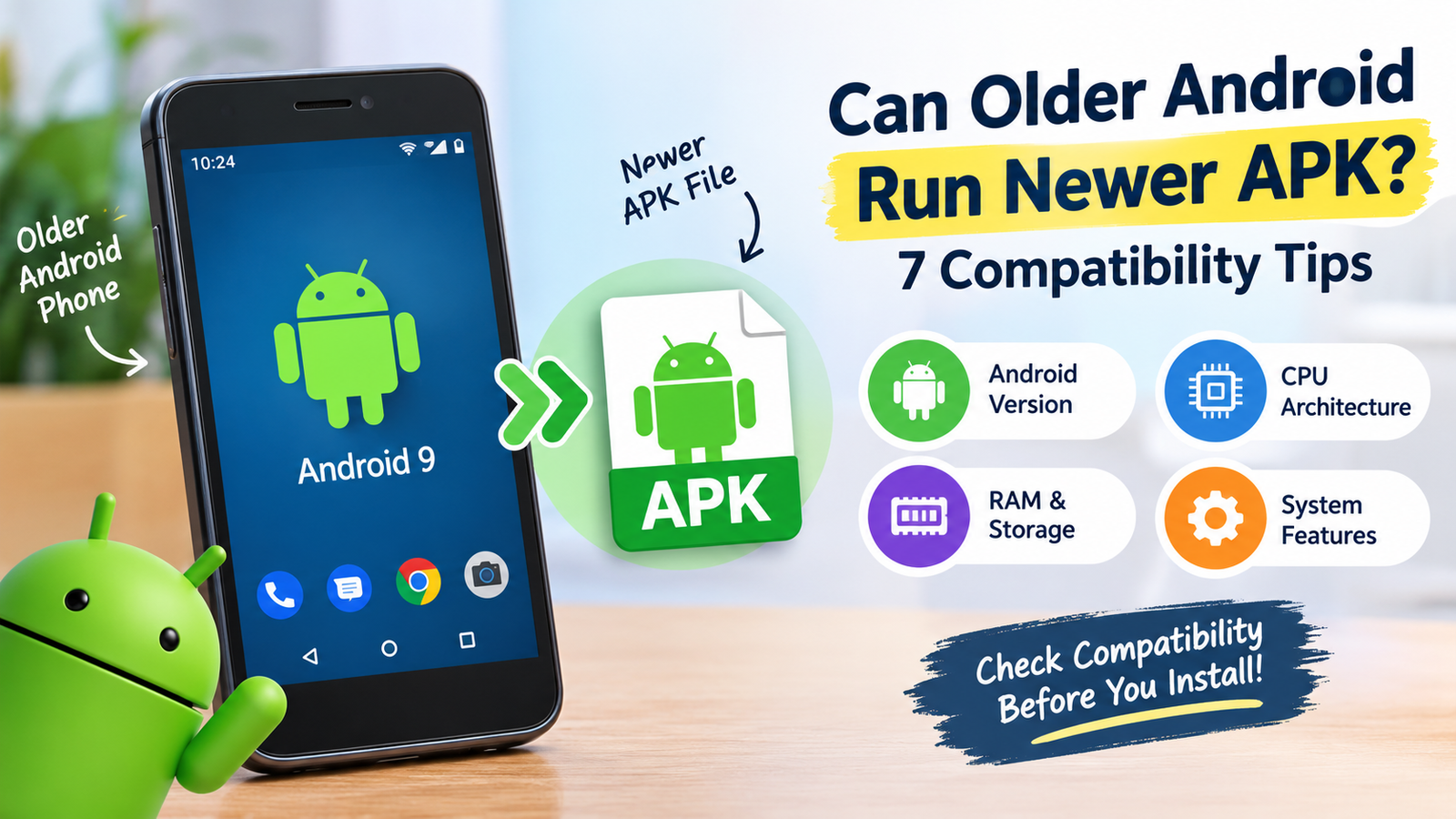
Can Older Android Phones Run Newer APK Files: A Complete Compatibility Guide
If you have an older Android phone, you may wonder whether it can run newer APK files. Perhaps you have downloaded an updated app, found a newer version of your favorite game, or discovered an APK that is not available through your usual app store. Before installing it, you need to know whether your device can handle it.
The short answer is yes, older Android phones can run some newer APK files, but not every APK will work. Compatibility depends on several factors, including your Android version, the app’s minimum requirements, your phone’s processor architecture, and the resources available on your device.
Understanding these requirements can help you avoid installation errors, crashes, and wasted time. In this guide, you will learn how newer APK files work on older Android devices, how to check compatibility, and what you can do when an app refuses to install.
Can Older Android Run Newer APK Files?
Yes, an older Android phone can run a newer APK if the app supports the device’s operating system and hardware. The age of your phone alone does not determine whether an application will work.
An APK, or Android Package Kit, is the file format Android uses to distribute and install applications. It contains the app’s code, resources, and other components required for installation.
However, installing an APK does not automatically mean the app will run properly. Developers build applications for specific Android versions and hardware configurations.
For example, an app released in 2026 might support Android 10 and later. If your phone runs Android 11, the app may work even if your device was released several years ago. On the other hand, a phone running Android 8 might be unable to install the same application.
The important factor is whether your device meets the app’s technical requirements, not simply whether the APK is new.
What Determines APK Compatibility on Older Android Phones?
Several technical factors determine whether a newer APK can run on an older device. Checking these requirements before installation can save you from common problems.
1. Android Version Requirements
The Android operating system version is one of the most important compatibility factors.
Developers specify a minimum supported Android version when creating an application. If the app requires a newer version than your phone supports, Android may block the installation.
For example:
- Your phone runs Android 8, but the app requires Android 10.
- Your phone runs Android 10, and the app supports Android 9 or later.
- Your phone runs Android 12, and the app requires Android 11.
In the first example, the app generally cannot be installed normally because the operating system is too old. The second and third examples meet the minimum Android requirement.
To check your Android version, open Settings > About phone > Android version. The exact menu names may differ depending on your phone manufacturer.
2. Processor Architecture
Your phone’s processor architecture can also affect APK compatibility.
Android devices commonly use ARM-based processors, including 32-bit and 64-bit configurations. Some applications include native code designed for specific processor architectures.
If an APK contains only 64-bit native libraries, it may not work on a device that supports only 32-bit applications.
Similarly, an APK designed for a different processor architecture may fail to install or run correctly.
Before downloading an APK, check whether it supports your device’s architecture. Some developers provide separate versions for different processor types, while others distribute packages that support multiple architectures.
3. Hardware and Performance
Even when an APK installs successfully, your phone may not have enough processing power, memory, or graphics capability to run it smoothly.
This is especially common with newer games, video-editing applications, and apps that use advanced visual effects.
An older device might experience:
- Slow loading times.
- Lag while navigating menus.
- Unexpected app crashes.
- Excessive battery consumption.
- Overheating during demanding tasks.
These problems do not always mean the APK is incompatible. Sometimes, the app is technically supported but requires more resources than the device can comfortably provide.
4. App Dependencies and System Features
Some applications rely on Android features, system libraries, or services that are unavailable on older devices.
For instance, a newer app may require a particular Bluetooth capability, updated media functionality, or a newer system API. If the necessary feature is missing, certain functions may not work even if installation succeeds.
Apps can also depend on Google Play services or other components that must be present and sufficiently up to date.
Minimum Android Version vs. Target Android Version
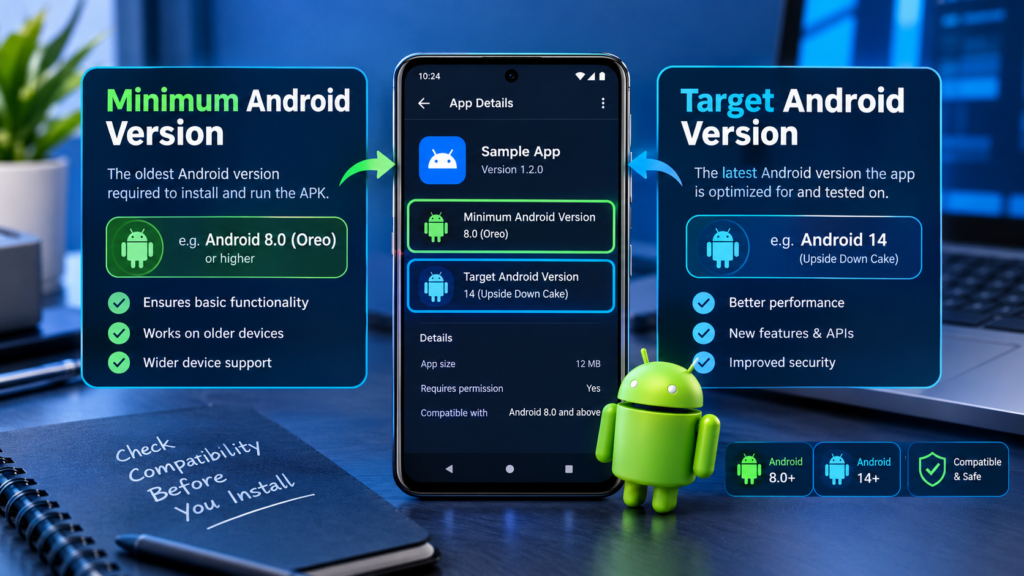
One common source of confusion is the difference between an app’s minimum Android requirement and its target Android version.
These settings serve different purposes and should not be treated as interchangeable.
| Term | Meaning | Effect on older phones |
|---|---|---|
Minimum SDK version (minSdkVersion) | The oldest Android API level the app declares support for | A higher minimum can prevent installation on older Android versions |
Target SDK version (targetSdkVersion) | The Android API level the app is designed and tested to target | Influences platform behavior and compatibility rules |
| Compile SDK version | The Android API level used to compile the application | Does not, by itself, determine the oldest supported device |
| CPU architecture | The processor type supported by the APK’s native code | Can prevent an app from working on incompatible hardware |
The minimum SDK version is particularly important when deciding whether an older Android phone can run a newer APK.
A newer target SDK does not automatically mean an app requires the newest Android version. Developers can target a recent Android release while maintaining support for older devices, provided the app’s code and dependencies allow it.
How to Check Whether a Newer APK Will Work on Your Phone
Before installing a newer APK, follow these steps to evaluate its compatibility.
Step 1: Check Your Android Version
Open your phone’s settings and locate the Android version information.
Write down the version number, such as Android 9, Android 10, or Android 12. You may also want to check whether a system update is available.
Compare your version with the app’s stated minimum Android requirement. If your device runs an older version than the app requires, normal installation is unlikely to work.
Step 2: Check the APK Requirements
Look for compatibility information on the developer’s official website or the application’s official download page.
Check the following details:
- Minimum supported Android version.
- Supported processor architectures.
- Required system features.
- Whether the APK is a universal package or a device-specific build.
- Whether additional files are needed.
Avoid relying entirely on third-party download pages that provide little technical information.
Step 3: Confirm the Correct APK Variant
Some applications are distributed in multiple variants. These may be designed for different processor architectures, Android versions, screen configurations, or device types.
Choosing the wrong variant can cause installation errors.
You may also encounter formats such as XAPK, APKM, or APKS. These can contain split APKs or additional resources rather than a single standalone APK. Installing them may require a compatible installer or the original distribution method.
Always make sure the package comes from a trustworthy source.
Step 4: Check Available Storage and RAM
Your phone should have enough free storage to download, install, and operate the app.
Although RAM does not usually determine whether an APK can be installed, insufficient memory can cause poor performance or crashes after installation.
Before trying again:
- Remove unnecessary files.
- Uninstall apps you no longer use.
- Close demanding background applications.
- Restart your phone if it is running unusually slowly.
These actions can help with performance problems, although they cannot overcome a missing Android feature or an unsupported processor.
Step 5: Install and Test the App
Once you have verified compatibility, download the APK from the developer or another reputable source.
If Android asks you to authorize installation from that source, review the request carefully and allow it only if you trust the file.
After installation, open the application and test its main functions. If it crashes immediately, displays an incompatibility message, or repeatedly freezes, investigate the cause rather than repeatedly reinstalling the same file.
What Happens When an APK Is Too New for Your Android Phone?
When an APK is incompatible with an older phone, Android may display an error or the app may fail during startup.
The exact result depends on the underlying problem.
| Problem | Possible cause | What you can do |
|---|---|---|
| App not installed | Unsupported Android version, package conflict, or incompatible APK variant | Check the requirements and package type |
| Parse error | Corrupted download or unsupported package format | Download a verified copy and confirm the format |
| App crashes at launch | Missing system features, software bugs, or insufficient resources | Check compatibility and available updates |
| App installs but features fail | Missing dependencies or unsupported hardware | Review the developer’s requirements |
| Installation blocked by Android | OS compatibility or security restrictions | Read the warning and verify the APK’s source |
| App runs slowly | Limited RAM, processor power, or graphics capability | Close background apps or use a lighter supported version |
An installation error does not always mean the phone is too old. Package corruption, signature conflicts, and incorrect APK variants can produce similar problems.
Identifying the specific error is more useful than assuming every issue is caused by the Android version.
Can You Install a Newer APK on an Older Android Version?
In some situations, yes. However, there is an important difference between installing an APK and making an incompatible application work.
If the application officially supports your Android version, you may be able to install it normally even if your phone is several years old.
If the application requires a newer operating system, there are fewer safe options.
Look for an Older Compatible Version
If the newest version does not support your phone, check whether the developer provides an older release that still supports your Android version.
Use the developer’s official archive or another source with a strong reputation for verifying APK authenticity. Older versions may contain security vulnerabilities or lack important features, so consider the risks before installing one.
Do not assume that every older release is safe simply because it is compatible.
Check for an Official Android Update
Your phone manufacturer may offer an operating system update that improves compatibility with newer applications.
Open Settings and check for a system update. If one is available, back up important data and follow the manufacturer’s installation instructions.
Keep in mind that many older devices no longer receive major Android updates. Avoid unofficial system modifications unless you fully understand the security and reliability risks.
Try the Web Version
Some applications offer browser-based versions of their services.
If a newer app cannot run on your device, visit the service’s official website using a supported browser. The web version may provide the functions you need without requiring the newest APK.
This is often a practical alternative for messaging services, shopping platforms, productivity tools, and media websites.
Avoid Modified APKs That Promise Compatibility
Be cautious of modified APK files claiming to remove Android version restrictions or make every app compatible with old devices.
Such modifications can introduce malware, compromise your personal information, or break important application functions. Removing a compatibility check does not add missing operating system features or hardware capabilities.
Use official releases whenever possible.
Is It Safe to Run Newer APK Files on Old Android Phones?
Running a newer APK is not automatically dangerous, but the source of the file and the condition of your device matter.
Older Android phones may no longer receive security patches. Even a legitimate application can expose you to risk if the underlying operating system has unpatched vulnerabilities.
Follow these precautions before installing an APK:
- Download applications from Google Play or the developer’s official website whenever possible.
- Verify the app’s publisher and package identity.
- Avoid APKs that request unnecessary permissions.
- Do not disable security protections just to force an installation.
- Keep Android and supported system components updated.
- Uninstall applications you no longer need.
- Avoid modified packages from unknown sources, especially for banking or communication apps.
Google Play Protect and other security tools can help identify potentially harmful applications, but no security measure guarantees that every APK is safe.
If your phone no longer receives security updates, avoid using it for sensitive activities when a safer, supported device is available.
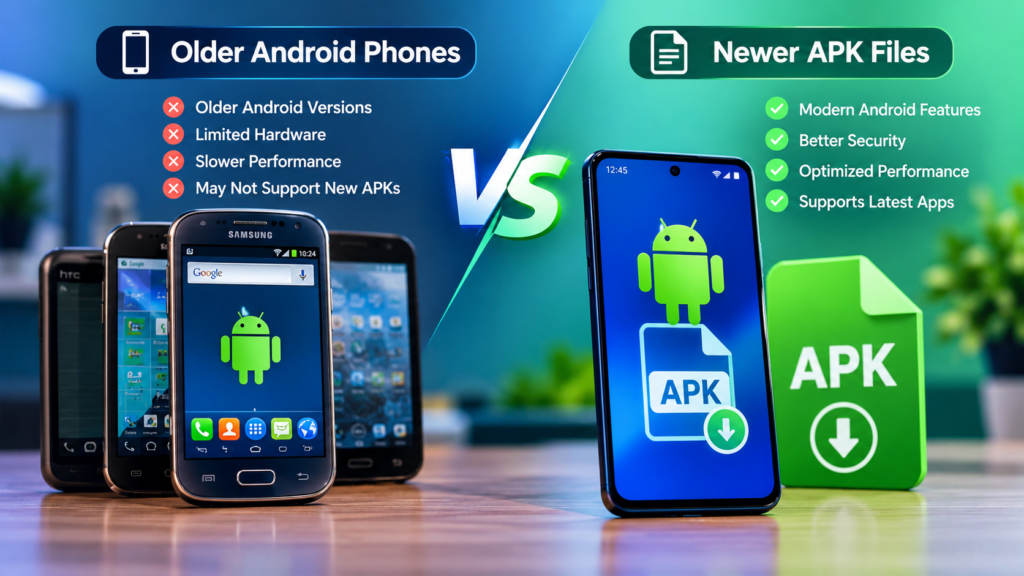
Older Android Phones vs. Newer APK Files: Quick Comparison
The following examples illustrate how compatibility can vary depending on the device and application requirements.
| Phone configuration | App requirement | Likely result |
|---|---|---|
| Android 8 phone | Android 8 or earlier, compatible hardware | May work |
| Android 8 phone | Android 11 or later | Normally incompatible |
| Android 10 phone | Android 9 or later | May work if other requirements are met |
| Older 32-bit device | APK with only 64-bit native libraries | May be incompatible |
| Older phone with limited RAM | Supported app with high memory demands | May install but perform poorly |
| Older phone with missing required hardware | App requiring unavailable hardware features | Some or all functions may fail |
These are illustrative examples, not guarantees. Actual compatibility depends on the application’s manifest, native libraries, dependencies, and the device’s capabilities.
Frequently Asked Questions
1. Can older Android phones run newer APK files?
Yes, if the APK supports the phone’s Android version, processor architecture, and required system features. A newer release date does not automatically make an app incompatible with older devices.
2. Why does a newer APK say my device is incompatible?
The application may require a newer Android version, a different processor architecture, or a system feature your phone does not support. Package restrictions and missing dependencies can also cause compatibility problems.
3. Can I force an APK to install on an old Android phone?
Some installation restrictions can be changed in specific circumstances, but forcing an incompatible APK to install usually does not solve the underlying problem. The app may crash or fail to work correctly. Do not bypass security protections or install untrusted modified packages to overcome these restrictions.
4. Will an older APK version work better on my phone?
It may. An older version might support your Android release and require fewer resources. However, older versions may contain security flaws, lack important features, or no longer connect to the developer’s servers. Choose a trustworthy release and check whether it is still supported.
5. Does more RAM make a newer APK compatible?
Not necessarily. More RAM can improve performance when an app is memory-intensive, but it cannot overcome an unsupported Android version, incompatible processor architecture, or missing system features.
6. How can I run newer apps on an old Android phone safely?
Start by checking for official system updates and looking for an app version that supports your device. If the application is incompatible, consider its official web version or a supported alternative. Avoid modified APKs that promise to bypass every compatibility restriction.
Final Thoughts
So, can older Android run newer APK files? Yes, but only when the application supports the device’s software and hardware requirements. A phone that is several years old may run a recently released app perfectly well, while another device with an older Android version may be unable to install it.
Before downloading an APK, check your Android version, processor architecture, minimum SDK requirement, and available resources. If an app is incompatible, look for an official update, a supported older release, or a browser-based alternative.
Also Read: How CPU Architecture Affects APK Installation: A Complete Android Guide














1 comment