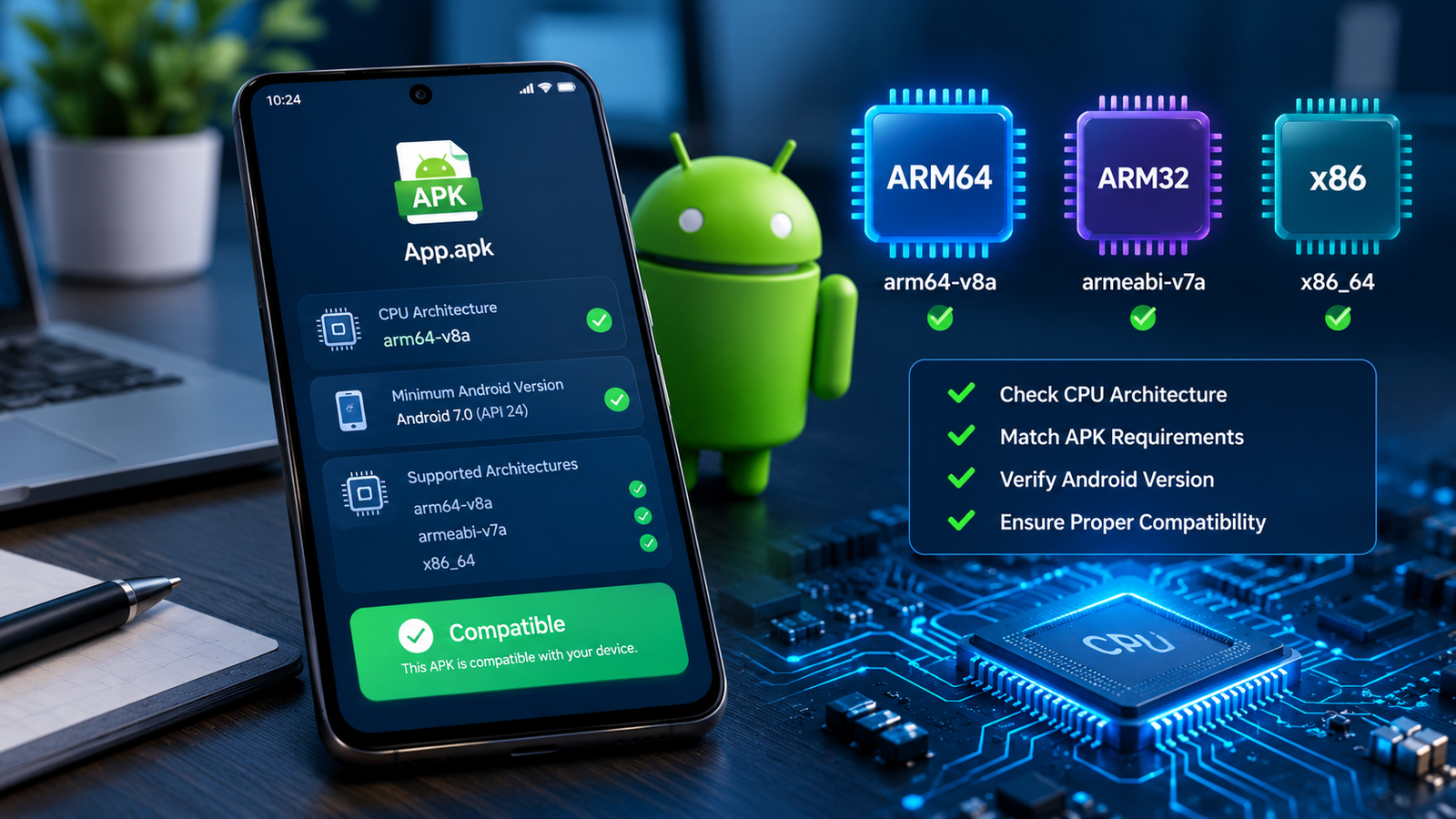
How CPU Architecture Affects APK Installation: A Complete Android Guide
Installing an APK on Android may seem straightforward, but sometimes an app refuses to install, crashes immediately, or displays an error even when your phone has enough storage and a compatible Android version. One possible reason is your device’s CPU architecture.
Understanding how CPU architecture affects APK installation can help you choose the correct APK variant, avoid common installation errors, and determine why an app works on one Android phone but not another.
Android devices use different processor architectures, and developers may build separate APK versions for each one. If you download a package that does not support your device’s processor, the app may fail to install or may not run correctly.
In this guide, you will learn what CPU architecture means, how it affects APK compatibility, how to check your phone’s processor type, and what to do when an APK is incompatible with your device.
What Is CPU Architecture on Android?
CPU architecture describes how a processor is designed to understand and execute instructions. It influences which applications and software components a device can run.
Android phones use several processor architectures, but the most common family is ARM. Many modern Android devices use 64-bit ARM processors, while some older devices support only 32-bit applications.
When developers create Android applications, they can include native code compiled for specific processor architectures. That code must match an architecture supported by the device or be accompanied by a compatible alternative.
For example, an APK containing only 64-bit ARM native libraries may not work on a device that supports only 32-bit ARM code.
CPU architecture is not the only factor in APK compatibility. Android version, available memory, app requirements, package integrity, and device-specific restrictions can also affect installation.
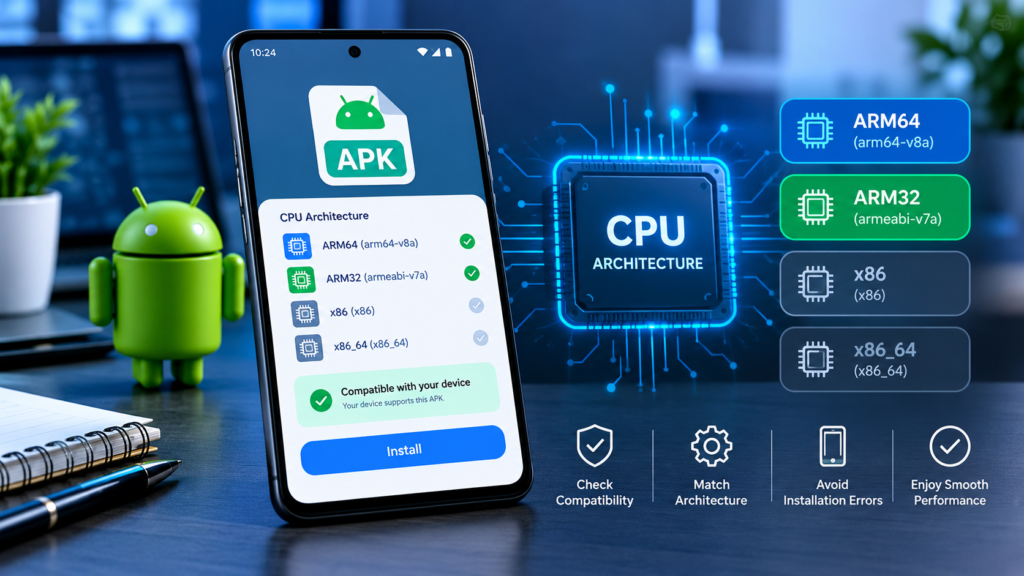
Why CPU Architecture Matters for APK Installation
Understanding how CPU architecture affects APK installation is especially useful when downloading apps from sources outside the Google Play Store.
An APK may be designed for a particular processor type instead of every Android device. If the required native libraries are missing or incompatible, Android may reject the installation or the application may fail when launched.
Here are the main ways CPU architecture affects the process.
1. It Determines Which Native Libraries Can Run
Some Android apps rely on native libraries for gaming, image processing, video playback, encryption, or other performance-intensive features.
These libraries may be compiled for specific architectures, such as arm64-v8a or armeabi-v7a. A device must support the required native code for those components to work properly.
If an APK contains only libraries for an unsupported architecture, installation or execution may fail.
2. It Affects Which APK Variant You Need
Developers sometimes publish multiple APK variants of the same application. Each version may contain libraries for a different processor architecture.
For instance, an app might offer:
- An
arm64-v8avariant for compatible 64-bit ARM environments. - An
armeabi-v7avariant for compatible 32-bit ARM environments. - An
x86orx86_64variant for supported Intel or AMD-based Android environments. - A universal APK that includes libraries for several architectures.
A universal APK can be larger because it may contain more than one set of native libraries. However, it is not automatically compatible with every device; Android version and other requirements still apply.
3. It Can Cause Installation or Startup Errors
An architecture mismatch can contribute to errors such as an application not installing, a package appearing incompatible, or an app closing immediately after launch.
However, these symptoms do not prove that CPU architecture is the cause. Corrupted downloads, missing split APK files, signature conflicts, insufficient storage, and unsupported Android versions can produce similar problems.
The best approach is to check architecture alongside the other compatibility requirements rather than repeatedly downloading different APK files at random.
Common Android CPU Architectures Explained
Before choosing an APK, it helps to understand the architecture labels you may encounter on download pages.
| Architecture | What it means | Compatibility notes |
|---|---|---|
arm64-v8a | 64-bit ARM architecture | Common on modern Android devices |
armeabi-v7a | 32-bit ARM architecture | Used by compatible 32-bit ARM devices |
x86 | 32-bit Intel-compatible architecture | Found on some older Android devices and emulators |
x86_64 | 64-bit Intel-compatible architecture | Used by compatible x86-64 environments |
universal | Usually includes multiple architecture-specific libraries | Often supports more devices, but other requirements still apply |
These labels describe supported native-code architectures, not the full capabilities of a phone.
A device with a 64-bit processor may still run a 32-bit Android operating system. In that case, it might not support a 64-bit-only application. Therefore, checking the processor model alone is not always enough.
ARM64 vs. ARM32: What Is the Difference?
ARM64 supports 64-bit instructions, while ARM32 refers to the 32-bit ARM instruction environment.
Modern phones commonly use ARM64-capable processors, but Android’s operating-system build and application environment also determine which apps can run.
For example, an ARM64 processor running a 32-bit-only Android environment may be unable to run an APK that requires 64-bit native libraries.
When selecting an APK, check both the device’s hardware capabilities and the Android environment’s supported architectures.
How to Check Your Android Phone’s CPU Architecture
You can identify your device’s processor architecture before downloading an APK. The best method depends on your phone and the information available in its settings.
Method 1: Check Your Phone’s Specifications
Start with your phone’s model information.
- Open Settings on your Android device.
- Find About phone or Device information.
- Note the model number and processor details, if displayed.
- Check the manufacturer’s official specifications for the processor and operating-system configuration.
- Confirm whether the device supports 32-bit apps, 64-bit apps, or both.
Some manufacturers display only the processor’s marketing name. If the settings page does not show the supported architecture, you may need to consult the manufacturer’s specifications or use another method.
Method 2: Use a Trusted Device Information App
A reputable device information utility may display your CPU architecture, supported instruction sets, and Android system details.
When using such a utility, look for fields such as:
- Supported ABIs (Application Binary Interfaces).
- CPU architecture or instruction sets.
- Android version.
- Whether the operating environment supports 32-bit or 64-bit applications.
The ABI information is particularly useful because it identifies the native-code environments available to Android applications.
Download diagnostic utilities from a reputable source, review their requested permissions, and avoid installing tools that demand unnecessary access to your personal information.
Method 3: Check Supported ABIs With ADB
If you are comfortable using a computer and Android Debug Bridge (ADB), you can inspect the device’s supported application architectures.
After installing Android platform tools and enabling USB debugging where appropriate, connect the phone and run:
adb shell getprop ro.product.cpu.abilistThis command commonly returns a comma-separated list of supported ABIs, such as arm64-v8a,armeabi-v7a,armeabi.
The exact output varies by device. It provides useful information about the Android environment’s supported application binary interfaces, although additional checks may be needed to determine every detail of a device’s native-code capabilities.
Disable USB debugging when you no longer need it, especially if you connect your phone to unfamiliar computers.
How to Choose the Correct APK for Your CPU Architecture
Once you know your device’s supported architecture, compare it with the APK’s requirements before installing the file.
Follow this process:
- Check the Android version. Make sure your operating system meets the application’s minimum requirement.
- Identify supported ABIs. Determine which native-code architectures your device can run.
- Read the APK download details. Look for architecture labels such as
arm64-v8a,armeabi-v7a, oruniversal. - Check whether the download is a complete package. Some apps require multiple split APK files rather than one standalone APK.
- Verify the source and package integrity. Prefer official developer sources and reputable distribution channels.
- Install only a compatible version. Avoid choosing a file simply because it has the newest version number.
For example, if your Android environment supports ARM64 applications and the developer provides an ARM64 variant, that variant may be suitable. However, it must also meet the app’s Android version requirements and any other device restrictions.
If a universal package is available from a trustworthy source, it may be a convenient option. Still, universal does not mean that every Android device is supported.
What Happens When You Install an APK With the Wrong Architecture?
The result depends on how the APK was built and which components it contains. A mismatch does not always produce the same error.
The APK Fails to Install
Android may reject an APK when its native components or other package requirements are incompatible with the device. You might see an installation failure or an incompatibility message.
If this happens, check the architecture requirements, minimum Android version, package format, and whether the download is complete.
The App Installs but Crashes
Some APKs can install successfully but fail when launched because a required native library cannot load or an application component is incompatible.
If an app closes immediately after opening, architecture could be one explanation. Other possibilities include software bugs, missing components, corrupted files, or restrictions imposed by the developer.
Some Features Do Not Work
An application may launch successfully while a particular feature fails. This can happen when an optional component, plugin, or native library is unavailable for the device’s architecture.
For example, an app might open but encounter problems with video processing or another feature that relies on native code.
The App Works on One Phone but Not Another
Two Android phones can run different operating-system versions or support different ABIs, even if their specifications appear similar.
One phone might support a particular 64-bit library while another uses a 32-bit environment. Differences in Android versions, manufacturer software, memory, and hardware can also explain why the same APK behaves differently.
How to Fix CPU Architecture Compatibility Problems
If an APK does not work, use the following troubleshooting steps instead of immediately resetting your phone or installing unofficial system modifications.
| Problem | What to check | Recommended action |
|---|---|---|
| APK will not install | Supported ABI and Android version | Find a compatible build from a trusted source |
| App crashes on launch | Native libraries and app requirements | Update the app or obtain a compatible version |
| APK is rejected as incompatible | Package metadata and device support | Verify architecture and minimum OS requirements |
| Universal APK still fails | Package integrity and other restrictions | Re-download from the official source and recheck requirements |
| Split APK installation fails | Missing or mismatched split packages | Obtain the complete, correct package set |
| App works on another phone only | Differences in ABI, OS, or hardware | Compare both devices’ compatibility details |
Keep these additional tips in mind:
- Avoid changing your phone’s system architecture. Installing a different APK is usually safer than attempting an unsupported operating-system modification.
- Do not force-install incompatible packages without understanding the issue. Bypassing checks does not make missing native libraries compatible.
- Keep Android updated when updates are available for your device. An update may address compatibility problems, although it cannot guarantee support for every application.
- Check for a newer official release. Developers sometimes update their apps to support additional devices or architectures.
- Remove conflicting versions only when necessary. Uninstalling an existing app can remove locally stored data, so back up important information first.
If the application is unavailable for your architecture, the safest solution is to use a compatible alternative or contact the developer.
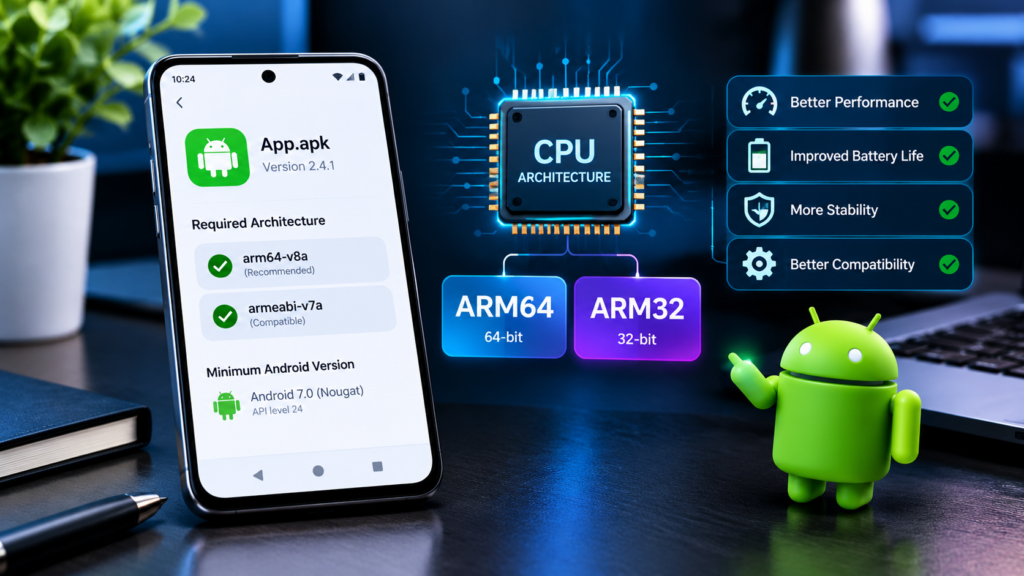
Does CPU Architecture Affect APK Performance?
CPU architecture can influence performance, but it is not the only factor.
A compatible 64-bit application may benefit from access to a 64-bit execution environment, depending on its workload and implementation. However, a 64-bit APK is not automatically faster than a 32-bit version.
Performance also depends on processor speed, available RAM, graphics hardware, storage performance, Android optimizations, and how efficiently the developer wrote the application.
For gaming and demanding multimedia applications, hardware capabilities and graphics support may be just as important as CPU architecture.
The main priority when installing an APK should be compatibility first, performance second. Choosing the correct architecture helps ensure the app can run as intended, but it does not guarantee better speed or battery life.
Frequently Asked Questions
1. What does CPU architecture mean in an APK?
CPU architecture refers to the processor instruction environment for which an application’s native code is compiled. APKs may include libraries for architectures such as arm64-v8a, armeabi-v7a, x86, or x86_64. Your device must support the architecture required by those libraries.
2. Can a 64-bit Android phone install a 32-bit APK?
Often, yes. Many 64-bit Android environments support compatible 32-bit applications. However, support depends on the device and its operating-system configuration. A 64-bit processor does not guarantee that every 32-bit APK will work.
3. Why does an APK say that my device is incompatible?
The message can indicate an unsupported CPU architecture, an incompatible Android version, missing device features, or another package restriction. Check the application’s requirements and your device’s supported ABIs before assuming the processor is the problem.
4. How do I know whether I need ARM64 or ARM32?
Check your device’s supported ABIs using a trusted device information utility or ADB. Compare the results with the architecture listed on the APK’s download page. Also verify the Android version and other app requirements.
5. Will a universal APK work on every Android phone?
No. A universal APK generally includes native libraries for multiple architectures, but it may still require a newer Android version, specific hardware features, or other dependencies. Its compatibility depends on the complete set of application requirements.
6. Can the wrong CPU architecture cause an APK to crash?
Yes. An application that depends on unsupported native libraries may crash or fail to load particular components. However, crashes can also result from software bugs, corrupted downloads, insufficient resources, or incompatible Android versions.
Final Thoughts
Understanding how CPU architecture affects APK installation makes it easier to identify compatibility problems before they waste your time. Processor architecture determines which native-code components an Android device can support, while the operating-system environment determines how those components can run.
Before installing an APK, check your Android version, supported ABIs, package format, and the developer’s compatibility requirements. If an app fails to install or crashes immediately, investigate these factors instead of assuming that your phone is too old or the APK is defective.
Also Read: Hotstar APK: Features, Compatibility, Installation Guide, and Safety Tips














1 comment