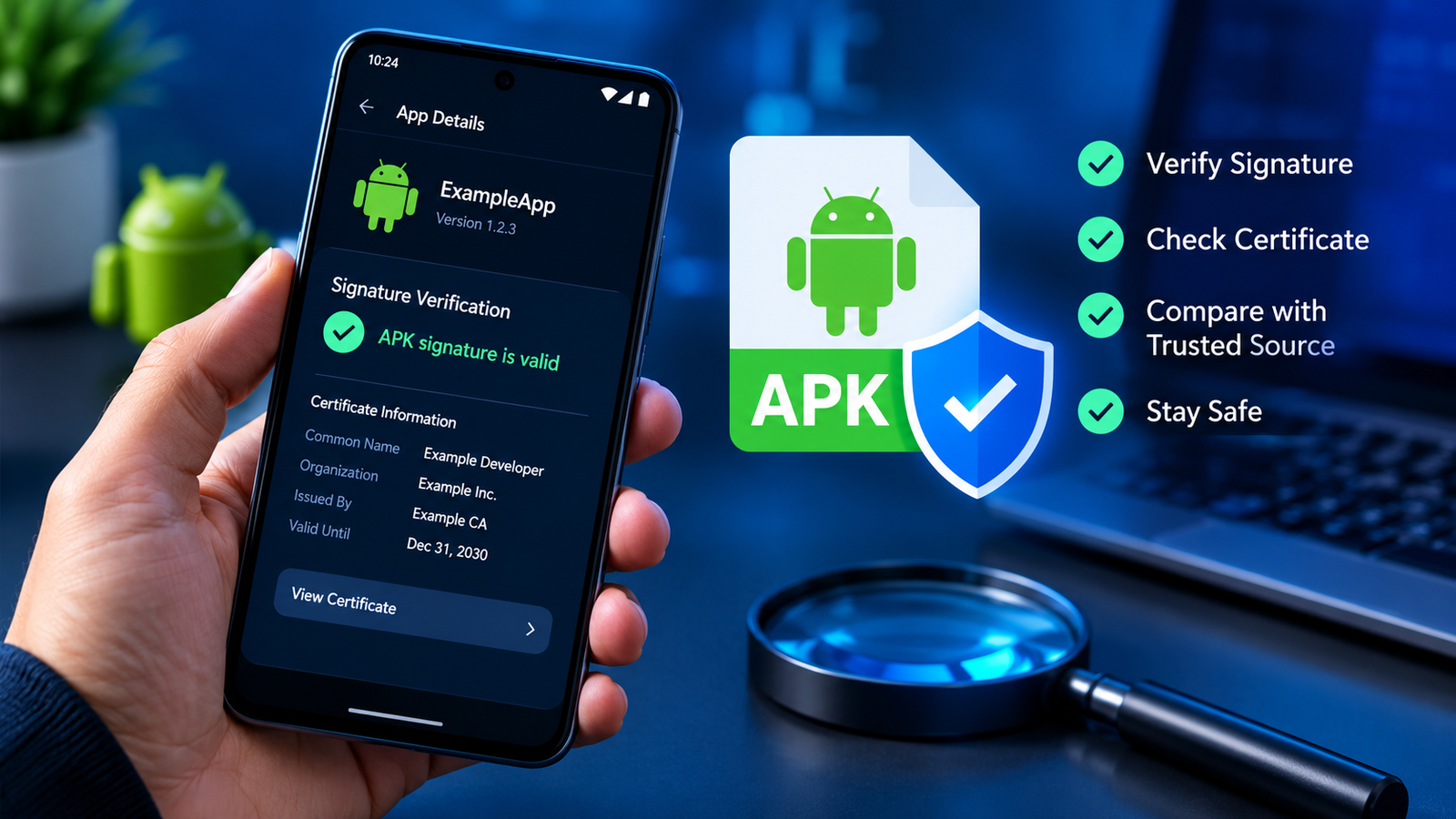
How to Verify APK Digital Signature: A Complete Android Guide
Downloading an APK file from outside the Google Play Store can be useful when you need a particular app version or cannot access an app through the usual channels. However, before installing it, you should check whether the file comes from a trustworthy source and whether it has been modified.
One important step is learning how to verify APK digital signature information. An APK digital signature helps identify the developer who signed an Android application and allows you to check whether the file’s signing information is consistent with an expected release.
Although signature verification is not a complete security check, it can help you identify suspicious files, understand app updates, and avoid certain installation problems. In this guide, you will learn what an APK signature means, how to verify it using different tools, and what to do if verification fails.
What Is an APK Digital Signature?
An APK digital signature is cryptographic information attached to an Android application package by its developer or publisher. It helps Android verify the package’s integrity and establish continuity between app versions.
When a developer prepares an Android app for distribution, the APK is signed using a signing key. Android checks the signature when the app is installed or updated, according to the applicable signing scheme and platform version.
A digital signature serves two main purposes:
- Integrity verification: Helps determine whether the signed APK content has been changed after signing.
- Signing identity verification: Helps establish whether an APK was signed using the expected signing key.
However, a valid signature does not automatically mean an app is safe. A malicious application can also have a valid signature, so you should consider the download source, requested permissions, and developer reputation.
Why Should You Verify an APK Digital Signature?
Verifying an APK signature is particularly useful when downloading Android applications from third-party websites, installing older versions, or comparing two copies of the same app.
Here are the main reasons to perform this check.
1. Check Whether the APK Has Been Modified
An APK may be repackaged by someone other than the original developer. This can happen when an application is modified to add unwanted advertising, tracking, or potentially harmful functionality.
Signature verification can help detect changes that invalidate the original signature. However, an attacker can also modify an app and sign it again with a different key. That is why checking the signer against a trusted reference is important.
2. Confirm the Expected Signing Identity
A signature is more useful when you can compare its signing certificate or certificate fingerprint with information obtained from a trusted source.
For example, if you have an APK from an official distribution channel and another from a third-party website, comparing their signing certificates may help you determine whether both files use the same signing identity.
Remember that some developers use different signing arrangements for different distribution channels, so a mismatch is not always proof of malicious activity.
3. Understand APK Update Problems
Android generally requires an installed app and its replacement to satisfy signing-identity rules before an update can proceed. If an APK has been signed with an incompatible key, Android may reject the update.
This is one reason an application downloaded from an unofficial source may fail to update an existing installation.

What You Need Before Verifying an APK Signature
Before starting, prepare the APK file and choose an appropriate verification method.
| Requirement | Purpose |
|---|---|
| APK file | The application package you want to inspect |
| Trusted reference | An official APK or trusted certificate fingerprint for comparison |
| APK verification tool | Checks the package signature and signing certificate |
| Computer or Android device | Depends on the selected verification method |
| Internet access | Useful for obtaining official tools and reference information |
If possible, obtain the APK from the developer’s official website or a reputable distribution channel. Avoid installing the file until you have completed the checks you consider necessary.
How to Verify APK Digital Signature Using Android SDK Tools
One of the most reliable methods is to use apksigner, a command-line utility included with the Android SDK Build-Tools. It can verify APK signatures and report information about the signing certificates.
This method is especially useful if you want to perform a detailed check on a Windows, macOS, or Linux computer.
Step 1: Install Android SDK Build-Tools
Download Android SDK tools through the official Android developer resources. You can install Build-Tools using Android Studio’s SDK Manager or the standalone SDK command-line tools.
Official resource: https://developer.android.com/tools/apksigner
Once installed, locate the apksigner executable inside the Build-Tools directory. The exact path depends on your operating system and installed SDK version.
On Windows, the file is usually named apksigner.bat. On macOS and Linux, it is generally named apksigner.
Step 2: Locate Your APK File
Place the APK in a folder that is easy to access. For example, on Windows, you might use:
C:\APK-Check\example.apk
Replace example.apk with the actual filename of the application you want to inspect.
Make sure you are checking the correct file, especially if the folder contains multiple APK versions.
Step 3: Open a Terminal or Command Prompt
Open Command Prompt or PowerShell on Windows. On macOS or Linux, open the Terminal application.
Navigate to the directory containing your APK or use the full path to the file in your command.
You may also need to provide the full path to apksigner if it is not available through your system’s PATH environment variable.
Step 4: Run the Signature Verification Command
Use the following command:
apksigner verify --verbose --print-certs example.apkReplace example.apk with the path to your APK file.
The command performs signature verification and prints certificate details. The verbose option provides additional information about supported signature schemes, while the certificate option displays signer certificate information.
If you are using Windows and the executable is not available through PATH, run the command using the full path to apksigner.bat.
Step 5: Review the Results
Read the output carefully. A successful verification indicates that the APK passed the applicable signature checks performed by the tool.
Pay attention to:
- Whether signature verification succeeds.
- Which signature schemes are verified.
- The signer’s certificate details.
- Any errors or warnings reported by the tool.
Do not assume that every APK must support every signature scheme. The schemes used depend on how the app was built and the Android versions it supports.
A successful verification also does not prove that the signer is the original developer. To establish that, compare the certificate information with a trusted reference.
How to Verify APK Signature With Android Build Tools
Android developers can use additional tools to inspect APK contents and signing information.
One option is the keytool utility, which is included with many Java Development Kit installations. It can display certificate details from supported certificate files, but it does not replace apksigner for verifying an APK’s Android signing schemes.
Another useful option is apkanalyzer, which is available with Android SDK tools and can inspect different aspects of an APK.
For a standard APK signature check, use apksigner first. Use other utilities when you need additional information about the application package or its certificate.
Avoid relying on a certificate’s displayed name alone. Names can be copied or made to look convincing. A certificate fingerprint provides a more precise value for comparison, but you still need a trusted source for the expected fingerprint.
How to Compare APK Digital Signatures
Verifying one APK tells you whether its signature checks pass. Comparing its signing identity with a trusted copy helps answer a different question: whether the two files were signed by the expected key.
Follow these steps:
- Obtain a reference APK from an official or otherwise trusted source.
- Run
apksigner verify --print-certson the reference APK. - Record the signer’s certificate information and certificate digest.
- Run the same command on the APK you want to check.
- Compare the signer information and certificate digest.
- Investigate any unexpected differences before installing the file.
For example, suppose the reference APK and downloaded APK report the same expected signing certificate. This supports the conclusion that they share the same signing identity, provided the reference is trustworthy.
If the certificates differ, do not immediately assume the downloaded file is malicious. Developers may rotate signing keys, use different distribution arrangements, or change signing certificates. Check the developer’s documentation or official release information to understand the difference.
How to Verify an APK Digital Signature on Android
If you do not have a computer, you can still perform some useful checks on your Android device.
The available options depend on your device, Android version, and the verification tools you can install.
Use a Reputable APK Verification App
Some Android utilities can inspect APK files and display package details, signing certificates, or certificate fingerprints.
If you choose this route:
- Download the utility from a trusted source.
- Check its developer and reputation.
- Review the permissions it requests.
- Confirm that it actually performs signature verification rather than merely displaying APK metadata.
- Compare the certificate information against a trusted reference whenever possible.
An app that only displays the package name, version number, or file size does not necessarily verify the APK’s digital signature.
Use a Computer for More Detailed Verification
For a more transparent and reproducible check, transfer the APK to a computer and use the official Android SDK Build-Tools.
This approach is particularly helpful when you need to compare certificates, troubleshoot installation errors, or inspect several versions of an application.
Do not install a questionable APK just to test whether it opens. Signature verification should ideally happen before installation.
Common APK Signature Verification Results
The following table explains several results you may encounter.
| Result | What It Means | Recommended Action |
|---|---|---|
| Verification successful | The APK passed the applicable signature checks | Compare the signer with a trusted reference |
| Verification failed | One or more signature checks did not pass | Do not install until the problem is understood |
| Certificate differs | The signer differs from the reference APK | Investigate key rotation or distribution differences |
| Unsupported or missing signature scheme | The requested or expected scheme could not be verified | Check the tool output, APK format, and Android compatibility |
| APK file cannot be read | The file may be incomplete, corrupted, or invalid | Download a fresh copy from a trusted source |
| Multiple signers reported | The APK may have more than one signer | Review the signing information and compare it with the expected release |
The exact output depends on the APK, Android SDK Build-Tools version, and verification options.
Common Mistakes to Avoid When Checking APK Signatures
Even when you use the correct tool, mistakes can lead to inaccurate conclusions.
Assuming a Valid Signature Means the App Is Safe
A valid signature confirms certain cryptographic properties; it does not guarantee that the app is free from malware, excessive tracking, or deceptive behavior.
Always consider the source, permissions, app reputation, and whether the developer is trustworthy.
Ignoring Certificate Differences
If the signing certificate does not match your reference, do not dismiss the difference without investigation. It could reflect legitimate key rotation, a separate distribution channel, or an unauthorized repackaging.
Check reliable developer documentation before deciding whether the file is appropriate to install.
Using an Untrusted Verification Website
Uploading an APK to an unknown website may expose the file to third parties. This matters especially if the package contains private, proprietary, or unreleased software.
Prefer trusted local tools when practical, and avoid submitting sensitive files to services you do not trust.
Confusing File Hashes With Digital Signatures
A file hash, such as SHA-256, identifies the contents of a particular file by producing a digest. A digital signature uses cryptographic signing information to validate the signed package and its signer.
A matching hash can establish that two files are identical when compared against a trusted hash. However, a hash alone does not establish who created the file.
For stronger verification, use signature validation and compare the signing identity against a trustworthy reference.
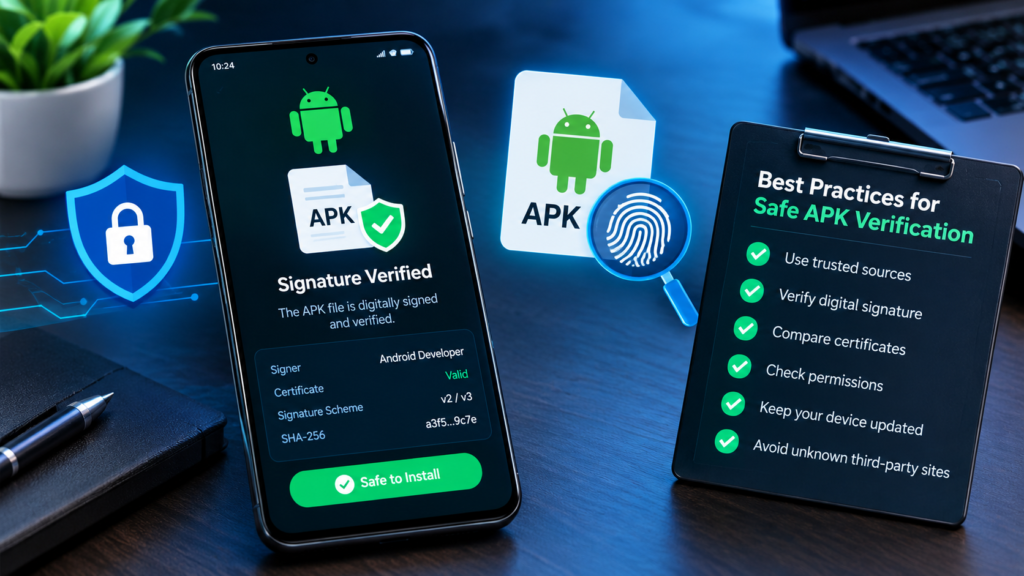
Best Practices for Safe APK Verification
Before installing an APK, follow this checklist:
- Download the package from the official developer or a reputable source.
- Verify the APK using a trusted tool such as
apksigner. - Compare its signing certificate with a trusted reference when available.
- Check the package name and version against the developer’s published information.
- Review requested permissions and consider whether they make sense for the app.
- Be cautious if a third-party download offers an unexplained modified version.
- Keep Android and your security tools updated.
- Do not ignore signature errors simply because the app appears popular.
These precautions provide a more complete picture than signature verification alone.
Frequently Asked Questions
1. How do I verify an APK digital signature?
You can use the Android SDK Build-Tools utility apksigner. Run apksigner verify --verbose --print-certs example.apk and review the verification output and signing certificate details. Compare the signer with a trusted reference if you need to confirm the expected signing identity.
2. Can I verify an APK signature without installing the app?
Yes. You can verify an APK file on a computer using Android SDK Build-Tools before installing it. This lets you inspect its signature and certificate information without launching the application.
3. Does a valid APK signature mean the file is safe?
No. A valid signature does not guarantee that an application is harmless or that its developer is trustworthy. Check the download source, expected signing certificate, requested permissions, and other available security information.
4. Why does my APK signature verification fail?
Verification may fail because the APK is corrupted, its signed content has been modified, the file is malformed, or the verification tool cannot validate the applicable signing scheme. Check the full error message and obtain a fresh copy from a trusted source before trying again.
5. What is the difference between an APK signature and a SHA-256 hash?
A digital signature helps validate signed content and its signing identity. A SHA-256 hash is a digest used to compare file contents. Both can be useful, but they answer different questions. A hash is most useful for integrity comparison when you have a trusted expected value.
6. Can two legitimate versions of the same app have different signing certificates?
Yes, this can happen in certain circumstances, including legitimate signing-key rotation or different distribution arrangements. However, an unexpected certificate change should be investigated. Check official developer information rather than assuming that every difference is harmless.
Final Thoughts
Learning how to verify APK digital signature information is a valuable step toward safer Android app installation. It helps you check whether an APK passes cryptographic signature validation and gives you information you can use to compare its signer with an expected developer identity.
For a practical and reliable workflow, use Android SDK Build-Tools and the apksigner command. Review the results, investigate certificate differences, and download applications from sources you trust.
Also Read: Myntra App: Features, Benefits, Shopping Tips, and How to Use It














1 comment