Can Newer Android Run Older APK Files: A Complete Compatibility Guide
Introduction
If you have an older Android app that you want to install on a newer phone, you might wonder whether it will work without problems. The good news is that newer Android devices can often run older APK files, but compatibility depends on several factors, including the Android version, app requirements, processor architecture, and security restrictions.
An APK (Android Package Kit) is the installation file format used to distribute Android applications. Older APK files may still work on modern devices, especially when the apps use standard Android features. However, some applications may refuse to install, crash after opening, or stop working because they depend on outdated system components.
Understanding how Android handles older applications can help you avoid installation errors and find a suitable version for your device.
In this guide, you will learn whether newer Android versions support older APK files, why compatibility problems happen, and what you can do when an older app does not install or run correctly.
Can Newer Android Run Older APK Files?
Yes, newer Android phones can run many older APK files. Android generally maintains backward compatibility so applications developed for earlier versions can continue working on newer operating systems.
For example, an app developed for Android 10 may work on a phone running Android 14 or Android 15, provided it does not rely on removed features, incompatible libraries, or outdated system behavior.
However, installing an APK is not the same as guaranteeing that the app will work properly. Android checks several technical requirements before allowing an application to run.
These include:
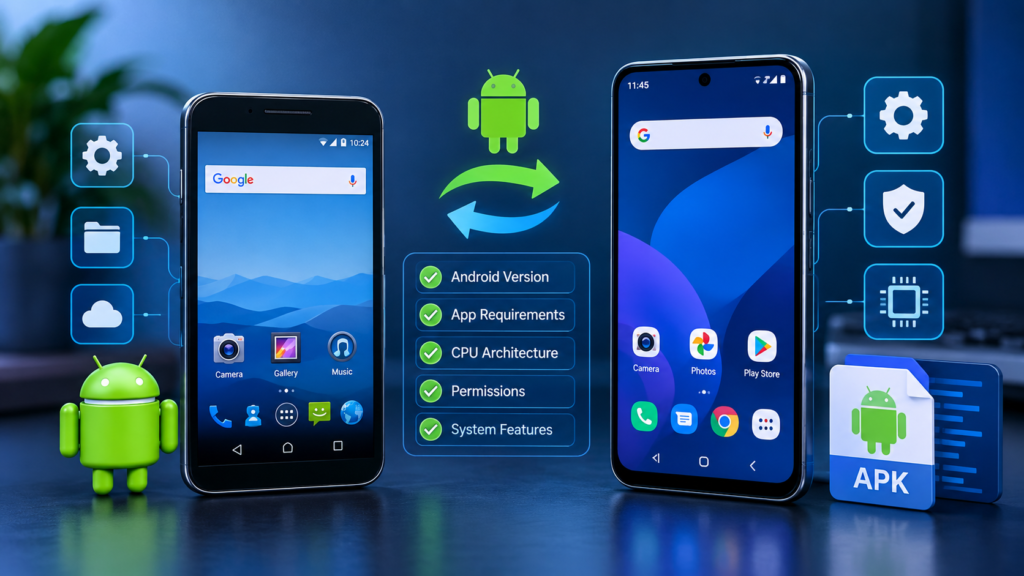
- Minimum Android version: The operating system must meet the app’s minimum supported API level.
- Target Android version: The version the developer designed the app to target can influence compatibility behavior and security restrictions.
- CPU architecture: The APK must include compatible native code if the app depends on processor-specific libraries.
- System permissions: Newer Android versions may restrict permissions that older applications expect to use.
- App dependencies: The application may require services, libraries, or features that are no longer available.
- Security policies: Android may block installation of certain very old applications.
Therefore, an older APK can be compatible with a newer phone in some cases but incompatible in others.
How Android Version Compatibility Works
Every Android release introduces changes to the operating system. Some updates improve security and performance, while others modify APIs, permissions, background activity, and application installation rules.
Android apps declare information about their supported operating systems through settings in their application package, including the minimum SDK version and target SDK version.
Minimum SDK Version
The minimum SDK version indicates the oldest Android API level an app supports. A device generally needs to meet or exceed this minimum requirement to install the app.
For example, an application requiring Android 8.0 or later may work on a phone running Android 13, assuming its other requirements are satisfied.
Target SDK Version
The target SDK version tells Android which version’s application behavior the developer intended to use. It can affect how the operating system applies permission rules and other compatibility changes.
An older target SDK does not automatically mean an app cannot run on a newer device. However, newer Android releases can impose additional restrictions on apps targeting particularly old API levels.
This distinction is important because an app may technically support your phone but still encounter restrictions when you try to install or use it.
Why Older APK Files May Not Work on Newer Android
Although backward compatibility is common, several issues can prevent an older application from working correctly.
1. Android Blocks the Installation
Some newer Android versions restrict the installation of apps targeting very old Android releases. These restrictions are designed to protect users from applications that may not follow modern security practices.
You might see a message indicating that the app was developed for an older version of Android.
This does not necessarily mean the APK is corrupted. It may simply be blocked by the operating system’s installation policy.
2. The App Uses Outdated Android Features
Older applications sometimes rely on APIs or behaviors that have changed or been removed. If an app depends on one of these features, it may fail during startup or stop working after installation.
For instance, an older utility app might depend on a system function that a recent Android release no longer supports.
In such cases, changing the installation settings will not necessarily fix the problem. The app may require an updated version from its developer.
3. Processor Architecture Is Incompatible
Android devices use different processor architectures, such as ARM-based architectures and, in some cases, x86-based architectures.
Most modern Android phones use ARM-based processors, but compatibility can still become an issue when an APK contains native libraries compiled for a different architecture.
If the required native libraries are missing or incompatible, the app may fail to install or crash when launched.
4. Required Permissions Have Changed
Older APK files may expect unrestricted access to storage, location, camera, or other device features. Modern Android versions handle many permissions differently.
An application might install successfully but fail to perform certain tasks because it cannot obtain the permissions it expects.
Open the app’s permissions settings and review the available options. Only grant permissions that are necessary and appropriate for the app’s purpose.
5. The App Depends on Outdated Online Services
Some older apps rely on remote servers, outdated authentication methods, obsolete certificates, or discontinued APIs.
Even if Android installs the APK successfully, the app may not connect to its service or complete the login process.
This type of problem usually requires an app update or changes on the service provider’s side rather than a different installation method.
Older APK Compatibility: Quick Comparison Table
The following table explains common situations you may encounter when running older APK files on newer Android phones.
| Situation | Will the APK work? | What to check |
|---|---|---|
| App supports an older Android version | Often yes | Minimum SDK and app requirements |
| App targets an outdated Android version | It may be blocked | Android installation restrictions |
| APK contains incompatible native libraries | Not reliably | CPU architecture and library support |
| App uses removed Android features | Possibly not | App updates or alternatives |
| App requires discontinued online services | Installation may succeed, but features may fail | Server and service availability |
| APK is incomplete or corrupted | Usually not | File integrity and download source |
| App requires restricted permissions | Some features may fail | Android permission settings |
Remember that these are general guidelines, not guarantees. Two applications developed for the same Android version can behave very differently on the same device.
How to Check Whether an Older APK Supports Your Phone
Before installing an older application, check its requirements. This simple step can save time and reduce unnecessary troubleshooting.
Step 1: Check Your Android Version
Open your phone’s Settings app and look for About phone or About device. Find the Android version listed there.
The exact menu names vary by manufacturer. Samsung, Xiaomi, Google Pixel, and other Android devices may organize their settings differently.
Knowing your Android version gives you a starting point for comparing your phone’s software with the app’s requirements.
Step 2: Find the APK’s Minimum Android Requirement
Look for the app’s minimum Android version on its official download page or in reliable package information.
If the APK requires a newer Android version than your phone provides, it may not install. If your phone is newer than the stated minimum, that is generally a positive sign, although it does not guarantee compatibility.
When available, use a reputable APK analysis tool to inspect package information before installing the file.
Step 3: Verify the APK Architecture
If the app contains native code, check whether the package supports your device’s processor architecture.
An APK may include support for multiple architectures, or it may be designed for only one. Some apps are distributed as split packages, meaning a single downloaded APK may not contain everything needed for installation.
Do not assume every APK is compatible simply because its filename includes the app’s name.
Step 4: Check Whether the App Is Still Supported
Search for a newer release from the original developer. Check the app’s official website, recognized app store listing, or release information.
A maintained version is generally preferable because it is more likely to support recent Android security and compatibility changes.
If an older version is essential, verify that it comes from a trustworthy source and that you understand the risks of running unsupported software.
Step 5: Install and Test Carefully
If the package appears compatible, you can proceed with installation after checking its source and permissions.
Once installed, test the main features rather than assuming everything works because the app opens.
Check whether it can:
- Launch without crashing.
- Display its interface correctly.
- Access necessary features with appropriate permissions.
- Connect to required online services.
- Save data and settings as expected.
If it fails, note the exact error message. That information can help you identify whether the issue involves installation restrictions, package integrity, permissions, or application behavior.
How to Fix an Older APK That Will Not Install
If an older APK does not install on your newer Android device, use the following troubleshooting steps.
Check the Error Message
Start by identifying the specific problem. Messages such as “App not installed,” “Parse error,” or a warning about an older Android version can point to different causes.
Avoid repeatedly downloading or installing random versions without understanding the error.
Download the APK Again
A damaged or incomplete file can cause installation failures. If you trust the original source, download the file again and compare its size or checksum with the publisher’s information when available.
Never disable security protections simply to install a file from an unknown website.
Confirm That the Package Is Complete
Some applications require multiple APK files, such as split APK packages, or are distributed in formats such as XAPK.
If you downloaded only one component of a package, installation may fail. Obtain the complete package from a reputable source and follow its documented installation instructions.
Look for a Newer Compatible Release
A newer version of the same application may resolve operating system, architecture, or permission problems.
This is usually the safest solution when the developer continues to maintain the app.
Consider a Trusted Alternative
If the original app no longer works, search for an alternative that supports your Android version. An updated replacement may provide similar features without the security and compatibility problems associated with unsupported software.
Avoid modified APKs that promise to bypass restrictions, unlock paid features, or remove security checks. Such files can introduce malware or compromise your personal information.
Is It Safe to Install Old APK Files on New Android Phones?
An APK’s age alone does not determine whether it is safe. However, older applications can carry additional risks if they no longer receive security updates or rely on outdated technologies.
Before installing an older APK, consider these precautions:
- Prefer the original developer’s website or a trusted distribution source.
- Verify the publisher and digital signature when possible.
- Review requested permissions before granting access.
- Avoid apps that request unnecessary accessibility, SMS, contacts, or device-administration privileges.
- Keep Google Play Protect and other built-in security protections enabled.
- Avoid entering sensitive information into unsupported apps.
- Uninstall applications that behave suspiciously or no longer receive security updates.
Be especially careful with APKs that claim to be premium, unlocked, or modified editions of popular apps. Their contents may have been changed by an unknown third party.
A compatible application is not automatically a safe application. Compatibility and security are separate questions, and both deserve attention.
Best Practices for Running Older Apps on Newer Android
If you need an older app for a specific feature, follow these best practices to improve your chances of success.
Choose the correct version. Select a release that meets your device’s Android and processor requirements instead of automatically downloading the oldest available version.
Back up important data. Before replacing an existing application or installing an older release, back up any data you cannot afford to lose. Installing a different version may cause data loss or migration problems.
Avoid unnecessary security changes. Do not root your phone or disable system protections just to make an old application work unless you fully understand the consequences. These changes can expose your device to additional risks.
Test essential features. Some apps launch normally but fail when accessing the camera, storage, notifications, or online services. Test the functions you actually need.
Keep a replacement in mind. If an application is abandoned, a supported alternative may be a better long-term choice.
Following these practices helps you make an informed decision about whether keeping an older APK is worthwhile.
Frequently Asked Questions
1. Can newer Android run older APK files?
Yes, newer Android devices can run many older APK files because Android generally supports backward compatibility. However, installation restrictions, missing system features, incompatible processor libraries, and outdated online services may prevent some apps from working.
2. Why does Android block an older APK?
Android may block an older application because it targets an outdated Android API level. Certain Android releases impose minimum target SDK requirements on apps installed by users. The exact restriction depends on the Android version and installation method.
3. Can an Android 14 or Android 15 phone run an Android 10 APK?
Often, yes. An APK designed for Android 10 may run on Android 14 or Android 15 if it meets the device’s requirements and does not depend on incompatible features. Some applications may still face installation restrictions or runtime problems.
4. Will an older APK work if it installs successfully?
Not necessarily. Successful installation only confirms that Android accepted the package. The app may still crash, request unavailable permissions, display errors, or fail to connect to its online services. Test its important features after installation.
5. How can I make an older APK work on a newer Android phone?
First, check the Android version, minimum SDK requirement, processor architecture, and installation error. Download a complete and trustworthy package, check for a newer release, and review permissions. If the app depends on removed features or unsupported services, you may need an updated version or an alternative.
6. Are older APK files safe to install?
Not always. An older APK may contain unpatched vulnerabilities, excessive permissions, or modified code. Download apps from trustworthy sources, verify the publisher when possible, and keep your phone’s security protections enabled.
Final Thoughts
So, can newer Android run older APK files? In many cases, yes. Android’s backward-compatibility support allows plenty of older applications to continue working on newer devices, but it does not guarantee that every APK will install or function correctly.
The most important factors are the Android version, minimum and target SDK levels, processor architecture, system permissions, and availability of required services. Checking these requirements before installation can help you avoid common problems.
Also Read: Sony LIV Mod APK: Features, Risks, Compatibility, and Safe Alternatives














1 comment