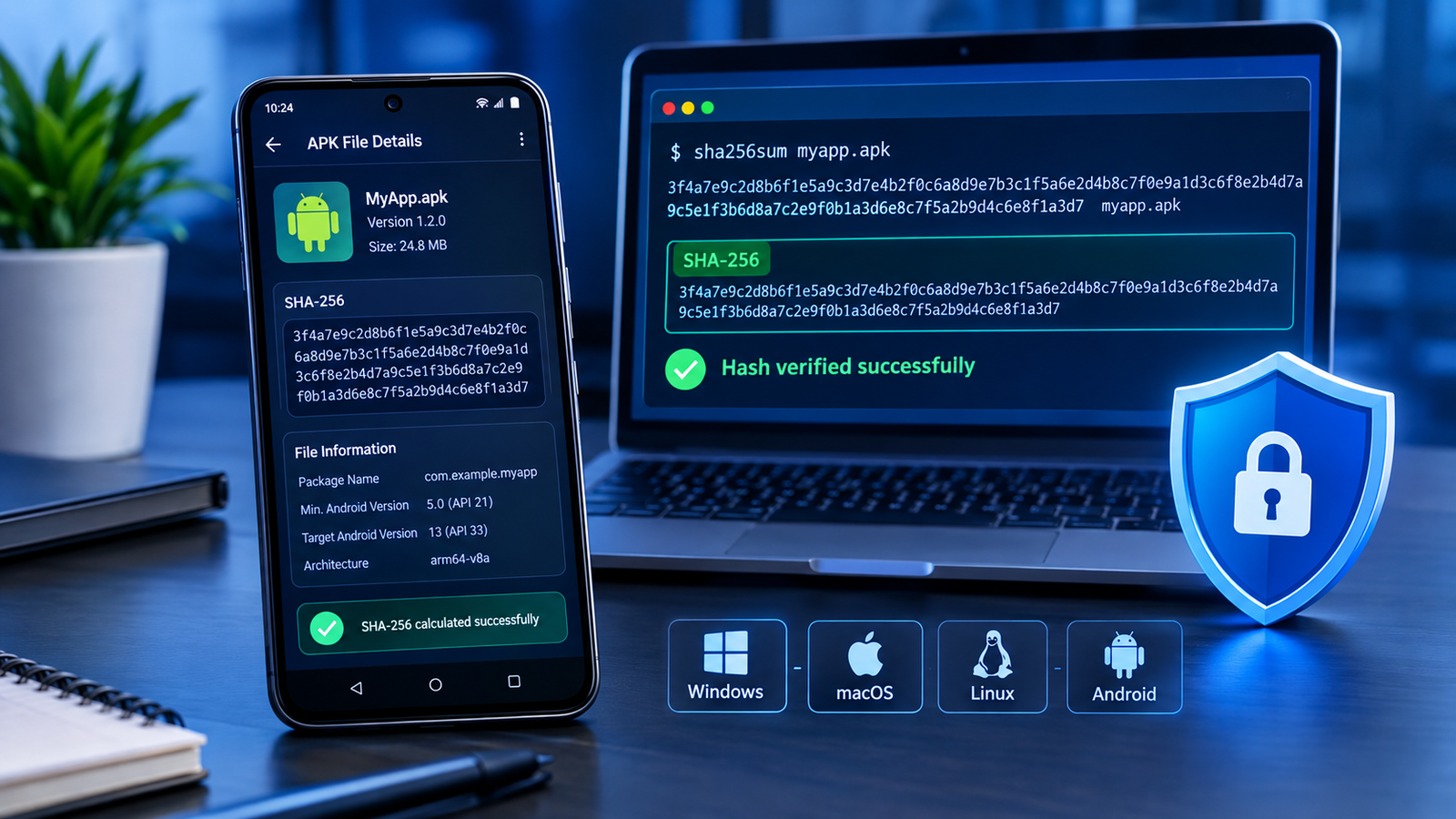
How to Check APK SHA256: A Complete Guide to Verifying APK Files
Downloading Android apps from outside the Google Play Store can sometimes be necessary, but it also comes with security risks. Before installing an APK file, it is important to make sure that the file is genuine and has not been modified unexpectedly. One useful way to check a file’s integrity is by calculating its SHA-256 hash.
If you are wondering how to check APK SHA256, this guide will walk you through the process using Android devices, Windows computers, macOS, and Linux. You will also learn how to compare a hash with an official value, understand the results, and avoid common mistakes when verifying APK downloads.
Whether you regularly download APK files for testing or simply want to check an app before installation, understanding SHA-256 verification can help you make more informed security decisions.
What Is an APK SHA256 Hash?
An APK is an Android Package Kit file used to distribute and install Android applications. It contains the app’s compiled code, resources, manifest, and other required components.
SHA-256 stands for Secure Hash Algorithm 256-bit. It is a cryptographic hash function that converts a file’s contents into a fixed-length string of 64 hexadecimal characters.
For example, a SHA-256 hash looks similar to this:
a1b2c3d4e5f60718293a4b5c6d7e8f90123456789abcdef0123456789abcdef0
This is an illustrative example, not the verified hash of a real APK.
Every file produces a hash based on its contents. If even a small part of the file changes, its SHA-256 hash will normally change as well.
However, a hash does not identify an app’s developer by itself. To verify an APK meaningfully, you need to compare the calculated hash against a trusted reference value obtained from an official or otherwise reliable source.
Why Should You Check an APK SHA256 Hash?
Checking an APK’s SHA-256 hash can help you determine whether the file matches a known version of the same file.
Here are the main reasons to perform this check.
1. Verify File Integrity
An APK might become corrupted during downloading, copying, or transferring between devices. Comparing its SHA-256 hash with the publisher’s published value can help identify unexpected changes.
If the values match exactly, the file’s contents match the reference file, assuming the reference hash is authentic.
2. Detect Unexpected Modifications
Modified APKs may contain changes that were not present in the original app. A different hash can indicate that the file differs from the expected version.
Keep in mind that a hash mismatch does not automatically mean malware is present. The file could simply be a different release, a repackaged version, or a legitimate file that was rebuilt.
3. Confirm the Correct Download
Some apps have multiple versions for different Android releases, processor architectures, or device configurations. Comparing hashes can help you confirm that you downloaded the exact file expected by the publisher.
4. Improve APK Security Checks
SHA-256 verification is one useful part of a broader security process. You should also consider the download source, developer identity, Android permissions, and app-signing certificate.
A matching hash proves a match with the reference file; it does not independently prove that the app is safe.
How to Check APK SHA256 on Windows
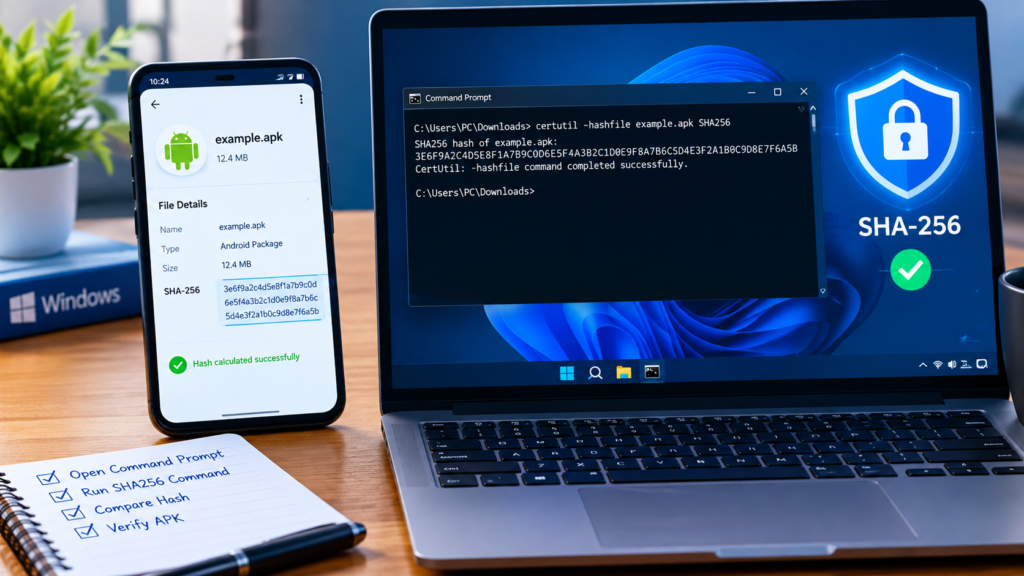
Windows provides a built-in command-line utility called certutil. You do not need to install additional software to calculate an APK’s SHA-256 hash.
Follow these steps.
Step 1: Download the APK File
Download the APK from the source you intend to verify. Save it in a folder that is easy to access, such as Downloads.
For this example, assume the filename is example.apk.
Step 2: Open Command Prompt
Press Windows + R, type cmd, and press Enter.
You can also open Command Prompt from the Start menu.
Step 3: Navigate to the APK Folder
If the file is in your Downloads folder, enter:
cd %USERPROFILE%\Downloads
Press Enter to move to that directory.
Step 4: Calculate the SHA256 Hash
Enter the following command:
certutil -hashfile example.apk SHA256
Replace example.apk with the exact name of your APK file.
Windows will calculate the file’s hash and display the SHA-256 value.
Step 5: Compare the Result
Find the official SHA-256 value published by the developer or trusted distributor. Compare it with the value shown by Command Prompt.
The two values should match character for character, ignoring differences in letter capitalization.
If the values do not match, do not assume the file is authentic. Confirm that you are checking the same app version and exact APK variant before deciding what to do next.
How to Check APK SHA256 on macOS
macOS includes the shasum utility, which can calculate a SHA-256 hash without requiring extra applications.
Follow These Steps
- Download the APK and locate it in Finder.
- Open Terminal from Applications or Spotlight.
- Navigate to the directory containing the APK.
- Run the SHA-256 command.
If the file is in Downloads, use:
cd ~/Downloads
Then enter:
shasum -a 256 example.apk
The terminal will display the SHA-256 hash followed by the filename.
Compare the resulting hash with the trusted reference value. If the file has a different name, replace example.apk with its actual filename.
How to Check APK SHA256 on Linux
Linux users can generally calculate an APK’s SHA-256 hash using the sha256sum command.
Open a terminal and navigate to the folder containing your APK file.
For example:
cd ~/Downloads
Then run:
sha256sum example.apk
The command displays the file’s SHA-256 hash and filename.
On distributions where sha256sum is unavailable, another installed hashing utility may provide the same functionality. You can also check your distribution’s package manager for the appropriate tool.
As with Windows and macOS, compare the calculated result against a reliable reference hash for the exact same APK file.
How to Check APK SHA256 on Android
Checking a SHA-256 hash directly on an Android phone is possible, although the available methods depend on your device and installed apps.
Method 1: Use a Trusted File Hash Calculator
Some file utility applications can calculate SHA-256 hashes for files stored on your device.
To use this method:
- Obtain a reputable file-hashing application from a trusted source.
- Open the application and select the APK file.
- Choose SHA-256 as the hashing algorithm.
- Wait for the calculation to finish.
- Copy the displayed hash and compare it with the trusted reference.
Before using a hashing utility, review its permissions and reputation. A basic file-hashing tool should not need broad access to your personal data or unrelated accounts.
Method 2: Use a Terminal Environment
Advanced Android users can use a terminal environment that provides standard hashing utilities. For example, if sha256sum is installed and the APK is accessible to the terminal, run:
sha256sum example.apk
The command works similarly to its Linux counterpart.
You may need to adjust the file path or move into the directory containing the APK. Do not assume every Android terminal environment includes the same utilities by default.
Which Android Method Is Better?
A reputable file-hashing app is usually simpler for beginners. A terminal utility can be more convenient for advanced users who regularly verify files.
Regardless of the method, the important step is comparing the result with a trusted SHA-256 reference. Calculating a hash without a reliable comparison value does not establish that an APK is genuine.
SHA256 Verification Methods Compared
The best method depends on your device, technical experience, and the number of APK files you need to check.
| Method | Required Tool | Difficulty | Best For |
|---|---|---|---|
| Windows | Command Prompt and certutil | Easy | Most Windows users |
| macOS | Terminal and shasum | Easy | Mac users |
| Linux | Terminal and sha256sum | Easy | Linux users |
| Android | Trusted hashing app | Easy | Beginners using phones |
| Android terminal | Terminal environment with a hash utility | Moderate | Advanced Android users |
For most people, the built-in tools on a computer are the simplest option because they can calculate the hash without installing a separate file-analysis application.
How to Compare an APK SHA256 Hash Correctly
Calculating the hash is only part of the process. You must also make sure that the reference value is trustworthy and applies to the file you downloaded.
Follow these guidelines.
Find a Trusted Reference Hash
Look for the SHA-256 value on the app developer’s official website, an official release page, or a trusted distribution channel that explicitly publishes checksums.
Be cautious if the only available hash comes from an unknown forum, an unverified file-sharing page, or the same questionable download source as the APK itself.
If the APK provider does not publish a hash, you may need another verification method, such as checking the app’s signing certificate.
Verify the Exact APK Version
Different versions of the same app normally have different hashes because their contents differ.
The same is true for APKs built for different processor architectures or Android configurations. If an app is distributed as multiple APK files, a hash for one variant should not be assumed to match another.
Check the following details before comparing:
- App name and package identity
- Version number
- APK variant or architecture, when applicable
- File size, as an additional basic check
- The source and date of the reference checksum
Understand Matching and Mismatching Results
A matching hash means the downloaded file has the same contents as the file represented by the trusted reference hash.
A mismatch means the two files are not identical. It does not tell you exactly why they differ or whether the file contains malicious code.
If the hashes do not match, download the file again from a trusted source and recalculate the hash. If the mismatch continues, avoid installing the APK until you can establish why the reference and downloaded file differ.
What Is the Difference Between APK SHA256 and APK Signature Verification?
SHA-256 hashing and Android app-signature verification are related to security, but they serve different purposes.
A file hash identifies the exact contents of a file. A signature check helps establish whether an APK was signed with a particular signing certificate and whether its signed contents pass the relevant integrity checks.
| Feature | SHA-256 Hash Check | APK Signature Verification |
|---|---|---|
| Main purpose | Compare file contents | Verify the app’s cryptographic signature |
| Requires a reference value? | Yes, for meaningful integrity comparison | Requires a suitable certificate or signature-verification process |
| Detects file differences? | Yes, when compared with a reference | Detects changes that invalidate the applicable signature |
| Identifies the developer by itself? | No | Can identify the signing certificate, but trust still requires verification |
| Best use | Confirming an exact file match | Checking signing integrity and certificate continuity |
For example, a modified APK will normally have a different SHA-256 hash from the original file. Modification of signed APK contents will also generally invalidate the existing signature unless the APK is legitimately rebuilt and signed again.
However, a modified app may be signed with a different certificate. A valid signature alone does not guarantee that the signer is trustworthy.
For stronger verification, combine a trusted checksum with signature verification and a reliable source for the original app.
Common Mistakes to Avoid When Checking APK SHA256
A few simple mistakes can lead to incorrect conclusions.
1. Comparing different APK versions: An updated app will usually have a different hash from an older release. Confirm the version before comparing.
2. Using an untrusted reference hash: A checksum published by an unreliable source cannot establish authenticity. Obtain the reference from a trusted publisher or distribution channel.
3. Copying the hash incorrectly: SHA-256 produces a 256-bit value represented by 64 hexadecimal characters. Check that the complete value has been copied accurately.
4. Assuming a matching hash guarantees safety: A match only confirms that the file matches the reference. If the reference file itself is malicious, the matching APK may also be unsafe.
5. Ignoring signing information: Hash verification and signature verification answer different questions. Consider both when the app’s origin or integrity is uncertain.
6. Installing an APK after a mismatch: Do not ignore a mismatch simply because the app appears popular or the download page looks professional. Investigate the discrepancy first.
Important Safety Tips Before Installing an APK
Hash verification is useful, but it should be part of a wider safety routine.
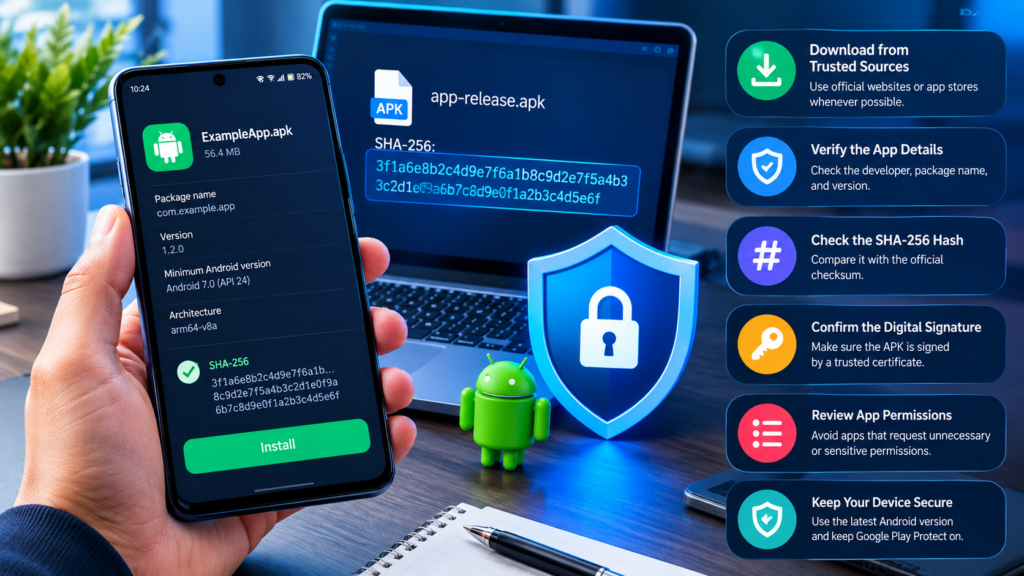
Before installing an APK, consider these precautions:
- Download apps from Google Play or the developer’s official website whenever possible.
- Check the app’s publisher and package details.
- Compare the SHA-256 hash with a trustworthy reference when one is available.
- Verify the APK’s digital signature when appropriate.
- Review requested permissions and question access that does not fit the app’s purpose.
- Keep Android and Google Play Protect updated.
- Avoid APKs that request unnecessary accessibility access, device administrator privileges, or other powerful permissions.
- Be careful with modified APKs that claim to unlock paid features or bypass security protections.
If an APK’s origin cannot be established and its checksum cannot be verified, consider using an official alternative rather than taking an unnecessary risk.
Frequently Asked Questions (FAQs)
1. How do I check the SHA256 hash of an APK file?
On Windows, open Command Prompt and run certutil -hashfile example.apk SHA256. On macOS, use shasum -a 256 example.apk. On Linux, use sha256sum example.apk. Android users can use a trusted file-hashing app or a terminal utility.
Replace example.apk with the actual filename.
2. How many characters does an APK SHA256 hash have?
A SHA-256 hash is 256 bits long and is usually displayed as 64 hexadecimal characters. The characters can include the numbers 0–9 and the letters a–f.
3. What should I do if my APK SHA256 hash does not match?
First, confirm that the reference hash belongs to the exact APK version and variant you downloaded. Check that you calculated the hash for the correct file, then download the APK again from a trusted source and repeat the calculation. Avoid installing it until the discrepancy is understood.
4. Can I check APK SHA256 without installing the app?
Yes. SHA-256 verification calculates a hash from the APK file itself, so the app does not need to be installed. You can check the file on a computer or use a suitable utility on Android.
5. Does a matching SHA256 hash mean an APK is safe?
Not necessarily. A matching hash confirms that the file matches the reference value, assuming the reference is trustworthy. It does not prove that the app is free from malware or that its developer is legitimate. Use a trusted source and consider signature verification and other security checks.
6. Is SHA256 better than MD5 for APK verification?
SHA-256 is generally preferred for security-sensitive file verification because MD5 has known collision weaknesses. SHA-256 is a stronger choice when comparing APK files against trusted published checksums. However, the reliability of the reference value remains essential.
Final Thoughts
Learning how to check APK SHA256 is a practical way to improve your Android app security routine. The process is straightforward: calculate the file’s hash, obtain a trusted reference value, and compare the two results carefully.
Windows users can use certutil, macOS users can use shasum, and Linux users can use sha256sum. Android users can choose a reputable file-hashing app or a terminal environment with the necessary utility.
Also Read: How to Verify APK Hash: 7 Easy Steps to Check APK File Integrity














1 comment