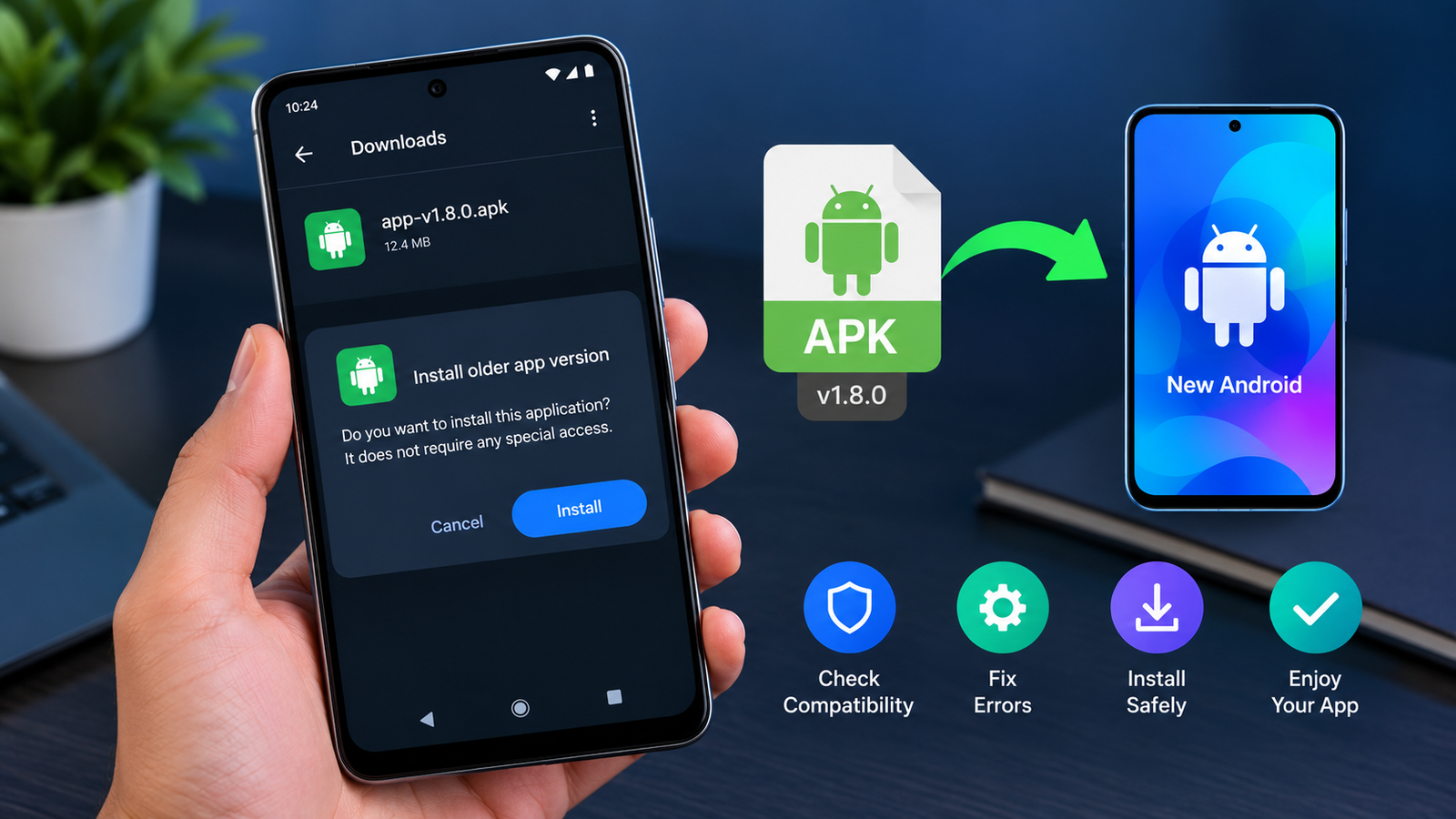
How to Install Older APK on New Android: A Complete Step-by-Step Guide
Installing an older version of an Android app can be useful when a recent update removes a favorite feature, introduces bugs, or runs poorly on your phone. However, installing an outdated APK on a newer Android device is not always straightforward. Android versions, app compatibility requirements, security restrictions, and processor architecture can all affect whether an older app works correctly.
If you are searching for how to install older APK on new Android, this guide explains the safest methods to try, what to do when Android blocks installation, and how to troubleshoot common compatibility problems.
Before downloading an older APK, remember that an app that installs successfully may still crash or fail to open. Following the correct steps can help you avoid unnecessary errors and protect your device.
Why Install an Older APK on a New Android Phone?
There are several reasons why someone might prefer an older app version instead of the latest release.
- Missing features: An update may remove tools, settings, or interface elements you regularly use.
- Performance issues: A newer version might consume more memory or battery than an older release.
- Unexpected bugs: Updates can sometimes introduce crashes, freezing, or login problems.
- Interface changes: Some users prefer an older design or navigation layout.
- Device limitations: A lightweight older version may work better on a phone with limited storage or RAM.
However, older versions may also contain security vulnerabilities, unsupported features, or outdated network components. The goal should be to find a compatible version from a trustworthy source rather than simply downloading the oldest available APK.
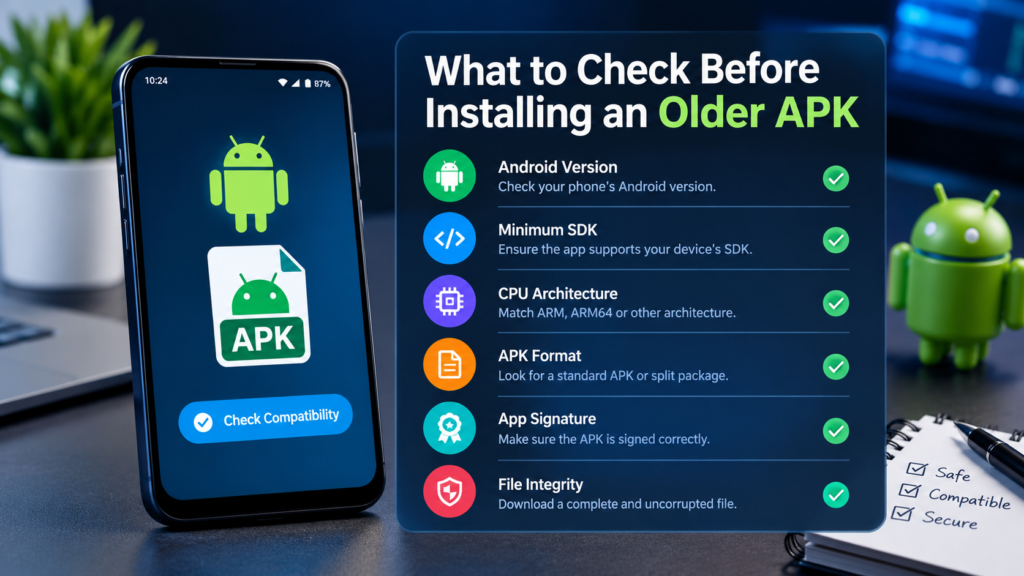
What to Check Before Installing an Older APK
Before attempting installation, check whether the APK is compatible with your phone. This step can save time and help you understand why Android might reject the file.
| Compatibility factor | What to check | Why it matters |
|---|---|---|
| Android version | Your phone’s installed Android version | The app may require a different Android release |
| Minimum SDK | The app’s minimum supported Android version | Newer Android versions can block apps targeting very old releases |
| CPU architecture | ARM64, ARM, or another supported architecture | The APK must contain compatible native code |
| APK format | Standard APK or split APK package | Some apps require multiple installation files |
| App signature | Whether the APK is signed correctly | Android may reject conflicting or invalid signatures |
| Package integrity | Whether the file downloaded completely | Damaged files can cause installation errors |
To check your Android version, open Settings → About phone → Android version. The exact menu names may differ depending on your phone manufacturer.
Next, check the app’s requirements and package format before downloading anything. A standard APK is generally easier to install manually than a split package that requires several files.
How to Install Older APK on New Android Step by Step
Follow these steps to install an older version of an Android application. The process may vary depending on your phone’s Android version and the app you want to install.
Step 1: Uninstall the Current App Only If Necessary
First, check whether the older APK can be installed over your existing app.
Android generally does not allow you to downgrade an app by installing an older version over a newer version with the same package name and signing certificate. You may see an error such as App not installed or a message indicating that the package conflicts with an existing installation.
If a downgrade is necessary, uninstalling the current version may be required.
Important: Uninstalling an app can delete locally stored data, downloads, settings, and other information. Back up important information first. If you cannot afford to lose your app data, investigate backup or in-app export options before proceeding.
Step 2: Find a Compatible Older APK
Look for the specific app version you need from the developer’s official website or another reputable source that provides verifiable APK information.
Before downloading, confirm:
- The app’s exact name and version number.
- The minimum Android version required.
- Whether the APK supports your phone’s processor architecture.
- Whether the download is a standard APK or part of a split package.
- Whether the file comes from a trustworthy source and has a valid signature.
Avoid modified APKs from unknown websites, especially those claiming to unlock premium features or bypass security restrictions. Such files may contain malware or collect personal information.
If the developer no longer distributes the older version, consider whether an official alternative or a supported previous release is available.
Step 3: Allow Installation From Your Browser or File Manager
Android restricts the installation of apps from sources outside an authorized app store. Depending on your device, you may need to grant permission to the specific app that will open the APK.
Follow these general steps:
- Open your phone’s Settings.
- Search for Install unknown apps or Unknown sources.
- Select the browser or file manager you used to download the APK.
- Enable permission to allow installations from that source, if Android offers the option.
- Return to your downloaded APK file.
On many newer Android phones, this permission is granted separately to each app rather than enabled globally.
Only grant the permission when needed, and disable it again afterward if you do not regularly install APK files manually.
Step 4: Install the Older APK
Once the file is downloaded and the necessary permission is enabled, open your file manager and locate the APK.
Tap the file and review the installation prompt. If Android permits installation, select Install and wait for the process to finish.
If the installation fails, do not repeatedly download the same file without investigating the error. The APK might be incompatible, damaged, incorrectly signed, or blocked by an Android security restriction.
Step 5: Open the App and Test Its Features
After installation, open the application and check whether it functions correctly.
Test the features you actually need, such as login, notifications, downloads, camera access, or other permissions. Some older apps may open successfully but fail when they connect to a modern server or use an outdated online service.
If the app crashes immediately, revisit its compatibility requirements before trying another version.
How to Install Older APK on Android 14, Android 15, and Newer Versions
Newer Android releases include additional restrictions designed to improve security. As a result, installing an older APK may be more difficult than installing a recent version.
One important distinction is that an app’s minimum Android version is not the same as its target Android version.
- Minimum SDK version: The oldest Android release an app declares support for.
- Target SDK version: The Android API level the developer designed the app to target.
- Device Android version: The Android release currently running on your phone.
These values affect compatibility in different ways.
Why Android May Block an Older App
Some newer Android versions restrict the installation of apps that target very old API levels. These restrictions have become stricter across Android releases.
For example, Android 14 introduced restrictions on installing apps targeting SDK versions below 23 through standard installation methods. Later Android versions introduced additional restrictions for older target SDK levels.
This means an older APK may be blocked even if its original minimum Android requirement appears compatible with your device.
If you encounter a message indicating that an app was designed for an older Android version, first check whether the developer has released a compatible update. A current version from an official source is usually the safer option.
Avoid using unofficial tools or bypass methods simply to force installation. They may weaken security or leave you with an app that does not function properly.
What to Do If an Older APK Is Not Installing
If Android refuses to install an older APK, identify the exact error before changing settings.
| Error or problem | Possible reason | Recommended action |
|---|---|---|
| App not installed | Version conflict or incompatible package | Check the installed version and package requirements |
| Installation blocked | Android security restriction | Review the message and look for a supported release |
| Parse error | Damaged file or unsupported APK structure | Download a verified, compatible file |
| Signature conflict | Different signing certificate | Use the legitimate package signed by the original developer |
| App crashes on launch | Runtime incompatibility or outdated dependencies | Try a supported release |
| Missing components | Split APK files were not installed together | Obtain the complete package from a trusted source |
| App opens but cannot log in | Outdated authentication or server support | Check whether the service still supports that version |
Fix the App Not Installed Error
The first thing to check is whether a newer version of the same application is already installed.
If so, Android may reject the older APK because downgrading is not allowed through the normal installation process. Back up important data before considering removal of the current version.
Also check that the APK is intended for your device and that it has not been altered or corrupted.
Fix the Parse Error
A parse error can occur when Android cannot properly interpret the package. The file may be incomplete, damaged, or incompatible with the installation environment.
Try obtaining a fresh copy from a trustworthy source. Confirm that the file has an .apk extension and is not actually an .xapk, .apks, or another package format that requires additional installation steps.
Fix an App That Crashes After Installation
Successful installation does not guarantee that the app supports your Android version.
An older app may rely on outdated libraries, unsupported system behavior, or a server that no longer accepts requests from old clients.
If the problem persists, try a more recent compatible release or contact the developer. Installing progressively older versions will not necessarily solve the issue.
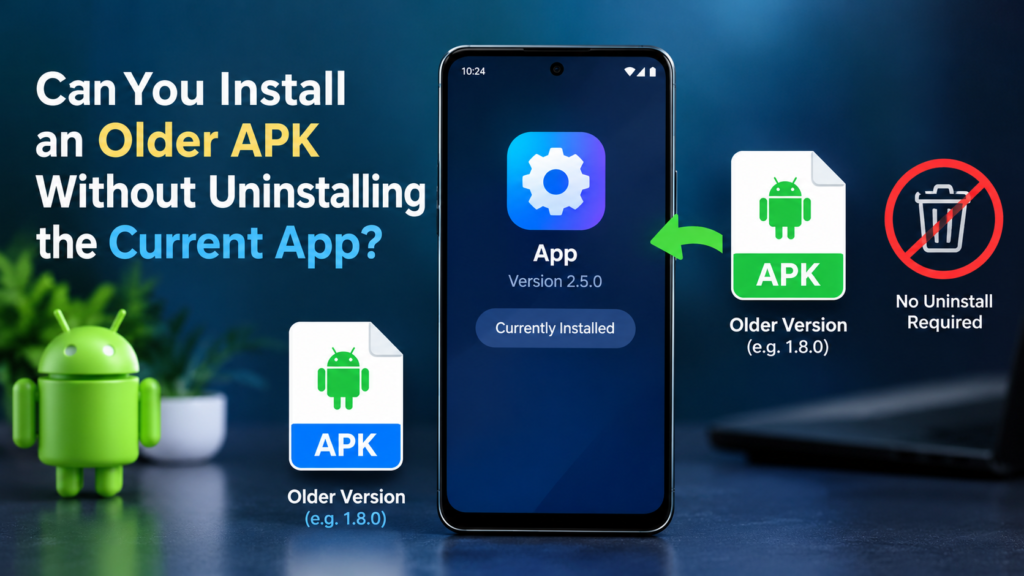
Can You Install an Older APK Without Uninstalling the Current App?
Sometimes, but it depends on the circumstances.
Android normally checks the application’s package name and signing certificate during installation. If the existing application has a newer version code, installing an older version over it is generally rejected by the standard installer.
There are three situations to understand:
- Same app, same signature: An older version is generally treated as a downgrade and may be rejected.
- Different signing certificate: Android usually rejects the replacement because the signatures do not match.
- Different package name: Android may treat the APK as a separate application, provided it is genuinely packaged as a separate app.
Be cautious with modified versions that claim to have different package names. A different package name does not prove that an app is safe.
If keeping your existing app data is essential, look for an official downgrade or recovery option before uninstalling anything.
Is It Safe to Install Older APK Files?
Installing an older APK carries some risk, especially when the application is no longer maintained.
Outdated versions may contain security flaws that have since been fixed. An app might also lack modern privacy protections or use communication methods that are no longer considered secure.
Use these precautions:
- Prefer official developer downloads whenever available.
- Avoid APKs that request unnecessary permissions.
- Do not disable Android security protections just to install an unknown file.
- Verify the app’s publisher and signature when possible.
- Keep your phone’s operating system and security updates current.
- Avoid older versions of banking, payment, password management, and other sensitive applications.
- Remove the APK installation permission from your browser or file manager when you finish.
Google Play Protect may warn about harmful applications. Take such warnings seriously and do not assume a file is safe simply because it installs.
If the app handles personal information, financial details, or account credentials, using a supported version is generally the better choice.
Frequently Asked Questions
1. Can I install an older APK on Android 14 or Android 15?
Sometimes. Installation depends on the APK’s target SDK level, signing certificate, package format, and other compatibility requirements. Newer Android releases restrict certain apps targeting very old Android versions, so some older APKs cannot be installed through the standard installer.
2. Why does Android say the app is not compatible with my phone?
The APK may require a different Android version, processor architecture, hardware feature, or package configuration. It may also be blocked because it targets an Android API level that your device no longer permits for installation. Check the specific error message to identify the likely cause.
3. Will installing an older APK delete my app data?
Installing an older version over an existing installation is often rejected. If you uninstall the current app to install the older one, locally stored data may be deleted. Back up important information before uninstalling, and do not assume that reinstalling an older version will restore your data.
4. Can I install an older APK without root access?
Yes, many APK files can be installed without root access when the package is compatible and Android permits installation. However, standard installation methods may reject downgrades or apps targeting very old SDK levels. Root access is not a general solution and can introduce additional security risks.
5. What should I do if an older APK installs but does not open?
Check whether the app supports your Android version and whether its online services are still available. The app may rely on outdated libraries or unsupported system behavior. Try a supported release, clear the app’s cache if appropriate, or contact the developer. Back up important data before clearing storage or reinstalling.
6. Where can I download older APK versions safely?
Start with the application’s official website or the developer’s verified distribution channels. If an older release is unavailable, research any alternative source carefully. Check the publisher, file integrity, signature information, and reported security concerns before installing. No third-party source can guarantee that every APK it hosts is safe.
Final Thoughts
Learning how to install older APK on new Android starts with understanding your device’s compatibility requirements and Android’s security restrictions. The basic process involves finding a trustworthy APK, checking its version and architecture, granting installation permission when necessary, and testing the app after installation.
However, not every older application can run on a modern Android phone. Target SDK restrictions, signature conflicts, missing components, and outdated app dependencies can all prevent successful installation.
Also Read: MX TakaTak: Features, Benefits, Download Guide, and Best Alternatives














1 comment