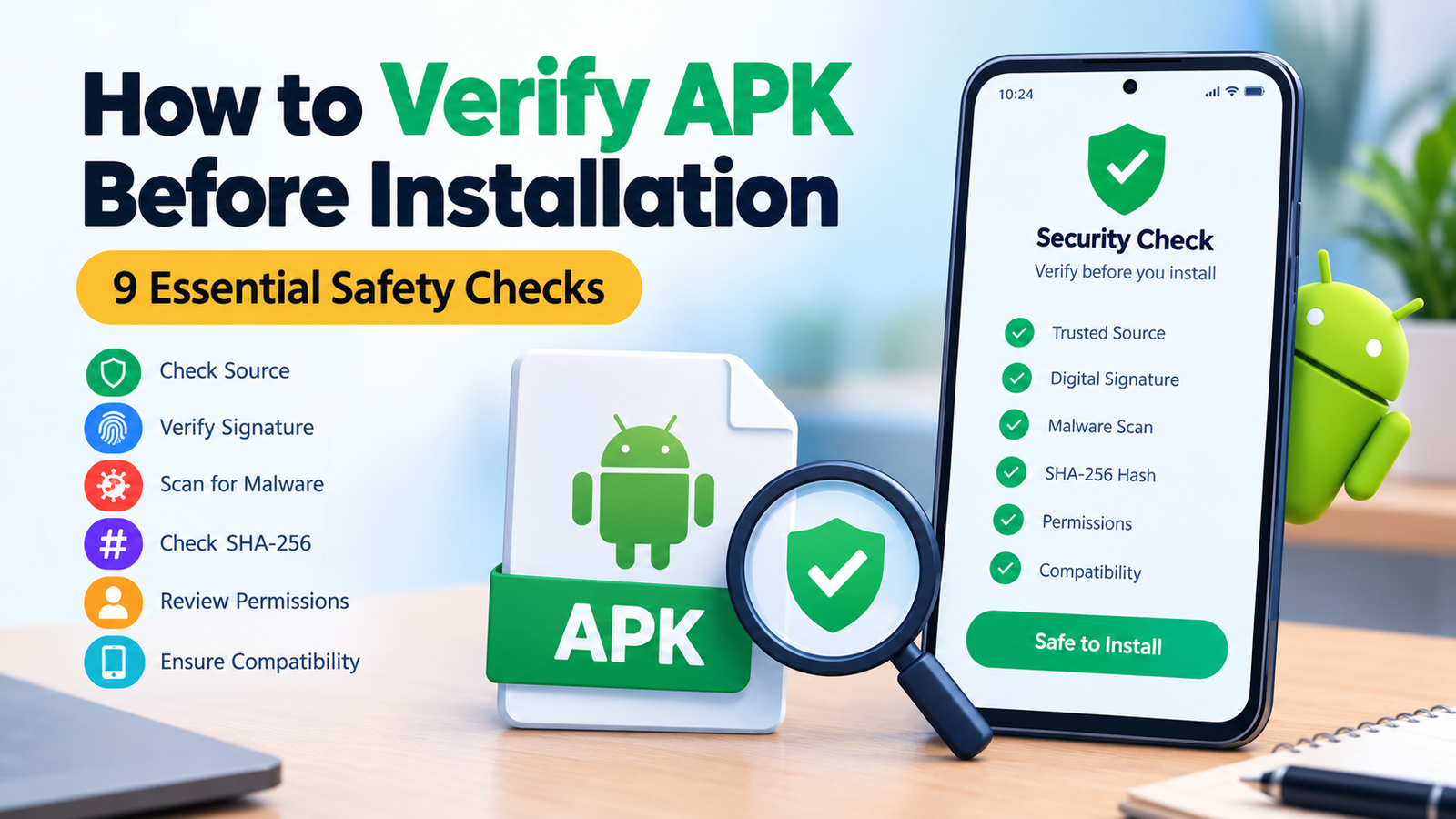
How to Verify APK Before Installation: 9 Essential Safety Checks
Installing an APK file on Android can be useful when an app is unavailable in your region or you need a version that is not offered through your usual app store. However, downloading an APK from an unfamiliar website can expose your device to malware, data theft, and unwanted applications.
That is why learning how to verify APK before installation is an important step for every Android user. A few simple checks can help you identify suspicious files, confirm an app’s authenticity, and reduce the risk of installing harmful software.
In this guide, you will learn how to check an APK’s source, verify its digital signature, scan it for malware, review its permissions, and identify warning signs before tapping the Install button.
Why Should You Verify an APK Before Installation?
An APK, or Android Package Kit, is the file format Android uses to distribute and install applications. Apps downloaded from trusted app stores generally go through security checks, but APK files obtained from third-party websites may not receive the same level of review.
A file can look legitimate while containing modified code, intrusive advertising, or malicious features. Even a file with the correct app name and icon might not be an authentic version.
Verifying an APK before installation helps you:
- Reduce the risk of installing malware.
- Avoid fake applications that imitate popular services.
- Identify modified or repackaged APK files.
- Understand whether an app requests excessive permissions.
- Check whether a downloaded file matches its official release.
- Protect your personal information and Android device.
No single verification method guarantees complete safety. Combining several checks provides better protection than relying on a filename or antivirus scan alone.
1. Download the APK From a Trusted Source
The first step is to examine where the APK comes from. A trustworthy download source significantly reduces the chances of receiving a modified or malicious file.
Whenever possible, download applications from Google Play or the app developer’s official website. If an APK is not available through those channels, research the third-party website before downloading anything.
Look for the following signs of a more reliable source:
- A clear connection to the original developer.
- A website using HTTPS.
- Accurate app information and version details.
- A consistent release history.
- No misleading download buttons or forced redirects.
- No requirement to install unrelated software before downloading.
HTTPS protects the connection between your browser and the website, but it does not prove that a file is safe. A malicious website can also use HTTPS.
Be especially careful with websites advertising unlimited premium features, unlocked paid content, or modified versions of popular apps. These files may have been changed in ways that are difficult to detect.
2. Check the APK File Name, Version, and Size
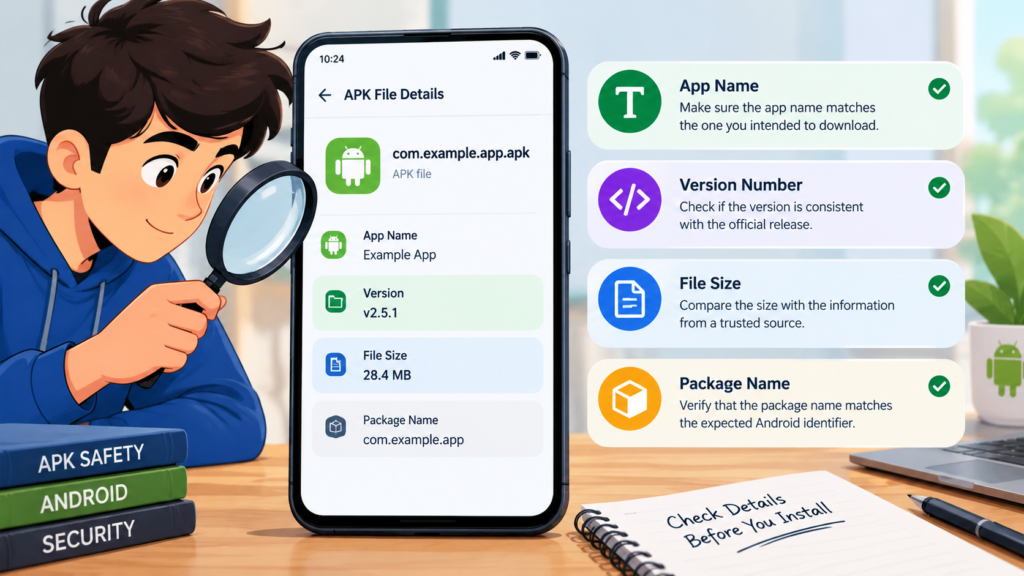
Before opening an APK, review its basic information. The filename, version number, and file size can help you spot unusual downloads.
For example, suppose you intend to download a particular version of a messaging app. If the website claims to provide version 5.2 but the downloaded file is labeled version 9.8, investigate the difference before continuing.
Check these details:
- App name: Does it match the application you intended to download?
- Version number: Is it consistent with the release information provided by the developer?
- File size: Is it reasonably close to the size reported by a reliable source?
- File extension: Is the file actually an APK rather than an unrelated or disguised file?
- Package name: Does the app use the expected Android application identifier?
Keep in mind that file sizes can differ because of architecture-specific packages, bundled resources, compression, and app updates. A different size does not automatically mean a file is dangerous.
Similarly, filenames can be changed easily. Treat these details as preliminary checks rather than proof of authenticity.
3. Verify the APK’s Digital Signature
One of the most useful ways to verify an APK before installation is to check its digital signature.
Android app developers sign their APK files using cryptographic signing keys. This signature helps establish the app’s signing identity and allows Android to detect certain forms of unauthorized modification.
If an APK claims to be an update to an existing application, its signing identity should normally be consistent with the installed app’s signing certificate or a valid signing-key rotation lineage.
A mismatch can indicate that the file comes from a different developer or has been repackaged.
How to Check an APK Signature
You can use Android development tools, such as Android SDK Build Tools, on a computer.
A common command is:
apksigner verify --verbose --print-certs app.apk
Replace app.apk with the actual filename of the APK you want to examine.
The tool checks the APK’s signature and can display information about its signing certificates. If verification fails, do not assume the file is safe to install.
For stronger verification, compare the certificate information with a trusted copy of the same application obtained from the official developer or another reliable reference.
Important: A valid signature does not automatically mean an APK is safe. A malicious developer can sign a harmful application, and a properly signed app can still contain security vulnerabilities.
4. Scan the APK for Malware
Another important step is to scan the downloaded APK with a reputable security tool.
Google Play Protect can check applications and help identify potentially harmful software. Its protections are useful, although they cannot detect every threat.
Depending on your device and Android version, you can review Play Protect through the Google Play Store:
- Open the Google Play Store.
- Tap your profile picture.
- Select Play Protect.
- Run a scan if the option is available.
- Review any warnings before proceeding.
You can also use a reputable antivirus application that supports scanning downloaded Android packages.
Some online malware analysis services allow users to submit a file for examination. Before uploading an APK, review the service’s privacy policy because submitted files may be stored or shared with security researchers and other service users.
Avoid uploading APKs that contain confidential information or proprietary code unless you understand how the service handles submissions.
A clean scan is a positive sign, but it does not guarantee that an APK is harmless. New malware, hidden behavior, and sophisticated threats can evade detection.
5. Calculate and Compare the APK’s SHA-256 Hash
A cryptographic hash creates a fixed-length value from a file’s contents. SHA-256 is commonly used to identify files and check whether two copies are identical.
If the original developer publishes a SHA-256 checksum for a specific APK, you can calculate the hash of your downloaded file and compare the results.
On a computer with a suitable command-line tool, you can use:
Windows PowerShell:
Get-FileHash .\app.apk -Algorithm SHA256
Linux:
sha256sum app.apk
macOS:
shasum -a 256 app.apk
Replace the filename with the correct path to your downloaded file.
If the calculated hash matches the checksum published by a trusted source for that exact release, it confirms that the two files have the same contents.
If the hashes differ, the files are not identical. Check whether you downloaded a different version or package variant before drawing conclusions.
A hash copied from the same untrusted website as the APK provides limited protection. A malicious source could publish both a harmful file and its matching checksum.
6. Review the App’s Requested Permissions
Permissions determine which device features and information an application can access. Reviewing them can help you identify requests that do not make sense for the app’s purpose.
For example, a simple calculator generally has little reason to request access to your contacts, microphone, SMS messages, or precise location.
Before installing an APK, investigate whether its requested permissions match its advertised features.
| Permission | Why an app might need it | What to check |
|---|---|---|
| Camera | Taking photos or scanning documents | Does the app genuinely need camera access? |
| Microphone | Voice calls or audio recording | Is audio functionality part of the app? |
| Location | Navigation or nearby services | Is location access necessary? |
| Contacts | Finding or communicating with contacts | Is this feature clearly explained? |
| SMS | Messaging or specific verification functions | Is the requested access justified? |
| Files and media | Opening, saving, or editing content | Does the app need access to this data? |
| Accessibility | Supporting users or automating specific functions | Is the use transparent and appropriate? |
Permission names and availability vary across Android versions. Some permissions are requested only when a feature is used, while others may be restricted or handled differently by the operating system.
You can also inspect the APK with Android development tools to review its declared permissions. However, a permission declaration does not necessarily tell you exactly how the application will use that access.
Be cautious when an unfamiliar application requests powerful permissions without a clear explanation.
7. Check the Package Name and Developer Identity
A package name is the unique application identifier Android uses to distinguish one app from another. It often resembles a reversed internet domain, such as com.example.app.
Before installing an APK, compare its package name with information from the official developer or a trusted release reference.
For instance, a fake application might use a name and icon similar to a popular social platform while having a completely different package identifier.
Check the following details when available:
- Official developer or publisher name.
- Package name.
- App version and release history.
- Signing certificate information.
- Official website and support details.
A matching package name is helpful, but it can be copied. A matching icon, title, or developer display name is even easier to imitate.
For better confidence, compare the package name and signing identity together. If either differs unexpectedly from the trusted version, investigate before installation.
8. Inspect the APK With a Security Analysis Tool
If you want to perform more detailed checks, APK analysis tools can reveal information that is not immediately visible on a download page.
For example, Android development tools and reputable APK inspection utilities can help you examine:
- Package identifiers and version information.
- Declared permissions.
- Signing certificates.
- Supported Android versions.
- CPU architecture requirements.
- Included files and application resources.
More advanced analysis tools can also help security researchers inspect application code and identify suspicious behavior.
However, interpreting these results may require technical knowledge. A large number of permissions or unfamiliar code does not automatically prove that an application is malicious.
Similarly, a suspicious-looking file or string should be investigated in context rather than treated as conclusive evidence.
If you are an ordinary Android user, you may not need advanced analysis. Downloading from a trusted source, comparing a verified checksum, checking the signature, and scanning the file are practical starting points.
9. Check Android Compatibility Before Installing
Security is not the only reason to verify an APK. Compatibility checks can help prevent installation errors and unexpected crashes.
An APK may be designed for a different Android version, processor architecture, or device configuration.
Check these factors before installing:
- Minimum Android version: Does your phone meet the app’s requirements?
- CPU architecture: Is the package compatible with your device’s processor?
- Package format: Is the download a standard APK or part of an APK bundle?
- Available storage: Is there enough room for installation and app data?
- Existing installation: Is another version of the same app already installed?
Some applications are distributed as split APKs or formats such as XAPK and APKM. These may require a compatible installer rather than opening a single file directly.
Do not disable important security protections simply to force an incompatible or suspicious APK to install. Find a compatible, trustworthy version instead.
Quick Comparison of APK Verification Methods
The following table summarizes what each check can tell you and its main limitation.
| Verification method | What it helps confirm | Main limitation |
|---|---|---|
| Trusted download source | Where the APK came from | Trusted-looking websites can still be compromised |
| Filename and version check | Whether basic details look consistent | Details can be falsified |
| Digital signature | Signing identity and signature integrity | A signed app can still be malicious |
| Malware scan | Known threats detected by security tools | New threats may go undetected |
| SHA-256 checksum | Whether the file matches a trusted reference | The reference must be trustworthy |
| Permission review | Whether requested access seems reasonable | Permissions do not reveal all behavior |
| Package name check | Whether the identifier matches the expected app | Package names can be copied |
| Compatibility check | Whether the app suits your device | Compatibility does not establish safety |
For most users, the best approach is to combine multiple checks instead of relying on any single method.
Common Mistakes to Avoid When Verifying an APK
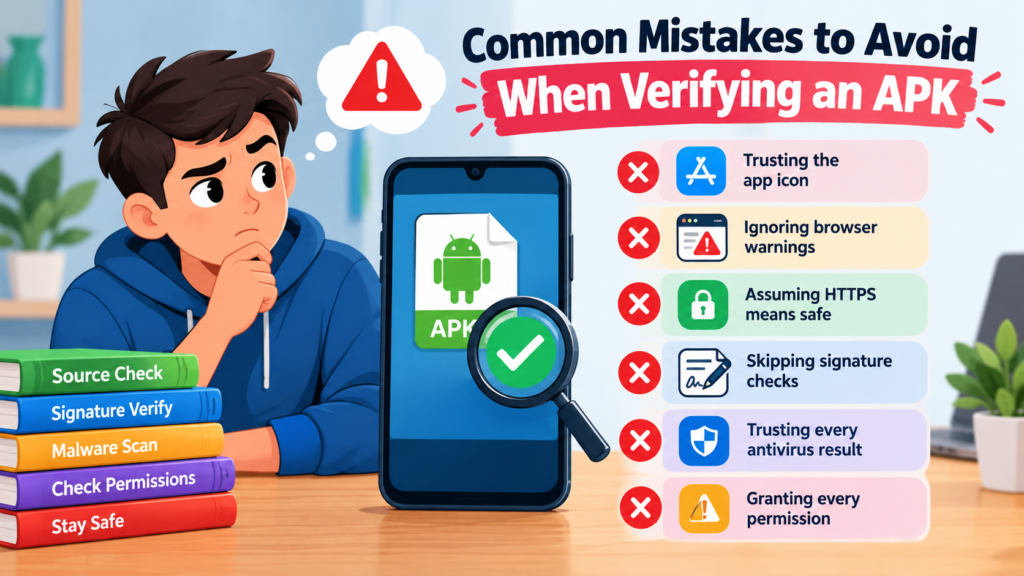
Even careful users can make mistakes when downloading Android applications. Avoid these common habits:
- Trusting the app icon: Icons and names are easy to copy.
- Ignoring browser warnings: A security warning deserves investigation.
- Assuming HTTPS means safe: Encryption does not guarantee trustworthy content.
- Skipping signature checks: A file’s appearance does not establish its authenticity.
- Trusting every antivirus result: No scanner catches every threat.
- Installing modified APKs without understanding the risks: Altered applications may contain unwanted code.
- Granting every permission immediately: Review requests and deny unnecessary access when possible.
- Ignoring unexpected installation warnings: Stop if Android reports a signature conflict or another serious issue.
If an APK fails a signature check, triggers a malware warning, or comes from a suspicious source, the safest option is to avoid installing it and obtain a verified copy from a trusted provider.
FAQ: How to Verify APK Before Installation
1. How can I check whether an APK is safe before installing it?
Start by downloading the file from a trusted source. Then check its package name, version, digital signature, SHA-256 checksum when available, and requested permissions. Scan it with a reputable security tool as well. No individual check can guarantee complete safety.
2. Can I verify an APK without a computer?
Yes. You can use Android’s built-in security features, including Google Play Protect, and review the APK’s available information using reputable mobile security or inspection tools. Some advanced signature and checksum comparisons are easier on a computer, but basic safety checks can be performed on a phone.
3. Does a valid APK signature mean the file is safe?
No. A valid signature helps establish the signing identity and detect certain kinds of unauthorized modification. It does not prove that the developer is trustworthy or that the application contains no malware.
4. How do I verify an APK using its SHA-256 hash?
Calculate the file’s SHA-256 hash with a suitable tool, then compare it with a checksum published by the official developer or another trusted reference. The values must match exactly for the files to be identical. A checksum from an untrusted source may not provide meaningful protection.
5. Is it safe to install an APK after an antivirus scan reports no threats?
Not necessarily. A clean scan means the security tool did not detect a threat under its current detection capabilities. It does not rule out new malware, hidden behavior, or other risks. Combine scanning with source verification, signature checks, and permission reviews.
6. What should I do if an APK fails signature verification?
Do not proceed with installation until you understand the problem. The file could be corrupted, modified, incorrectly signed, or different from the expected release. Download a fresh copy from the official developer or a trusted source and verify it again. Avoid uninstalling an existing app merely to bypass a signature conflict, especially if doing so could cause data loss.
Final Thoughts
Learning how to verify APK before installation is a practical way to improve your Android security. A few minutes of checking can help you avoid suspicious downloads, fake applications, unexpected permissions, and potentially harmful software.
Start with a trustworthy download source, compare the app’s basic details, verify its digital signature, and scan it for known threats. When an official SHA-256 checksum is available, use it to confirm that your downloaded file matches the intended release. Review permissions and device compatibility before proceeding.
Also Read: Snapdeal Customer Care: How to Contact Support, Track Orders, and Resolve Issues














1 comment