YouTube APK: A Complete Guide to Installing, Using, and Staying Safe
YouTube is one of the most widely used video platforms in the world, giving Android users access to music, tutorials, news, entertainment, live streams, podcasts, and countless other types of content. While many people install YouTube directly from Google Play, Android users sometimes look for a YouTube APK when they need a particular app version or want to install the application manually.
An APK is the Android installation package used to distribute and install applications outside the standard Google Play process. However, downloading an APK requires more care because the file may come from a source that has not been verified by Google Play.
If you are considering installing YouTube manually, it is important to understand what an APK is, how installation works, what compatibility issues can occur, and how to reduce security risks.
This guide explains the essentials of using a YouTube APK on Android while focusing on safe installation practices and practical troubleshooting.
What Is a YouTube APK?
A YouTube APK is the Android application package used to install the YouTube app manually on a compatible Android device.
Normally, Android users download applications through Google Play. The Play Store handles much of the installation process automatically, including checking compatibility and delivering the appropriate app version.
With an APK, the installation file is obtained separately and opened on the Android device.
This can be useful in situations where:
- A particular YouTube version is required.
- The latest version is not available through a user’s normal update route.
- A user needs to reinstall an application manually.
- An Android device does not have Google Play installed.
- Someone is troubleshooting an application installation problem.
However, not every APK file is trustworthy. The source of the file matters considerably, especially when the application is popular enough to attract modified or malicious copies.
YouTube APK vs Google Play Installation
The biggest difference between installing YouTube from an APK and installing it through Google Play is how the application is obtained and managed.
Google Play provides an integrated installation system. It can automatically handle updates and provides additional information about the application and its publisher.
An APK installation is more manual. You are responsible for finding the correct file, checking its source, downloading it, and starting the installation.
| Feature | YouTube APK | Google Play |
|---|---|---|
| Installation | Manual | Automatic through Play Store |
| File source | External APK source | Google Play |
| Updates | Often manual | Usually automatic |
| Compatibility check | User must verify | Mostly handled automatically |
| Security screening | Depends on source | Google Play protections apply |
| Version selection | May allow specific versions | Usually current available version |
| Installation permissions | May need to be enabled | Generally handled by Play Store |
Neither method changes what YouTube itself is designed to do. The main difference is the installation and update process.
Why Do People Download a YouTube APK?
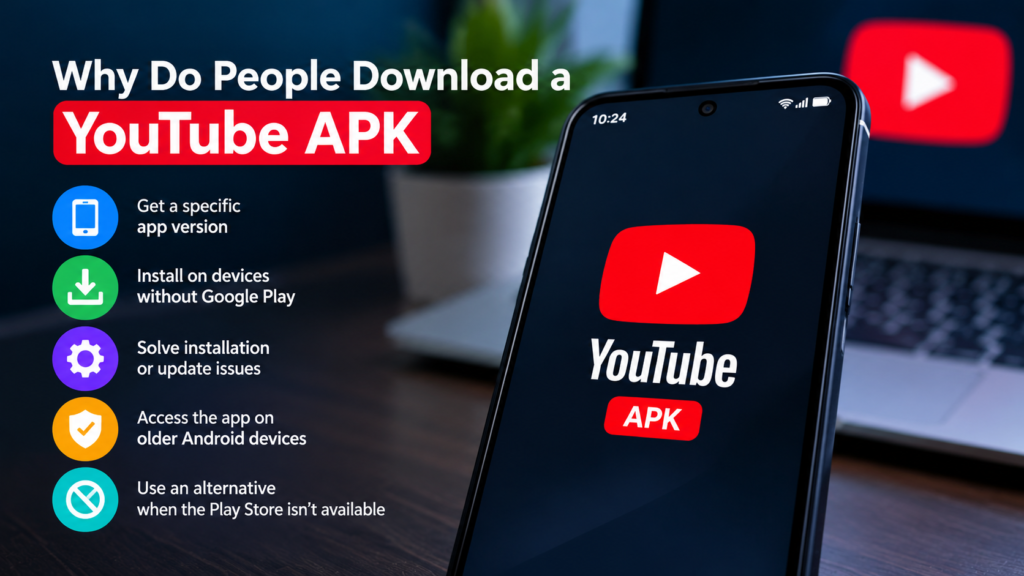
There are several legitimate reasons Android users may search for a YouTube APK.
One common reason is compatibility. Older Android devices may work better with a particular application version than with a newer release.
Another reason is availability. Some Android devices may not include Google Play or may have restrictions that prevent users from accessing the Play Store normally.
Manual installation can also be useful when troubleshooting. For example, if an application update repeatedly fails, reinstalling a compatible package can sometimes help identify whether the issue is related to the existing installation.
However, downloading an APK simply because it claims to offer premium features or bypass restrictions deserves additional caution. Modified applications can introduce privacy, security, compatibility, and account-related risks.
Is It Safe to Install a YouTube APK?
An APK file itself is not automatically dangerous. APK is simply the standard package format Android uses for applications.
The bigger concern is where the file came from and whether it has been modified.
A legitimate application package obtained from a trustworthy source is different from an unknown file uploaded to an unverified website.
Before installing a YouTube APK, consider these precautions:
- Download from a reputable and trustworthy source.
- Check that the application is actually published by the expected developer.
- Avoid files promising unrealistic features.
- Do not install an APK that requests suspicious permissions.
- Keep Android and Google Play security features enabled.
- Scan unfamiliar files with a reputable security solution.
- Avoid installing multiple unofficial versions of the same application.
- Delete APK files you no longer need.
If a website asks you to disable multiple security protections before installing an APK, treat that as a warning sign rather than an inconvenience.
How to Check a YouTube APK Before Installation
Taking a few minutes to examine an APK can reduce unnecessary risk.
Check the App Name and Developer
Start by checking whether the application information matches the official YouTube application.
Be cautious if the package uses a confusing name, an unusual developer identity, or a description that does not match the application.
Popular applications are frequently impersonated because users already recognize their names.
Check the APK Version
Look at the version number before installing the file.
A very old version may have compatibility or security problems, while an unfamiliar version may require additional investigation.
If you are installing an older version for compatibility reasons, make sure you understand why that version is necessary.
Check Permissions
Android applications request permissions to access certain device features.
Permissions should make sense for the application. If an APK appears to request access that seems unrelated to its purpose, stop and investigate before continuing.
Unexpected permission requests can be a sign that an APK deserves closer examination.
Scan the File
A security scanner can provide another layer of protection.
Scanning does not guarantee that a file is completely safe, but it can identify some known threats or suspicious characteristics before installation.
How to Install a YouTube APK on Android
The exact steps can vary depending on the Android version and device manufacturer, but the general process is straightforward.
First, download the APK from a source you trust.
Once the download is complete, open the file from your device’s download location. Android may display a warning that installations from that particular source are not currently allowed.
If necessary, Android may provide an option to allow the application or browser you are using to install unknown applications.
After granting the required permission, return to the APK and start the installation.
Once installation finishes, open YouTube and check that it works normally.
It is a good idea to disable the temporary installation permission afterward if you do not regularly install APK files. Keeping unnecessary installation permissions enabled can increase the risk of accidentally installing an unwanted application.
Common Problems When Installing YouTube APK
APK installations do not always work on the first attempt. Compatibility and device settings can cause several different errors.
Here are some common problems:
App Not Installed
Android may display an “App not installed” message when the APK is incompatible, corrupted, improperly packaged, or conflicts with another version already installed on the device.
Checking the APK version and Android compatibility is a good starting point.
Parsing Error
A parsing error can occur when Android cannot properly process the APK.
Possible causes include:
- A damaged download
- An incompatible Android version
- An incomplete APK
- An incorrectly packaged application
- A file intended for a different architecture
Downloading a compatible, complete package can resolve some cases.
Installation Is Blocked
Modern Android versions include protections against applications installed from unknown sources.
If installation is blocked, check the permission settings for the browser or file-sharing application being used to open the APK.
Do not disable security features unnecessarily. Instead, identify which permission is preventing the installation and enable only what is required.
YouTube Crashes After Installation
An APK can install successfully but still fail when opened.
This may happen because the application version does not match the Android version, required system components are outdated, or the package conflicts with another installation.
Restarting the device and checking compatibility can help. If the problem continues, removing the problematic APK and returning to a supported installation method may be safer.
YouTube APK Compatibility Matters
Not every APK works on every Android device.
Compatibility can depend on several factors, including Android version, device architecture, available storage, system components, and application requirements.
For example, an APK built for a newer Android release may not function correctly on an older phone.
Before downloading a specific version, check its stated Android requirements whenever that information is available.
You should also make sure your device has sufficient free storage. An installation may fail when there is not enough space to unpack and install the application.
Should You Use an Older YouTube APK Version?
There are situations where users may need an older version, particularly when troubleshooting compatibility with an older Android device.
However, older software can lack newer security improvements, bug fixes, and features.
If you use an older version temporarily, keep track of which version you installed and consider returning to a supported release when possible.
Avoid choosing an old APK simply because a random website recommends it. The reason for using that version should be clear.
What About Modified YouTube APKs?
Modified YouTube APKs are different from standard application packages because their software may have been changed by someone other than the original developer.
These modified packages may advertise additional features or altered functionality.
The problem is that users may not know exactly what has been changed.
A modified APK can potentially:
- Contain unwanted code
- Request additional permissions
- Cause account or compatibility problems
- Stop working after Android updates
- Create privacy concerns
- Make troubleshooting more difficult
For users who prioritize security and reliability, an official installation is generally easier to verify and maintain.
Tips for a Safer YouTube APK Experience
If you decide to install an APK manually, follow a few basic habits.
Use a trusted source: Avoid downloading files from websites with aggressive pop-ups, suspicious redirects, or misleading download buttons.
Verify before installing: Check the application name, developer information, version, and Android requirements.
Keep your device updated: Android security updates can protect against known vulnerabilities.
Use Play Protect: Keep Android’s built-in security protections enabled whenever possible.
Avoid unnecessary permissions: Do not approve permissions that have no obvious relationship to the application’s purpose.
Keep backups: Important photos, documents, and other personal files should be backed up independently of any APK installation.
Remove suspicious applications: If an APK behaves strangely after installation, uninstall it and investigate rather than continuing to use it.
What to Do After Installing YouTube APK
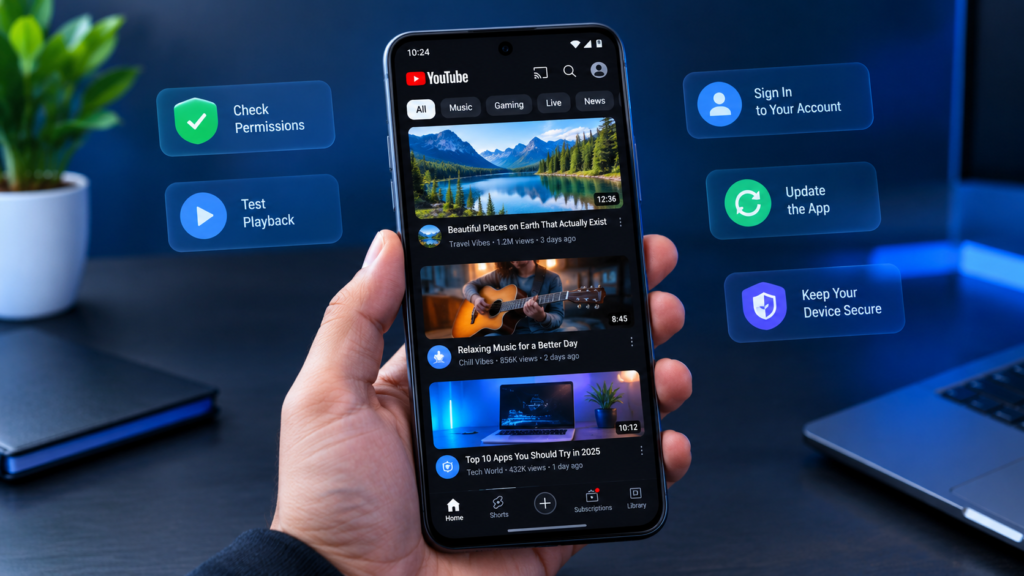
After installation, spend a minute checking whether everything behaves normally.
Open the application and test basic functions such as video playback, search, account access, and settings.
Pay attention to unusual behavior. Unexpected advertisements outside the application, unexplained battery drain, repeated pop-ups, or strange permission requests deserve investigation.
You should also check whether the application can receive updates through your chosen installation method. Manually installed applications may require you to handle future updates yourself.
If you later decide to use Google Play, uninstalling the manually installed version first may help avoid version conflicts in some situations.
Frequently Asked Questions
What is a YouTube APK?
A YouTube APK is the Android installation package for the YouTube application. It can be installed manually instead of obtaining the application through Google Play.
Is a YouTube APK safe?
Safety depends largely on the source and whether the APK has been modified. Downloading an APK from an unknown or untrusted source can expose your device to unwanted software or other risks.
Can I install YouTube APK on any Android phone?
No. APK compatibility depends on factors such as Android version, device architecture, available storage, and application requirements. Always check compatibility before installation.
Why does my YouTube APK say “App not installed”?
This error can result from an incompatible APK, a damaged download, insufficient storage, an existing conflicting installation, or other Android restrictions. Checking the APK version and device requirements is a useful first step.
Do YouTube APK files update automatically?
Not necessarily. Applications installed manually may not receive updates in the same way as applications installed through Google Play. Depending on the installation source, you may need to update the application manually.
Are modified YouTube APKs safe?
A modified APK cannot be assumed to be safe simply because it has been downloaded successfully. Since its code may have been changed by a third party, it can introduce additional privacy, security, and compatibility risks.
Final Thoughts
A YouTube APK can be useful when an Android user needs to install YouTube manually, use a particular compatible version, or troubleshoot a normal installation. However, the convenience of manual installation comes with additional responsibility.
The most important steps are to verify the source, check compatibility, review permissions, scan unfamiliar files, and keep Android’s security protections enabled.
Also Read: How to Check Android APK Requirements Before Installing an App












1 comment