Why APK Says App Not Installed: 10 Easy Ways to Fix the Problem
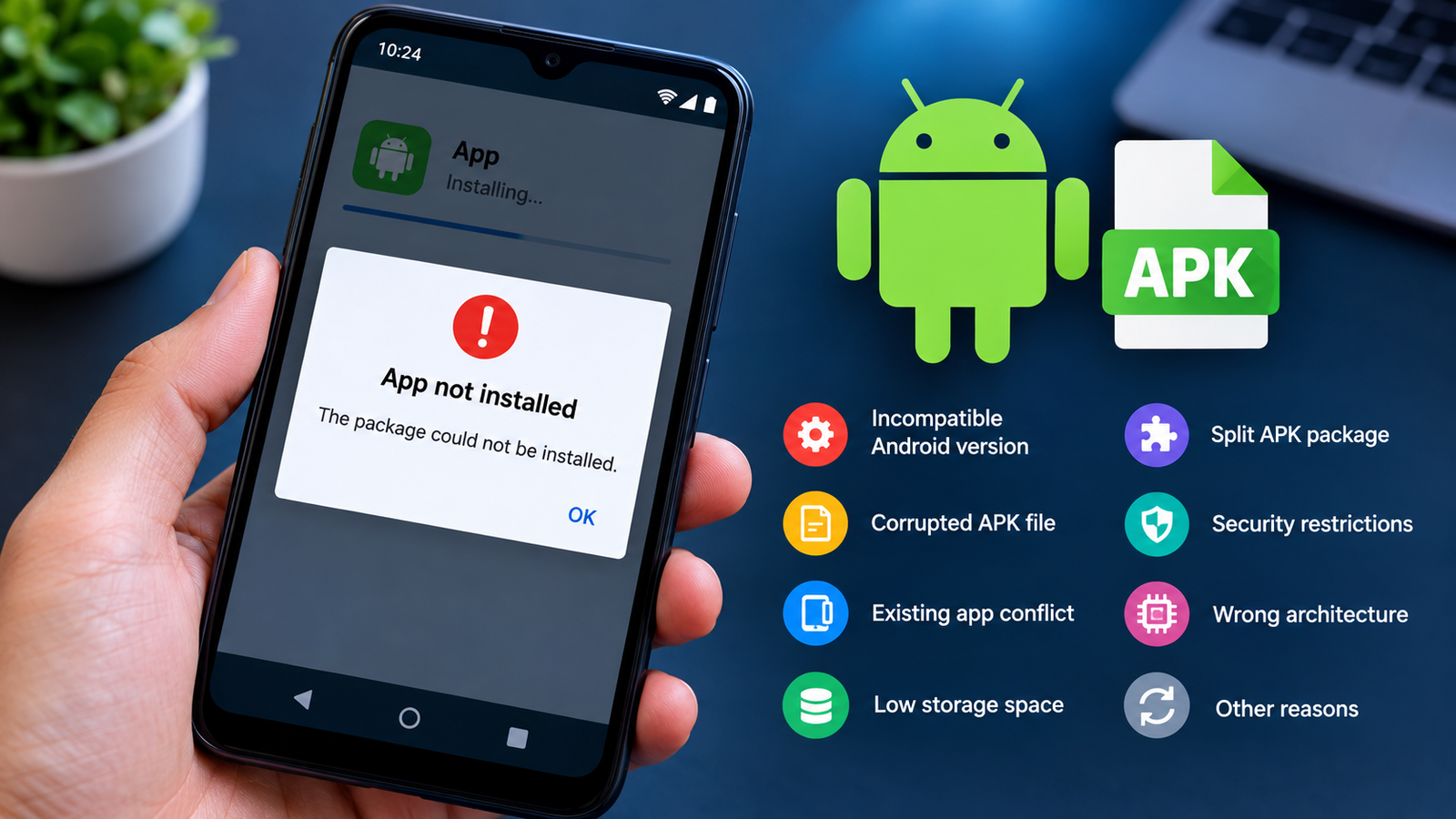
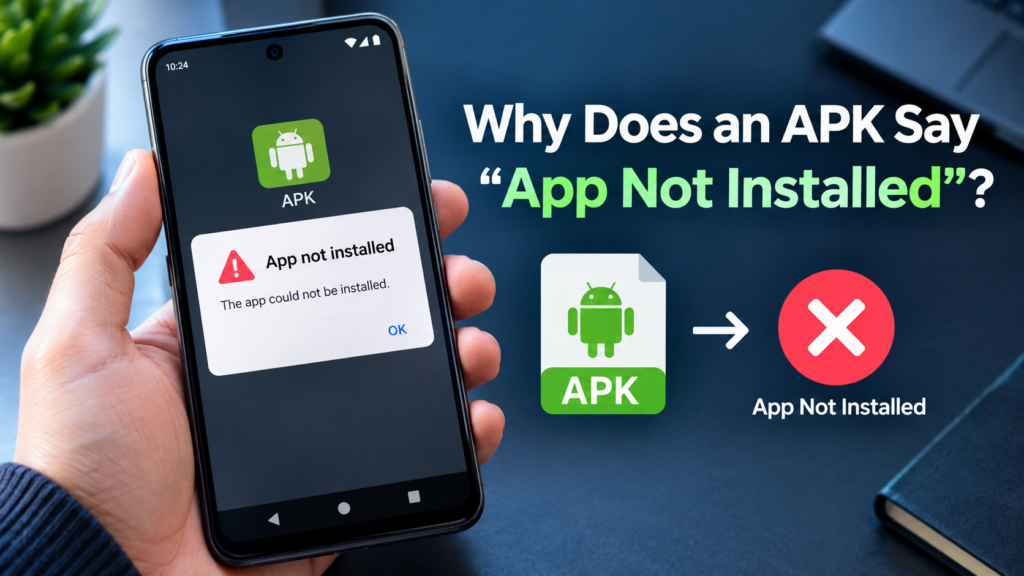
Seeing “App not installed” after opening an APK can be frustrating, especially when the APK appears to download normally and your phone has enough storage. This message usually means Android could not complete the installation for one or more reasons.
The problem can be related to the APK file itself, Android compatibility, an existing version of the app, insufficient storage, security restrictions, or an incorrect APK format.
If you are wondering why APK says app not installed, the good news is that the issue is often fixable. This guide explains the most common causes and shows practical steps you can try without making unnecessary changes to your phone.
Why Does an APK Say “App Not Installed”?
Android checks several things before allowing an APK to be installed. It doesn’t simply look at whether the file downloaded successfully.
For example, an app can require a newer Android API level than your phone supports. Android also checks the APK’s package information and compatibility before completing installation. Google’s Android documentation confirms that the system uses an app’s minimum SDK requirement when deciding whether installation is allowed.
Common reasons include:
- The APK is incompatible with your Android version.
- The APK file is damaged or incomplete.
- An incompatible version of the app is already installed.
- Your phone has insufficient storage.
- The APK is actually part of a split-app package.
- Android is blocking installation from that source.
- The APK uses a package or signature that conflicts with an existing app.
- The APK is outdated for newer Android security requirements.
- The file is not a standard APK despite having an APK-related name.
- The download came from an unreliable or modified source.
Understanding the cause makes troubleshooting much easier.
Common Causes of the “App Not Installed” APK Error
Here is a quick overview of the most common problems:
| Possible Cause | What It Means | What to Try |
|---|---|---|
| Incompatible Android version | APK requires a different Android version | Check Android compatibility |
| Corrupted APK | Download may be incomplete or damaged | Download it again |
| Existing app conflict | Installed version may conflict with APK | Uninstall or update the existing app |
| Low storage | Not enough space for installation | Free up storage |
| Split APK | File needs additional APK components | Use the correct package format |
| Unknown-source restriction | Android blocks installation from the source | Review install permissions |
| Old APK | App may target an outdated Android API | Find a newer compatible version |
| Wrong APK architecture | APK may target different hardware | Download the correct variant |
| Signature conflict | APK was signed differently from installed version | Remove the existing version if appropriate |
| Modified APK | Changes may have broken compatibility | Use a trustworthy original version |
1. Check Your Android Version
One of the first things to check is whether your Android version supports the APK.
Apps declare compatibility requirements through their manifest. The minSdkVersion specifies the minimum API level required by an app, and Android can prevent installation when the device does not meet that requirement.
For example, an APK designed for a newer Android environment may not install on an older phone.
To check your Android version:
- Open Settings.
- Go to About phone or About device.
- Find Android version.
- Compare it with the requirements of the APK.
If the APK requires a newer Android version, look for an older compatible release rather than repeatedly trying the same file.
Newer Android Versions Can Also Block Very Old Apps
Compatibility isn’t always only about old phones.
Recent Android releases have introduced additional restrictions around apps targeting very old API levels. For example, Android 15 prevents installation of apps targeting an API level below 24.
That means an extremely old APK may fail even when you’re using a modern Android phone.
2. Download the APK Again
Sometimes the simplest explanation is a bad download.
An APK can become corrupted if the download stops early, the file is incomplete, or the source provides a damaged package.
Delete the APK and download it again from a reputable source.
Before opening it, check that the file size looks reasonable and that the download completed successfully.
Avoid repeatedly installing the same damaged APK because Android will continue to reject it.
3. Check Available Storage
Low storage can also interfere with app installation.
Even when an APK itself is relatively small, Android may need additional space while processing and installing the application.
Google recommends checking device storage when apps cannot be downloaded or installed because insufficient storage can prevent installation.
To check:
- Open Settings.
- Select Storage.
- Review available space.
- Remove unnecessary files or apps if storage is nearly full.
- Try installing the APK again.
Keeping some free space available can also help prevent other Android performance problems.
4. Check Whether the App Is Already Installed
An existing version of the same app can cause installation conflicts.
This is especially common when you’re trying to install an APK that is:
- A modified version of an existing app
- An older version
- Signed differently
- From a different developer build
If the app is already installed, check whether you actually need the APK.
If you need to replace the existing installation, back up important app data first. Uninstalling an app can remove locally stored data.
Then try installing the APK again.
5. The APK May Not Be a Complete APK
Not every Android app download is a simple standalone APK.
Some applications are distributed as multiple components, such as split APK packages. A single APK file may therefore not contain everything required by the application.
This can lead to installation errors when users try to install only one component.
If the download is described as a split package, XAPK, APKS, or another bundled format, use a method that supports that package type rather than treating it like an ordinary APK.
This is one reason it is important to identify the exact file format before troubleshooting.
6. Check Installation Permissions
Android can restrict installations from sources other than Google Play.
If you downloaded an APK using a browser, file manager, or another application, Android may require that particular source to have permission to install unknown apps.
The exact Settings menu can vary depending on your Android version and phone manufacturer.
Look for a setting similar to:
Settings → Apps → Special app access → Install unknown apps
Then select the application you used to open the APK and review whether installation permission is available.
Only enable installation permissions for sources you trust. Google warns that apps downloaded from unknown sources can create security and privacy risks.
7. Check the APK Architecture
Android devices can use different processor architectures, and APK developers may provide separate builds for different hardware.
You may encounter variants such as:
- ARM64
- ARM
- x86
- x86_64
If you download an incompatible variant, installation may fail or the application may not work correctly.
When several APK versions are available, look for the version specifically designed for your device’s architecture.
If you aren’t sure which variant your phone uses, check your device specifications or use a reputable device-information utility to identify the supported architecture.
8. Look for a Newer Version of the APK
If an APK is several years old, it may not work properly with a current Android release.
Android continuously introduces security, privacy, and compatibility changes. Developers therefore need to update their applications to keep them compatible with newer versions of the operating system.
For example, Android 15 introduced a minimum target SDK restriction that prevents installation of apps targeting below API level 24.
If you are trying to install a very old APK, search for a newer release instead.
This can be more effective than changing multiple settings on your phone.
9. Check Whether the APK Is Modified
Modified APKs can sometimes produce installation errors.
A modified package may have changes to its code, resources, signature, package configuration, or other components. If the modification was done incorrectly, Android may reject the package.
If you downloaded a modified APK and receive “App not installed,” consider testing the official or original version instead.
This also provides a useful troubleshooting comparison.
If the original version installs successfully but the modified version does not, the APK itself is likely the problem.
10. Restart Your Phone and Try Again
A restart is a simple troubleshooting step that is easy to overlook.
Android can occasionally encounter temporary system or installer problems. Restarting the phone clears some temporary processes and gives the installation system a fresh start.
Google’s Android troubleshooting guidance also recommends restarting a device as an early troubleshooting step for app problems.
After restarting:
- Locate the APK again.
- Make sure enough storage is available.
- Confirm the file is complete.
- Open the APK.
- Try the installation again.
What to Do If Nothing Works
If you have tried the basic solutions and the APK still says “App not installed,” avoid repeatedly installing the same file.
Instead, narrow down the problem.
First, determine whether other APK files install correctly.
If another compatible APK installs normally, the problem is probably specific to the original file.
If multiple compatible APKs fail, investigate the phone’s Android version, available storage, installation permissions, and system software.
You can also check whether the app is officially available through Google Play. Google notes that app compatibility depends on the device and the app’s requirements.
A Simple Troubleshooting Order
If you want the quickest approach, follow these steps in order:
- Restart your Android phone.
- Check available storage.
- Confirm your Android version.
- Download the APK again.
- Make sure it is a standard APK rather than a split package.
- Check installation permission for the source app.
- Check whether the app is already installed.
- Try the correct architecture variant.
- Find a newer version of the APK.
- Use the official app version when possible.
This order starts with simple fixes and gradually moves toward compatibility and package-related problems.
Is It Safe to Keep Trying an APK That Says “App Not Installed”?
Not necessarily.
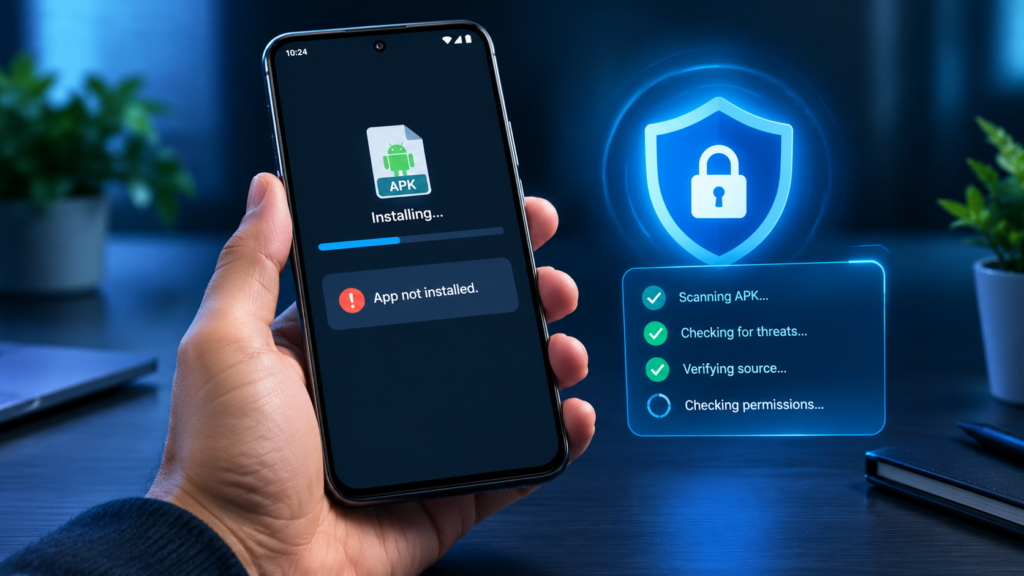
The installation error itself does not automatically mean that an APK is malicious. However, repeatedly downloading APKs from unknown websites can expose your device and personal information to security risks.
Google specifically warns that applications obtained from unknown sources can put devices and personal information at risk.
Before installing an APK, consider:
- Where the file came from
- Whether the developer is identifiable
- Whether the download page is trustworthy
- Whether the APK matches the expected app
- Whether the file has been modified
- Whether your security tools report a problem
If you cannot establish where an APK came from, using an official distribution channel is generally a safer option.
Frequently Asked Questions
Why does my APK keep saying “App not installed”?
The APK may be incompatible with your Android version, damaged, incorrectly packaged, conflicting with an existing app, or targeting an unsupported API level. Check compatibility, storage, package type, and the APK source before trying again.
Why won’t an APK install even though I have enough storage?
Storage is only one part of the installation process. Android also checks compatibility, package information, signatures, and other installation requirements. A compatible APK with sufficient storage should still meet the device’s software requirements.
Can an old APK fail to install on a new Android phone?
Yes. Newer Android versions can introduce restrictions affecting older applications. Android 15, for example, blocks installation of apps targeting an API level below 24.
Why does a modified APK say “App not installed”?
A modified APK may have package, signature, compatibility, or other structural differences. If the modified version fails, testing a legitimate original version can help determine whether the APK itself is responsible.
Does uninstalling the existing app fix the APK installation problem?
It can fix certain package or signature conflicts, but it is not a universal solution. Before uninstalling an existing app, make sure important data is backed up because uninstalling may remove locally stored information.
Is downloading APK files safe?
Safety depends heavily on the source and the APK itself. Google warns that installing apps from unknown sources can expose devices and personal information to risks. Use reputable sources and verify an APK before installing it.
Final Thoughts
If you are searching for why APK says app not installed, there isn’t always one single cause. Android performs several compatibility and security checks before allowing an application to be installed.
The most common solutions are checking Android compatibility, freeing storage, downloading the APK again, checking for an existing app conflict, using the correct APK format, and finding a version that supports your device.
Also Read: How to Install APK Remotely on Android: Easy Methods and Step-by-Step Guide














1 comment