Why Android Cannot Install APK: Common Causes and Fixes
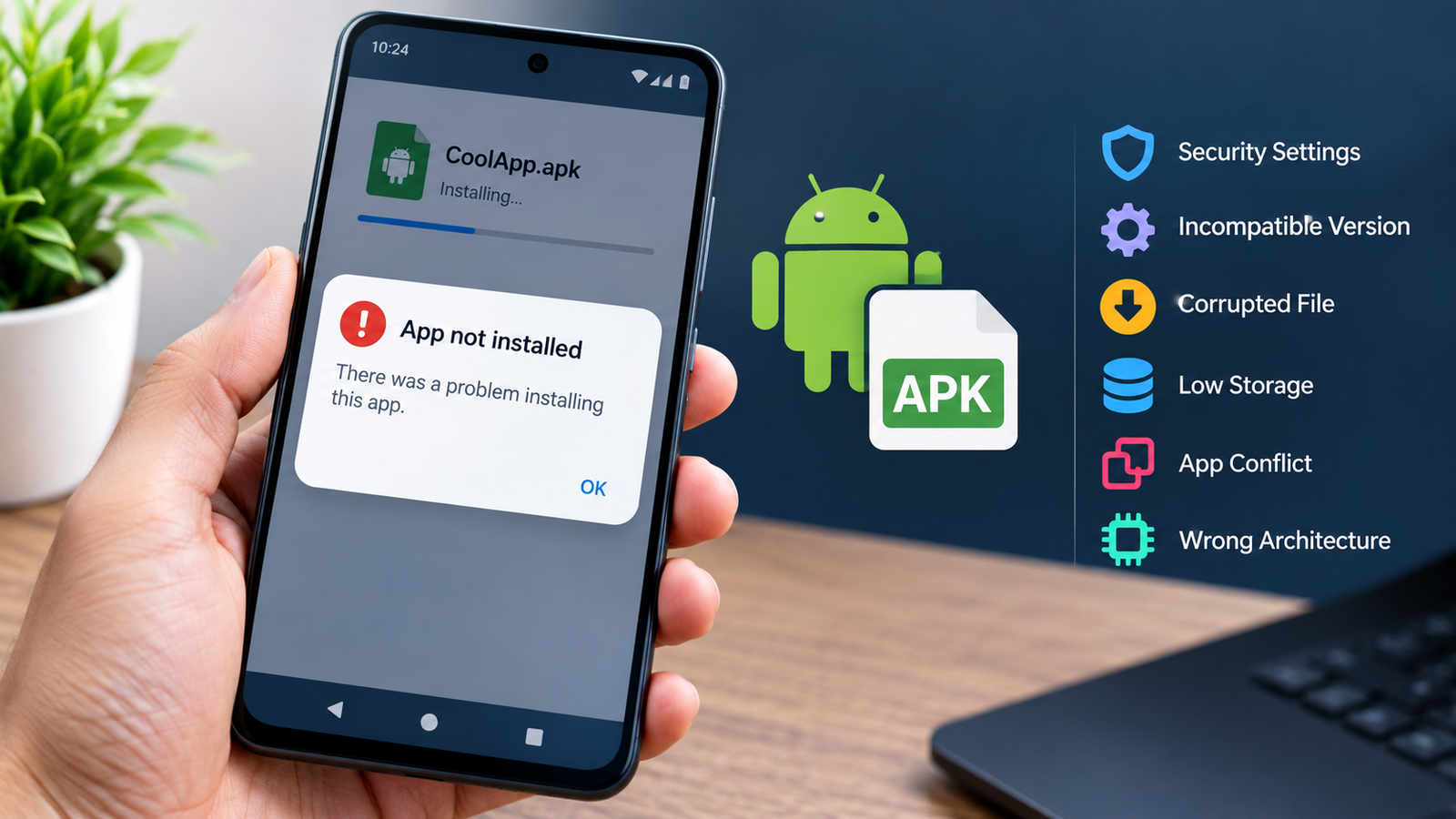
Installing an APK file can be a convenient way to add an Android app that is not available through the Google Play Store. However, the process does not always go smoothly. You may tap the APK file, start the installation, and then see an error such as “App not installed,” “There was a problem parsing the package,” or a message saying that your device cannot install the app.
If you are wondering why Android cannot install APK files, the problem can have several causes. Android may block the installation because of security settings, an incompatible app version, a damaged APK, insufficient storage, or a conflict with an existing application.
The good news is that most APK installation problems can be identified and fixed with a few simple checks. This guide explains the most common reasons Android refuses to install an APK and what you can do to troubleshoot the problem safely.
Why Android Cannot Install APK Files
Android devices are designed to protect users from potentially harmful or incompatible applications. When you install an APK outside the Google Play Store, Android performs several checks before allowing the installation.
If one of these checks fails, the installation may be blocked.
Here are some of the most common reasons:
- Installation from unknown sources is disabled.
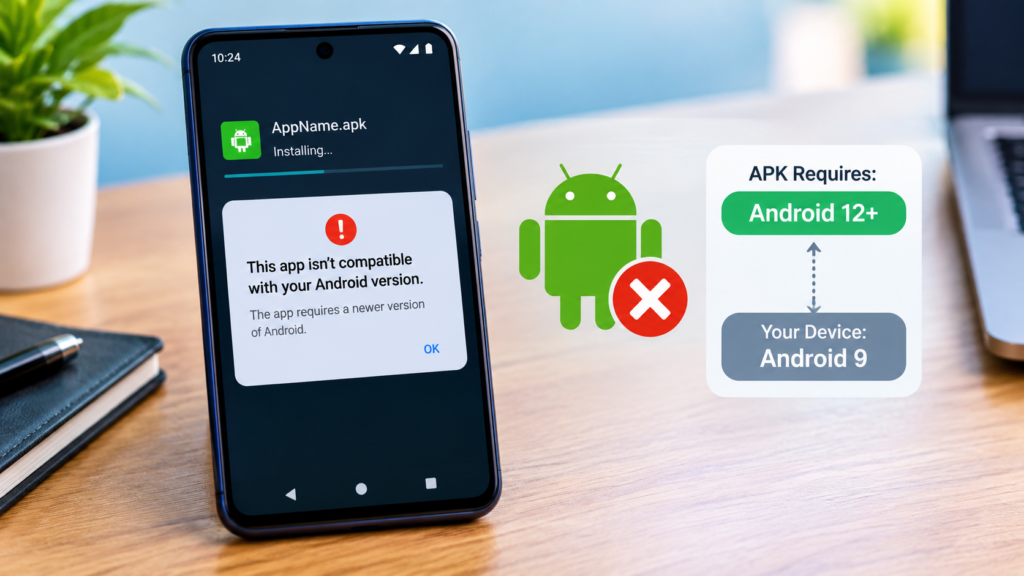
- The APK is incompatible with your Android version.
- The APK was downloaded incorrectly or is corrupted.
- There is not enough free storage.
- An existing version of the app conflicts with the APK.
- The APK requires a different CPU architecture.
- The file is actually a split APK package.
- Android security features are preventing installation.
- The APK package is improperly signed or modified.
- The app has requirements your device does not meet.
Identifying the exact cause is important because the correct solution depends on the error you receive.
Android Is Blocking Installation From Unknown Sources
One of the first things to check is whether your device allows APK installations from the application you are using.
Modern Android versions normally restrict installations from sources other than the Google Play Store. For example, if you downloaded an APK through Chrome, your browser may need permission to install apps from that source.
The exact menu names can vary between Android manufacturers and versions, but you can generally check:
Settings → Apps → Special app access → Install unknown apps
Select the application you used to open the APK and look for an option similar to Allow from this source.
Only enable this permission for sources you trust. After installing the APK, you can disable the permission again if you do not regularly install applications outside the Play Store.
The APK Is Not Compatible With Your Android Version
Another common reason Android cannot install APK files is compatibility.
Every Android application has certain operating system requirements. An APK designed for a newer Android release may fail to install on an older device.
For example, an app may require a newer Android API level than your phone supports. In this situation, repeatedly downloading the same APK will not solve the problem.
Before installing an APK, check:
- Your current Android version.
- The minimum Android version required by the app.
- Whether the APK supports your device model.
- Whether the application is still maintained.
- Whether you downloaded the correct release.
You can usually find your Android version under Settings → About phone or a similar section.
The APK File May Be Corrupted
Sometimes the problem is not your phone at all. The APK itself may be incomplete or damaged.
A failed download can result in an APK that appears normal but cannot be installed correctly. This can happen because of an interrupted internet connection, an unreliable download source, or a problem during file transfer.
If you suspect the APK is damaged, delete the existing file and download it again from a trustworthy source.
Avoid downloading multiple copies from random websites simply because one installation failed. An APK should come from a source where you can reasonably verify the application and its publisher.
There Is Not Enough Storage Space
Low storage is another simple reason an APK installation may fail.
Even if the APK file itself is relatively small, Android may need additional space to unpack and install the application. Your device may therefore require more free storage than the size shown for the downloaded APK.
Check your available storage under your phone’s storage settings.
If space is low, consider removing:
- Unused applications
- Large videos
- Duplicate photos
- Old downloads
- Temporary files
- Offline media you no longer need
After freeing some storage, restart the installation process.
An Older Version of the App Is Already Installed
An APK may fail to install when another version of the same application is already on your device.
This is particularly common when the APK has a different signing key from the installed version or when you are trying to install a modified version over the official application.
For example, you might already have an official version installed and then attempt to install a separately signed APK with the same package name.
Android can reject the installation because the signatures do not match.
Before removing an existing application, make sure you understand what will happen to its local data. If the app contains important information, back it up first where possible.
The APK Uses the Wrong CPU Architecture
Android applications can be built for different processor architectures.
Common architectures include:
- ARM64
- ARM
- x86
- x86_64
Most modern Android smartphones use ARM-based processors, but not every APK package supports every architecture.
If you download an APK intended for a different architecture, Android may refuse to install it or the application may fail to run afterward.
When multiple APK versions are available, choose the one that matches your device’s architecture.
You May Actually Have a Split APK
A frequent source of confusion is assuming every file with an APK-related name can be installed by simply tapping it.
Some applications are distributed as multiple packages rather than one standalone APK. These may include formats or packages such as:
- XAPK
- APKS
- Split APKs
- APKM
A regular Android package installer may not be able to install these files directly.
If the download contains multiple APK components, installing only one part may result in an error. In such cases, you need a compatible installation method that can handle the complete package.
Do not randomly rename files or delete individual components. Doing so can make the package unusable.
Android Security May Be Blocking the APK
Android includes security mechanisms designed to prevent potentially dangerous applications from being installed.
Depending on your device and Android version, security software may warn about an APK or block its installation entirely.
This is one reason you should not automatically disable security features whenever an APK refuses to install.
Instead, first ask:
- Where did the APK come from?
- Is the developer identifiable?
- Does the file match the expected application?
- Is the download source trustworthy?
- Does the APK request unusual permissions?
- Is there an official version available?
If a security warning appears, take it seriously rather than trying to bypass it immediately.
Common APK Installation Errors and Their Possible Causes
The error message shown by Android can provide useful clues.
| Error or Problem | Possible Cause | What to Check |
|---|---|---|
| App not installed | Compatibility or package conflict | Android version, existing app |
| Parse error | Damaged or incompatible APK | Download and compatibility |
| Installation blocked | Security or permission restriction | Install-source settings |
| Insufficient storage | Low free space | Device storage |
| Package conflict | Existing app version | Uninstall or update carefully |
| APK won’t open | Unsupported package type | APK, XAPK, APKS, or split package |
| App installs but won’t run | Architecture or compatibility issue | CPU and Android version |
The exact wording can vary depending on the manufacturer and Android version, so use the message as a starting point rather than assuming there is only one possible cause.
How to Fix APK Installation Problems Step by Step
If you still cannot install the APK, work through these checks in order.
1. Check Your Android Version
Open your phone’s settings and find the Android version information.
Compare it with the minimum Android requirement for the application.
2. Check Available Storage
Make sure you have enough free space for the installation and the application’s additional files.
3. Verify the APK Source
Consider whether the APK came from a reliable source. If the source is questionable, do not continue simply to force the installation.
4. Download the APK Again
A fresh download can solve problems caused by incomplete or corrupted files.
5. Check the File Type
Confirm that you actually downloaded a standalone APK. If it is XAPK, APKS, APKM, or another package format, you may need a compatible installer.
6. Check for an Existing Version
If the same app is already installed, determine whether the APK is compatible with the existing installation.
7. Restart Your Device
A simple restart can occasionally clear temporary installation or system issues.
8. Check Security Warnings
If Android or your device’s security system flags the APK, investigate the warning before proceeding.
How to Avoid APK Installation Problems
Prevention is easier than troubleshooting a failed installation later.
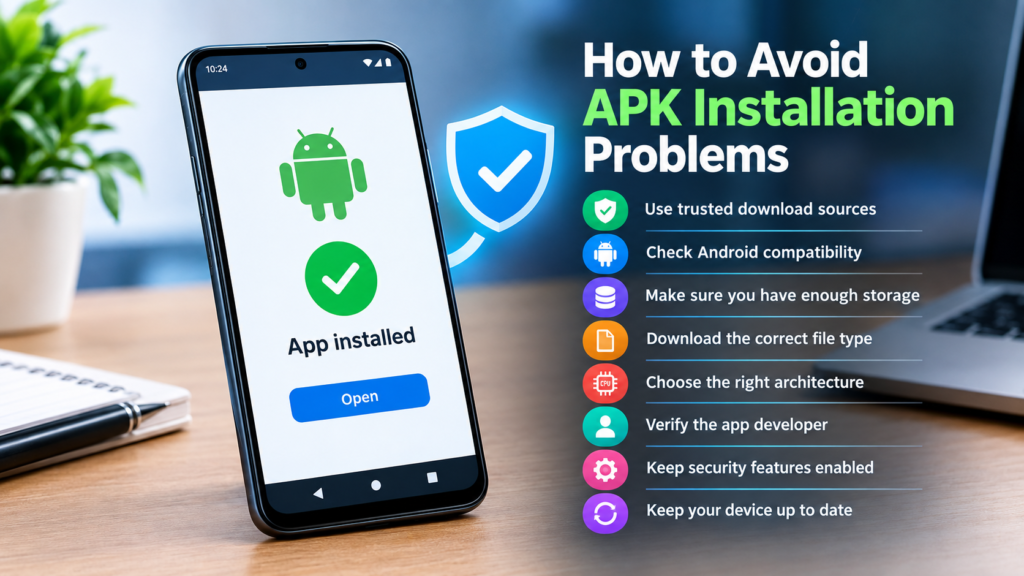
Before downloading an APK, check the following:
- Use a reputable download source.
- Confirm the application name and developer.
- Check Android compatibility.
- Download the correct architecture when applicable.
- Make sure you have enough storage.
- Confirm whether the package is a standalone APK.
- Keep Android security features enabled.
- Avoid suspicious modified packages.
- Review requested permissions when possible.
- Keep your Android device reasonably up to date.
These steps can significantly reduce the chances of encountering installation problems.
Should You Force an APK to Install?
If Android refuses to install an APK, forcing the installation is not always the right solution.
The block may exist because the application is incompatible, damaged, improperly packaged, or considered unsafe.
Instead of looking for ways to bypass every restriction, identify the reason for the failure first. If the APK is incompatible with your device, find a compatible version. If the file is damaged, download it again. If Android reports a security concern, verify the source before proceeding.
This approach is safer and usually saves time.
Frequently Asked Questions
Why does Android say “App not installed” when installing an APK?
The message can have several causes, including an incompatible Android version, insufficient storage, an existing application conflict, a damaged APK, or an unsupported package. Check each possibility rather than assuming the APK itself is always the problem.
Why can’t I install an APK on my Android phone?
Your phone may be blocking installations from the source you used, or the APK may not be compatible with your device. Check the installation-source permission, Android version, storage space, and APK type.
Why does my APK give a parse error?
A parse error can occur when an APK is corrupted, incomplete, incorrectly packaged, or incompatible with the Android version on your device. Downloading a fresh compatible copy can help determine whether the file itself is the problem.
Can low storage prevent an APK from installing?
Yes. Android may need additional temporary and installation space beyond the APK’s file size. Freeing storage and trying again can resolve installation failures caused by insufficient space.
Can an APK be installed if another version of the app is already installed?
Sometimes, but installation can fail if the two packages have incompatible signatures or other differences. If you need to replace the existing version, make sure important app data is backed up before removing anything.
Is it safe to install APK files?
APK installation itself is a normal Android capability, but the safety of an APK depends heavily on its source and contents. Use trustworthy sources, verify the developer when possible, and take Android security warnings seriously.
Final Thoughts
If you are asking why Android cannot install APK files, there is rarely just one answer. Installation can fail because of compatibility problems, security restrictions, insufficient storage, corrupted downloads, package conflicts, CPU architecture differences, or unsupported APK formats.
The best approach is to troubleshoot the problem systematically. Start by checking your Android version and available storage, then verify the APK source and file type. If another version of the app is installed, consider whether a package or signature conflict is involved.
Also Read: Why APK Says App Not Installed: 10 Easy Ways to Fix the Problem














1 comment