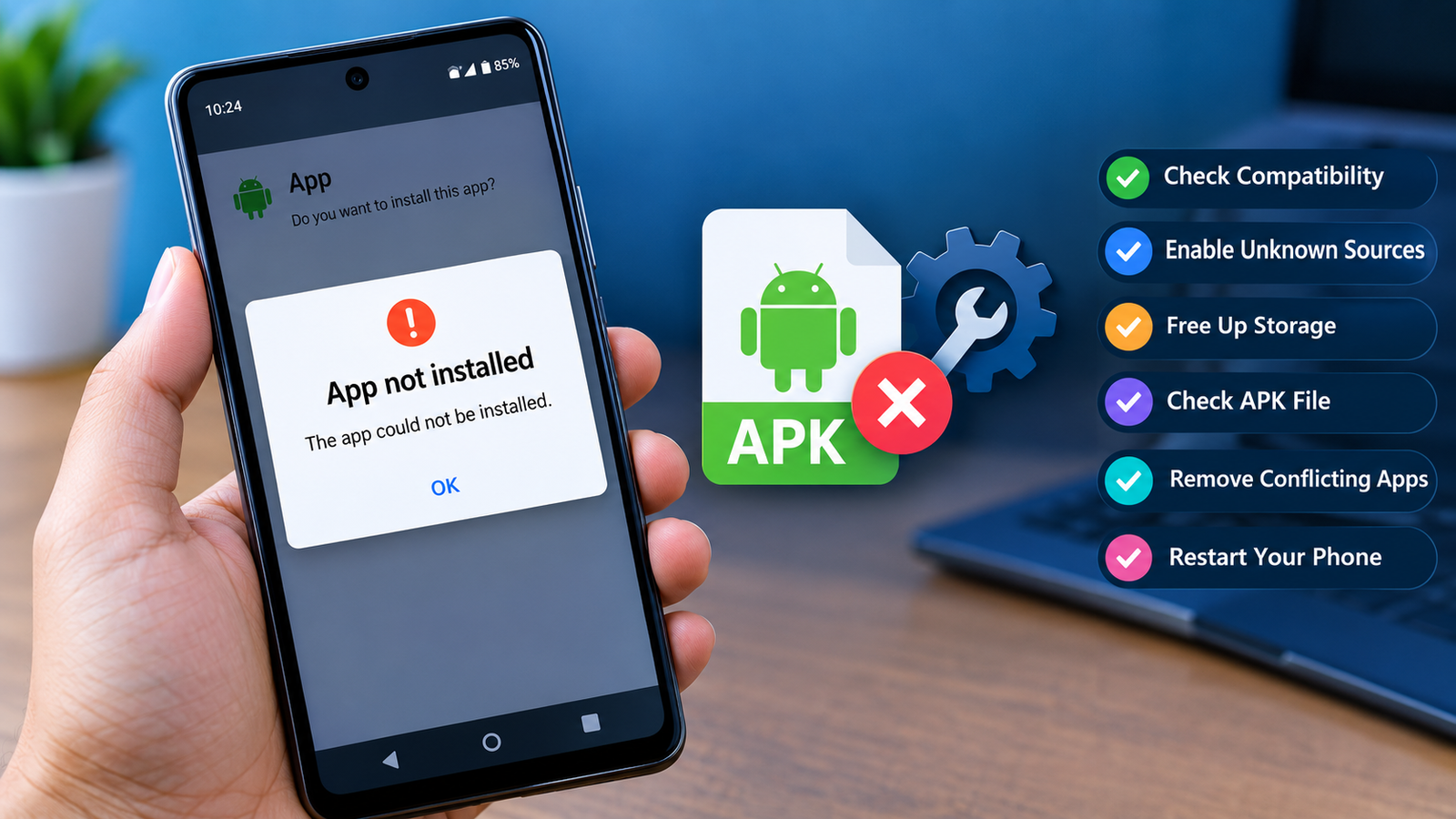
How to Fix APK App Not Installed Error on Android: 10 Easy Solutions
Installing an APK file can be a convenient way to get an Android app that is unavailable through your usual app store. However, the process does not always go smoothly. One of the most common problems users encounter is the frustrating “App Not Installed” error.
If you are searching for how to fix APK app not installed error, you are not alone. This message can appear for several reasons, including incompatible APK files, insufficient storage, conflicting app versions, damaged downloads, or Android security restrictions.
The good news is that most APK installation problems can be fixed with a few simple checks. In this guide, we will explain the most common causes and walk through practical solutions step by step.
Whether you downloaded an APK from a browser, transferred it from another phone, or received it through a messaging app, these troubleshooting methods can help you identify the problem and get the installation working.
Why Does Android Say “App Not Installed”?
The “App Not Installed” message is not very specific. Android uses it when an APK cannot be installed successfully, but the underlying reason can vary.
Some common causes include:
- The APK is incompatible with your Android version.
- The APK was downloaded incorrectly or is corrupted.
- Another version of the same app is already installed.
- Your device does not have enough free storage.
- The APK requires a different CPU architecture.
- Android is blocking installation from the current source.
- The APK is actually a split package such as APKM, APKS, or XAPK.
- The application has installation restrictions.
- An existing app has a conflicting package signature.
- The APK itself is incomplete or incorrectly packaged.
Identifying the likely cause makes troubleshooting much easier.
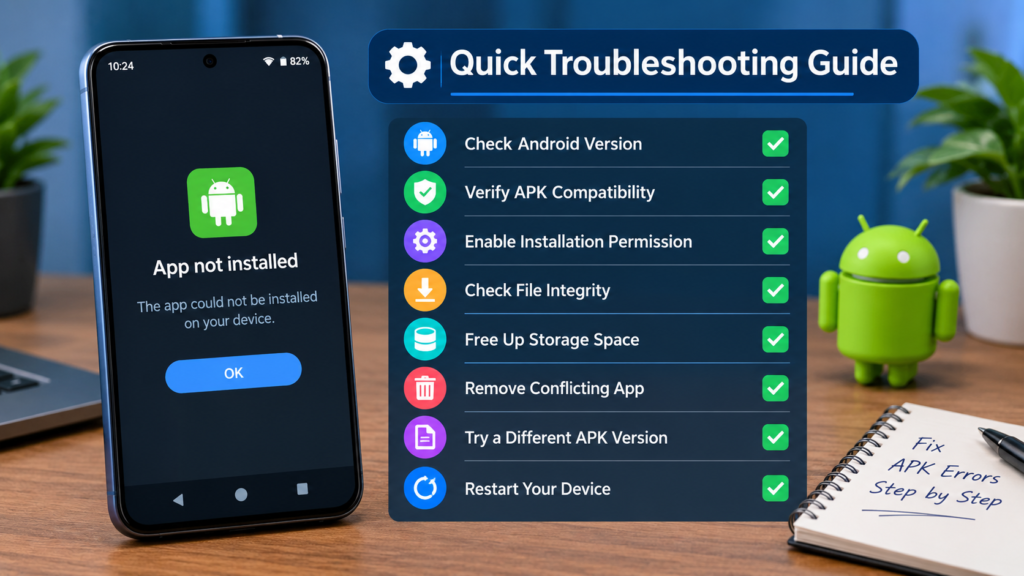
Quick Troubleshooting Guide
Before trying complicated solutions, check the following table. It can help you match the error with a possible solution.
| Possible Cause | What You Can Try |
|---|---|
| Corrupted APK | Download the APK again from a trustworthy source |
| Low storage | Delete unnecessary files or apps |
| Existing app conflict | Uninstall the older version first |
| Wrong Android version | Find an APK compatible with your device |
| Wrong CPU architecture | Download the correct APK variant |
| Installation permission blocked | Allow installation from the source being used |
| Split APK package | Use the appropriate installer for the package |
| Incomplete download | Check the file size and download it again |
| App signature conflict | Remove the previously installed version |
| Security restriction | Review Android security warnings before proceeding |
1. Check Your Available Storage
One of the simplest reasons an APK installation fails is insufficient storage.
An APK may appear small, but Android can require additional space while installing and extracting the application. If your phone is almost full, the installation may fail even when the APK itself fits into the remaining storage.
Go to your device’s storage settings and check how much free space is available.
If storage is low, consider removing:
- Unused applications
- Old videos and photos
- Duplicate downloads
- Large documents
- Cached files
- APK files you no longer need
After freeing some space, restart the installation.
2. Download the APK Again
A damaged or incomplete APK can trigger the “App Not Installed” error.
This can happen if your internet connection was interrupted during the download or if the file was modified incorrectly.
Delete the current APK and download a fresh copy. Make sure the download completes before opening the file.
It is also important to use a source you trust. Avoid downloading APK files from suspicious websites that provide modified or unknown applications.
If the website provides information such as the APK version, file size, Android requirement, or package type, compare those details with your device before downloading.
3. Check Whether the APK Supports Your Android Version
Android applications are built for specific operating system versions and hardware environments.
An APK designed for a newer Android release may not work correctly on an older phone. Similarly, an outdated application may have compatibility problems with newer Android versions.
Before installing the APK, check:
- Your Android version
- The app’s minimum Android requirement
- The APK version
- Whether your device is supported
You can usually find your Android version under Settings > About phone or a similarly named section, although the exact menu can vary between manufacturers.
If the APK requires a newer Android version than your phone provides, installing a compatible version may be necessary.
4. Uninstall the Existing Version of the App
Another common reason for an APK installation failure is that the application is already installed on your device.
This becomes especially common when attempting to install an APK from a different source over an existing application.
For example, you may already have an app installed from Google Play and then try to install an APK with the same package name but a different signing key.
Android may reject the installation because the two versions cannot coexist or cannot replace each other.
If you do not need the current installation, you can try:
- Back up any important app data.
- Uninstall the existing application.
- Restart the phone if necessary.
- Locate the APK again.
- Try installing the APK.
Be careful when uninstalling an app because locally stored data may be removed.
5. Check Installation Permissions
Android can restrict applications from unknown or external sources.
If you downloaded an APK using a browser, file manager, or another application, Android may require that specific source to have permission to install APK files.
For example, if you opened the APK from your browser, the browser may need permission to install unknown apps.
On many Android devices, you can find this option under a security or special app access section.
The exact path depends on your Android version and phone manufacturer.
Only enable installation permission for sources you understand and trust. Allowing an application to install unknown apps can increase security risks if the source itself is untrustworthy.
6. Make Sure You Downloaded the Correct APK Variant
Not every APK is universal.
Some developers provide different APK variants for different processor architectures, Android versions, screen configurations, or device types.
Common CPU architecture terms include:
- ARM64
- ARM
- x86
- x86_64
Modern Android phones commonly use ARM-based processors, but the exact compatibility depends on the device.
If you install an APK intended for incompatible hardware, Android may refuse the installation or the app may fail to work correctly.
If multiple versions are available, check the developer’s compatibility information before choosing one.
7. Check If the File Is Really an APK
Sometimes users believe they have downloaded an APK when they actually have a different Android package format.
You may encounter files such as:
- APK
- XAPK
- APKM
- APKS
- Other split APK packages
A standard APK can generally be opened directly through Android’s package installer when the device allows it.
Split packages can be different. They may contain multiple APK components that need to be installed together using a compatible installation method.
If you have an APKS, APKM, or XAPK file, simply renaming it to .apk usually does not turn it into a standard APK.
Instead, identify the package type and use an appropriate, trusted installation method.
8. Restart Your Android Device
It sounds basic, but restarting your phone can sometimes resolve temporary installation problems.
Android may have background processes, temporary files, or package installer issues that interfere with an installation.
A restart gives the system a fresh session.
After restarting:
- Locate the APK.
- Confirm that you have enough storage.
- Open the file.
- Follow the installation prompts.
- Check whether the error appears again.
If the problem continues, move on to the next troubleshooting method.
9. Clear Temporary Installer Problems
In some situations, Android’s package installation process can encounter a temporary issue.
Depending on your Android version and manufacturer, you may be able to clear cache for relevant system components or the app you are using to open the APK.
Be careful when changing settings for system applications. Menu names and available options differ between Android devices.
If you are unsure which system component is responsible, avoid deleting important system data. Start with simpler solutions such as restarting the phone, freeing storage, and downloading the APK again.
10. Check Whether the APK Is Modified
Modified APK files can behave differently from official releases.
Some modified applications change the original package, signing information, permissions, or application files. Android may reject an APK if its package information conflicts with an existing installation.
This can also happen when switching between an official version and a modified version of the same application.
If you repeatedly receive the installation error with a modified APK, consider obtaining the official version from a legitimate source instead.
This can also reduce the risk of installing an application containing unwanted or malicious code.
11. Check the APK File Name and Extension
Before troubleshooting further, make sure the file is actually an APK.
Open your file manager and inspect the file name. A normal APK should end with:
.apk
If the file has a different extension, it may be a different package type.
Also check whether the download was interrupted. A suspiciously small file size compared with the expected download size can indicate that the file was not downloaded completely.
Do not simply rename an unrelated file to .apk. Changing the extension does not change the contents of the file.
12. Try a Fresh Installation After Removing Conflicts
If you have tried several solutions but still cannot install the application, start over with a clean process.
First, remove the problematic APK from your device. If an older version of the same application is installed and you have safely backed up important data, consider removing it as well.
Then:
- Restart your phone.
- Check available storage.
- Download a compatible APK.
- Confirm that the download completed.
- Check the package type.
- Allow installation from the appropriate trusted source.
- Start the installation again.
This eliminates several possible causes at once.
Common APK Installation Errors and Their Causes
Different installation problems can look similar, so it helps to understand what each situation may indicate.
“App Not Installed”
This is a general installation failure. Possible causes include incompatibility, corrupted files, package conflicts, or insufficient storage.
“There Was a Problem Parsing the Package”
This can occur when an APK is damaged, incompatible with the device, or incorrectly packaged.
Downloading the file again and checking Android compatibility are useful first steps.
“Installation Blocked”
This may indicate that Android’s security settings are preventing installation from the current source.
Review the source permission and security warning before continuing.
Installation Stops During the Process
A lack of storage, damaged APK, package conflict, or system issue may cause installation to stop before completion.
Try freeing storage and obtaining a fresh APK.
How to Avoid APK Installation Problems in the Future
Fixing an APK error is useful, but preventing the problem is even better.
Before downloading an APK, develop a simple checking routine.
Verify the Source
Avoid random websites offering unknown APK files. A trustworthy source should provide useful information about the application and its version.
Check Compatibility
Confirm the Android version, architecture, and device requirements before downloading.
Keep Enough Storage Free
Try not to operate your phone with almost no free space. Storage is needed for downloads, temporary files, updates, and app installation.
Keep Your APK Files Organized
Delete old APK files that you no longer need. Keeping many outdated versions can make it harder to identify the correct package.
Be Careful With Modified APKs
Modified or unofficial applications may introduce compatibility and security problems. Consider the risks before installing them.
Keep Android Updated
System updates can improve compatibility, stability, and security. If your device supports a newer Android version, installing available official updates may resolve certain compatibility issues.
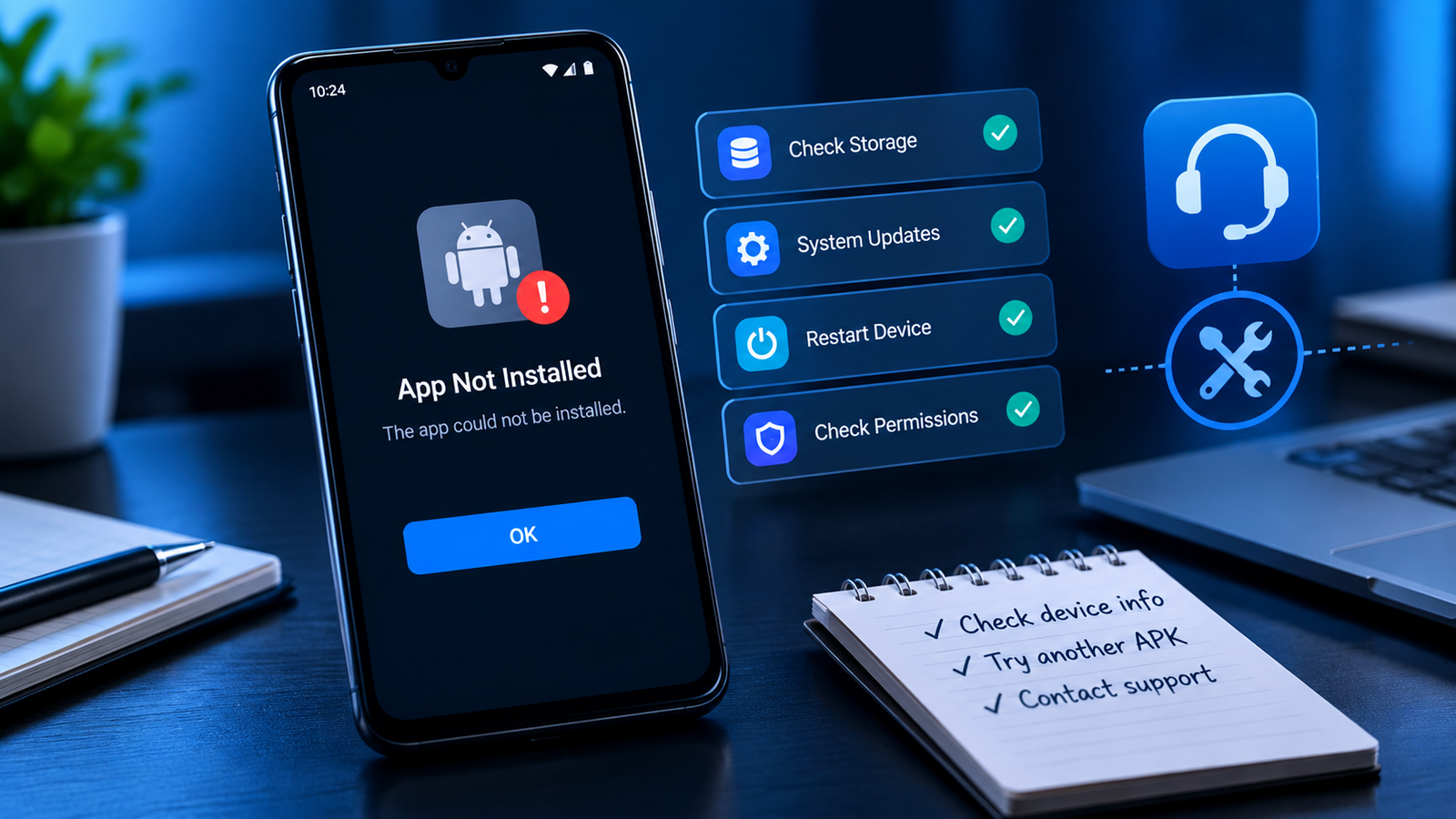
What to Do If None of These Solutions Work
If you have tried all the basic methods and the APK still refuses to install, the file itself may be incompatible with your phone.
At that point, check the application’s official requirements and look for another compatible release.
You can also test whether another known-compatible APK installs successfully. If multiple unrelated APKs fail to install, the problem may be related to your device or Android installation rather than one specific APK.
For persistent system-level problems, consult your phone manufacturer’s support documentation before making major system changes.
Frequently Asked Questions
Why does my APK keep saying “App Not Installed”?
The message can have several causes, including an incompatible Android version, insufficient storage, corrupted APK, conflicting application version, or an incompatible package variant. Start by checking storage, downloading the APK again, and confirming compatibility.
How do I fix APK app not installed error without deleting the existing app?
First, check whether the new APK is compatible with the existing installation and whether it has the same signing information. If the APK is intended to replace the current app but uses a different signature, Android may prevent the update. In that situation, removing the existing version may be required, but back up important data first.
Can low storage cause an APK installation error?
Yes. Android may need additional temporary space during installation, so having only a small amount of free storage can cause installation problems. Freeing storage and trying again can resolve the issue.
Why won’t my XAPK or APKM file install like a normal APK?
XAPK and APKM files can contain multiple application components rather than being a simple standalone APK. They may require a compatible installation method instead of being opened directly through Android’s standard package installer.
Is it safe to install an APK from the internet?
The safety of an APK depends heavily on its source and contents. APK files from unknown or untrusted sources can carry security risks. Check the source, application details, permissions, and compatibility before installing anything.
Should I delete the APK after installation?
You can usually delete the APK after the application has been installed successfully if you do not need the file for backup or future installation. Removing it can also free up storage space.
Final Thoughts
The “App Not Installed” message can be annoying, but it does not necessarily mean that your Android phone has a serious problem. In many cases, the cause is something simple, such as a damaged download, insufficient storage, an incompatible APK, or a conflict with an existing application.
When learning how to fix APK app not installed error, start with the easiest checks first. Confirm the APK type, verify compatibility, free up storage, download the file again, and check installation permissions.
Also Read: How to Fix APK Installation Problem: 10 Easy Solutions for Android














1 comment