How to Fix APK Installation Problem: 10 Easy Solutions for Android
Installing an APK can be a convenient way to add an Android app to your device, especially when the app is unavailable through your usual app store. However, the process does not always go smoothly. You may see messages such as “App not installed,” “There was a problem parsing the package,” or an installation that simply fails without a clear explanation.
If you are wondering how to fix APK installation problem, the good news is that most installation errors have a straightforward cause. The APK may be incompatible with your Android version, damaged during download, blocked by a security setting, or conflicting with an existing version of the app.
This guide explains the most common APK installation problems and practical ways to fix them. Whether you downloaded the APK through a browser, file manager, cloud storage, or another device, these troubleshooting steps can help you identify the problem and get the installation working again.
Why Is My APK Not Installing?
Before trying random fixes, it helps to understand why Android might reject an APK. An APK is an Android application package, and Android checks several things before allowing it to install.
Common causes include:
- The APK download is incomplete or corrupted.
- The APK does not support your Android version.
- The app uses a different CPU architecture.
- Installation from the current source is blocked.
- An older version of the same app is already installed.
- Your device does not have enough free storage.
- The APK is actually an XAPK, APKM, or APKS package.
- The package has been modified or incorrectly signed.
- Android security features have blocked the installation.
- The APK is incompatible with your particular device.
Identifying the likely cause can save you time because the correct solution depends on the error.
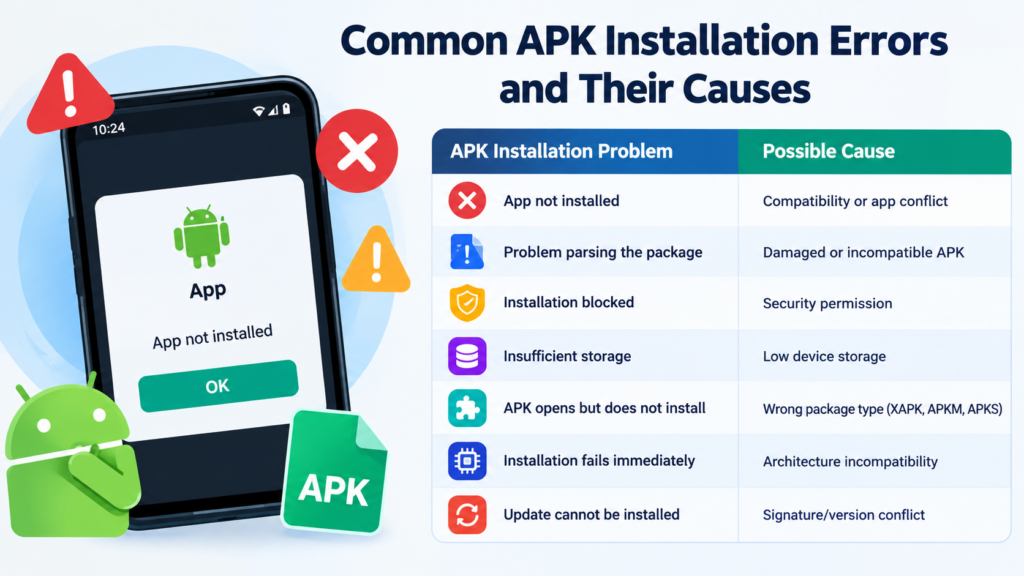
Common APK Installation Errors and Their Causes
The exact message displayed by Android can provide an important clue.
| APK Installation Problem | Possible Cause | Recommended Fix |
|---|---|---|
| App not installed | Compatibility or app conflict | Check the APK and remove conflicting versions |
| Problem parsing the package | Damaged or incompatible APK | Download a fresh compatible APK |
| Installation blocked | Security permission | Allow installation from the relevant source |
| Insufficient storage | Low device storage | Free up space |
| APK opens but does not install | Wrong package type | Check whether it is XAPK, APKM, or APKS |
| Installation fails immediately | Architecture incompatibility | Find a compatible APK variant |
| Update cannot be installed | Signature/version conflict | Uninstall the existing app if appropriate |
The error message is not always specific, but it can help narrow down the problem.
1. Check Whether the APK Download Is Complete
One of the easiest solutions is also one of the most overlooked. An APK can become corrupted if the download was interrupted or the file was only partially downloaded.
Check the file size and compare it with the size listed by the source when possible. If the file looks unusually small, download it again.
A weak internet connection can also cause problems during downloading.
For the best chance of a successful installation:
- Delete the questionable APK.
- Download it again using a stable connection.
- Avoid interrupting the download.
- Make sure the device has enough free storage.
- Save the APK somewhere easy to find, such as the Downloads folder.
Do not repeatedly attempt to install a file that may already be damaged.
2. Allow Installation From the Source You Are Using
Modern Android versions restrict installations from unknown sources as a security measure.
For example, if you downloaded an APK through a web browser, Android may require you to give that browser permission to install applications.
Depending on your device and Android version, the setting may be located under something similar to:
Settings → Apps → Special app access → Install unknown apps
Select the application you used to open the APK and enable the appropriate permission.
The exact menu names can vary between Android manufacturers and software versions.
After changing the setting, return to the APK and try the installation again.
Why This Setting Matters
Android does not necessarily block all APK installations. Instead, it can restrict which applications are allowed to initiate an installation.
For example, an APK downloaded through a browser may require permission for that browser, while an APK opened through a file manager may require permission for the file manager.
Only enable the permission for sources you trust, and consider turning it off again when you no longer need it.
3. Check Your Android Version
Compatibility is another common reason an APK fails to install.
Apps are built to support particular Android versions and device configurations. If an APK requires a newer Android release than the one installed on your phone, the package may not work correctly or may refuse to install.
Check your Android version under your device’s system settings. Then compare it with the requirements provided by the app developer or download source.
If your Android version is too old, possible solutions include:
- Updating Android if an official update is available.
- Finding an older compatible version of the app.
- Downloading a package specifically intended for your Android version.
Avoid installing an APK that clearly requires an Android version your device cannot support.
4. Make Sure You Have Enough Storage
An APK itself may not appear very large, but the installed application can require considerably more space.
If your phone is almost full, Android may fail during installation.
Check your available storage and remove unnecessary files if needed. You can consider clearing old downloads, unused applications, duplicate videos, or other files you no longer need.
After freeing some space, restart the installation process.
It is generally better to leave a reasonable amount of free storage rather than trying to install an app when your device is almost completely full.
5. Check for an Existing Version of the App
Another common reason for the “App not installed” error is an existing version of the same application.
This can happen when you try to install an APK that has a different signing key, package configuration, or version relationship from the application already installed on your phone.
If the app is already installed, check whether you actually need to reinstall it.
If you are replacing an existing installation, make sure you understand the consequences before uninstalling the old version. Removing an application can also remove its locally stored data.
If your important data is synchronized with an account or backed up elsewhere, restoring it may be easier after reinstalling.
6. Check Whether You Downloaded the Correct APK Variant
Not every APK works on every Android device.
Developers may provide different versions for different processor architectures, Android releases, screen configurations, or other device requirements.
For example, an APK built for one CPU architecture may not work properly on a device using another architecture.
If several APK variants are available, check the developer’s documentation or trusted download source for compatibility information.
Do not simply choose the largest or newest file without checking what it is designed for.
7. Check if the File Is Really an APK
Sometimes users think they have downloaded an APK when the file is actually another Android package format.
You may encounter formats such as:
- APK — a standard Android application package.
- XAPK — may contain an APK together with additional app files.
- APKM — a package format that can contain split APK components.
- APKS — commonly used for bundles of split APK files.
A standard Android package installer may not know how to handle these formats directly.
If the downloaded file is not a regular .apk file, check the instructions provided by the legitimate source to determine how that package should be installed.
Simply renaming a file extension does not convert one package format into another.
8. Restart Your Android Device
It sounds simple, but restarting the phone can sometimes resolve temporary installation issues.
Background processes, temporary system problems, or a stuck package installer can interfere with installation.
Before restarting, close unnecessary applications. Then restart the device and try the installation again.
This is especially useful if APK installations suddenly stopped working even though they worked previously.
9. Clear Temporary Problems With the Package Installer
If your device repeatedly fails to install legitimate APKs, the problem may involve Android’s installation components rather than the particular file.
Depending on the manufacturer and Android version, system apps responsible for package installation may have different names or may not be directly accessible.
If your settings provide options to clear temporary cache data for the relevant system component, you can consider doing so. Avoid deleting important application data unless you understand what it will affect.
Because Android interfaces vary significantly between manufacturers, the exact steps may differ on Samsung, Xiaomi, Google Pixel, OnePlus, Motorola, and other devices.
10. Check the APK’s Source and Security
Not every APK available online is safe.
If an APK installation fails, do not assume that bypassing Android’s security restrictions is the correct solution. The failure may be a warning sign that the file is modified, damaged, incompatible, or otherwise unsuitable.
Before installing an APK, consider:
- Where the file came from.
- Whether the publisher is identifiable.
- Whether the download page provides useful version information.
- Whether the file matches the application’s expected package.
- Whether your security software reports a problem.
- Whether the APK is being distributed through a trustworthy source.
Avoid disabling important security protections just to force an installation.
If Android or your security software warns you about a suspicious file, investigate the warning instead of automatically bypassing it.
What to Do When You See “There Was a Problem Parsing the Package”
The “There was a problem parsing the package” message is usually associated with an APK that Android cannot properly interpret.
Possible causes include:
- The APK download is corrupted.
- The APK is incompatible with your Android version.
- The package was modified incorrectly.
- The file is not intended for your device.
- The APK is incomplete.
Start by downloading the file again from a trustworthy source. If the same error continues, check the app’s Android requirements and look for a compatible version.
If multiple devices have the same problem with the exact same file, that may indicate an issue with the APK itself rather than your phone.
What to Do When “App Not Installed” Keeps Appearing
The “App not installed” message is particularly broad because several different problems can produce it.
Try these steps in order:
- Confirm that the file is a genuine APK.
- Download a fresh copy.
- Check your Android version.
- Check available storage.
- Look for an existing version of the application.
- Verify that the APK matches your device architecture.
- Check whether the package is actually a split-app format.
- Restart the phone.
- Try a known-compatible version from a trustworthy source.
Avoid downloading dozens of random APK versions and installing them one after another. That can make troubleshooting more difficult and increases your exposure to potentially unsafe files.
A Simple APK Troubleshooting Checklist
When you need to know how to fix APK installation problem, use this checklist before making major changes to your phone:
Before Installing
- Verify the file extension.
- Check the APK source.
- Confirm Android compatibility.
- Check available storage.
- Make sure the download completed successfully.
If Installation Fails
- Read the exact error message.
- Download the APK again.
- Check unknown-app installation permission.
- Look for an existing version of the app.
- Check the APK architecture and Android requirements.
- Determine whether it is XAPK, APKM, or APKS.
- Restart your device.
If Nothing Works
If the APK still refuses to install after these checks, the package may simply be incompatible with your device. Look for an officially supported version or another legitimate installation method instead of repeatedly bypassing Android’s protections.
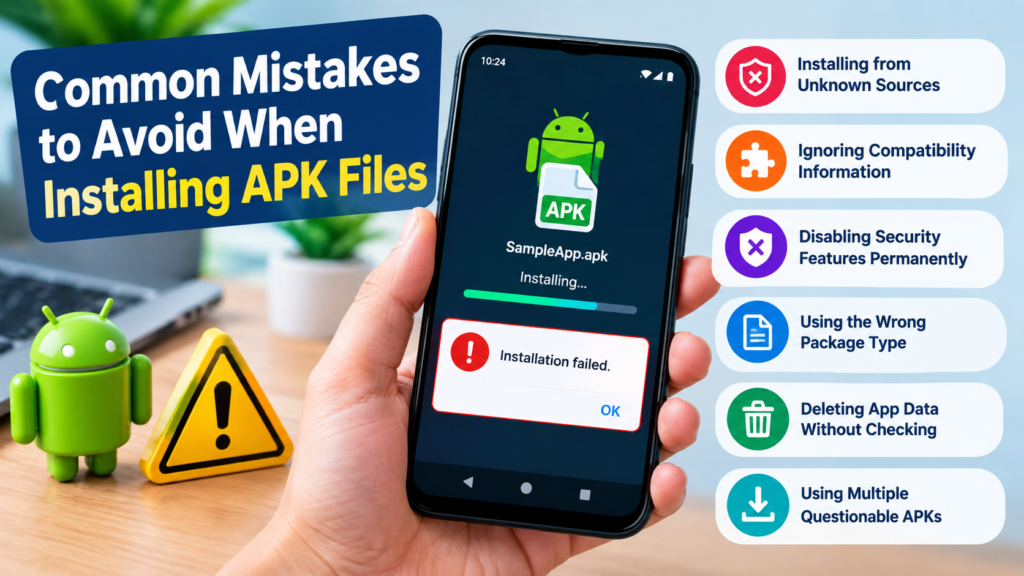
Common Mistakes to Avoid When Installing APK Files
Troubleshooting becomes harder when the original installation process creates additional problems.
Avoid these common mistakes:
Installing files from unknown sources: A convenient download does not necessarily mean a trustworthy one.
Ignoring compatibility information: An APK designed for another Android version or device architecture may not work.
Disabling security features permanently: Security restrictions exist for a reason. Do not leave unnecessary installation permissions enabled.
Using the wrong package type: XAPK, APKM, and APKS files may require different installation methods.
Deleting app data without checking: Uninstalling an existing app can remove locally stored information.
Using multiple questionable APKs: If one file fails, downloading several more from unknown websites is not a reliable troubleshooting strategy.
Frequently Asked Questions
Why won’t my APK install on Android?
An APK may fail because it is corrupted, incompatible with your Android version, built for a different device architecture, blocked by an installation permission, or conflicting with an existing app.
How do I fix the “App not installed” APK error?
Start by downloading a fresh APK and checking your Android version, storage, installation permissions, and existing version of the application. Also verify that the APK is intended for your device.
Why does Android say there is a problem parsing the package?
This can happen when the APK is damaged, incomplete, incompatible with your Android version, or incorrectly packaged. Downloading a compatible copy from a trustworthy source is a good first step.
Can low storage prevent an APK from installing?
Yes. Android needs enough free space to install and set up an application. Freeing storage and trying again can resolve installation failures caused by insufficient space.
Can I install an XAPK or APKM like a normal APK?
Not necessarily. XAPK and APKM packages can contain multiple components, so they may require a compatible installer rather than the standard APK installation process.
Is it safe to disable Android security to install an APK?
Disabling security protections can increase your risk if the APK is malicious or untrusted. Only allow installation from a source you understand and trust, and avoid bypassing security warnings without investigating them.
Final Thoughts
Learning how to fix APK installation problem starts with identifying the reason the installation failed rather than immediately changing security settings or downloading another random file.
In most cases, checking the APK’s integrity, Android compatibility, available storage, installation permissions, and package type will help you find the cause. It is also important to remember that not every APK is designed for every Android device.
Also Read: Why Android Cannot Install APK: Common Causes and Fixes














1 comment