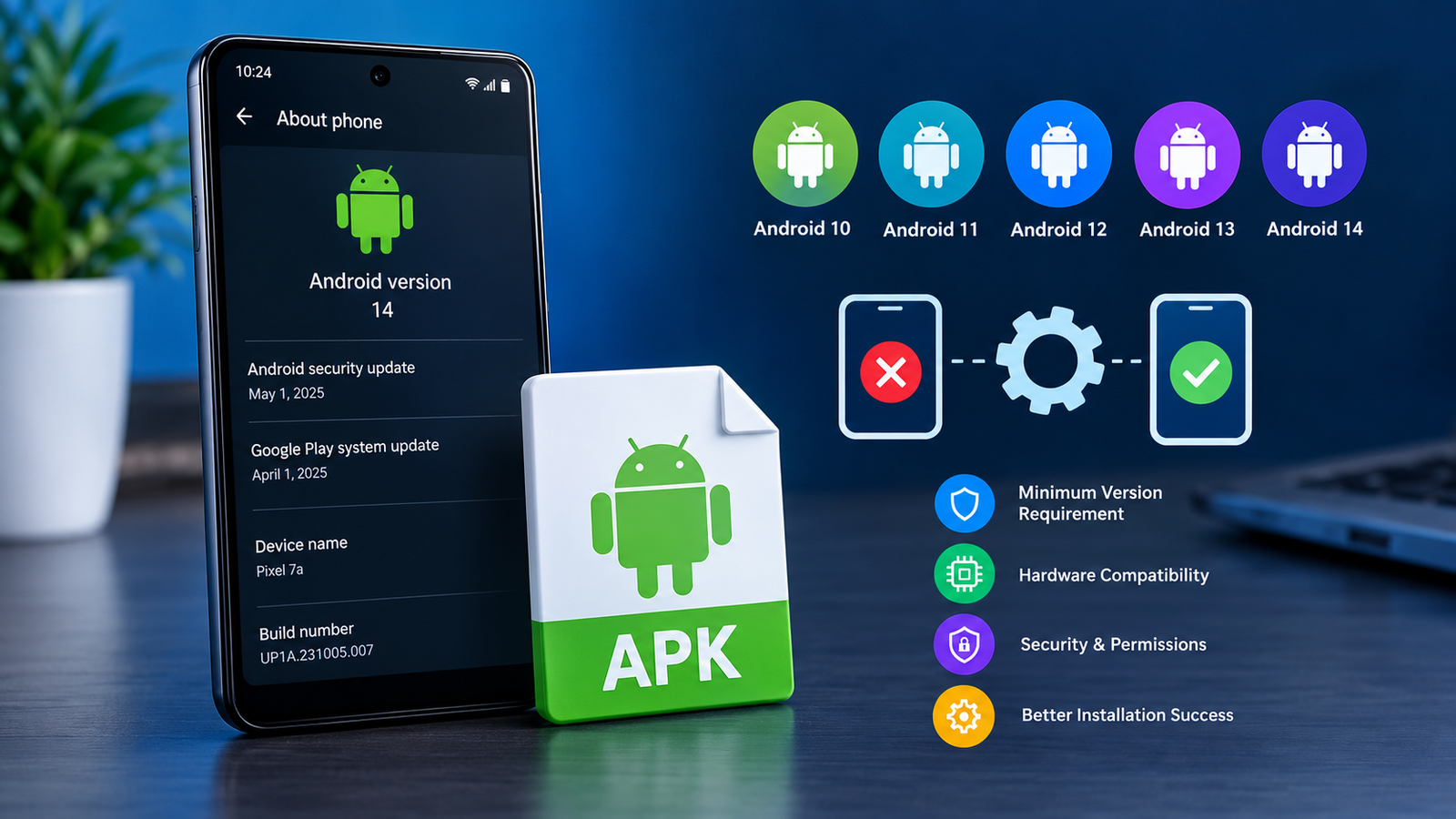
How Android Version Affects APK Installation: A Complete Guide
Installing an APK file on Android may seem simple, but compatibility issues can sometimes prevent an app from installing or working correctly. One of the most common reasons is the Android version running on your phone or tablet. If an app requires a newer operating system than your device supports, the installation may fail even when the APK file has downloaded successfully.
Understanding how Android version affects APK installation can help you choose compatible app versions, avoid common installation errors, and troubleshoot problems more effectively. Whether you use an older Android phone or a newer device, checking compatibility before installing an APK can save time and reduce unnecessary risks.
In this guide, you will learn how Android versions influence APK compatibility, how to check your device’s software version, what common errors mean, and what you can do when an APK does not install.
What Is an Android Version?
An Android version is the release of Google’s Android operating system installed on your device. Each release introduces changes to security, privacy, performance, system features, and app compatibility.
For example, Android 12, Android 13, Android 14, and Android 15 offer different platform capabilities. Apps are developed and tested against particular Android versions, so developers must decide which devices their apps will support.
An APK, short for Android Package Kit, is a package file used to distribute and install Android applications. However, having the correct APK file does not automatically mean that it will work on every Android device.
An app may require a minimum Android version, specific hardware capabilities, or additional system components. If your device does not meet those requirements, you may encounter installation or functionality problems.
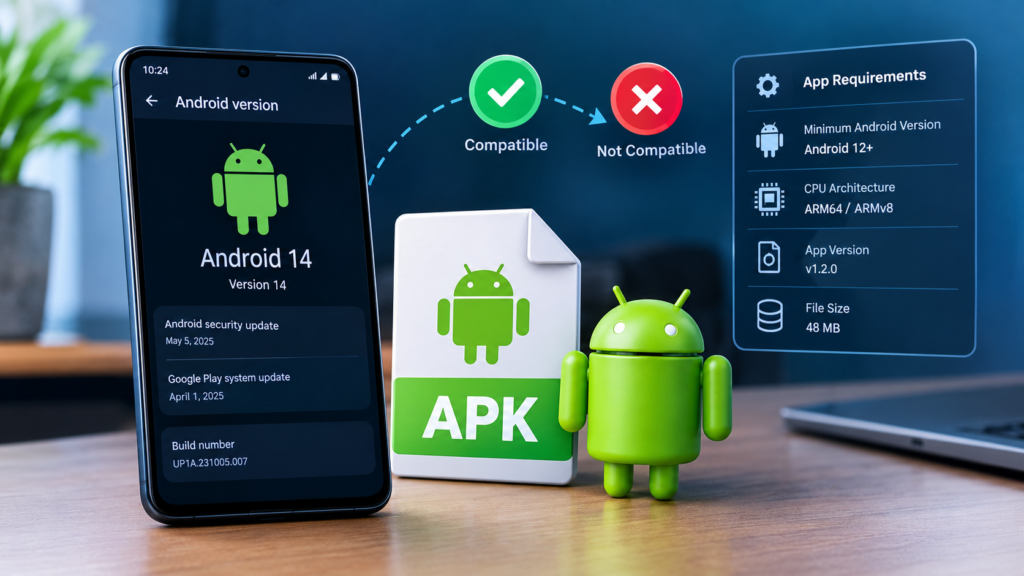
How Android Version Affects APK Installation
Android versions influence APK installation in several important ways. The most significant factor is the minimum operating system version required by the application.
1. Minimum Android Version Requirements
Every Android app declares a minimum supported Android API level through its manifest configuration. Developers use this requirement to establish the oldest Android version on which an app is intended to run.
If an APK requires Android 13 but your phone runs Android 11, the package installer may reject the installation.
For example:
- Your device runs Android 10.
- The APK requires Android 12 or later.
- Android detects that your device does not meet the minimum requirement.
- The installation may be blocked.
In this situation, downloading the APK again usually will not solve the problem. You need a compatible app release or a supported operating system upgrade.
2. Newer Apps May Not Support Older Devices
Developers sometimes stop supporting older Android versions to simplify development, improve security, or use newer system features.
As a result, an app that worked on an older phone a few years ago may no longer install after a major update to the app.
This is especially common with apps that depend on newer privacy controls, updated APIs, or modern system libraries.
However, a newer Android version does not guarantee compatibility with every APK. An app can also have hardware, architecture, package-signature, or other requirements that your device does not meet.
3. Older Apps May Have Problems on Newer Android Versions
Compatibility is not only an issue for older phones. An APK developed for an earlier Android release may behave differently on a newer device.
For instance, newer Android versions introduce changes to background activity, file access, permissions, and security restrictions. These changes can affect how older apps operate.
Possible problems include:
- The app closes immediately after opening.
- Certain permissions or features no longer work as expected.
- The app cannot access files in the same way it did previously.
- Some functions behave differently after installation.
An older APK might install successfully but still have functionality problems. Installation compatibility and runtime compatibility are two separate things.
Android Version Compatibility Table
The following table provides a general illustration of how Android version requirements can affect installation. These are hypothetical examples, not compatibility guarantees for specific applications.
| Device’s Android version | APK requirement | Likely result |
|---|---|---|
| Android 10 | Android 8.0 or later | May install if other requirements are met |
| Android 10 | Android 12 or later | Installation may be blocked |
| Android 12 | Android 10 or later | May install if other requirements are met |
| Android 13 | Android 14 or later | Installation may be blocked |
| Android 14 | Android 12 or later | May install if other requirements are met |
| Android 15 | Android 8.0 or later | May install, but older app behavior can vary |
The key point is that your Android version must satisfy the APK’s requirements, but other compatibility conditions still apply.
How to Check Your Android Version Before Installing an APK
Checking your Android version is one of the easiest ways to identify a potential compatibility problem.
Follow these steps:
- Open the Settings app on your phone.
- Scroll down and select About phone or About device.
- Look for Android version.
- Note the version number displayed on the screen.
- If available, check the Android security update and Google Play system update information as well.
The exact menu names may differ depending on your phone manufacturer. Samsung, Xiaomi, Redmi, Realme, Oppo, Vivo, and other brands may organize these settings differently.
Once you know your Android version, compare it with the minimum requirements provided by the app developer or a trustworthy download source.
Remember that a security patch level is not the same as the Android version. For example, receiving a recent security update does not necessarily mean that your device has upgraded to a newer major Android release.
How to Check an APK’s Android Requirements
Before installing an APK, try to find information about its supported Android versions.
A trustworthy source may list the minimum Android version, processor architecture, app version, file size, and other technical details.
Here are some useful checks:
- Minimum Android version: Confirm that your operating system meets the stated requirement.
- App version: Make sure you are downloading the release you actually need.
- CPU architecture: Check whether the package supports your device’s processor architecture, such as ARM64.
- Package format: Determine whether the download is a standard APK or part of a split-package format.
- Source reliability: Prefer the official developer website or a reputable app store whenever possible.
Some APK files do not display all compatibility information on their download pages. In such cases, you may need to inspect the package metadata using a reputable APK analysis tool.
Avoid assuming that a file is compatible just because its name includes your Android version or your phone model.
Common APK Installation Errors Related to Android Versions
Android version mismatches can cause several installation problems. However, not every installation error is related to the operating system.
App Not Installed
The message “App not installed” is a general error that can have several causes.
Your Android version may be too old, but the issue could also involve a conflicting app signature, insufficient storage, a corrupted download, or an incompatible package architecture.
Check the APK’s minimum requirements first, then investigate other possible causes if your device meets them.
Parse Error
A parse error may appear when Android cannot properly interpret an APK package.
Possible reasons include:
- The APK download is incomplete or corrupted.
- The package uses features or manifest information that the device cannot handle.
- The file is not a valid APK.
- The package has been modified or incorrectly packaged.
Downloading the file again from a trustworthy source may help if corruption is the cause. If the APK requires a newer Android release, however, another download of the same incompatible file will not resolve the underlying issue.
App Cannot Be Installed on Your Device
An explicit compatibility message may indicate that your device does not meet the app’s requirements.
Compare the minimum Android version with your device’s current version. If the app requires a newer release, check whether an official system update is available.
If no supported upgrade exists, look for an older version provided by the developer that remains compatible with your device.
App Installs but Keeps Crashing
An app may install successfully but crash because it relies on system features, libraries, or permissions that behave differently on your Android release.
Other possibilities include insufficient memory, a software bug, or an unsupported device configuration.
Try updating the app through an official source, restarting the device, and checking whether the developer documents a known compatibility issue.
How to Fix Android Version Compatibility Problems
If an APK does not install, use a systematic approach instead of repeatedly downloading random versions.
Step 1: Compare the Android Version and Minimum Requirement
Confirm the Android version installed on your device and the minimum version required by the APK.
If the APK needs a newer Android release, proceed to the next step.
Step 2: Check for an Official Android Update
Open Settings and look for Software update, System update, or a similarly named option.
If an official update is available for your device, follow the manufacturer’s instructions to install it. Back up important data first and ensure your device has sufficient battery power and storage.
Not every phone receives every Android release. If your device is no longer supported, you may not have an official upgrade option.
Step 3: Find a Compatible App Version
If you cannot upgrade Android, check whether the app developer offers an earlier release that supports your operating system.
An older version may be suitable, but make sure it comes from a trustworthy source and is still appropriate for your needs.
Avoid installing outdated versions of banking, payment, messaging, or other sensitive applications if they no longer receive security updates.
Step 4: Verify the APK File
If your Android version meets the stated requirements, investigate other causes.
Check that the file downloaded completely, that you selected the correct architecture, and that you have enough storage space. If the APK belongs to a split package, make sure you have the required components and a compatible installation method.
Step 5: Review Security Warnings Carefully
Android may block an installation because of security restrictions, harmful-file detection, or restrictions on installing apps from unknown sources.
Do not automatically disable security protections to force an installation. Verify the file’s origin and integrity first, and do not proceed if the source is suspicious or the package requests unnecessary permissions.
Can You Install an Older APK on a Newer Android Version?
Sometimes, yes. An older APK may work on a newer Android device if it meets the operating system’s installation requirements and remains compatible with the device.
However, there are important limitations.
Newer Android releases may restrict installation of apps targeting very old API levels. These restrictions can vary by Android release, target SDK level, device configuration, and installation method.
Other issues may include outdated security practices, unsupported online services, broken permissions, or application crashes.
An older APK should therefore not be considered automatically compatible simply because it once worked on an older phone.
Whenever possible, use the current version distributed by the developer. If you need an older release for compatibility reasons, verify its source and understand the security and functionality trade-offs.
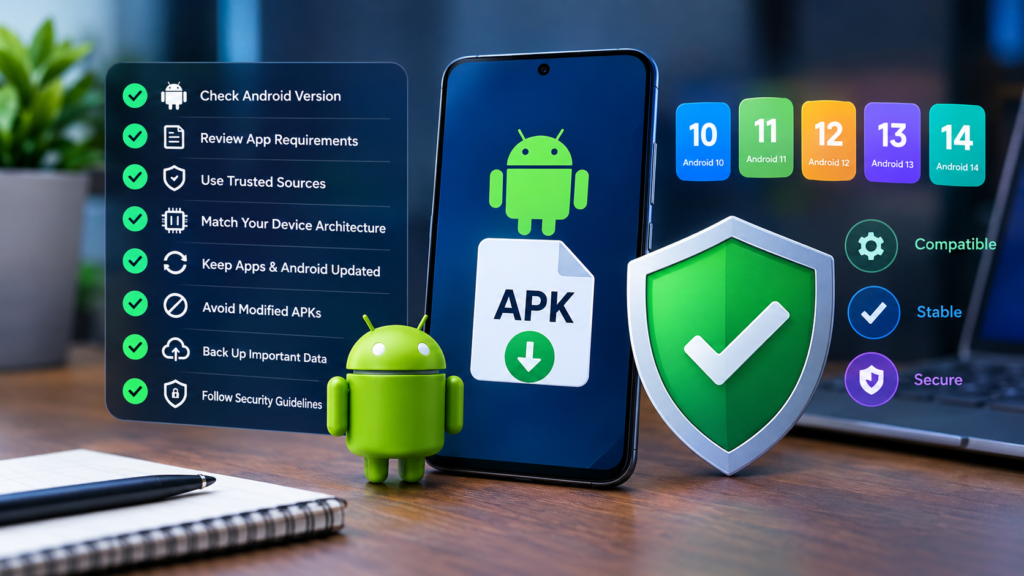
Best Practices for Avoiding APK Compatibility Issues
A few simple habits can reduce the likelihood of installation errors.
- Check your Android version before downloading an APK.
- Read the application’s minimum system requirements.
- Download apps from official or reputable sources.
- Confirm that the APK matches your device’s processor architecture.
- Keep Android and your installed apps updated when supported.
- Avoid modified packages from unknown sources.
- Do not assume that a successful installation means the app is safe.
- Back up important information before making significant software changes.
- Read the developer’s compatibility notes when an app fails to work properly.
These precautions help you distinguish between operating system incompatibility, package problems, and security-related installation restrictions.
Frequently Asked Questions
1. Does Android version affect APK installation?
Yes. Android checks whether an APK’s minimum operating system requirement is compatible with your device. If your Android version is too old, installation may be blocked. Other factors, including CPU architecture, package format, and security restrictions, can also affect installation.
2. Why does an APK say it is incompatible with my phone?
The APK may require a newer Android version, a different processor architecture, specific hardware features, or a supported package configuration. Check the app’s requirements and compare them with your device specifications before trying another version.
3. Can I install an APK that requires a newer Android version?
Usually, not through the standard installation process if your device does not meet the APK’s minimum Android requirement. The safest options are to install an official system update or find a compatible release from a trustworthy source. Forcing installation may not make the app function correctly.
4. Can an old APK work on Android 14 or Android 15?
It may work, but compatibility depends on the APK’s target SDK, required system features, security restrictions, and other technical details. Some older apps install normally, while others may be blocked or experience crashes and permission problems.
5. Will updating Android fix every APK installation error?
No. Updating Android can resolve some operating system compatibility issues, but it will not fix every problem. Corrupted downloads, conflicting signatures, insufficient storage, incorrect architecture, and incomplete split packages can cause similar errors.
6. How can I find the correct APK version for my Android phone?
Start by checking your Android version and device architecture. Then review the app’s minimum requirements and choose a release from the official developer or another trustworthy source. If the current release is incompatible, check whether the developer offers a supported older version.
Final Thoughts
Understanding how Android version affects APK installation makes it easier to identify compatibility problems before they become frustrating troubleshooting tasks. The Android version determines which operating system features are available and helps establish whether an app can run on your device.
Before installing an APK, check your Android version, review the app’s minimum requirements, and verify that the package comes from a reliable source. If an installation fails, investigate other possible causes rather than assuming that the operating system is always responsible.
Also Read: APK Compatibility Checker Guide: How to Check an APK Before Installing It














1 comment