APK Compatibility Checker Guide: How to Check an APK Before Installing It
Installing an APK can be a useful way to access Android apps that are unavailable through the Google Play Store or to test a particular app version. However, downloading an APK does not always mean it will work properly on your device. Differences in Android versions, CPU architecture, screen requirements, permissions, and app dependencies can all cause compatibility problems.
This APK compatibility checker guide explains how to determine whether an APK is suitable for your Android phone or tablet before installing it. A few simple checks can help you avoid common errors such as “App not installed,” parsing problems, crashes, or an app that installs but refuses to open.
Whether you regularly install APK files or are trying one for the first time, understanding compatibility can save time and reduce unnecessary troubleshooting.
What Is an APK Compatibility Checker?
An APK compatibility checker is a tool, method, or set of checks used to determine whether an APK file is likely to work on a specific Android device.
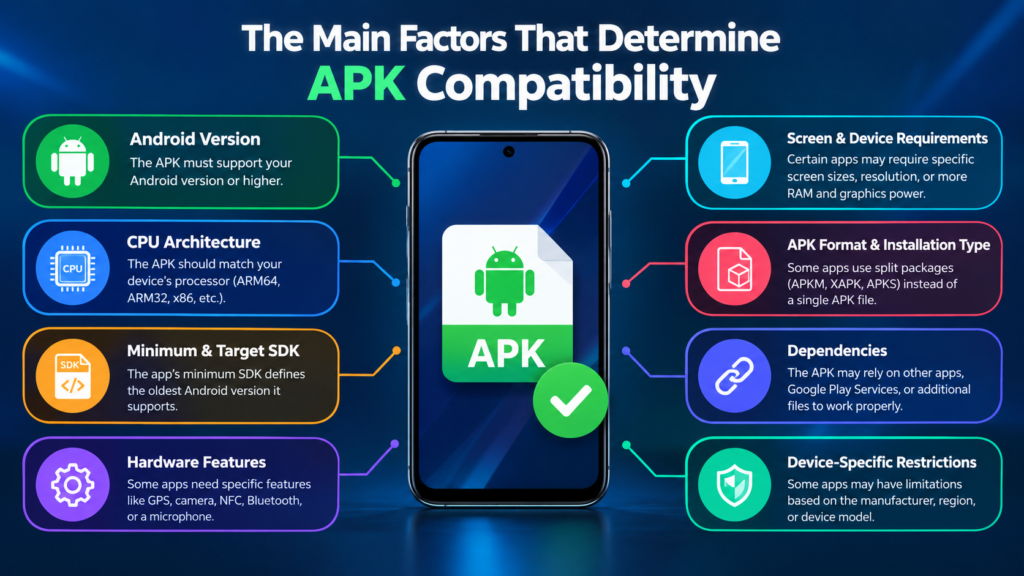
Compatibility is not based on just one requirement. An APK may need to match several aspects of your device, including:
- Android version
- Minimum and target SDK requirements
- CPU architecture
- Screen and hardware features
- Required permissions
- Google Play Services or other dependencies
- APK format and installation type
- Device-specific restrictions
Some websites and Android utilities describe themselves as compatibility checkers, while in other cases you can manually inspect the APK and compare its requirements with your device.
The important point is that APK compatibility checking should happen before installation, especially when the APK comes from a source outside the Play Store.
Why Should You Check APK Compatibility First?
An APK can look perfectly normal and still fail to work on a particular device.
For example, an application may require a newer Android version than the one installed on your phone. Another APK may be designed for an ARM64 processor while your device uses a different architecture.
Checking compatibility beforehand can help you avoid:
- Installation failures
- “App not installed” errors
- Parse errors
- Immediate app crashes
- Missing features
- Poor performance
- Repeated installation attempts
- Apps that open and then close
- Compatibility problems after an Android update
It is also useful when downloading older versions of apps. Older APKs may depend on Android features or libraries that are no longer supported properly on newer devices.
The Main Factors That Determine APK Compatibility
Before installing an APK, you should check several technical requirements rather than relying on the file name alone.
Android Version Requirement
The first thing to check is your Android version.
Every APK has a minimum Android version requirement. If your device runs an older version than the APK supports, Android may prevent the installation or the application may malfunction.
You can usually find your Android version under:
Settings → About phone → Android version
The exact menu can vary depending on the manufacturer.
For example, an APK requiring Android 11 may not work correctly on a phone running Android 9.
CPU Architecture
CPU architecture is another important compatibility factor.
Common Android architectures include:
| Architecture | Common Use |
|---|---|
| ARM64 (arm64-v8a) | Most modern Android smartphones |
| ARM32 (armeabi-v7a) | Older Android devices |
| x86 | Some older devices and specialized hardware |
| x86_64 | 64-bit x86 Android devices |
An APK built for the wrong architecture may fail to install or may crash when launched.
If a download provides multiple APK variants, choosing the correct architecture can make a significant difference.
Minimum SDK and Target SDK
Android applications contain SDK-related information that indicates which Android versions they support.
The minimum SDK is particularly important because it defines the oldest Android version that the app is designed to support.
The target SDK is different. It indicates the Android version the application is primarily designed to work with and can affect how Android applies modern security and behavior rules.
When checking an APK, pay particular attention to its minimum supported Android version.
Required Hardware Features
Some applications depend on specific hardware.
For example, an app may require:
- GPS
- Camera
- NFC
- Bluetooth
- Gyroscope
- Accelerometer
- Microphone
- Biometric hardware
If your device does not have a required feature, the app may not provide full functionality even if the APK installs successfully.
Screen and Device Requirements
Most modern Android apps support many screen sizes, but some applications are optimized for specific devices.
Games and specialized applications may have requirements related to:
- Screen resolution
- Display density
- Tablet support
- Foldable devices
- Graphics capabilities
- Available RAM
This is especially important for demanding games. An APK can technically install while still performing poorly because the device does not meet its recommended hardware specifications.
How to Use an APK Compatibility Checker
If you want to use an APK compatibility checker, the process generally involves comparing information from the APK with your device.
A basic workflow looks like this:
- Identify your Android version.
- Check your device’s processor architecture.
- Find the APK’s minimum Android requirement.
- Check whether the APK supports your CPU architecture.
- Review required hardware and software features.
- Check whether additional files or dependencies are required.
- Compare the requirements before installing.
Do not assume that an APK is compatible simply because the download page says it supports Android.
How to Check APK Compatibility Manually
You do not always need a dedicated checker. You can perform several compatibility checks yourself.
Step 1: Check Your Android Version
Open your phone’s settings and find the Android version.
Write it down before downloading an APK.
For example:
Your device: Android 12
APK requirement: Android 9+
In this example, the Android version requirement is satisfied.
But if the APK requires Android 14 and your phone runs Android 12, you should look for an older compatible version or upgrade your device if possible.
Step 2: Check Your Processor Architecture
Find out whether your phone uses ARM64, ARM32, x86, or another architecture.
Many newer Android smartphones use ARM64, but you should verify rather than assume.
If an APK download offers several variants, the architecture information can help you choose the correct package.
Step 3: Review APK Requirements
Before downloading, look for technical details on the source page.
Useful information may include:
- Android version
- Architecture
- APK size
- Version number
- Package type
- Required dependencies
- Update date
If these details are missing, it becomes harder to determine whether the file is suitable for your device.
Step 4: Check Whether It Is a Split APK
Not every Android application comes as one traditional APK file.
Some applications use split packages such as:
- APKM
- XAPK
- APKS
- Split APK packages
These formats can contain multiple components required by the application.
Trying to install only one part of a split package may result in an installation failure.
APK Compatibility vs APK Safety
Compatibility and safety are two different things.
An APK can be fully compatible with your device and still come from an untrustworthy source.
Likewise, an APK can come from a legitimate source but be incompatible with your phone.
You should therefore check both areas separately.
| Check | What It Tells You |
|---|---|
| Android version | Whether your OS is supported |
| CPU architecture | Whether the APK matches your processor |
| Minimum SDK | Oldest Android version supported |
| Hardware requirements | Whether required device features exist |
| APK format | Whether special installation is needed |
| Source reputation | Whether the download is trustworthy |
| File integrity | Whether the downloaded file may have been altered |
Avoid disabling Android’s security protections simply to force an APK to install. If a file repeatedly fails verification or behaves unexpectedly, it is better to investigate the source and compatibility rather than bypassing security warnings.
Common APK Compatibility Problems
Even after checking the basic requirements, you may encounter problems.
“App Not Installed”
This message can have several causes.
Possible reasons include:
- Incompatible architecture
- Existing conflicting app version
- Corrupted APK
- Insufficient storage
- Signature conflict
- Unsupported Android version
- Incorrect split package installation
Checking compatibility first can eliminate some of these possibilities.
APK Installs but Crashes
Installation does not guarantee compatibility.
An application may install successfully but crash because of:
- Missing libraries
- Unsupported processor features
- Outdated dependencies
- Incompatible Android behavior
- Missing hardware
- Insufficient system resources
This is why a good APK compatibility checker guide should consider more than installation alone.
APK Works on One Phone but Not Another
Two Android phones can run the same Android version but still have different hardware and software configurations.
For example, one phone may have ARM64 support, more RAM, different graphics hardware, or manufacturer-specific software.
Therefore, compatibility should always be evaluated for the specific device.
Tips for Choosing the Right APK Version
If the latest APK does not work, an older version may sometimes be more suitable.
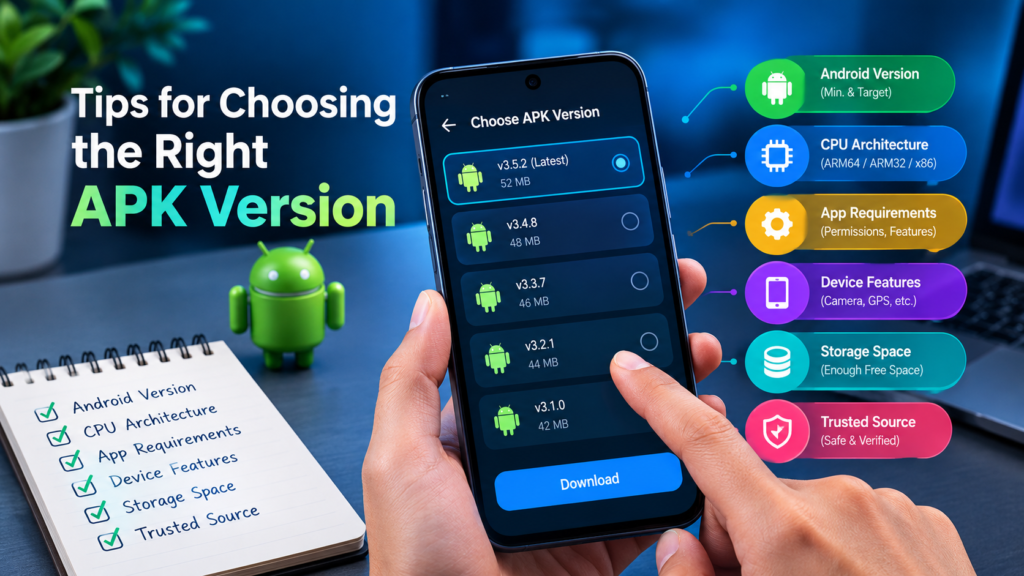
Before selecting a version, consider:
- Your Android version
- Your processor architecture
- The application’s minimum requirements
- Whether your device has enough storage
- Whether the APK is universal or architecture-specific
- Whether the package requires additional files
- Whether the version is appropriate for your device
However, avoid downloading random old APK versions from unknown sources just because they appear smaller or easier to install.
A Simple APK Compatibility Checklist
Use this checklist before installing an APK:
- Check your Android version
- Check CPU architecture
- Compare minimum Android requirements
- Check the APK version
- Look for required hardware
- Determine whether it is a standard APK or split package
- Check available storage
- Review permissions
- Verify the download source
- Scan or verify the file when appropriate
- Keep Android security protections enabled
This process only takes a few minutes but can prevent many common installation problems.
Frequently Asked Questions
What is the easiest way to check APK compatibility?
Start by checking your Android version and processor architecture, then compare them with the APK’s listed requirements. Also check whether the APK is a standard package or requires split installation.
Can an APK be compatible but still crash?
Yes. Compatibility is broader than simply installing the application. Missing dependencies, unsupported hardware, bugs, or insufficient resources can cause an otherwise installable APK to crash.
How do I know if an APK supports my Android version?
Look for the APK’s minimum Android version or minimum SDK requirement on the download page or within APK information tools. Compare that requirement with the Android version installed on your device.
Does CPU architecture matter for APK installation?
Yes. Some APKs are built for specific processor architectures. Installing the wrong variant can cause installation problems or application crashes.
Is every APK compatible with every Android phone?
No. Android devices differ in operating-system versions, processors, hardware features, RAM, graphics capabilities, and manufacturer software. An APK that works on one device may not work properly on another.
Should I install an older APK if the newest version is incompatible?
An older version may work if it supports your Android version and hardware, but you should obtain it from a trustworthy source and confirm its requirements before installation.
Final Thoughts
Checking compatibility before installing an APK is one of the easiest ways to avoid unnecessary Android problems. Instead of immediately installing a downloaded file, take a few minutes to compare your Android version, processor architecture, APK requirements, hardware features, and package type.
A reliable APK compatibility checker guide is not just about finding out whether an APK can be installed. The real goal is to determine whether the application is likely to install, open, and function properly on your particular device.
Also Read: How to Find a Compatible APK for Your Android Version: A Complete Guide














1 comment