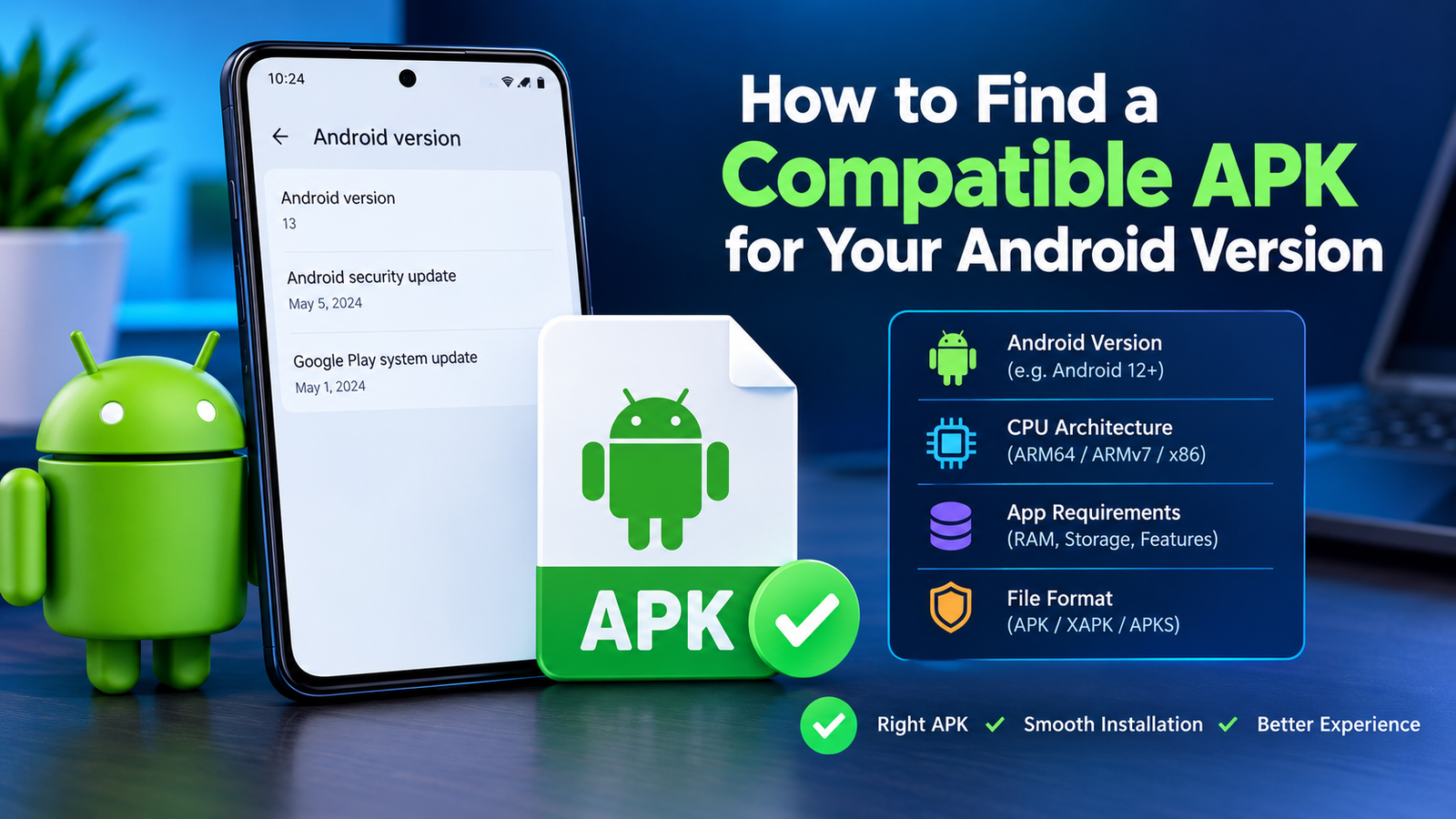
How to Find a Compatible APK for Your Android Version: A Complete Guide
Installing an APK can be useful when an app is unavailable through your usual app store or when you need a particular version of an application. However, downloading any APK file and trying to install it does not guarantee that the app will work correctly. Android versions, processor architectures, screen requirements, permissions, and other technical factors can affect compatibility.
If you have ever installed an APK only to see an “App not installed,” “Parse error,” or compatibility message, the problem may be that the APK was not designed for your device or Android version.
Knowing how to find compatible APK for Android version can help you avoid these problems before installation. Instead of repeatedly downloading different files, you can check your Android version, compare the APK requirements, identify the correct architecture, and choose a version that matches your device.
This guide explains the process in simple steps and highlights the most important compatibility checks to make before installing an APK.
Why APK Compatibility Matters on Android
An APK is the installation package used by Android applications. Although APK files may look similar, different versions can be built for different Android releases and hardware configurations.
For example, an app may require Android 10 or newer. If your phone is running Android 8, installing that particular APK may fail or the application may not function properly.
Compatibility can depend on several factors, including:
- Android operating system version
- CPU architecture
- Minimum Android API level
- Device hardware
- Available storage
- Required permissions
- App version
- Screen or hardware features
- Whether the APK is a split or bundled package
A compatible APK should meet the minimum requirements of your device rather than simply being the newest version available.
Check Your Android Version First
The first step is finding out exactly which Android version your device uses. This information gives you a starting point for comparing APK requirements.
On many Android phones, you can check it by opening:
Settings → About Phone → Android Version
The exact menu name may vary depending on the manufacturer. Samsung, Xiaomi, Google Pixel, OnePlus, Oppo, Vivo, and other brands can organize system information differently.
Write down your Android version before looking for an APK.
For example:
| Device Information | Example |
|---|---|
| Android Version | Android 12 |
| CPU Architecture | ARM64 |
| Available Storage | 8 GB |
| Device Manufacturer | Example Brand |
| Android Security Update | Recent |
| Available RAM | 6 GB |
You do not necessarily need every specification for every APK, but knowing the Android version and processor architecture is particularly useful.
Understand Minimum Android Requirements
One of the most important details when selecting an APK is the minimum Android version required by the application.
An APK may list a requirement such as:
- Android 7.0+
- Android 8.0+
- Android 10+
- Android 12+
- Android 14+
The “+” means that the application is intended to support that Android version and newer releases.
For example, if your phone runs Android 11 and an APK requires Android 12 or later, that APK is not a suitable choice.
On the other hand, if an APK requires Android 8.0 and your phone runs Android 12, the Android version requirement is generally satisfied. However, other factors can still affect whether the application works.
This is why checking only the app name or version number is not enough.
Check the APK’s Target and Minimum SDK Information
For more technical compatibility checking, Android applications contain SDK information that describes the Android versions they support.
The minSdkVersion indicates the oldest Android version an application is designed to support. If your Android version is below that requirement, the app may refuse to install.
The targetSdkVersion is different. It indicates the Android version the application is optimized or targeted toward and does not simply mean that older Android versions cannot run it.
When APK information is available, look specifically for the minimum Android requirement rather than assuming the target SDK is the minimum requirement.
Why API Level Matters
Android versions correspond to API levels. For example, different Android releases use different API levels, and an application can require a particular minimum level.
You do not always need to memorize these numbers. Most reputable APK information pages display the Android requirement in a simpler format such as “Android 9+.”
If the requirement is shown only as an API level, you can compare it with your device’s Android version before downloading.
Check Your Phone’s CPU Architecture
Android compatibility is not determined by the operating system alone. Processor architecture can also matter.
Common Android architectures include:
- arm64-v8a — widely used on modern 64-bit Android devices
- armeabi-v7a — associated with older 32-bit ARM devices
- x86 — used on some older Intel-based Android devices
- x86_64 — 64-bit Intel/AMD architecture
Many modern smartphones use ARM64, but you should not assume that every Android device has the same architecture.
An APK built for the wrong architecture may fail to install or may not run properly.
If an APK download page offers different architecture variants, check your device specifications first and select the appropriate version.
Compare Different APK Versions
Sometimes the newest APK is not the best option for an older Android phone.
Suppose an application has these versions:
| APK Version | Minimum Android | Architecture | Suitable for Android 9? |
|---|---|---|---|
| Version 10.5 | Android 12+ | ARM64 | No |
| Version 9.8 | Android 10+ | ARM64 | No |
| Version 8.7 | Android 8+ | ARM64 | Yes |
| Version 7.9 | Android 7+ | ARM64 | Yes |
If your device runs Android 9, choosing the latest version could result in an installation problem. An older version with a lower minimum Android requirement may be more appropriate.
This does not mean you should always install an old APK. Older versions can contain security vulnerabilities or stop working with modern online services. Use an older release only when it is necessary and comes from a trustworthy source.
Check Whether the APK Is a Split APK
Another common source of confusion is the difference between a standard APK and a split package.
Some applications are distributed using formats such as:
- APK
- APKS
- XAPK
- APKM
- Split APK packages
A standard APK may install directly, while a split package can contain multiple components needed by the application.
If you download a split package but try to open it like a normal APK, Android may not install it correctly.
Before downloading, check the file format and determine whether your installation method supports that package type.
Make Sure Your Android Version Is Not Too Old
Older Android devices often have fewer compatible applications because developers eventually stop supporting outdated releases.
If an APK requires Android 11 but your phone runs Android 7, downloading multiple newer versions is unlikely to solve the problem.
In that situation, you have a few options:
- Look for an older compatible version.
- Check whether your phone supports a legitimate Android update.
- Find an alternative application that supports your Android version.
- Consider upgrading the device if the software is no longer supported.
Avoid trying random APK files simply because they have similar names. Compatibility should be checked before installation.
Check Device Requirements Beyond Android Version
Android version is important, but it is not the only requirement.
Some applications depend on specific hardware or software features. A game, for example, may require a particular graphics capability, while another application may need Google Play services or a specific device feature.
Before installing, check for requirements related to:
- RAM
- Storage
- GPU
- Camera
- Bluetooth
- GPS
- NFC
- Google Play services
- Screen resolution
- Processor architecture
An APK can technically install and still fail to work because the device lacks a required feature.
Download From a Trustworthy Source
Compatibility is only one part of choosing an APK. Security matters just as much.
APK files obtained from unknown websites can be modified, repackaged, or bundled with unwanted software. A file that appears compatible can still create security or privacy problems.
Before downloading an APK, consider:
- Whether the source is reputable
- Whether the APK details are clearly listed
- Whether the version information is consistent
- Whether the file appears to have been modified
- Whether unnecessary permissions are requested
- Whether the application developer is clearly identified
Avoid installing a file simply because it claims to be a “compatible” version.
How to Find Compatible APK for Android Version Step by Step
If you want a simple process, use the following checklist.
Step 1: Find Your Android Version
Open your phone’s settings and check the Android version under the device information section.
Step 2: Check the APK Requirement
Look for the minimum Android requirement listed for the APK.
Step 3: Compare the Versions
Your Android version should meet or exceed the APK’s minimum requirement.
Step 4: Check Architecture
If multiple APK variants are available, identify whether your device uses ARM64, ARMv7, x86, or another architecture.
Step 5: Check the File Format
Determine whether you downloaded a standard APK or a package such as XAPK, APKM, or APKS.
Step 6: Review Hardware Requirements
For demanding apps and games, check processor, RAM, GPU, and other hardware requirements.
Step 7: Download Carefully
Use a reliable source and verify that the APK version and package information match what you intended to install.
Step 8: Install and Test
After installation, open the application and check whether its main features work normally.
Common Mistakes When Choosing an APK
Many APK installation problems happen because users skip basic compatibility checks.
Here are some mistakes worth avoiding:
- Downloading the newest APK without checking requirements
- Confusing target Android version with minimum Android version
- Selecting the wrong CPU architecture
- Installing a split package as a standard APK
- Ignoring available storage
- Using an APK intended for a different device architecture
- Downloading modified files from unknown sources
- Assuming an APK will work just because it installs
- Continuing to use outdated versions that no longer receive security updates
Taking a few minutes to check the requirements can save considerable time later.
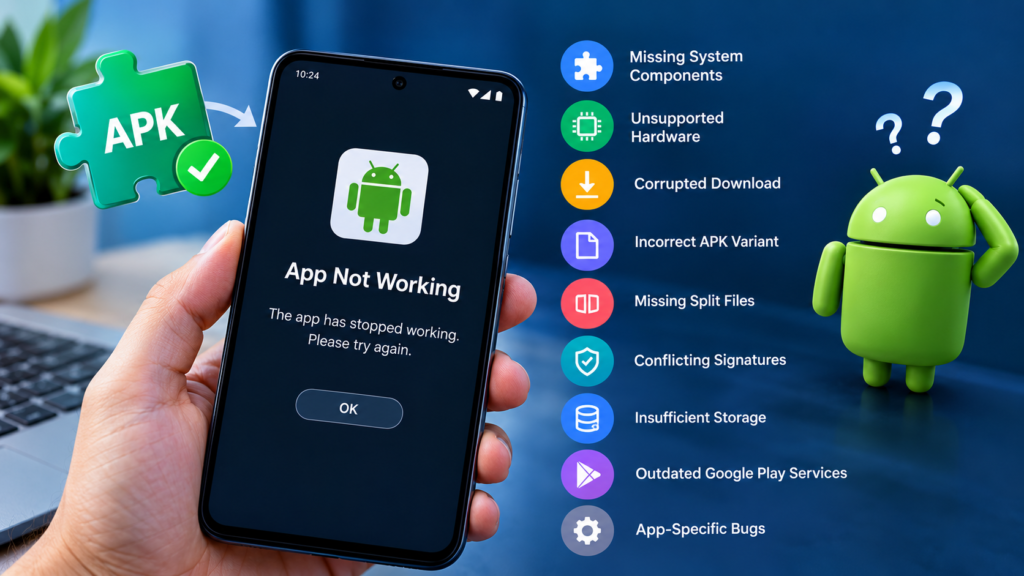
What If a Compatible APK Still Does Not Work?
Sometimes an APK meets the Android version requirement but still fails after installation.
Possible causes include:
- Missing system components
- Unsupported hardware
- Corrupted download
- Incorrect APK variant
- Missing split files
- Conflicting app signatures
- Insufficient storage
- Outdated Google Play services
- Application-specific bugs
If the application installs but immediately crashes, compatibility may involve more than the Android version.
Try downloading the file again from a reliable source, checking the architecture, reviewing the application’s requirements, and confirming that the package is complete.
APK Compatibility Checklist
Before installing any APK, use this quick checklist:
- Check your Android version
- Check the APK’s minimum Android requirement
- Compare the required API level
- Check CPU architecture
- Review RAM and storage requirements
- Confirm the APK package format
- Check whether Google Play services are required
- Download from a trustworthy source
- Scan the file when appropriate
- Keep a backup of important app data
- Avoid unnecessary outdated versions
This simple routine can prevent many common installation and compatibility problems.
Frequently Asked Questions
How do I know if an APK is compatible with my Android version?
Check your Android version in Settings and compare it with the APK’s minimum Android requirement. Your Android version should meet or exceed the minimum requirement listed for the application.
Can an older Android phone install a newer APK?
It depends on the APK’s minimum Android requirement. If the newer APK requires an Android version higher than the one installed on your phone, it may not install. An older compatible version may be available, but it should come from a trustworthy source.
What does Android 10+ mean in APK requirements?
Android 10+ means the application is intended to support Android 10 and newer versions. A device running Android 9 would generally not meet that minimum requirement.
Does CPU architecture affect APK compatibility?
Yes. Some APKs are built for specific processor architectures such as ARM64, ARMv7, x86, or x86_64. Installing an incompatible architecture variant can cause installation or performance problems.
Why does an APK install but not work?
Installation does not guarantee complete compatibility. The application may require hardware features, system components, Google Play services, a specific architecture, or other dependencies that your device does not provide.
Should I always install the latest APK version?
Not necessarily. The newest release may require a newer Android version or newer hardware. However, older APK versions can have security or compatibility limitations, so you should prefer a supported version whenever possible.
Final Thoughts
Finding the right APK is more than simply searching for the latest version. Your Android version, CPU architecture, device hardware, package format, and application requirements all play a role in determining compatibility.
The easiest way to find a compatible APK for your Android version is to start with your device information and then compare it carefully with the APK’s requirements. If the latest version is not compatible, look for a supported alternative rather than repeatedly trying random files.
Also Raed: How to Choose the Correct APK Version: A Complete Android Guide














1 comment