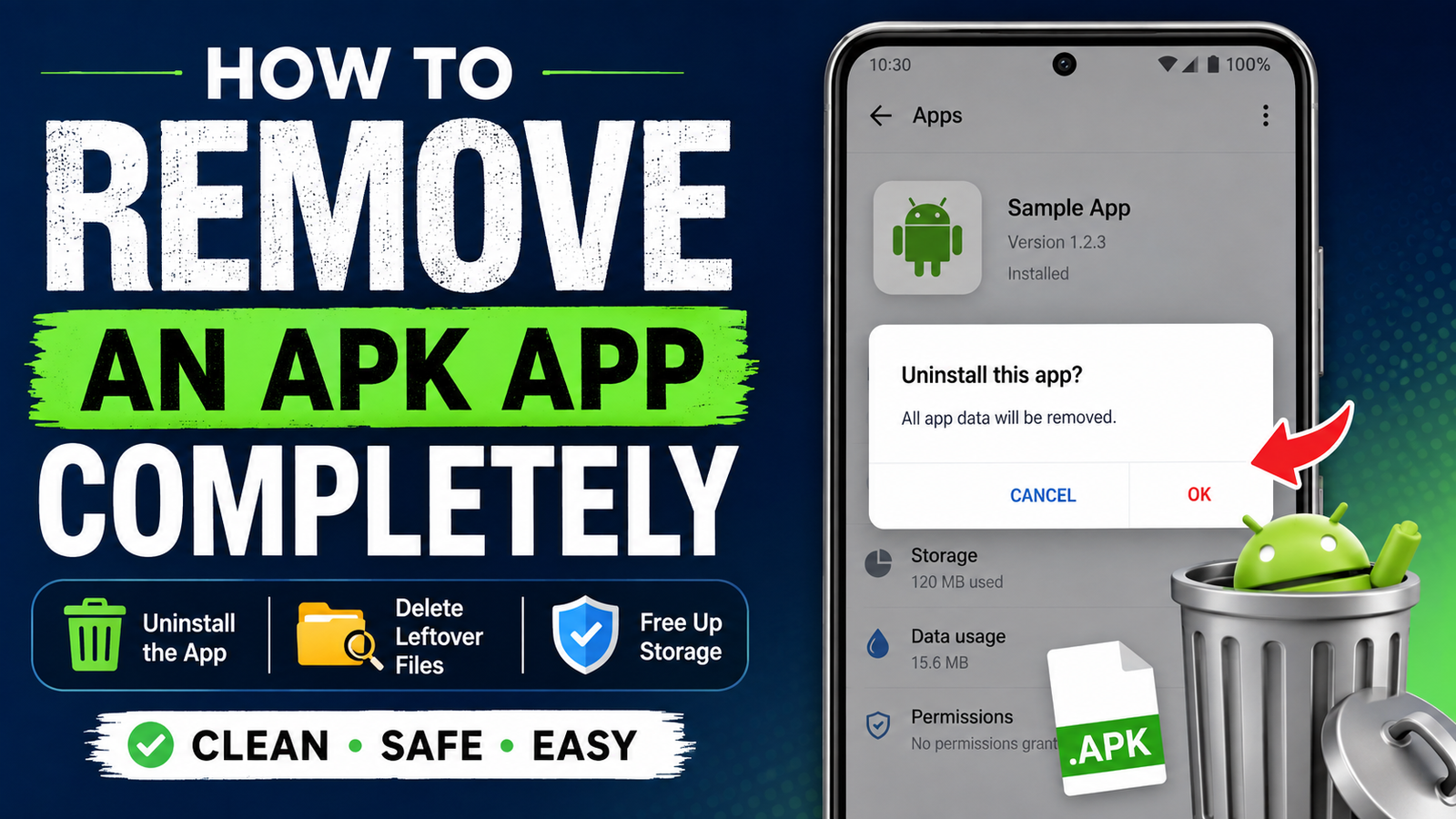
How to Remove an APK App Completely: A Complete Android Guide
Installing an Android app from an APK file is convenient, especially when the app is unavailable on Google Play or you want to install a specific version. However, uninstalling an APK app can sometimes leave behind downloaded files, folders, cached data, or other remnants that take up storage.
If you are wondering how to remove an APK app completely, the good news is that the process is usually straightforward. Android provides built-in options for uninstalling apps, while a few additional steps can help clean up leftover APK files and unnecessary data.
In this guide, we will explain the safest ways to completely remove an APK-installed app, what happens to its data after uninstalling, where APK files are stored, and how to check your phone for leftovers.
What Is an APK App?
APK stands for Android Package Kit. It is the file format Android uses to distribute and install applications.
When you download an APK from a website and install it manually, Android treats the installed application much like an app downloaded through Google Play. The important difference is that the original APK file may remain on your device after installation.
For example, you might download:
example-app.apk- Install the application
- Use the app normally
- Later uninstall the application
- Still have
example-app.apksitting in your Downloads folder
Removing the installed app does not necessarily delete the original APK file.
Does Uninstalling an APK App Remove Everything?
Usually, uninstalling an Android app removes its installed application package and most of its private app data. However, it does not guarantee that every related file has disappeared.
There are several types of files to consider:
| File or Data Type | Usually Removed After Uninstall? | What You Should Do |
|---|---|---|
| Installed app | Yes | Nothing else required |
| App cache | Usually | Check storage if necessary |
| App settings/data | Usually | Back up first if needed |
| Downloaded APK file | No | Delete manually |
| Files in Downloads | No | Review and remove unwanted files |
| App-created folders | Depends | Check them manually |
| Photos/videos/documents | Usually not | Keep or delete based on your needs |
The most important distinction is between the installed app and the APK installer file. Deleting the app does not automatically mean the APK file used to install it is gone.
How to Remove an APK App Completely
The easiest approach is to uninstall the application normally and then check for leftover files.
Step 1: Uninstall the App
Open your Android phone’s Settings app.
Depending on your Android version or phone manufacturer, look for an option such as:
Settings → Apps → See all apps
Find the APK-installed application in the list.
Tap the app and select Uninstall. Confirm when Android asks whether you want to remove it.
After the process finishes, the application should no longer appear in your app drawer.
Step 2: Check Your Downloads Folder
Now open your phone’s file manager.
The application installer may still be stored in:
Internal Storage → Download
Look for the APK file you originally downloaded.
For example:
example-app.apk
If you no longer need it, select the file and tap Delete.
This is one of the most commonly overlooked steps when removing an APK app completely.
Step 3: Check Other Download Locations
Not every APK is downloaded directly into the standard Downloads folder.
Depending on the browser or file manager you used, the file could be located elsewhere.
Check folders such as:
- Download
- Documents
- APK
- Bluetooth
- Browser download folders
- File-sharing folders
- Messaging app media folders
If you downloaded the APK from a website, searching your phone’s storage for files ending in .apk can make the process much easier.
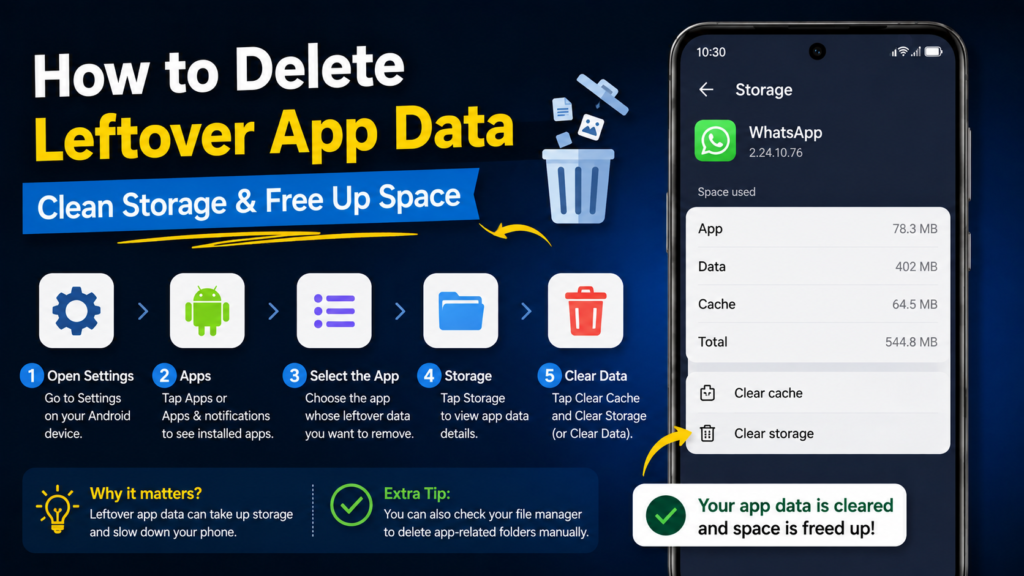
How to Delete Leftover App Data
Sometimes an application creates files outside its normal private storage area.
These could include:
- Downloaded media
- Offline content
- Documents
- Exported files
- Images
- Videos
- Custom folders
- Backup files
Open your file manager and search for the application’s name.
Be careful, however. A folder with the app’s name is not automatically safe to delete. It could contain personal files you want to keep.
Before deleting anything, open the folder and inspect its contents.
If you find photos, videos, documents, or other files that you created using the application, copy them somewhere safe before removing the folder.
How to Clear App Data Before Uninstalling
If the app is still installed, Android may give you an option to clear its data before uninstalling it.
Go to:
Settings → Apps → [App Name] → Storage
You may see options such as:
- Clear cache
- Clear storage
- Manage storage
The exact wording depends on your Android version and phone manufacturer.
Clear Cache vs. Clear Storage
These options are not identical.
Clear cache removes temporary files created by the app.
Clear storage removes the app’s locally stored data and resets it to a fresh state.
If you are planning to uninstall the app anyway, clearing storage first is generally unnecessary because uninstalling normally removes the app’s private data. Still, it can be useful when troubleshooting an app before removal.
How to Remove APK Files From Your Android Phone
If your main goal is to delete the APK installer rather than the installed application, you don’t need to uninstall the app.
Open your file manager and locate the APK file.
It may look something like:
game-v2.5.apk
Tap and hold the file, select Delete, and confirm.
Deleting the APK file will not normally uninstall the application that was already installed from it.
Think of the APK as an installer package. Once the application has been installed, the original installer can generally be removed if you do not need it again.
What About OBB and Additional Game Files?
Some Android games and applications may use additional files alongside the APK.
Older Android games, for example, sometimes use OBB files for large assets such as graphics, audio, and other game resources.
These files may be stored in locations such as:
Android/obb/
However, Android storage access has become more restricted on newer versions, so accessing certain directories may not be possible through every file manager.
If you uninstall a game and discover that large files remain, check the game’s storage information and accessible folders before deleting anything manually.
Do not delete Android system folders simply because their names look unfamiliar.
How to Check Whether the App Is Really Gone
After uninstalling the application, perform a quick check.
Check the App List
Return to:
Settings → Apps
Search for the application’s name.
If it no longer appears, the installed package has likely been removed.
Search Your Storage
Open your file manager and search for:
- The app name
- The developer name
.apk.xapk.apks.apkm
This can help you find installer packages or downloaded files associated with the application.
Keep in mind that not every matching file belongs to the app you removed. Always verify before deleting.
Check Available Storage
If the app was particularly large, check your phone’s available storage before and after uninstalling.
You should normally see some storage become available after removing the application and its associated private data.
Should You Use a Cleaner App?
You generally don’t need a third-party cleaner application just to remove an APK app.
Modern Android versions already provide tools for managing applications and storage.
A cleaner app may advertise features such as:
- Junk file removal
- Cache cleaning
- Duplicate file detection
- Large-file scanning
These features can sometimes be useful, but installing another application simply to uninstall one APK is usually unnecessary.
If you do use a cleaning tool, review exactly what it wants to delete. Automatically removing files can occasionally result in important downloads or personal files being deleted.
What If the APK App Cannot Be Uninstalled?
Sometimes an app may refuse to uninstall normally.
There are several possible reasons.
Device Administrator Access
Some applications can have device administrator privileges. If an app has this type of access, Android may prevent a normal uninstall until the privilege is removed.
Check your phone’s security settings for device administrator or special access options.
Only remove permissions you recognize and understand.
Accessibility or Special Permissions
Some applications request special permissions that affect how they interact with the device.
Review the app’s permissions and special access settings if Android refuses to remove it.
The App Is a System App
If an application came preinstalled with the phone, it may not be possible to completely uninstall it through normal settings.
You may instead see options such as Disable or Uninstall updates.
This is different from a typical APK that you manually installed.
APK App Removal: What You Should and Shouldn’t Delete
When cleaning up your phone, it is important to distinguish between application files and personal data.
Safe Things to Consider Removing
If you no longer need them, you can usually consider deleting:
- The original APK installer
- Duplicate APK downloads
- Temporary downloads
- Old installation packages
- Unwanted app-specific media
Be Careful With
Avoid deleting folders simply because they contain the app’s name.
Pay particular attention to:
- Photos
- Videos
- Documents
- Saved projects
- Game saves
- Backups
- Exported files
Some applications store user-created content outside their private app directory. Removing the wrong folder could permanently delete that information.
How to Prevent APK Files From Filling Up Your Storage
If you frequently install applications using APK files, old installers can accumulate quickly.
A simple cleanup routine can prevent this.
After installing an APK, ask yourself whether you need the installer again.
If you do not, delete it from your Downloads folder.
You can also periodically search for old APK packages and remove outdated versions that you no longer need.
This is especially useful if you download large games or multiple versions of the same application.
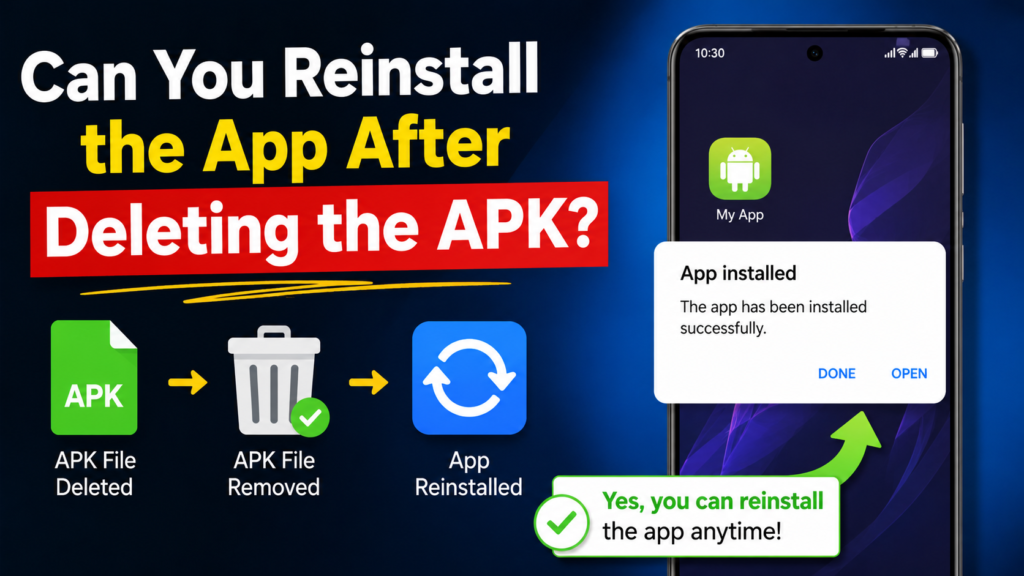
Can You Reinstall the App After Deleting the APK?
Yes.
Deleting the APK file does not normally remove the already-installed application.
The APK is simply the installation package. Once Android has installed the application, the original file is not required for the app to continue working.
However, if you later want to reinstall the same version and no longer have the APK, you will need to download another copy or obtain the installer from another legitimate source.
Frequently Asked Questions
Does uninstalling an APK delete the APK file?
No. Uninstalling an application normally removes the installed app, but the original .apk file you downloaded may remain in your Downloads folder. You can delete that file manually if you no longer need it.
How do I completely remove an APK from Android?
First uninstall the installed application through Settings → Apps. Then open your file manager and remove the original APK file and any unwanted app-related files you no longer need.
Can I delete an APK after installing the app?
Yes. If the application is already installed, deleting the original APK installer normally does not affect the installed application.
Will uninstalling an app delete its photos and videos?
Not necessarily. Personal files created or downloaded by an app may be stored separately from its private application data. Check the relevant folders before deleting anything.
Why is an APK file still on my phone after uninstalling the app?
The APK is an installer file, not necessarily part of the installed application. Android does not have to remove the original download when you uninstall the app, so it may remain in your Downloads folder.
Do I need a cleaner app to remove APK leftovers?
Usually, no. Android’s built-in app and storage management features are sufficient for most APK cleanup tasks. A file manager can also help you locate old installation packages and personal files.
Final Thoughts
Learning how to remove an APK app completely is mostly about understanding the difference between the installed application and the files used to install or support it.
Also Read: How to Fix “App Not Installed” APK Error: 12 Easy Solutions That Work














1 comment