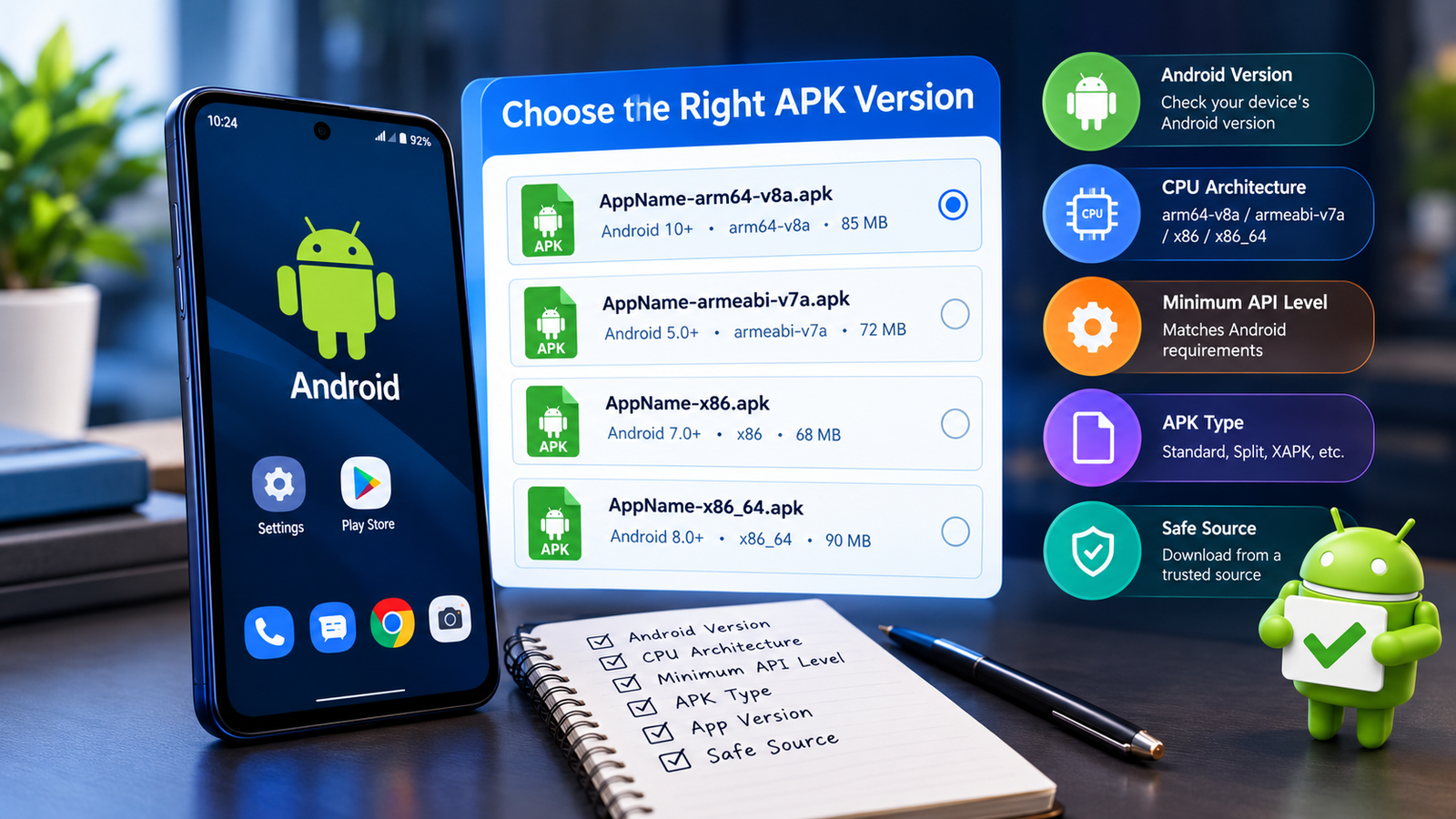
How to Choose the Correct APK Version: A Complete Android Guide
Choosing the right APK version can make the difference between a smooth installation and frustrating errors such as “App not installed,” “Parse error,” crashes, or an app that opens but does not work correctly. With many APK files available for different Android versions, processors, screen configurations, and device types, downloading the first file you find is not always the best approach.
If you are wondering how to choose the correct APK version, the key is to check your device specifications before downloading. Android version, CPU architecture, minimum API level, APK type, and sometimes screen or hardware requirements can all affect compatibility.
This guide explains what to check, how to compare APK versions, and what to do when you are unsure which file is suitable for your phone or tablet.
Why Choosing the Correct APK Version Matters
An APK, or Android Package Kit, is the installation file used to distribute Android applications. Developers may provide several versions of the same app because Android devices have different hardware and software configurations.
Installing an incompatible version can cause several problems, including:
- APK installation failure
- Parse errors
- App crashes immediately after opening
- Missing features
- Poor performance
- Compatibility warnings
- Apps that install but refuse to run
- Excessive battery or memory usage
For this reason, APK compatibility should be checked before installation rather than after something goes wrong.
The safest approach is to identify your Android version and processor architecture first, then compare those details with the APK’s requirements.
What Does an APK Version Actually Mean?
The term “APK version” can refer to several different things. It does not always mean simply the newest or oldest release of an application.
An APK listing may contain information such as:
| APK Information | What It Tells You |
|---|---|
| App version | Which release of the application you are downloading |
| Android requirement | The minimum Android version needed |
| CPU architecture | Which processor architecture the APK supports |
| Version code | Internal identifier used by Android |
| APK type | Whether it is a standard APK, split APK, or another package format |
| File size | Approximate amount of storage required |
| Update date | How recently the package was released |
| DPI support | Display-density compatibility in some releases |
Understanding these details makes it much easier to select the appropriate file.
Check Your Android Version First
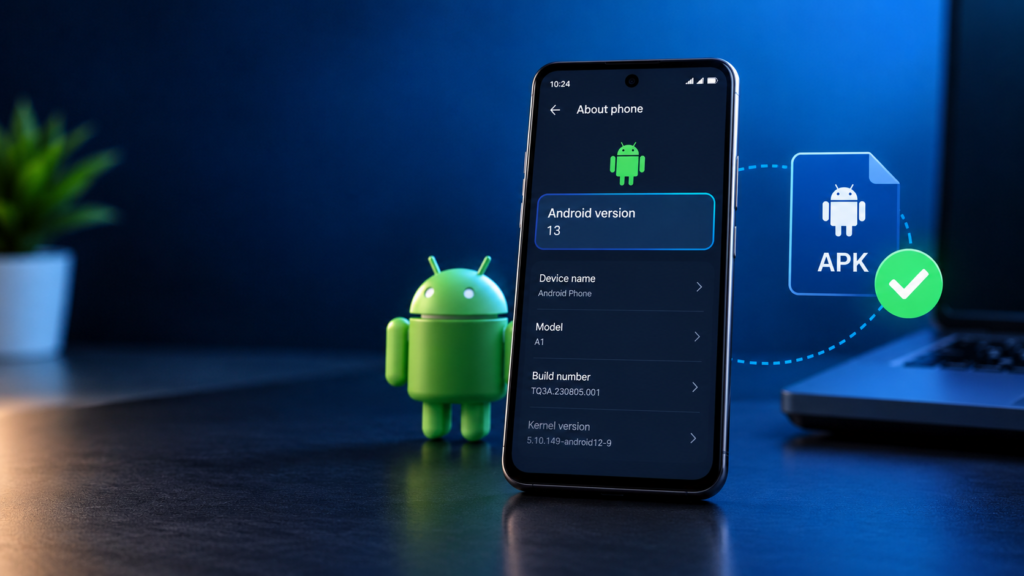
The first thing to check when choosing an APK is your phone’s Android version.
An application may require Android 9, Android 10, Android 12, or a newer version. If your device is running an older version than the APK requires, installation may fail or the application may not function properly.
To check your Android version:
- Open Settings.
- Look for About phone or About device.
- Find Android version.
- Note the version number.
- Compare it with the APK’s minimum Android requirement.
For example, if an APK requires Android 10 or newer and your phone runs Android 9, that particular release may not be compatible.
Why the Minimum Android Version Matters
Developers sometimes use features that are unavailable on older Android releases. An APK built for a newer Android environment may therefore require a specific minimum version.
If your Android version is too old, look for an earlier release of the application that supports your device.
Check Your Phone’s CPU Architecture
Processor architecture is another important factor when selecting an APK.
Common Android architectures include:
- arm64-v8a
- armeabi-v7a
- x86
- x86_64
Most modern Android smartphones use ARM-based processors, with arm64-v8a being particularly common on newer devices.
If an APK is specifically built for an architecture that your device does not support, you may encounter installation or compatibility problems.
arm64-v8a
This architecture is commonly associated with modern 64-bit Android devices. If your phone supports 64-bit ARM applications, an arm64-v8a build may be appropriate.
armeabi-v7a
This is an older 32-bit ARM architecture. Some older smartphones still rely on it.
x86 and x86_64
These architectures have historically been used on certain Android devices and emulators. They are much less common among modern Android smartphones.
When multiple architecture versions are available, do not automatically choose the largest or newest file. Match the architecture with your device.
Find Out Which Architecture Your Device Uses
Android settings do not always clearly display CPU architecture, so you may need to use a trusted device-information utility to identify it.
You can also check your device’s processor specifications from the manufacturer’s official documentation.
Once you know whether your device uses arm64-v8a, armeabi-v7a, x86, or another architecture, compare it with the APK’s listed architecture.
This simple check can prevent many compatibility problems.
Check the Minimum API Level
The Android API level is closely related to Android version compatibility.
Every Android release corresponds to a particular API level. APK developers use the application’s manifest to specify requirements such as the minimum SDK version and target SDK version.
The minimum API level tells you the oldest Android environment that can run the application.
For example, if an APK requires a minimum API level corresponding to Android 11, devices running an older Android release may not be able to install it.
You do not necessarily need to memorize API numbers. In most cases, the APK listing will provide an Android version requirement that is easier to understand.
Choose Between Different APK Builds Carefully
Sometimes you will find several files for the same application version. They might look similar but have different architectures or configurations.
For example:
- AppName-arm64-v8a.apk
- AppName-armeabi-v7a.apk
- AppName-x86.apk
- AppName-x86_64.apk
These are not interchangeable in every situation.
Select the package that matches your device architecture rather than choosing based only on the file name or file size.
If you cannot determine your device architecture, research your exact phone model and processor specifications before installing anything.
Standard APK vs Split APK
Another important consideration is the APK format.
A standard APK is generally a single installation package. However, some applications are distributed as multiple packages, such as:
- Split APKs
- APKS packages
- XAPK packages
- APKM packages
These formats can contain multiple components required by the application.
Trying to install one component separately may result in an incomplete installation.
If the download is a split package, use an installation method that supports that package format. Do not rename files randomly or assume that one APK contains everything required.
Check the App Version and Android Compatibility Together
A common mistake is to focus only on the application version.
A newer APK release is not necessarily the best choice for every device. Developers may gradually stop supporting older Android versions as applications become more advanced.
For example, an older application release might work perfectly on an Android 9 device while a newer release requires Android 11.
In this situation, choosing the latest APK simply because it is newer could create compatibility problems.
The better strategy is:
Device requirements → APK requirements → compatibility check → download
rather than:
Newest version → install immediately
How to Choose the Correct APK Version Step by Step
If you are unsure which APK to download, use this simple process.
Step 1: Identify Your Android Version
Check the Android version installed on your device.
Write it down before searching for an APK.
Step 2: Identify Your Processor Architecture
Find out whether your device uses arm64-v8a, armeabi-v7a, x86, or another architecture.
Step 3: Check the APK Requirements
Look for:
- Minimum Android version
- Supported architecture
- APK type
- Version number
- Required hardware or features
Step 4: Compare the Information
Your device should meet or exceed the APK’s minimum requirements.
For example:
| Your Device | APK Requirement | Result |
|---|---|---|
| Android 13 | Android 10+ | Compatible in principle |
| Android 9 | Android 12+ | Not compatible |
| arm64-v8a | arm64-v8a | Architecture match |
| armeabi-v7a | arm64-v8a only | Potentially incompatible |
| Standard APK | Standard APK | Straightforward format |
| Standard APK | Split package | Different installation method may be required |
Step 5: Check the APK Source
Compatibility is not the only consideration.
The APK should come from a reputable and trustworthy source. An APK can technically match your phone’s specifications and still be unsafe if the file has been modified or compromised.
Before installation, consider checking:
- Publisher or developer information
- File integrity
- App permissions
- User reports
- Release information
- Digital signature information when available
What If Two APK Versions Both Look Compatible?
Sometimes you may find two or more APK releases that appear to work with your device.
In that case, consider the purpose of each version.
Choose the newer compatible version if you want:
- New features
- Bug fixes
- Improved compatibility
- Security improvements
An older compatible version may make more sense if:
- The newest release removed a feature you need
- Your device performs poorly with newer releases
- The newer release has a known compatibility problem
- You specifically need an older version for compatibility reasons
Compatibility should come before novelty.
Common Mistakes When Selecting APK Versions
Many APK installation problems are caused by simple selection mistakes.
Downloading the Newest Version Automatically
The latest release may require a newer Android version or processor architecture.
Always check the requirements first.
Ignoring CPU Architecture
Downloading an APK for the wrong architecture can cause installation problems or unstable behavior.
Confusing Version Number With Compatibility
A higher version number does not automatically mean it is suitable for your phone.
Compatibility depends on the requirements of that specific release.
Installing Only One Part of a Split Package
Some apps require several package components. Installing only one APK may not provide everything the application needs.
Ignoring Device Storage
Even a compatible APK can fail if your phone does not have enough available storage for installation and app data.
Downloading From Unknown Sources
An APK can be compatible with your device but still pose security risks if its source is unreliable.
How to Avoid APK Compatibility Problems
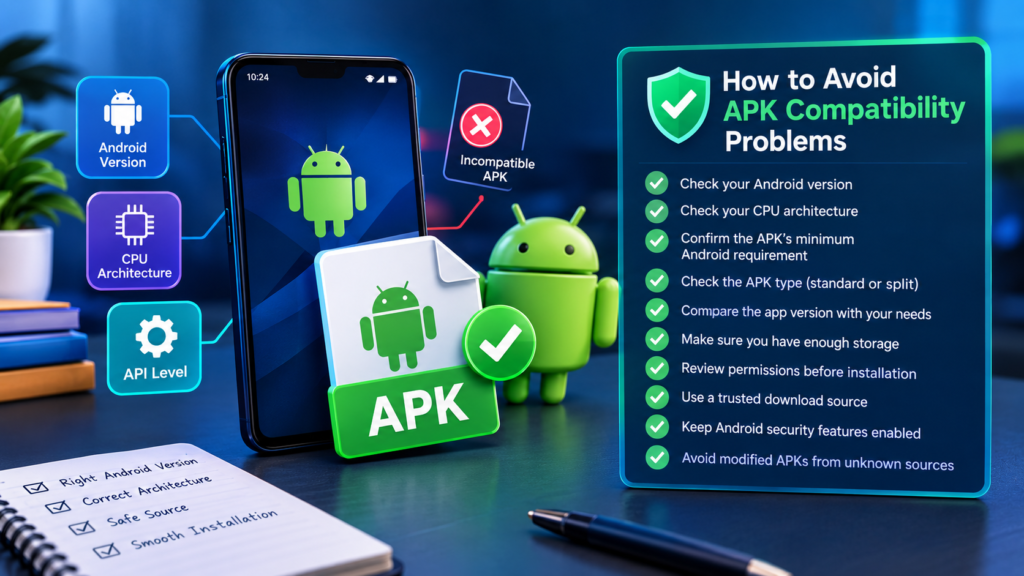
Before installing any APK, use this quick checklist:
- Check your Android version.
- Check your CPU architecture.
- Confirm the APK’s minimum Android requirement.
- Check whether the package is standard or split.
- Compare the application version with your needs.
- Make sure enough storage is available.
- Review permissions before installation.
- Use a trustworthy download source.
- Keep Android security features enabled where possible.
- Avoid modified APKs from unknown sources.
This process takes only a few minutes but can prevent unnecessary installation problems.
Frequently Asked Questions
What is the easiest way to choose the correct APK version?
Start by checking your Android version and CPU architecture. Then compare those details with the APK’s minimum Android requirement and supported architecture. Also check whether the download is a standard APK or a split package.
Can I install an older APK version on a newer Android phone?
Often, yes. However, compatibility is not guaranteed. An older application may have outdated dependencies, security limitations, or restrictions that prevent it from working correctly on newer Android versions.
What happens if I choose the wrong APK architecture?
The APK may refuse to install, display an installation error, or fail to work properly. Choosing a package that matches your device’s processor architecture is therefore important.
Is the newest APK always the best version?
No. The newest version is only a good choice if your device meets its requirements and the release suits your needs. An older compatible release may sometimes work better on an older phone.
How do I know whether an APK requires a newer Android version?
Check the APK’s listed Android requirement or minimum SDK information. Compare that requirement with the Android version installed on your device.
Why does an APK install but crash immediately?
Installation does not always mean complete compatibility. The app may require a different architecture, specific hardware, additional package components, or Android features that your device does not support.
Final Thoughts
Knowing how to choose the correct APK version can save you from many common Android installation and performance problems. The most important factors are your Android version, processor architecture, minimum API requirements, APK format, and the specific application’s compatibility needs.
Do not choose an APK simply because it has the newest version number or the largest list of features. Instead, compare the requirements with your device first.
Also Read: ARM64 vs ARMv7 APK: What’s the Difference and Which One Should You Install














1 comment