Why Does Android Block APK Installation: Common Reasons and Easy Fixes
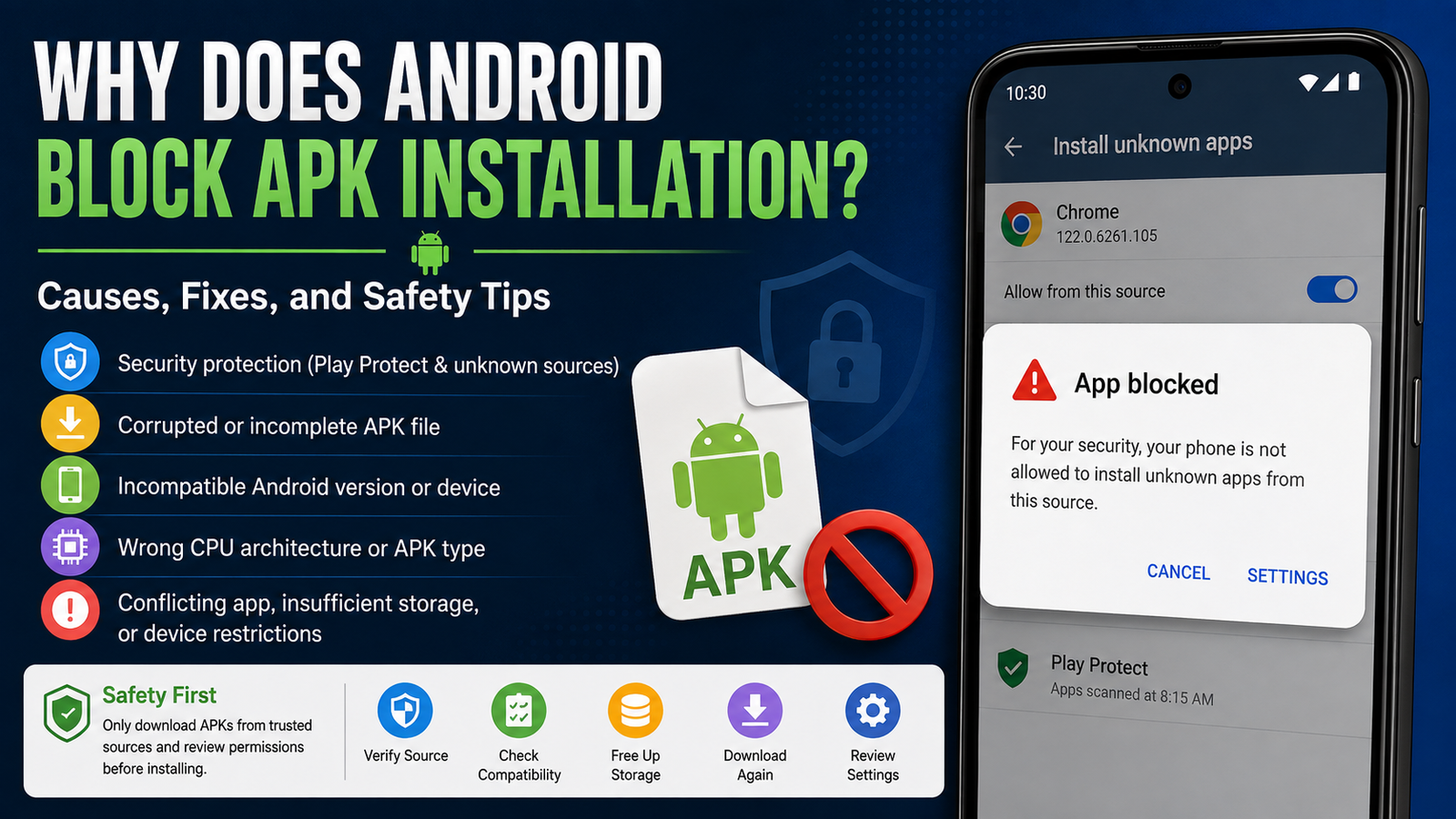
Installing an APK can be useful when an app is unavailable through Google Play or when you need to install an older version of an application. However, Android sometimes blocks the installation and displays messages such as “App not installed,” “For your security, your phone currently isn’t allowed to install unknown apps,” or “There was a problem parsing the package.”
If you are wondering Why Does Android Block APK Installation, the answer usually comes down to security settings, incompatible APK files, damaged downloads, missing permissions, or Android’s built-in protection features. Understanding the reason makes it much easier to fix the problem without putting your device or personal information at unnecessary risk.
This guide explains the most common causes of blocked APK installations and provides practical solutions you can try on modern Android phones.
Why Does Android Block APK Installation?
Android is designed to prevent applications from being installed without the user’s knowledge or permission. APK files downloaded outside an official app store are treated differently from apps installed through Google Play.
The exact reason for a blocked installation depends on your Android version, device manufacturer, security settings, and the APK itself.
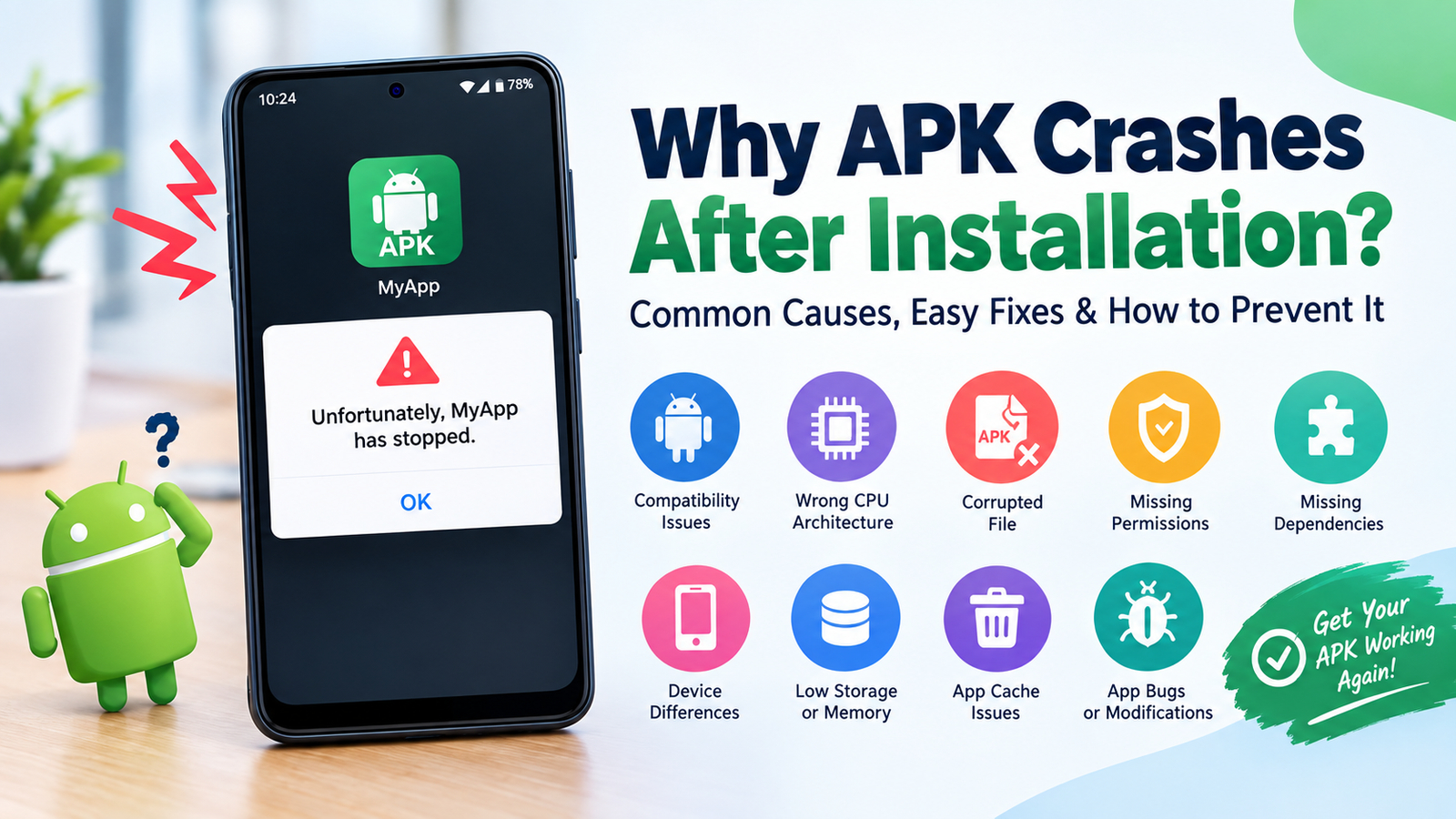
The most common causes include:
- Installation from unknown sources is disabled.
- The APK is incompatible with your Android version.
- The downloaded file is incomplete or corrupted.
- The APK requires a different CPU architecture.
- Google Play Protect has detected a potential security risk.
- An existing version of the app conflicts with the APK.
- The APK is actually part of a split-app package.
- Device management or parental restrictions prevent installation.
- The app requires permissions or features unavailable on your device.
Knowing which situation applies to your phone is the first step toward solving the problem.
Android Blocks APKs From Unknown Sources
One of the most common reasons an APK cannot be installed is that Android does not allow the particular app you used to open the APK to install unknown applications.
Older Android versions generally had a system-wide “Unknown sources” setting. Newer versions use a more specific permission system.
For example, if you downloaded an APK using a web browser, Android may require you to give that browser permission to install unknown apps.
How to Allow APK Installation
The wording varies between manufacturers, but the process is generally similar:
- Open Settings.
- Go to Apps or Security.
- Look for Special app access.
- Select Install unknown apps.
- Choose the browser or file manager you used to open the APK.
- Enable the option that allows installation from that source.
- Return to the APK and try again.
Only enable this permission for sources you trust. Once you have finished installing the file, you can disable the permission again for an additional layer of protection.
Google Play Protect May Block the APK
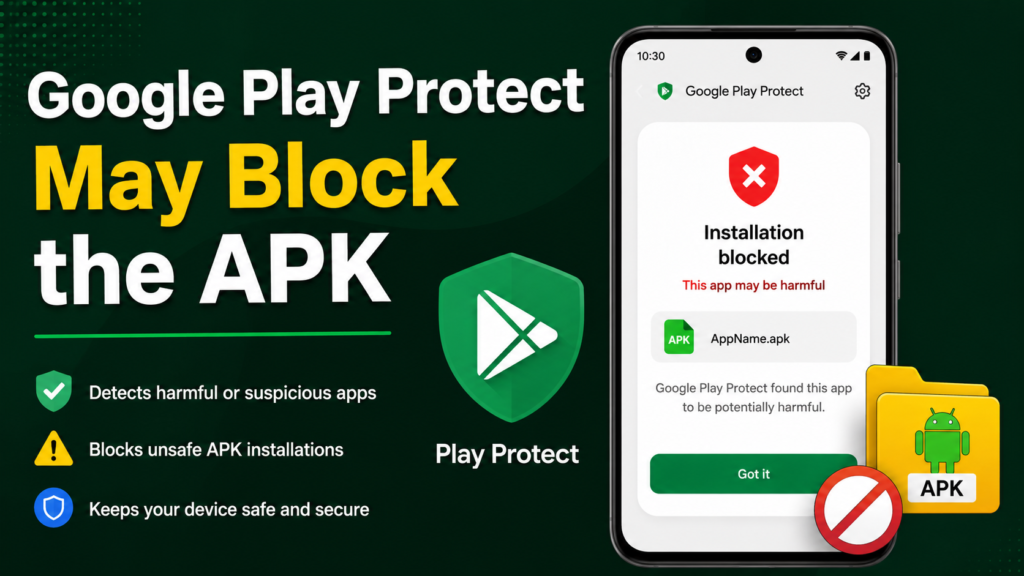
Google Play Protect continuously checks Android applications for potentially harmful behavior. It can warn you about an APK or prevent installation when an application appears suspicious.
This is an important security feature because APK files obtained from unofficial sources have not necessarily gone through the same distribution process as apps delivered through Google Play.
A warning does not automatically prove that every blocked APK is malicious. However, it is a reason to stop and investigate before continuing.
If Play Protect identifies an APK as potentially harmful, consider:
- Checking where the APK came from.
- Confirming that the developer is legitimate.
- Comparing the app’s version with an official release.
- Scanning the file with reputable security software.
- Looking for signs that the APK has been modified.
- Avoiding files that request unusually sensitive permissions.
If the source is questionable, finding an official version is usually safer than bypassing the warning.
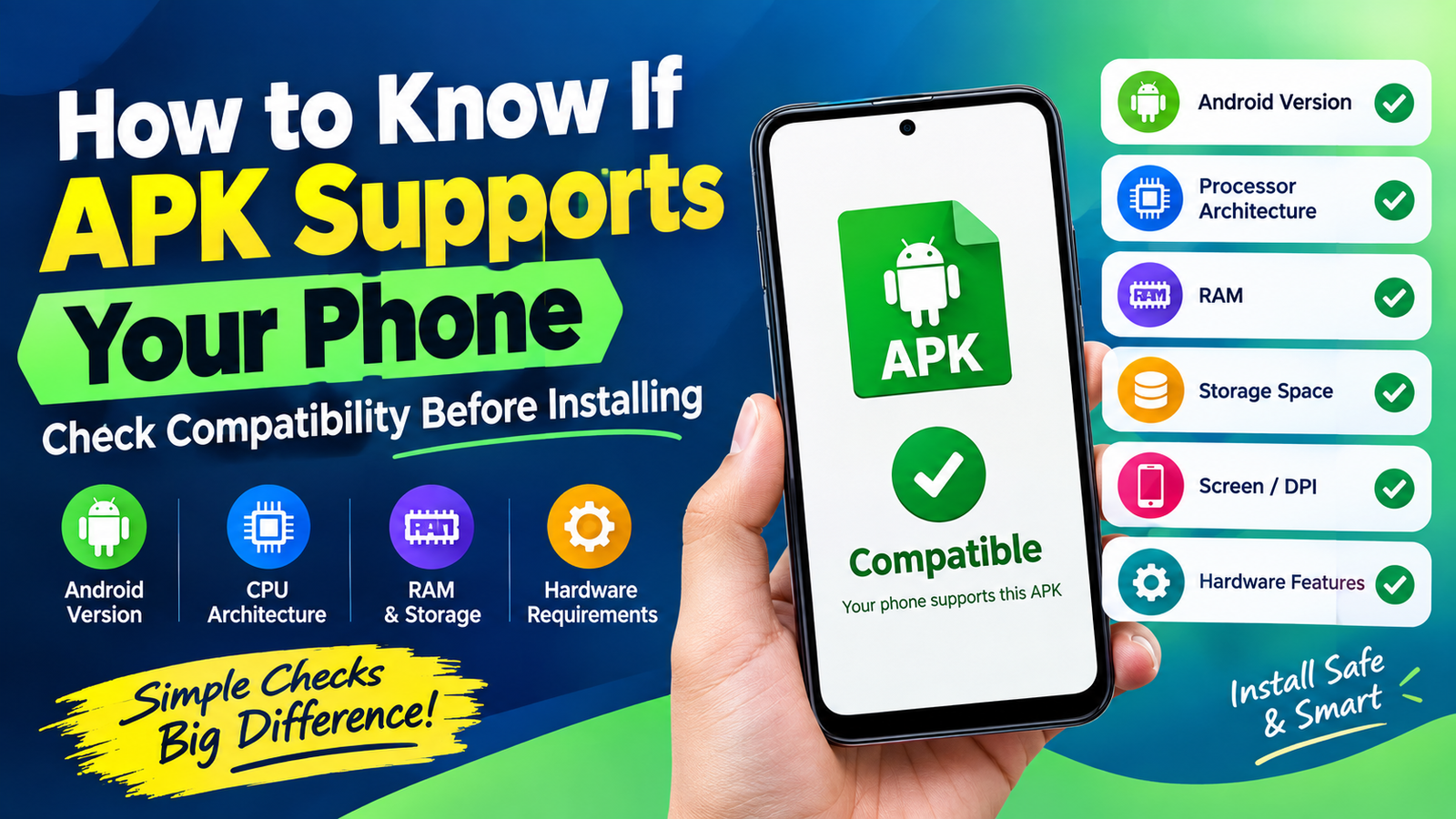
The APK May Be Incompatible With Your Android Version
Another common reason for installation failure is compatibility.
Every Android application has requirements defined by its developer. An APK designed for an older or newer Android environment may not work correctly on your device.
Compatibility problems can occur when:
- The app requires a newer Android version.
- The APK was designed for an older Android release.
- Your device does not support a required Android feature.
- The application was built for a different hardware configuration.
- The developer has stopped supporting your Android version.
An error such as “App not installed” does not always clearly explain the compatibility issue, which can make this problem confusing.
Before downloading an APK, check its minimum Android requirement and make sure your phone meets it.
The APK File Could Be Corrupted
Sometimes the problem has nothing to do with Android settings. The APK itself may simply be damaged.
A download can become incomplete because of an unstable internet connection, interrupted transfer, insufficient storage, or a problem with the hosting server.
A corrupted APK may produce errors including:
- “There was a problem parsing the package.”
- “App not installed.”
- Installation stops before completion.
- The APK cannot be opened at all.
The simplest solution is to delete the problematic file and download a fresh copy from a reputable source.
Avoid repeatedly attempting to install a file that consistently fails verification or appears unusually large or small compared with the developer’s expected release.
The APK Uses the Wrong CPU Architecture
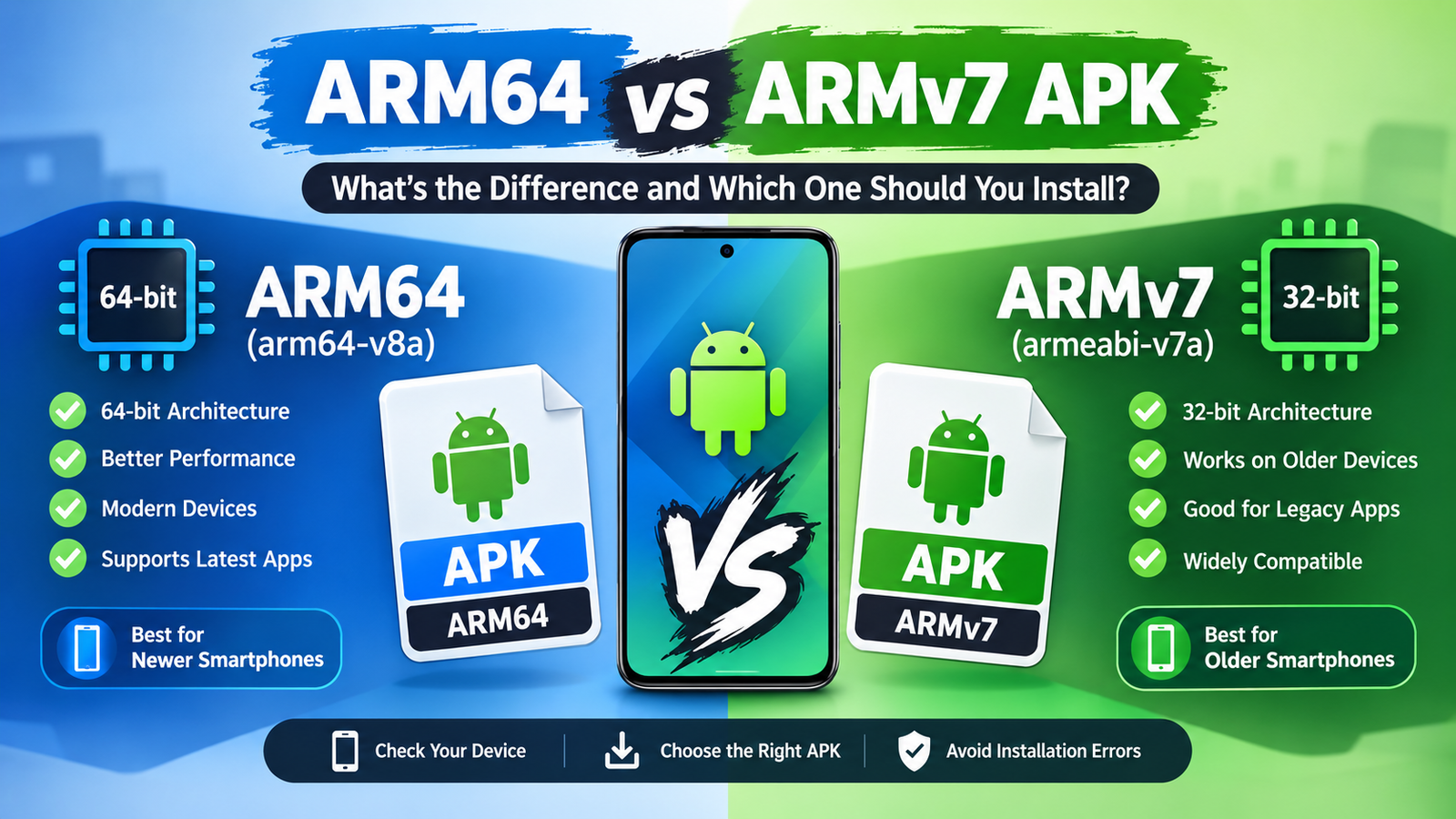
Android devices use different processor architectures, and applications may contain native code compiled for specific architectures.
Common Android architectures include:
| Architecture | Typical Use |
|---|---|
| ARM64 | Most modern Android smartphones |
| ARM32 | Older or lower-end devices |
| x86 | Some older Android devices and specialized hardware |
| x86_64 | Certain newer devices and emulators |
If an APK does not contain compatible native components for your device, installation or app execution may fail.
This is particularly relevant when downloading specialized applications, older releases, or APK variants intended for specific hardware.
When multiple versions are available, choose the variant that matches your device rather than selecting a random APK.
An Existing App Can Cause a Conflict
Android may also reject an APK when another version of the same application is already installed.
For example, suppose your phone contains an app signed by the original developer, but the APK you are trying to install was signed differently. Android may treat the two packages as incompatible.
This can happen with:
- Modified versions of existing applications.
- Different releases signed with different keys.
- Beta and stable versions.
- Apps restored from another device.
- APKs from unofficial sources.
If you are replacing an existing app, check whether the new APK is intended as an update.
Important: Uninstalling an existing application can remove its local data. Back up important information before removing an app.
You May Be Trying to Install a Split APK Incorrectly
Not every application is distributed as one standalone APK.
Some Android apps are delivered as multiple components, such as a base package plus architecture, language, or screen-density resources. These are often associated with formats such as APK bundles or split APK packages.
If you download only one component instead of the complete package, Android may not install it normally.
This explains why an APK file can appear perfectly normal but still fail during installation.
If the application is distributed as multiple APK components, use a reputable installation method that supports the package format rather than treating one component as a complete application.
Your Phone May Have Security or Management Restrictions
Some devices have additional controls that prevent APK installation.
This is especially common on:
- Company-managed phones.
- School-managed devices.
- Child or supervised devices.
- Devices with enterprise management software.
- Phones with manufacturer-specific security restrictions.
In these situations, changing the normal APK permission may not be enough.
If the phone belongs to an organization, its administrator may have deliberately disabled installation from unknown sources. Trying to bypass those restrictions may violate the organization’s security policies.
Android Storage Problems Can Stop Installation
Insufficient storage is another easily overlooked cause.
Even if an APK is relatively small, Android may need additional temporary space while installing and extracting application files.
Check your available storage before trying again.
You can free space by removing:
- Unused applications.
- Large videos.
- Duplicate photos.
- Old downloads.
- Unnecessary cached files.
- Files you have already backed up.
After freeing some space, restart the phone and attempt the installation again.
The APK May Require a Different App Format
Android applications can be distributed through different packaging systems. A file with an APK extension is not necessarily interchangeable with every other Android application package.
For example, some downloads may be associated with bundles or split packages rather than a single universal APK.
Before installation, check exactly what you downloaded. If the package contains several related files, installing one file by itself may not work.
This is one reason downloading directly from a developer or trusted distribution platform is preferable to downloading an unfamiliar package from a random website.
How to Fix a Blocked APK Installation
If Android refuses to install an APK, work through the following checklist rather than changing multiple settings at once.
1. Check the Installation Permission
Make sure the browser or file manager opening the APK has permission to install unknown apps.
2. Confirm Android Compatibility
Check the APK’s minimum Android version and compare it with your device.
3. Download the File Again
A fresh download can resolve errors caused by incomplete or corrupted files.
4. Check Available Storage
Free additional storage if your phone is nearly full.
5. Verify the APK Source
Avoid files from suspicious websites, misleading advertisements, or unknown uploaders.
6. Check for an Existing Version
If the same app is already installed, determine whether the APK is compatible with that installation.
7. Restart Your Device
A simple restart can sometimes clear temporary installation or package-manager problems.
8. Review Security Warnings
If Play Protect or another security system warns about the application, investigate the warning instead of immediately bypassing it.
Is It Safe to Install APK Files?
APK installation itself is a normal Android feature, but the source of the APK matters.
Google Play and other reputable distribution channels provide additional safeguards that may not exist when downloading a file from an unknown website.
Before installing an APK, consider these safety checks:
- Download from a trustworthy source.
- Verify the developer and application name.
- Check whether the version appears legitimate.
- Avoid modified applications when you do not trust the publisher.
- Review requested permissions.
- Keep Android and security updates current.
- Scan suspicious files with reputable security tools.
- Do not disable important security protections simply to force an installation.
An APK that requires excessive permissions should receive extra scrutiny. A basic utility, for example, may not reasonably need access to contacts, SMS messages, microphones, or other sensitive information.
Why Android Security Is Important for APK Installation
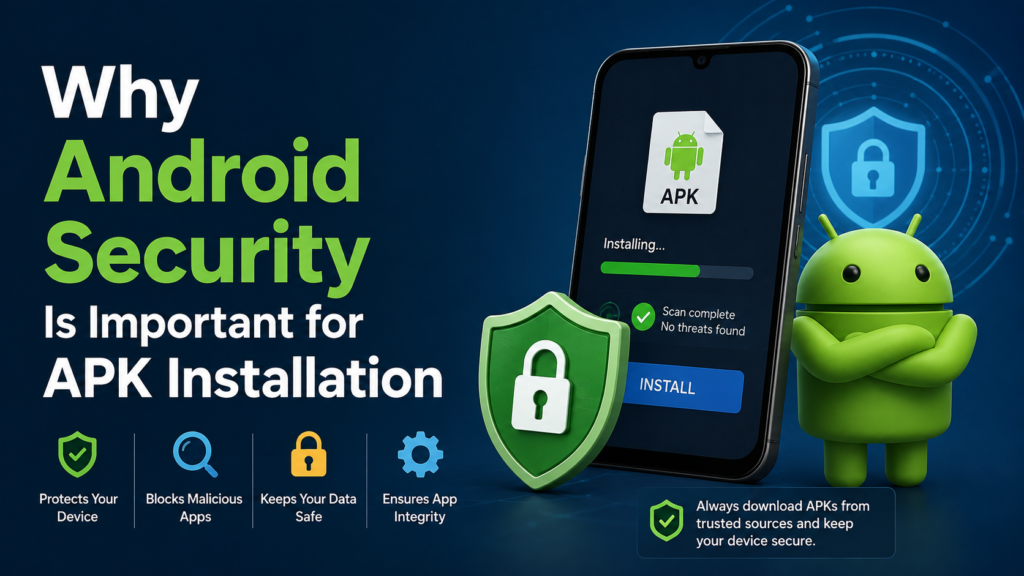
Android blocks certain installations because unrestricted application installation could create serious security risks.
An APK can potentially contain software that:
- Steals personal information.
- Displays unwanted advertisements.
- Tracks activity.
- Attempts to access sensitive files.
- Installs additional unwanted components.
- Performs actions without the user’s knowledge.
This is why Android uses several layers of protection rather than treating every APK as automatically safe.
The goal is not simply to prevent users from installing applications. Instead, the system tries to give users more control over where applications come from and whether they appear trustworthy.
Frequently Asked Questions
Why does Android say it cannot install an APK?
The most common causes include disabled installation permissions, an incompatible Android version, corrupted files, insufficient storage, conflicting app signatures, or security restrictions.
How do I allow APK installation on Android?
Open Android Settings and find the Install unknown apps section under app or security settings. Select the application you are using to open the APK and enable the relevant permission.
Why does my APK say “App not installed”?
This message can have several causes. Check the APK’s compatibility, storage requirements, package type, existing app installation, and whether the file was downloaded correctly.
Can Google Play Protect block an APK?
Yes. Play Protect can warn about or prevent installation of applications that it considers potentially harmful. If you receive a warning, verify the APK and its source before proceeding.
Why won’t an APK install even when unknown sources are allowed?
Allowing installation from unknown sources only removes one possible restriction. The APK can still fail because it is incompatible, corrupted, incorrectly packaged, conflicting with an existing application, or blocked by another device-level security policy.
Should I disable Android security to install an APK?
Generally, no. Disabling security features just to force an installation can increase your risk. It is better to identify the specific reason for the block and use a legitimate, compatible APK from a trustworthy source.
Final Thoughts
If you have been asking Why Does Android Block APK Installation, there is rarely just one answer. Android can prevent an APK from installing because of security permissions, compatibility problems, damaged downloads, storage limitations, package conflicts, or device-management restrictions.
Also Raed: How to Check APK File Integrity: A Complete Guide for Android Users











1 comment