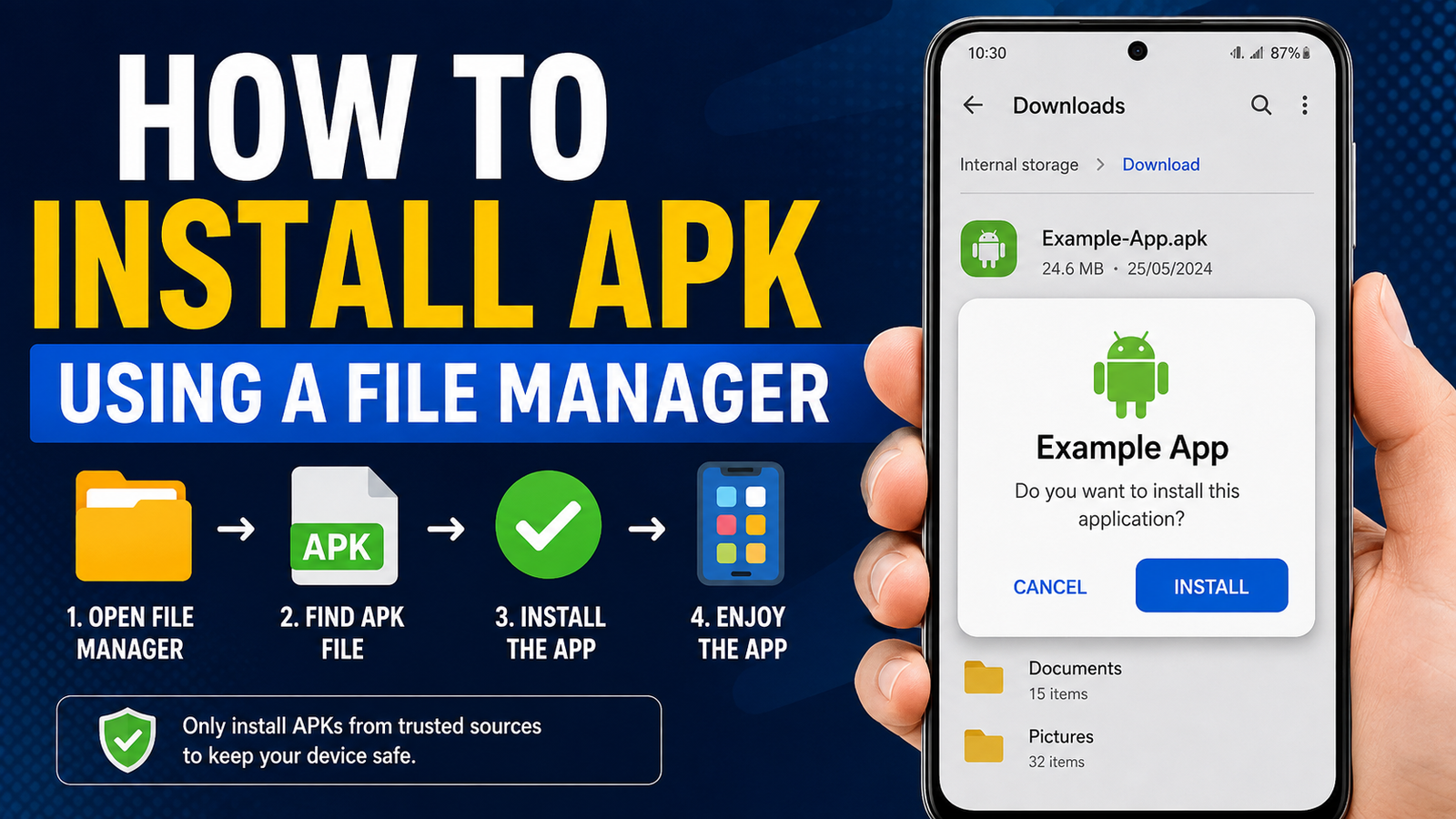
How to Install APK Using a File Manager: on Android (Step-by-Step Guide)
Installing an Android app does not always require the Google Play Store. If you have downloaded an APK file from a website, received one from another device, or saved it in your phone’s storage, you can usually install it directly with a file manager.
For many Android users, the process is straightforward once they know where the APK is stored and which security setting needs to be enabled. However, newer versions of Android have introduced additional protections, so the exact steps can vary depending on your phone manufacturer and Android version.
In this guide, you’ll learn how to install APK using a file manager, where to find APK files, how to allow installations from unknown sources, what to do when the installation fails, and how to stay safe when installing apps manually.
What Is an APK File?
APK stands for Android Package Kit. It is the standard file format used to package and distribute Android applications.
When you install an app from the Google Play Store, Android handles the installation in the background. An APK lets you perform a similar installation manually.
An APK file can contain the components an application needs to run, including its code, resources, assets, and other information required by Android.
You might encounter APK files when:
- Downloading an app from an official developer website
- Installing an older version of an application
- Testing an app outside the Play Store
- Moving an application package between devices
- Installing an app that is unavailable in your region
- Using an APK archive or alternative app distribution service
Keep in mind that not every Android app download is a single APK. Some apps are distributed as split packages, XAPK, APKM, or APKS files, which may require a compatible installer rather than a basic file manager.
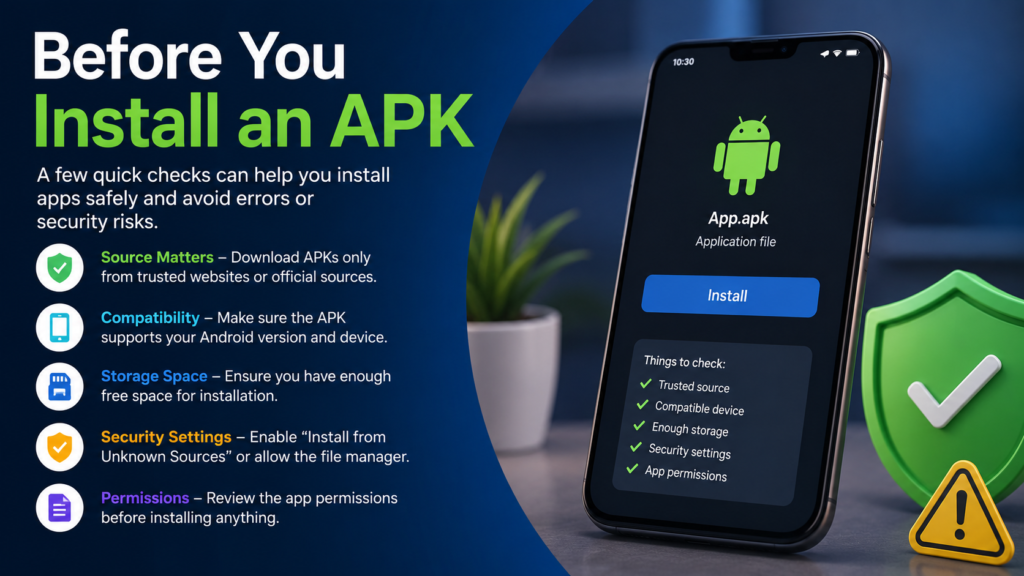
Before You Install an APK
Before learning how to install APK using a file manager, it is worth checking a few things.
First, make sure the APK came from a source you trust. Manually installing an application bypasses the normal Play Store installation process, so you should pay attention to where the file came from.
It is also a good idea to check the following:
- Your phone has enough free storage.
- The APK is compatible with your Android version.
- You downloaded the correct version for your device.
- The file has finished downloading completely.
- Your phone’s security features are enabled.
- You understand what permissions the application requests.
If an APK asks for unusually broad permissions that do not make sense for its purpose, consider that a warning sign.
How to Install APK Using a File Manager
The basic installation process is similar on most Android phones. Your menus may look slightly different depending on whether you use Samsung, Xiaomi, Google Pixel, OnePlus, Motorola, or another Android device.
Step 1: Download the APK File
Start by downloading the APK to your Android phone.
If you download it through a web browser, the file will normally be placed in the Downloads folder. Some browsers may use a different storage location, but Downloads is the first place you should check.
Make sure the download has completed before trying to install it.
Step 2: Open Your File Manager
Open the file manager installed on your phone.
Depending on your device, it might be called:
- Files
- My Files
- File Manager
- Files by Google
- File Explorer
If you cannot find it immediately, search for “Files” in your app drawer.
A file manager allows you to browse folders and access files stored on your phone. It is also the easiest way to locate an APK you have downloaded.
Step 3: Open the Downloads Folder
Inside the file manager, look for the Downloads folder.
Tap it to view the files saved there.
Your APK may have a filename similar to:
example-app.apk
If you downloaded several APKs, check the filename carefully before opening one. Installing the wrong file can result in an error or an application that does not work correctly.
Step 4: Tap the APK File
Once you locate the APK, tap it.
Android should recognize the file as an application package and display an installation screen.
You may see information about the app and an option such as Install.
If Android blocks the installation, don’t panic. This usually means the file manager or another source has not yet been granted permission to install apps.
Step 5: Allow the File Manager to Install Unknown Apps
Modern Android versions generally control APK installations on a per-source basis.
Instead of simply switching on one universal “Unknown Sources” option, Android may ask you to allow the particular app that opened the APK to install unknown applications.
For example, if you opened the APK through your file manager, you may need to give that file manager permission.
The process can look similar to:
Settings → Apps → Special app access → Install unknown apps
Select the file manager and enable the option that allows installations from that source.
The exact menu names can differ between Android versions and manufacturers.
Once the permission is enabled, return to the APK and tap it again.
Step 6: Confirm the Installation
Android should now display the installation prompt.
Review the information shown on the screen and select Install if you trust the APK and want to continue.
The installation may take a few seconds.
When it finishes, you may see options such as:
- Open
- Done
Tap Open to launch the application immediately, or choose Done to return to your files.
Quick Overview of the APK Installation Process
| Step | What to Do | Important Point |
|---|---|---|
| 1 | Download the APK | Use a trustworthy source |
| 2 | Open the file manager | Find your device’s file app |
| 3 | Go to Downloads | Look for the .apk file |
| 4 | Tap the APK | Android starts the installation process |
| 5 | Allow unknown app installations | Give permission to the specific source if requested |
| 6 | Tap Install | Confirm the installation |
| 7 | Open the app | Launch it after installation |
Why Android Blocks APK Installation
Android restricts installations from unknown sources primarily as a security measure.
An application installed manually does not necessarily come through the same distribution process as an app downloaded from the Google Play Store. That means users need to take greater responsibility for checking the origin of the file.
If Android displays a warning, read it rather than automatically dismissing it.
You should be especially cautious when an APK:
- Comes from an unknown website
- Was sent to you unexpectedly
- Requests unusual permissions
- Has been modified without a clear reason
- Uses a suspicious filename
- Claims to unlock paid features illegally
- Attempts to disable security protections
Google Play Protect can also scan applications and may warn you if it identifies a potential security issue.
What to Do If the APK Won’t Install
Sometimes the installation process fails even when you followed every step correctly. Several common problems can cause this.
Incompatible Android Version
An APK may require a newer or older Android version than the one installed on your phone.
Check the application’s compatibility information and compare it with your device.
Corrupted Download
If the APK did not download correctly, Android may refuse to install it.
Try downloading the file again from a reliable source. Avoid repeatedly attempting to install a file that appears incomplete or damaged.
Not Enough Storage
Android needs sufficient free storage to install an application.
If your phone is almost full, remove unnecessary files or apps and try again.
Wrong APK Architecture
Some applications are built for particular processor architectures. Installing an incompatible package can result in an error.
This is one reason it is better to download an APK specifically intended for your device whenever the source provides different versions.
Existing App Conflict
If an application is already installed, the new APK may conflict with the existing version.
For example, an APK signed differently from the installed application may not be accepted as an update.
If you are replacing an existing app, be careful about uninstalling it because doing so can remove its locally stored data.
What Does “App Not Installed” Mean?
One of the most common messages users see is “App not installed.”
Unfortunately, this message does not identify one single problem.
It can be caused by:
- An incompatible APK
- A corrupted file
- Insufficient storage
- A signature conflict
- An incompatible Android version
- A duplicate package
- An APK that is actually part of a split package
- Device or security restrictions
If a basic APK repeatedly produces this error, verify that you downloaded the correct file rather than assuming the file manager is the problem.
Can You Install APK Files Without a File Manager?
Yes. A file manager is simply one convenient method.
You can sometimes start an APK installation directly from your browser after downloading the file. You can also use other compatible applications designed to install Android packages.
However, a file manager is useful because it gives you direct control over where the APK is stored and makes it easier to manage downloaded files.
For beginners, the file-manager method is often one of the easiest ways to understand what is happening during a manual installation.
APK vs XAPK, APKM, and APKS
It is important to understand that the .apk extension does not represent every Android package format.
A standard APK can often be opened directly through a file manager. Other formats may contain multiple components.
| File Format | What It Generally Contains | Basic File Manager Installation |
| APK | A standard Android package | Usually possible |
| XAPK | APK plus additional app data or packages | Usually needs a compatible installer |
| APKM | A package format associated with split APK distribution | Usually needs a compatible installer |
| APKS | A collection of split APK files | Usually needs a compatible installer |
If you tap an XAPK, APKM, or APKS file and Android does not offer a normal installation option, that does not necessarily mean the file is broken. The format may require an application capable of handling split packages.
How to Stay Safe When Installing APKs
Knowing how to install APK using a file manager is only half of the process. Knowing which APK to install is just as important.
Manual app installation can be useful, but it should be approached carefully.
Download From Trusted Sources
Whenever possible, obtain the APK directly from the app developer or a reputable distribution platform.
Avoid random download pages that use misleading buttons, aggressive pop-ups, or suspicious redirects.
Check the App Name and Developer
Before installation, verify that the application is actually the one you intended to download.
A convincing-looking filename does not guarantee that the file is legitimate.
Don’t Disable Security Features Unnecessarily
If your device warns you about an APK, take the warning seriously.
Avoid instructions that tell you to permanently disable Android’s security protections simply to make an application install.
Review Permissions
After installation, review the application’s permissions.
A simple utility that requests access to unrelated sensitive information deserves extra scrutiny.
Keep Android Updated
Security updates help protect your device against known vulnerabilities. Keeping Android and your important applications updated is one of the simplest ways to improve device security.
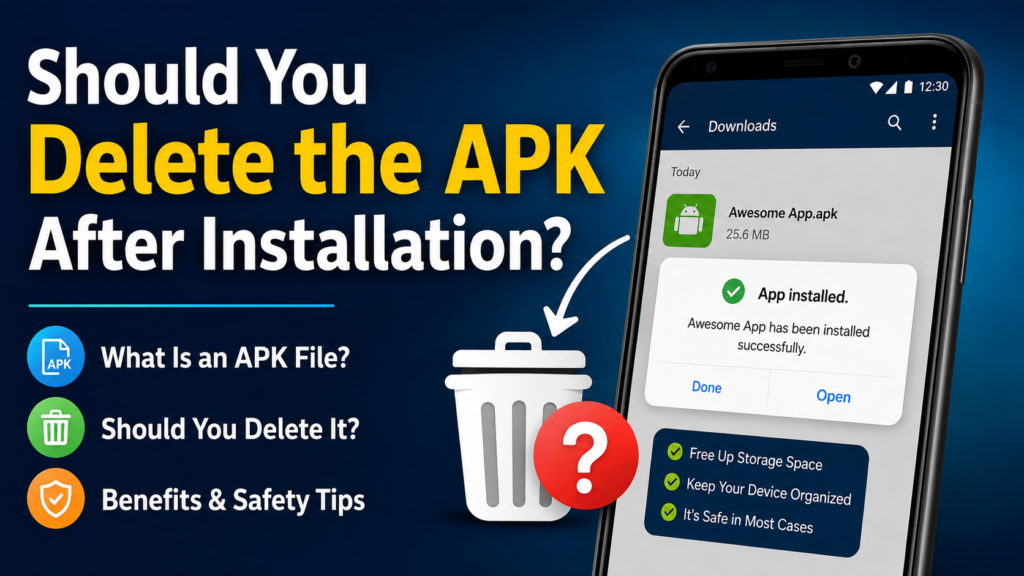
Should You Delete the APK After Installation?
In most cases, you can delete the APK after successfully installing the application.
The APK is an installation package, not usually the file Android needs every time you open the app.
Deleting it can also free up storage space, especially if the APK is large.
However, you may want to keep a copy if you intentionally downloaded a particular version and expect to need it again later.
If you do keep old APKs, store them somewhere organized and clearly label them so you know what each file contains.
Frequently Asked Questions
Can I install an APK directly from a file manager?
Yes. On many Android devices, you can open a standard APK through a file manager and start the installation process. You may first need to allow the file manager to install unknown applications.
Why can’t I find my downloaded APK?
Most downloaded APK files are saved in the Downloads folder, but the exact location can vary depending on your browser and device. Use your file manager’s search function and look for files ending in .apk.
Is it safe to install APK files?
An APK itself is simply an Android application package, but its safety depends on the application and where the file came from. Downloading from trustworthy sources and checking the app before installation can reduce the risk.
Why does Android say “App not installed”?
The message can have several causes, including an incompatible Android version, corrupted APK, insufficient storage, signature conflict, or an incompatible package. Checking the APK’s compatibility is a good first step.
Can I install XAPK or APKS with a normal file manager?
Usually, these formats contain multiple packages or additional components and may not install by simply tapping the file. A compatible package installer may be required.
Should I delete the APK after installing the app?
You can normally delete the APK once the application has been installed successfully. Keeping it is optional unless you want the installation package for later use.
Final Thoughts
Learning how to install APK using a file manager is useful for Android users who occasionally need to install applications outside the Google Play Store. The process is generally simple: download a compatible APK, locate it in your file manager, allow the appropriate installation permission if Android requests it, and confirm the installation.
The more important part is making sure the APK itself is trustworthy. A file manager can help you install an application, but it cannot guarantee that the application is safe.
Also Read: Why Does Android Block APK Installation: Common Reasons and Easy Fixes














1 comment