How to Fix “App Not Installed” APK Error: 12 Easy Solutions That Work
Installing an Android app through an APK file can be convenient, especially when an app is unavailable on your device’s official app store. However, the process does not always go smoothly. One of the most frustrating messages Android users encounter is “App Not Installed” or “App not installed.”
The error can appear immediately after tapping an APK file, or after the installation process seems to complete. In most cases, it does not mean that your phone is broken. The problem is usually related to the APK itself, Android compatibility, existing versions of the app, storage space, permissions, or the way the package was built.
The good news is that the How to Fix “App Not Installed” APK Error can often be fixed with a few simple checks. This guide explains the most common causes and walks you through practical solutions without unnecessary technical steps.
Why Does Android Show the “App Not Installed” Error?
Android can reject an APK for several reasons. Unlike installing an app from an official store, manually installing an APK requires the package to meet your device’s compatibility and security requirements.
Some common causes include:
- The APK is incompatible with your Android version.
- The APK uses an unsupported CPU architecture.
- Another version of the same app is already installed.
- The APK file is damaged or incomplete.
- Your device does not have enough free storage.
- Installation from the current source is blocked.
- The APK is actually a split package such as APKS, APKM, or XAPK.
- The package has a conflicting signature.
- The app requires a newer Android version.
- A modified APK has been incorrectly packaged or signed.
Identifying the cause is important because the right solution depends on what is preventing Android from installing the package.
1. Check Whether Your Phone Supports the APK
Compatibility is one of the first things you should check.
Android apps can be built for different Android versions and processor architectures. An APK designed for a newer Android release may not work on an older phone. Similarly, an APK built only for a particular CPU architecture may fail on a device using a different architecture.
Before trying complicated solutions, check:
- Your Android version.
- Your device’s processor architecture.
- The APK’s minimum Android requirement.
- Whether the APK is intended for your device model.
If the APK requires Android 13 and your phone is running Android 11, for example, installing an incompatible build may not work.
When possible, download an APK version specifically designed for your Android version and hardware.
2. Make Sure You Have Enough Storage Space
A lack of storage is another possible reason an APK installation fails.
An APK may look small when downloaded, but Android may need additional temporary space while installing and extracting its contents. If your internal storage is nearly full, the installation can fail.
Go to your phone’s storage settings and check how much free space remains.
You can free up space by removing:
- Unused applications
- Large videos
- Old downloads
- Duplicate photos
- Cached files
- Unnecessary documents
After freeing up some storage, restart the installation process.
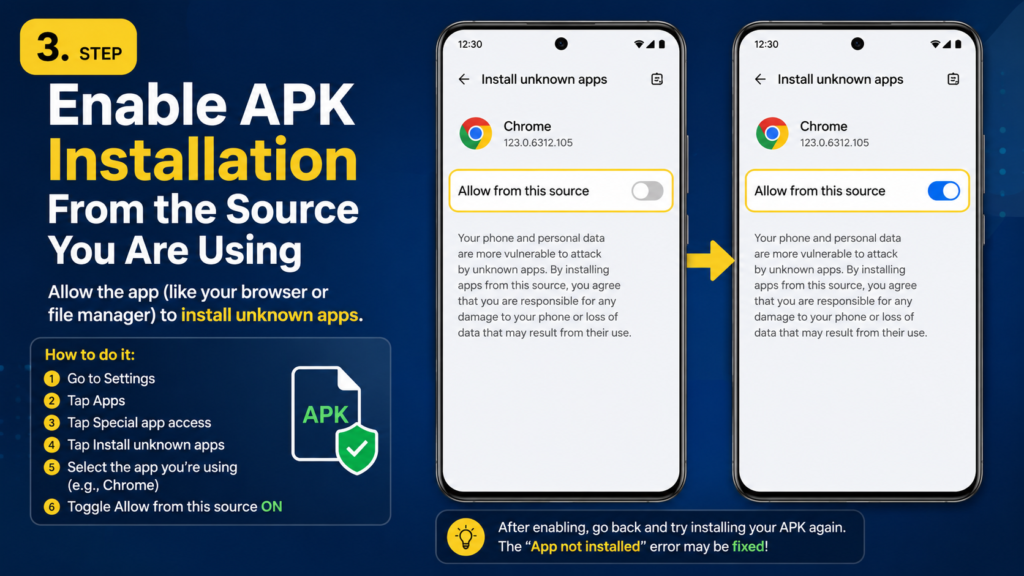
3. Enable APK Installation From the Source You Are Using
Modern Android versions generally do not have one universal “Unknown Sources” switch. Instead, permission is usually granted to the specific application that is opening the APK.
For example, if you downloaded the APK using a browser, Android may require you to allow that browser to install unknown apps.
Look for a setting similar to:
Settings → Apps → Special app access → Install unknown apps
Then select the browser or file manager you are using and enable the appropriate permission.
The exact menu can vary between Samsung, Xiaomi, Google Pixel, OnePlus, and other Android devices.
After enabling the permission, try opening the APK again.
4. Uninstall the Existing Version of the App
A very common cause of installation failure is an existing version of the same application.
This can happen when you attempt to install an APK over an app that was originally installed from another source. Android may detect a signature mismatch and refuse the new package.
For example, you might already have the official version installed and then try to install a modified or differently signed APK.
If you do not need the existing installation, uninstall it first and then install the new APK.
Important: Uninstalling an app can remove its locally stored data. If the application contains important information, create a backup before removing it.
5. Download the APK Again
Sometimes the simplest solution is also the most effective.
If the APK download was interrupted or the file became corrupted, Android may be unable to read or install it properly.
Delete the existing APK and download a fresh copy from a trustworthy source.
Be particularly careful if:
- The download stopped unexpectedly.
- The file size seems unusually small.
- Your browser reported a failed download.
- The APK came from an unreliable website.
- The file was transferred between devices incorrectly.
Avoid repeatedly installing a file that may be damaged. A clean download can save a lot of troubleshooting time.
6. Check Whether You Downloaded an APK or a Split Package
Not every Android application is distributed as a single APK.
You may encounter formats such as:
| File Format | What It Usually Contains | Typical Installation Method |
|---|---|---|
| APK | A standard Android package | Android package installer |
| XAPK | APK plus additional app data or packages | Compatible installer |
| APKS | A set of split APKs | Split APK installer |
| APKM | A package containing split APK components | Compatible installer |
This distinction matters.
If an app is distributed as APKS, APKM, or XAPK, simply tapping the file may not work because Android’s standard package installer may expect a regular APK.
In that situation, you need an installation method that supports the specific package format.
Do not simply rename an APKS, APKM, or XAPK file to .apk. Changing the extension does not convert the package into a standard APK.
7. Check for Conflicting App Signatures
Android uses digital signatures to identify and protect application packages.
Suppose you have an app installed from one source and then try to install another version signed differently. Android may reject the installation rather than replace the existing application.
This commonly happens when switching between:
- Official and modified versions
- Different APK releases
- Test and stable builds
- Packages from different developers or distribution sources
If you receive an installation error after previously installing the same app, uninstalling the existing version can sometimes resolve the conflict.
Again, back up important app data before uninstalling anything.
8. Restart Your Android Device
It sounds basic, but restarting your phone is worth trying.
Temporary Android processes can occasionally interfere with installation. A restart clears some temporary system states and gives the package installer a fresh environment.
After restarting:
- Locate the APK again.
- Confirm that the file is complete.
- Make sure the required installation permission is enabled.
- Try installing it once more.
If the problem was caused by a temporary system issue, the installation may work normally afterward.
9. Clear the Package Installer or Related App Data
If APK installations repeatedly fail even with different files, the problem may involve the system’s package installation process.
Depending on your Android version and manufacturer, you may be able to clear the cache of the relevant system component or file manager.
The menu can differ significantly between devices, so avoid deleting system data unless you understand what the setting does.
A safer first step is usually to clear temporary cache data where the option is available, then restart the phone and test the APK again.
10. Check the APK’s Android Version Requirement
An APK may install successfully on one phone but fail on another because of different Android versions.
Developers can specify a minimum Android version that an application supports. If your device is below that requirement, Android may prevent installation.
Check the APK’s listed requirements before downloading it.
If your phone supports a newer Android version, updating the operating system may help. However, you should not assume that every old device can be made compatible simply through a software update.
If no compatible Android update is available, look for an older release of the application that supports your device.
11. Look for the Correct CPU Architecture
Android devices use different processor architectures, and APK developers may provide separate builds for them.
Common architecture labels include:
- ARM64
- ARM
- x86
- x86_64
Most modern Android phones use ARM-based processors, but compatibility still matters when downloading specialized APK builds.
If a website provides multiple versions, choose the one that matches your device.
Installing the wrong architecture can result in installation or compatibility problems.
12. Be Careful With Modified APKs
Modified APKs can introduce additional compatibility problems because they may have been altered, repackaged, or signed differently from the original application.
If a modified APK refuses to install, test whether the official version installs correctly. If the official package works but the modified package does not, the issue is likely related to the modified build rather than your phone.
There is also a security concern. APK files from unknown sources can contain unwanted or malicious software.
Before installing an APK, consider:
- Where the file came from.
- Whether the publisher is trustworthy.
- Whether the file matches the expected size and version.
- Whether Android displays a security warning.
- Whether the application requests unusual permissions.
Avoid disabling Android security protections simply to force an APK to install.
Quick Troubleshooting Checklist
If you want to troubleshoot the problem quickly, follow this order:
- Check your Android version.
- Confirm the APK supports your device.
- Make sure enough storage is available.
- Allow the app you’re using to install unknown apps.
- Uninstall a conflicting version of the application.
- Download the APK again from a trusted source.
- Confirm that the file is actually a standard APK.
- Use a compatible installer for APKS, APKM, or XAPK files.
- Restart your phone.
- Try another compatible version of the application.
Starting with the simplest checks is usually faster than changing advanced Android settings.
What If Nothing Fixes the “App Not Installed” Error?
If you have tried the solutions above and the APK still refuses to install, the package itself may be incompatible with your device.
At that point, test another version of the application rather than repeatedly installing the same file.
For example, if the newest APK requires a newer Android release, an older version may be a better match. Likewise, if the package is designed for a different processor architecture, finding the correct variant may solve the problem.
If multiple unrelated APKs also fail to install, the issue may be with your Android installation process rather than one particular file. In that case, check for system updates and consider contacting your device manufacturer’s support service before taking more drastic steps.
Is It Safe to Install APK Files?
Installing APK files is not automatically unsafe, but the source matters.
The biggest risk comes from downloading packages from unknown websites or installing modified applications without verifying their origin.
A safer approach is to use reputable sources and avoid files that:
- Ask you to disable security protections unnecessarily.
- Have suspicious names or unexpected extensions.
- Come with unknown companion applications.
- Request excessive permissions.
- Appear to be tampered with.
Android’s built-in security features can also warn you about potentially harmful applications. Treat unexpected warnings seriously rather than trying to bypass them.
Frequently Asked Questions
Why does my APK say “App Not Installed”?
The error can have several causes, including an incompatible Android version, incorrect CPU architecture, insufficient storage, a corrupted APK, an existing conflicting app, or an unsupported split-package format.
How do I fix an APK that won’t install?
Start by checking compatibility, storage, installation permissions, and whether another version of the same app is already installed. Then download the APK again and verify that it is a standard APK rather than APKS, APKM, or XAPK.
Why won’t an APK install even though I have enough storage?
Storage is only one possible requirement. The APK could be incompatible with your Android version or processor architecture, damaged, incorrectly signed, or conflicting with an existing installation.
Can I install APKS or XAPK like a normal APK?
Usually, no. APKS and XAPK packages can contain multiple components or additional data. They generally require an installation method that understands their package format.
Should I uninstall the old version before installing an APK?
If the new APK is signed differently from the installed version, uninstalling the existing app may resolve the conflict. However, make sure important app data is backed up first because uninstalling can remove locally stored information.
Is it safe to download APK files?
APK files can be safe when obtained from trustworthy sources, but unknown or modified packages can carry security risks. Always consider the source and take Android security warnings seriously.
Final Thoughts
The “App Not Installed” APK error can be annoying, but it is usually caused by a specific compatibility or installation issue rather than a serious problem with your phone.
Also Read: How to Install APK Using a File Manager: on Android (Step-by-Step Guide)














1 comment